
Components
Components are accessories designed with similar functionality to copilots but are designed to be add-ons for a product. While copilots and components are created the same way, they behave differently. Add-ons to your copilots typically do not stand alone, while copilots can stand alone and can contain several add-ons that are not automatically installed. With the implementation of components your team can have specialized copilots by its ability to add multiple accessories to your system.
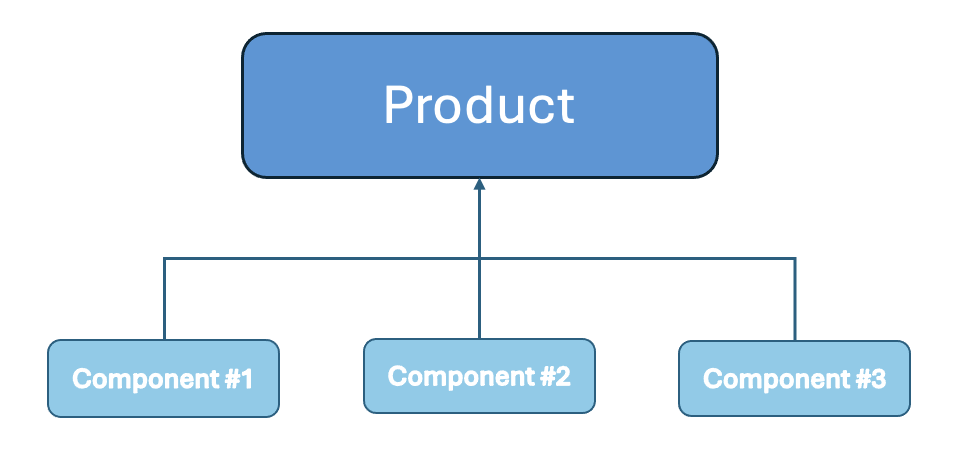
The component structure can be seen in the following schematic. As the schematic implies, copilots are the top-level unit while components are considered lower-level. Please note that variables, tasks, and resources all flow from lower levels to higher levels but not the other way around. To elaborate, when a component is connected to a product, all of the components content will flow up towards the product. This means that all tasks, variables, and resources will be available in the product. However, this does not occur the opposite way, meaning that tasks, variables, and resources found in the product will not show up in the component. The only exception is variables that are shared between all connected copilots and components.
Once components are attached to the product, you can ask questions to the product about its components. This reduces jumping from GPT to GPT to get an inquiry about an issue that pertains to both.
How To Create A Component
Creating a component is a very similar process to creating a product. In fact, they are identical except for components having the extra step of having to be connected to a product. As stated before, components and copilots differ as its utility is different because components are not designed to stand-alone and instead are intended to be add-ons to a product. Copilots, on the other hand, can stand alone and do not need components to function. Components are supplemental equipment meant to enhance the main product. This could include a multitude of things such as software, stands, grips, environmental chambers, etc.
To create a component follow these instructions
- Under the manage page, please go to the product page and select "+Add New" at the top right corner of the page. (Note: additions can be done by selecting the top option of the Product drop-down arrow.

- Enter its details including name, image, and any relevant aliases.
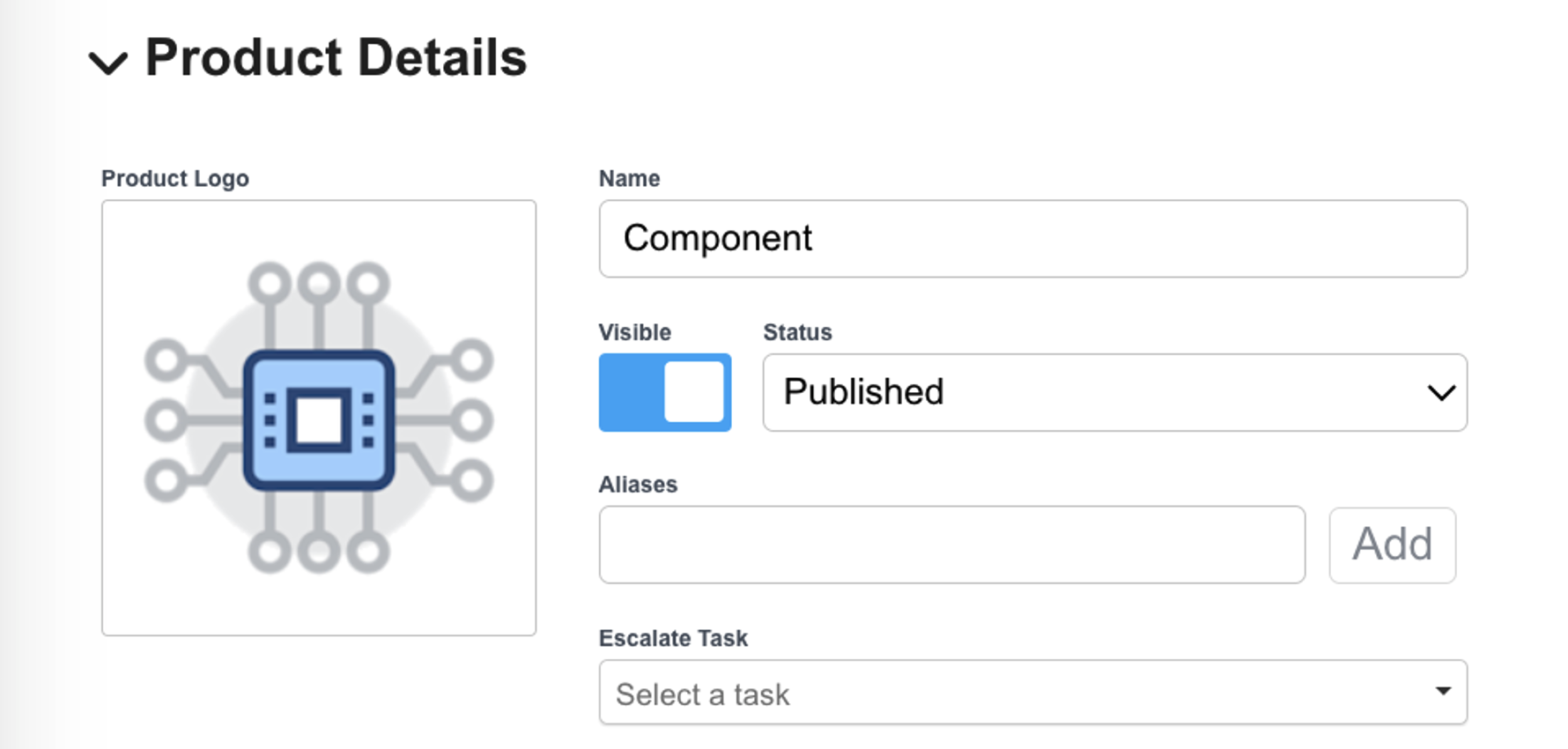
- Press Save at the top right corner to finish creating the component
How to Connect Components To Copilots
After creating the components, it is time to connect the component to the product. As seen in preceding sections, a product can be connected to multiple components that exists under them. Components can even have components attached to them.
To connect components to a product please follow these instructions:
- Select the product you want to add a component to and select "Edit" at the top right corner of the page
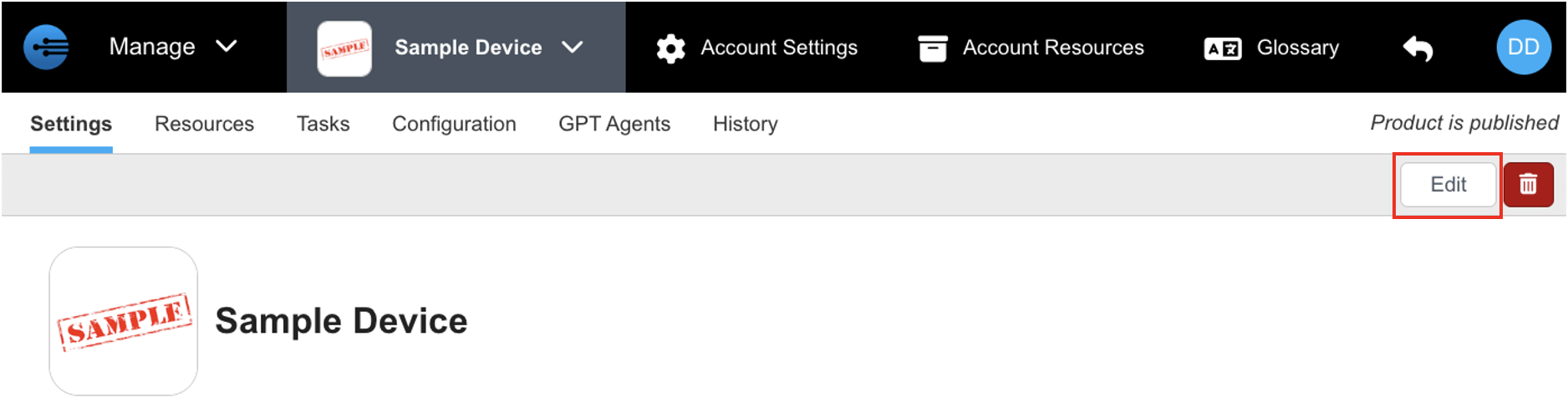
- Go to Component section and type/search for the desired component & click it to add
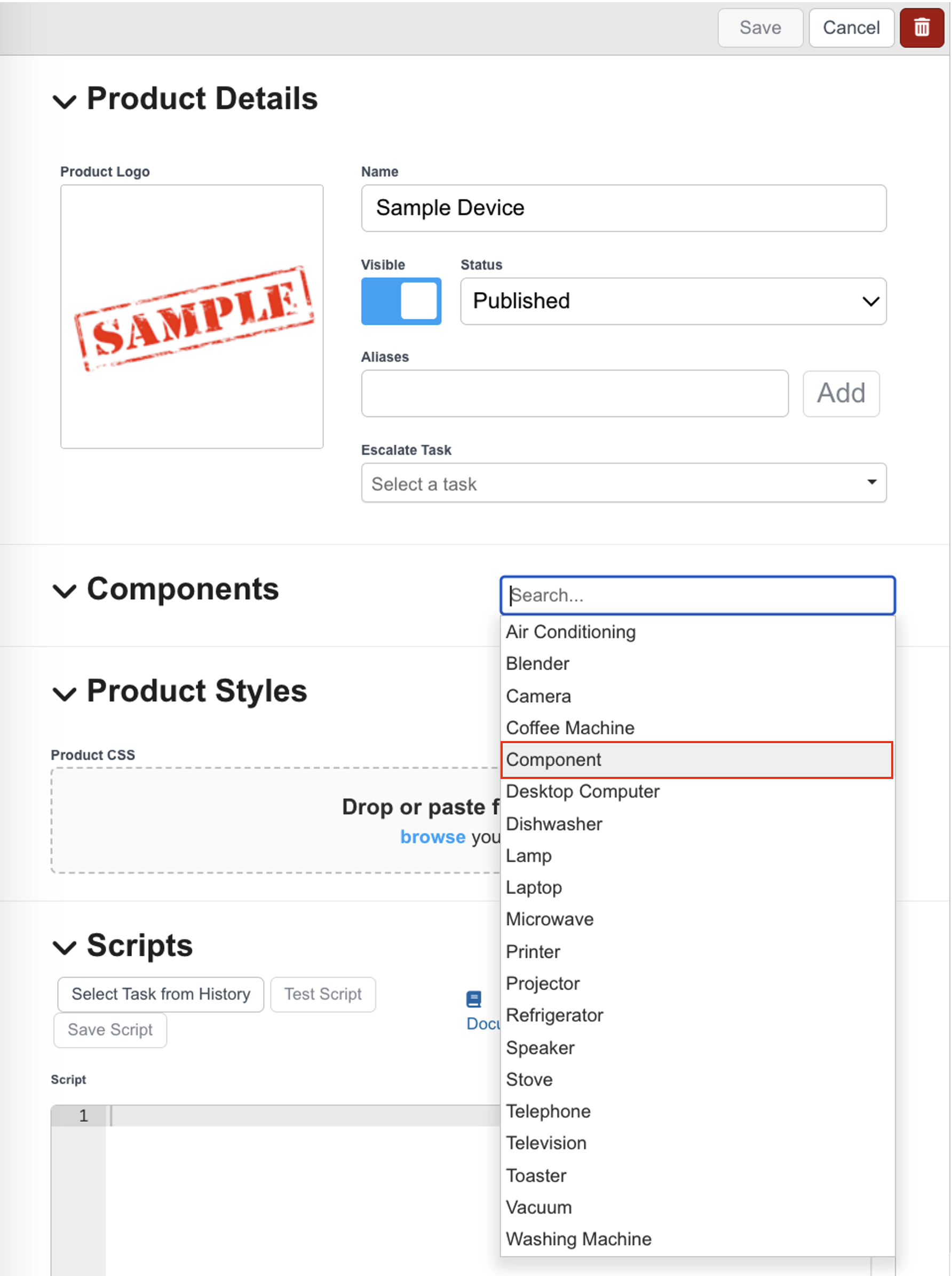
- Press "Save" at the top right corner to confirm adding components

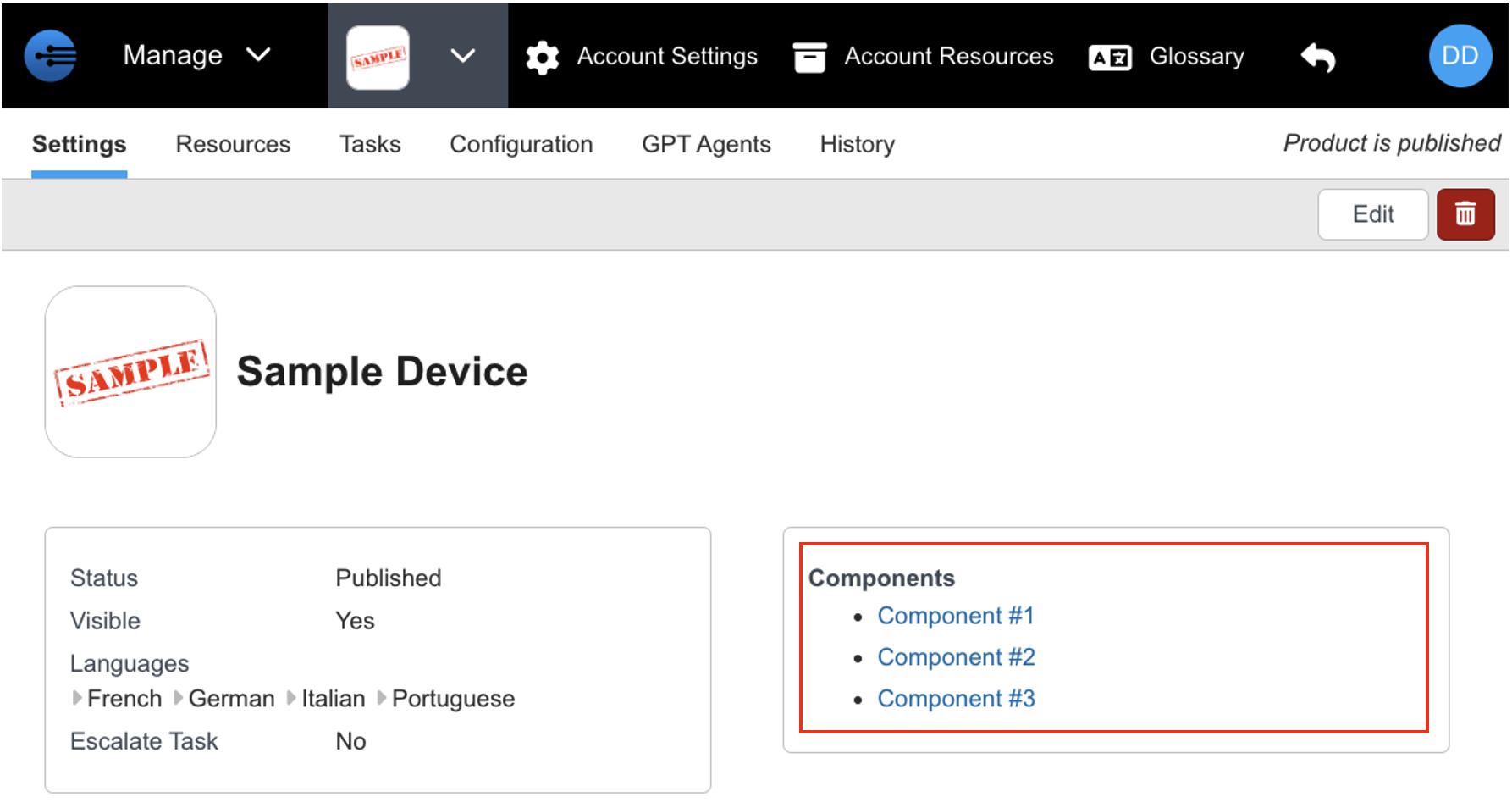
- Go to the copilots setting page, and check to see if components were added correctly. (They will appear in a "Components" box next to the product details.
Updated 2 days ago