
Changing Languages
Changing Language of Portal

App Language defines the primary language used throughout the InSkill interface. English is the default language; however, InSkill currently supports translation into 24 additional languages, including Arabic, Burmese, Chinese, Czech, Dutch, Finnish, French, German, Greek, Hebrew, Hindi, Hungarian, Italian, Japanese, Korean, Polish, Portuguese, Romanian, Russian, Spanish, Swedish, Thai, Turkish, and Vietnamese. Additional languages will continue to be added over time.
Beyond translating the app’s user interface and content, InSkill also allows users to request information in the default language set on their device. This ensures that even if the full app interface is not yet available in your preferred language, you can still receive GPT responses and content in your native language.
If your language is not currently supported, please contact [email protected]
. Our team is happy to work with you to expand language availability.
By default, InSkill uses the language of your phone or tablet to determine the language for GPT queries, documentation, and user-entered content. If desired, this behavior can be overridden by manually selecting a different language in the App Language settings. When overridden, the app will operate and respond consistently in the selected language.
Changing the App Language
InSkill makes it easy to change the language of the app directly from the mobile interface. The selected language will be applied across the app, including menus, content, and GPT interactions. Our page navigator makes it easy to change the language of your app. There is a language drop-down in the app menu that lets you pick what language you would like to use.
Changing the app language ensures that all supported content is displayed in the language you choose, creating a more personalized and accessible experience. To set up the language your account will handle on the mobile app, please go through the following instructions:
How to Change the App Language
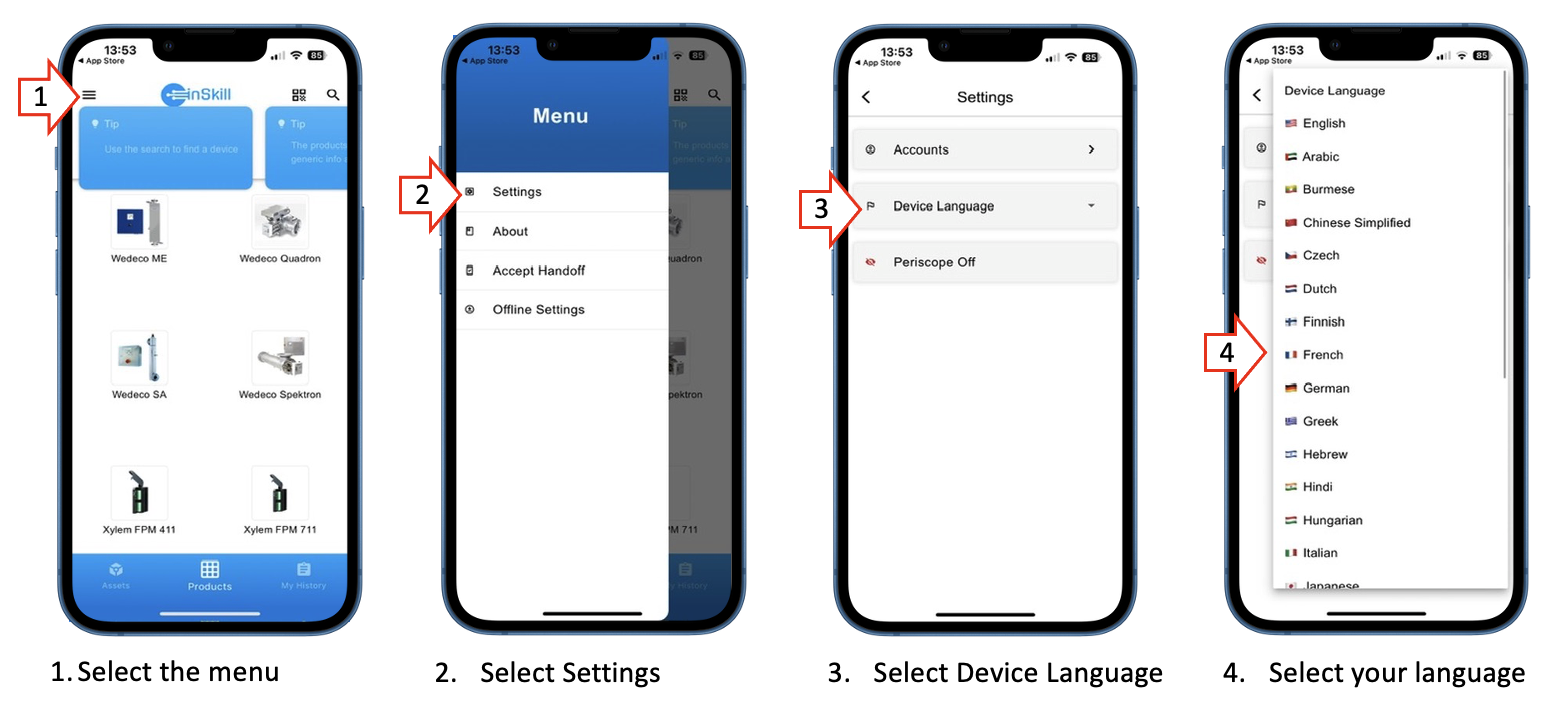
Follow the steps below to update the language settings on the mobile app:
- Select the Navigator Menu
From the main screen, tap the menu icon located in the upper-left corner of the app. - Select Settings
In the menu panel, tap Settings to access application preferences. - Choose Device Language
Within the Settings menu, select Device Language. - Select Your Language
Choose your desired language from the available list. The app will automatically update to reflect your selection.
Once selected, the app interface and supported content will immediately switch to the chosen language.
Updated about 2 months ago