
Team
The Team tab lists your team members with their roles and recent activity.
The Team tab in the Admin portal is where you manage the people in your account. From here you can add new members and modify existing ones — useful when someone's responsibilities change.
Your Team
The Team tab gives you an overview of your team members: each member's role, the last time they signed in to the portal, the last time they used the app, and their active status.
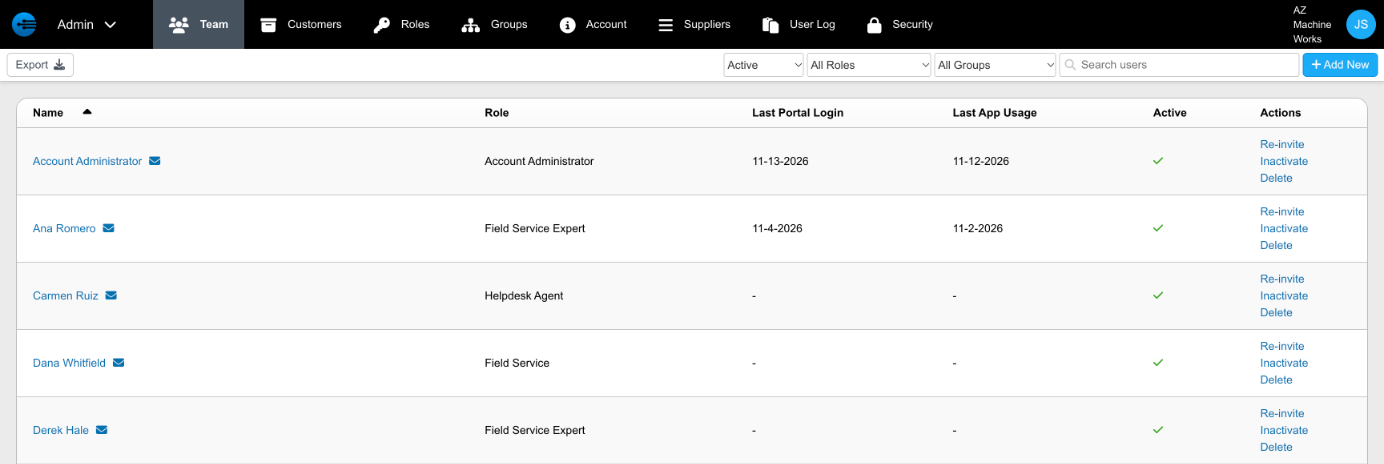
The Team tab, listing the account's members
| Column | Description |
|---|---|
| Name | The team member. An envelope icon marks a member with an email address. Click the name to open the member's page. |
| Role | The member's role. |
| Last Portal Login | When the member last signed in to the portal, or when they were invited. |
| Last App Usage | When the member last used the InSkill app, or when they were invited. |
| Active | A green check mark indicates the member is active. |
| Actions | Re-invite resends the invitation, Inactivate removes the member's access without deleting them, and Delete removes the member. |
The bar above the list filters it by status (Active, Inactive, or all), role, and group, and Search users finds a member by name.
Exporting the Team
Click Export at the top left of the Team tab. InSkill downloads users.csv to your computer, with one row per team member and the columns Name, Email, Role, Copilots, Asset Groups, Last Portal Login, Last App Usage, and Active.
To add someone to your team or change an existing member's roles or access, see Adding and Modifying Users.
Updated 12 days ago