
Configuring Language
While English is InSkill's default language, we offer a range of languages to suit your preference. Language functionality comes in two levels of support: App Language & Expertise Language. This prompt will briefly cover the two levels but only expertise language specifics will be discussed in the lesson's subcategories.
App Language: Language setting determines the language that the InSkill app presents itself in. This setting allows for the user to navigate through the app in their native language.
Expertise Language: Language setting defines what languages product expertise will automatically be translated into. By default, the Account Setting for language will be used, but this setting in the Product can be used to override that. Expertise is configured via the App or the Manage portal.
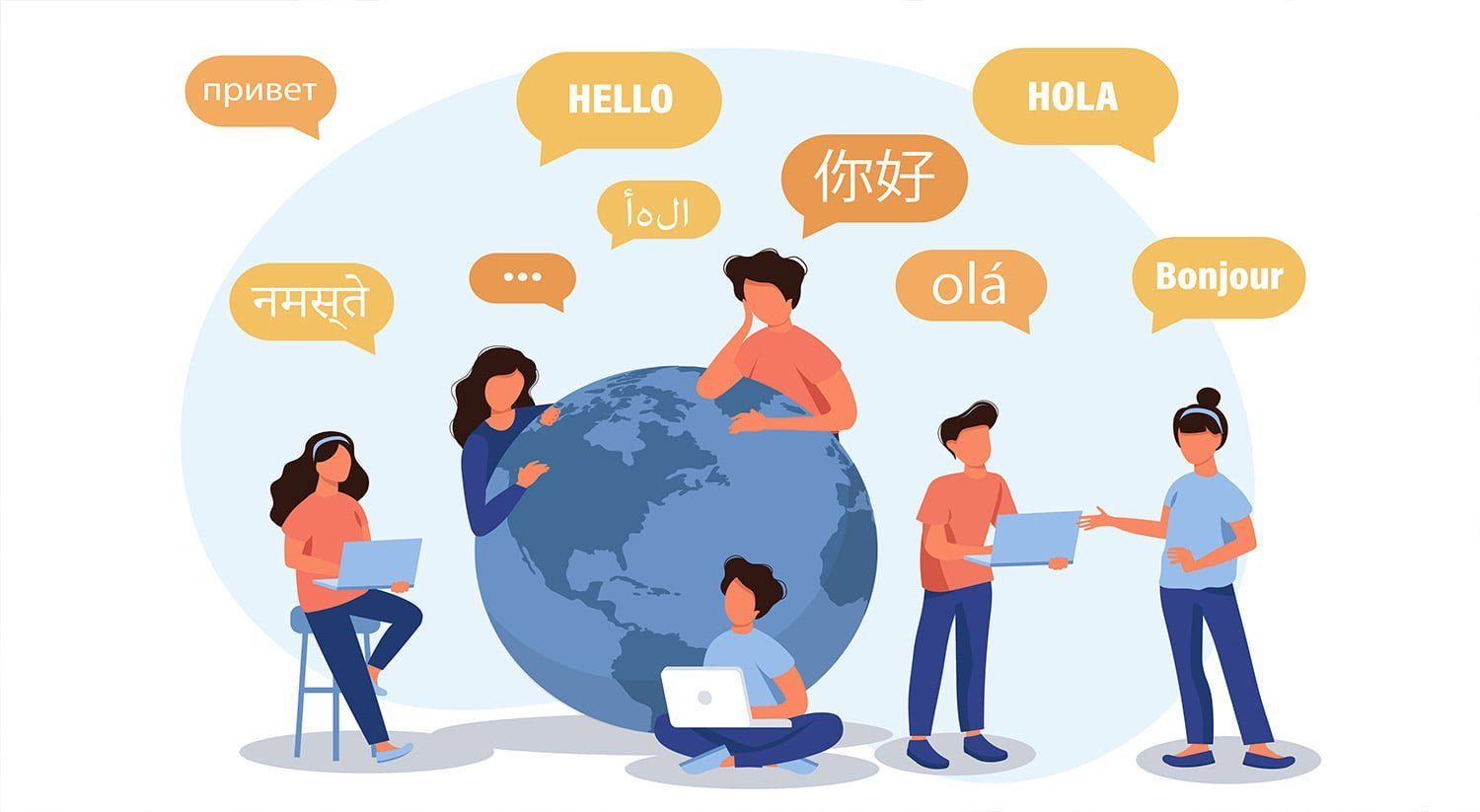
InSkill is designed to handle resources in various languages. To do this, however, you must modify your settings to inform the software which languages to use. Setting these languages defines what languages your copilot expertise will automatically be indexed for. Please note that languages must be chosen in advance because translation is time-consuming and costly. The app language, by default, will be used to index the resources you upload but selecting the language can override that. The top list of languages that are seen are InSkill’s “Primary” languages. A primary language is the language that the InSkill App can be translated into.
Changing Expertise Language
- To reach account settings click the "Account Settings" tab found at the top of the Manage page.
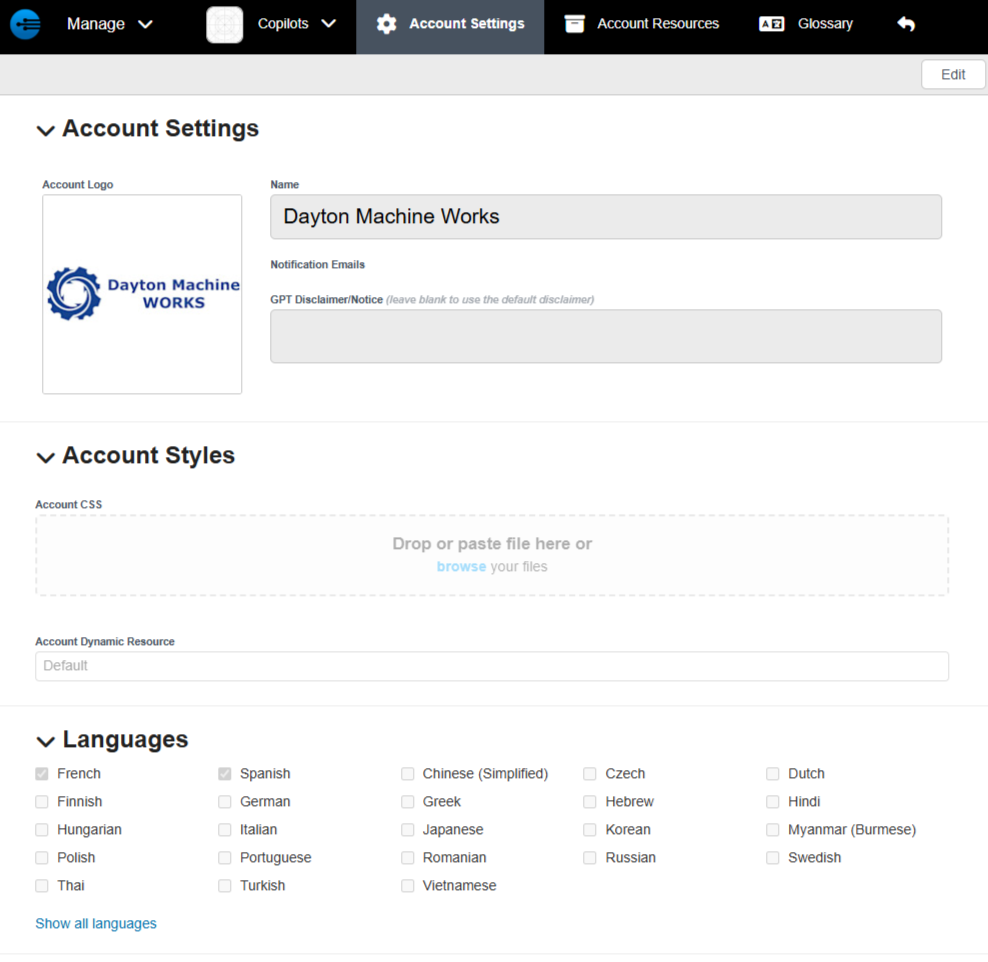
- Languages are seen at the bottom of the page. To choose which language the account is set-up to handle expertise, press "Edit" in the top right corner
- Next, choose the language you wish to have your expertise indexed. Please note that selecting "Show all languages" brings up all of the languages where expertise will be translated
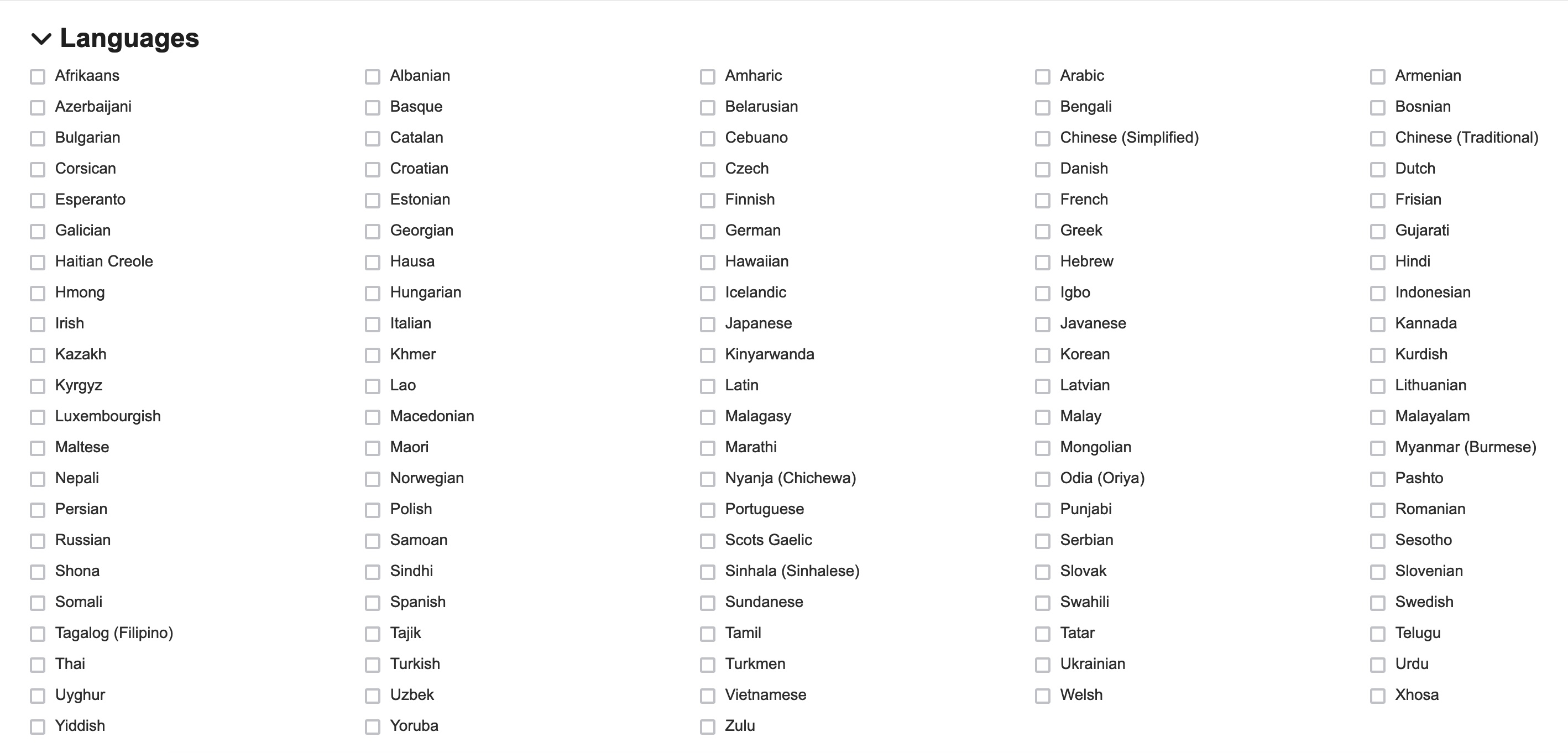
Don't see your language here? Contact [email protected] and we will be happy to work with you.
- Selecting languages is not the last step for making sure that resources are indexed correctly. When uploading resources, click the drop-down arrow of the page to choose which language is being used for the resource you are uploading

- From here you can choose the language of the document you are going to upload

- Press "Save"
Updated about 1 month ago