
Creating New Solutions Manually
Manual Solution Creation: Building Custom Knowledge
While automated importing is powerful for scaling, Manual Creation is the best way to capture specific "tribal knowledge" or create highly tailored "Gold Standard" content. By manually crafting a solution, you ensure the AI has a perfect reference point for critical procedures.
Getting Started
To begin, click the Plus (+) icon on the left-hand navigation panel within the Solutions module. This opens the Solution Creation Window, which is organized into three primary tabs.

1. The Content Tab
This is where you build the core substance of the solution.
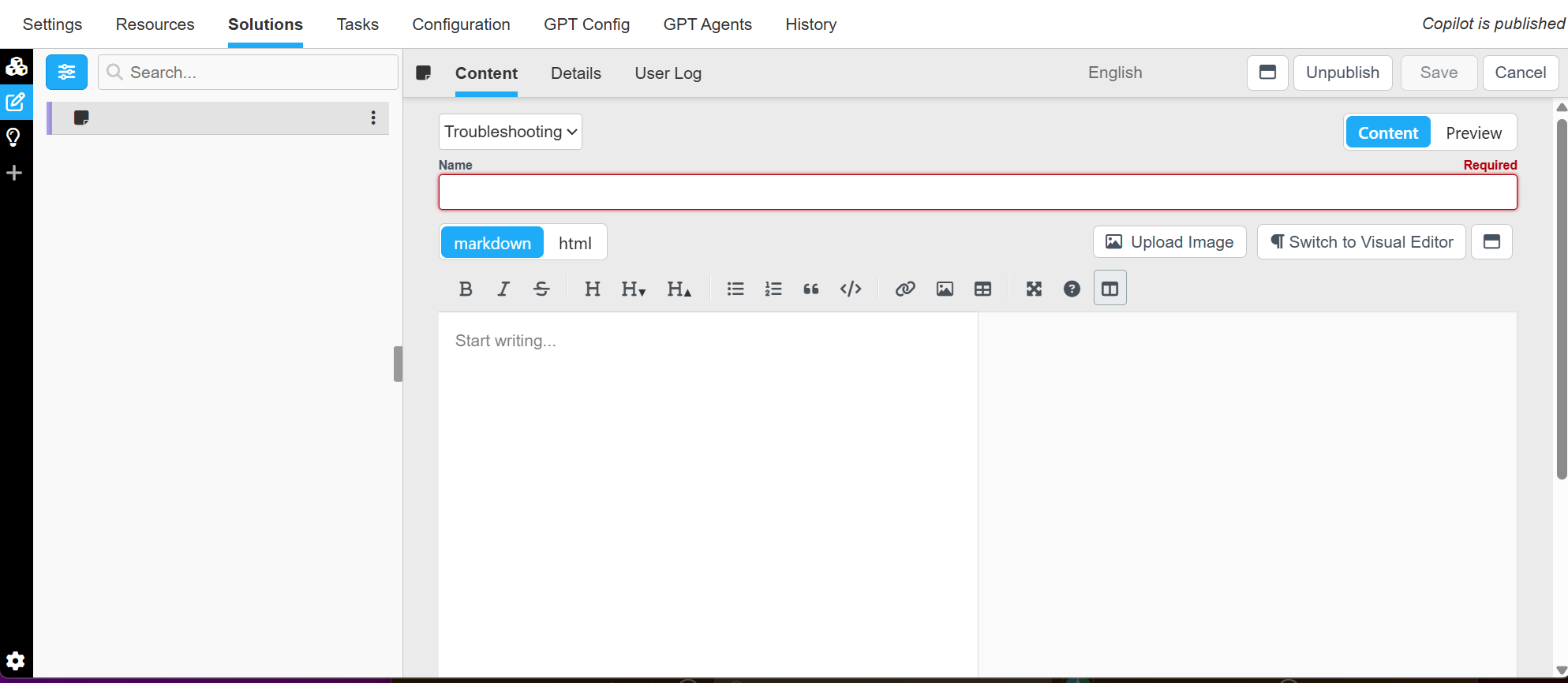
- Solution Type: Use the dropdown menu to categorize the entry. You can select from Troubleshooting, FAQ, Procedure, or Reference. This helps the system understand the logic of the information.
- Identification: Enter a clear, descriptive Name for the solution.
- Rich Media: You can upload Images directly to the content to provide visual aid for the technician.
- Editor Options: Write your resolution steps using either a Markdown or HTML editor, giving you full control over text formatting and layout.
2. The Details Tab
The Details tab governs the "metadata" and accessibility of the solution.
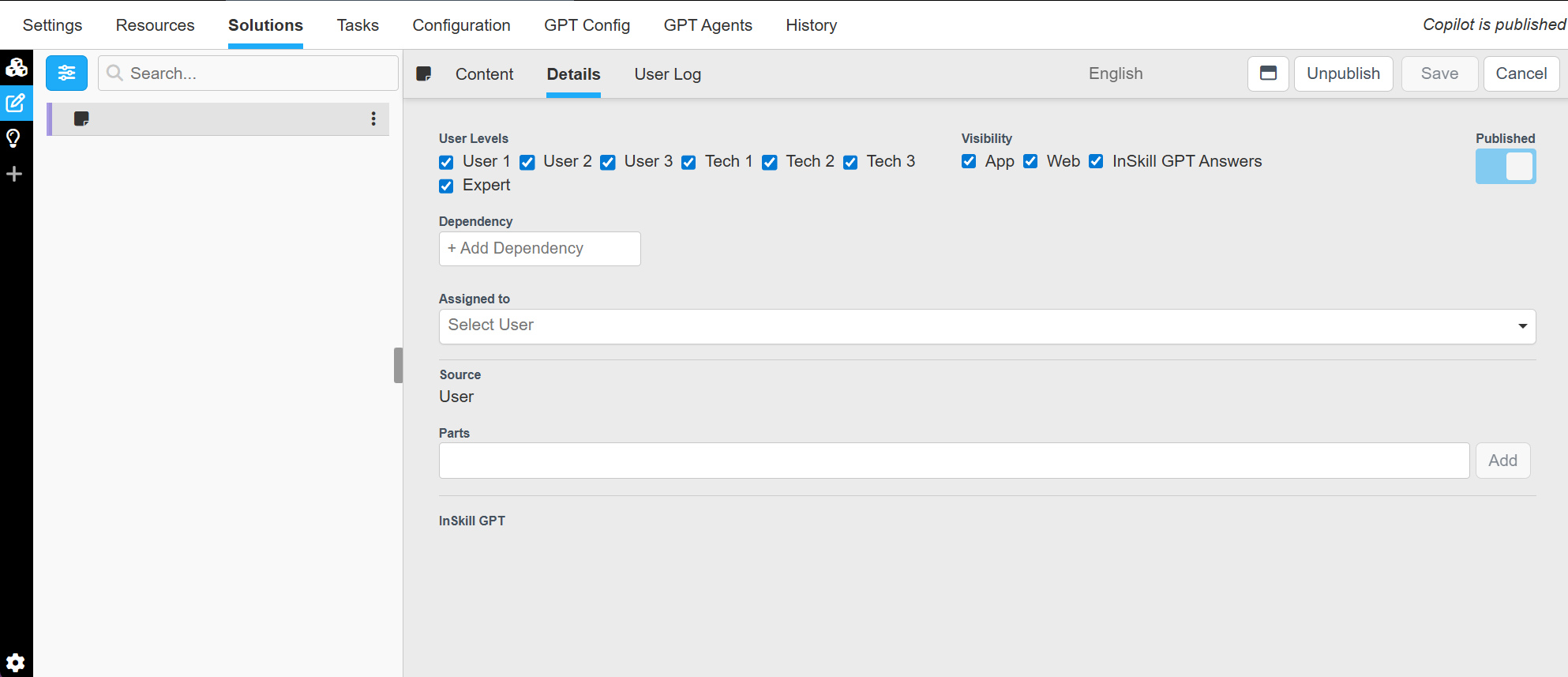
- Governance & Assignment: Select appropriate User Levels (e.g., Junior vs. Senior) and Assign Users responsible for maintaining the content.
- Visibility Control: Toggle where this solution should appear. You can independently enable or disable visibility for the Mobile App, Web Portal, and InSkill GPT answers.
- Logic & Integration:
- Dependencies: Add specific conditions that must be met for this solution to be suggested.
- Associated Parts: Link specific Part Numbers to the solution so they are automatically suggested when this fix is identified.
3. The User Log Tab
The User Log provides a complete audit trail for the solution. It lists every interaction a user has had with this specific entry, allowing you to track its effectiveness and see how often it is being utilized in the field.
Finalizing and Publishing
Control functions are located in the top right corner of the window for quick access:
- Language Selection: Manage translations by selecting the appropriate language tab.
- Save: Click the Save button frequently to preserve your progress as a draft.
- Unpublish: If the content becomes outdated, you can Unpublish it instantly to remove it from user view.
Updated about 2 months ago