
Scripts
The four places InSkill runs scripts — Copilot Settings, GPT Agents, Dynamic Resources, and Dynamic Steps — and how to write and test copilot scripts.
InSkill runs JavaScript in four places. They use the same script engine, but each place has its own environment and interface.
Where Scripts Run
| Place | Written in | When it runs | See |
|---|---|---|---|
| Copilot Settings | JavaScript | In the cloud, when a task starts (Context Augmentation) or finishes (Session Finished). | Copilot Scripts below, Reference, and Libraries |
| GPT Agents | JavaScript | When InSkill GPT calls a Script agent, with values for the parameters the agent defines. | GPT Agents |
| Dynamic Resources | HTML and JavaScript | In the app or the web portal, while the Technician has the resource open. | Adding Dynamic Resources and Dynamic Scripts |
| Dynamic Steps | HTML and JavaScript | In the app or the web portal, while the Technician has the step open. | Dynamic Steps and Dynamic Scripts |
Keys and other secrets used by copilot scripts and Script agents belong in the Vault, not in the script. Dynamic resources and dynamic steps are the same kind of content, HTML pages with JavaScript, and their scripts share one interface; see Dynamic Scripts. Both can be styled with CSS; see Styling with CSS.
Copilot Scripts
Copilot scripts connect a copilot to external systems or run custom logic on task data. Each copilot has its own, on its Settings tab. A copilot script runs:
- at the beginning of a task (Context Augmentation), usually to gather information from an IoT system or historian.
- at the end of a task (Session Finished), usually to send the task's results to another system or email them to support.
You can edit and test scripts without making them active. When the Active switch is on, the script runs automatically when tasks execute.
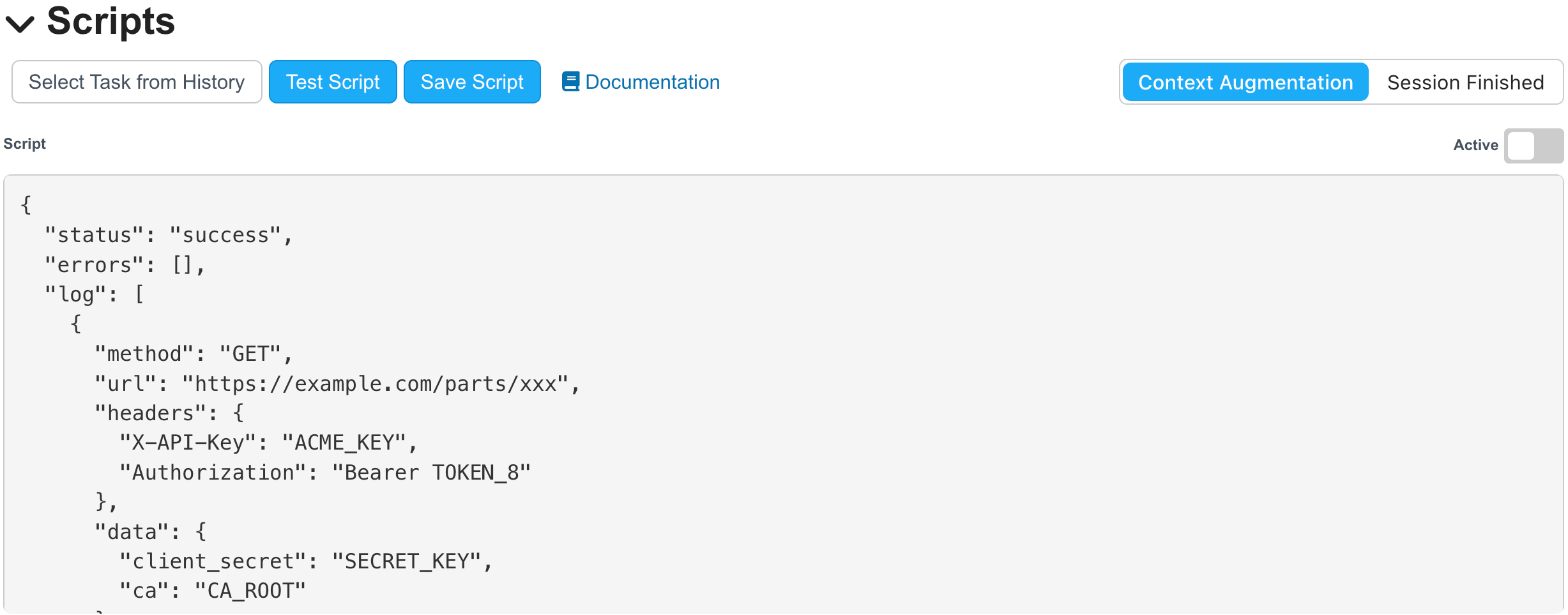
Testing a copilot script in the Scripts section of Copilot Settings
Developing and testing a script
To develop a script, open the copilot's Settings, click Edit, and choose the event (Context Augmentation or Session Finished) that will trigger the script. Below the script, Test Task data (JSON) holds the task data the script runs against. Edit it to test any data you want, or click Select Task from History to fill it with the data of a task that has already run, so you test with exactly that data.
Click Test Script to run the script and show the result without saving. Click Save Script to keep your changes. Documentation opens the scripting reference.
console.log() prints to the result area when you test. When a script runs automatically, its log is on the copilot's Settings tab.
A script that waits on anything, such as a web request, a promise, or await, must call session.done() when it finishes. Otherwise the script engine can't tell that it has finished. See session.
The sandbox
For security reasons, copilot scripts run in a sandbox that limits what a script can do. Predefined objects represent the task context, the asset if one is associated with the task, and more; see Reference. You cannot install additional packages; the included ones are listed in Libraries.
Updated about 18 hours ago