
Task Details View
The buttons and fields of the Task Details view: Copy, Move, Save, Cancel, and Delete, plus name, user levels, published and visible states, dependencies, and InSkill GPT search.
The Task Details view controls a task's name, who can use it, whether it is published, and whether InSkill GPT can find it. To open it, select a task and click the Task Details icon on the left edge of the Task Editor. The task picker at the top left switches to another task.
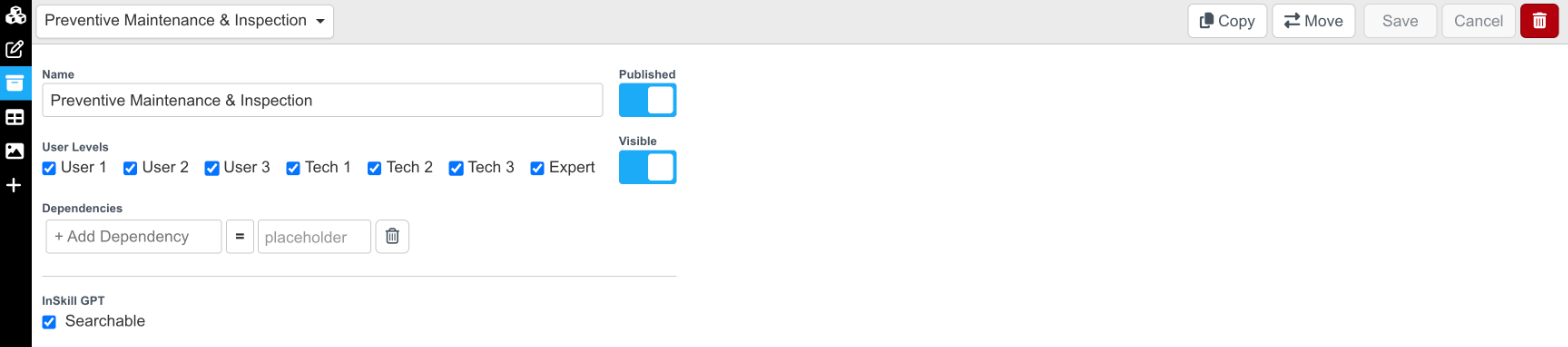
The Task Details view
Buttons
The buttons sit at the top right of the view:
| Button | What it does |
|---|---|
| Copy | Copies the task to the clipboard as a task template (InSkill JSON format), for Paste Task to recreate it elsewhere. |
| Move | Moves the task to another copilot. |
| Save | Saves your changes to the task's settings. |
| Cancel | Discards your changes. |
| Delete (red trash can) | Deletes the task. |
Fields
| Field | Definition |
|---|---|
| Name | The name of the task, shown in the portal editor and in the app. |
| User Levels | The user levels that can use this task: User 1–3, Tech 1–3, and Expert. Levels that are not selected do not have the task available to them. |
| Published | Setting the task to unpublished makes it invisible to Technicians and removes its effect on InSkill GPT. |
| Visible | Setting the task to invisible hides it from Technicians, but it remains indexed and searchable for use by InSkill GPT. |
| Dependencies | Conditions that make the task available only when they are met. Click + Add Dependency, choose a variable and operator, and enter a value. See Dependencies. |
| InSkill GPT — Searchable | When selected, InSkill GPT can find the task and offer it in answers. Clear it to hide the task from InSkill GPT: the task is not searchable from InSkill GPT, but Technicians can still open it from the task list. |
Updated about 22 hours ago