MCP Server
A MCP, Model Context Protocol, is a way for an external AI system to connect to and interact with InSkill's tools, data, and services in a standardized way. You can connect any MCP-capable AI client (such as Claude) to InSkill and let it work with your copilots and expertise directly in the flow of work: ask copilots questions, and read and author copilots, resources, tasks, and steps. Even more MCP also allows for faster analytical or administrative work that allows AI chatboxes to do various actions such as adding a user, optimizing prompts, exporting data, and identifying knowledge gaps. In either situations, every call runs against your own InSkill account and acts as the signed-in user, so it only ever sees and does what that user is permitted to.
Server URL: https://mcp.expert.inskill.ai/mcp
Transport: Streamable HTTP · Authentication: OAuth 2.1
Before you start
You need an InSkill account. You will sign in with it during setup, and everything the connector does happens as you.
What you can do through it depends on that account. Asking copilots questions and reading the expertise behind them is available to anyone. Creating and editing content requires a role that already permits it in InSkill.
Answers come from the expertise loaded against a copilot rather than from general knowledge, so a copilot with no resources will connect but have little to draw on.
Nothing needs installing, and there are no keys or tokens to generate.
Connecting a client
The pattern is the same everywhere: point the client at the server URL, then complete a one-time browser sign-in when prompted. With InSkill, the URL is pointing at the live expert server (https://mcp.expert.inskill.ai/mcp). With this the MCP can connect and utilize our tools with resources, tasks, and agents that have been reviewed, approved and then pushed to production by the manufacturers authoring team. Connecting MCP to InSkill expert server, from an authoring point of view, gives the ability to take optimization to the next level. With InSkill, account authors can accelerate growth and achieve exponentially more by turning time-consuming, back-burner tasks into quick, effective, and even fun projects. These can include but are not limited to:
- comparing tasks with resources to recognize discrepancies,
- identifying users with most/least recorded interactions,
- determine which type of resources are preferred by the technical team,
- or to proactively schedule out team seminars for common knowledge gaps uncovered by AI
How to Connect Claude to InSkill (Desktop and Web)
-
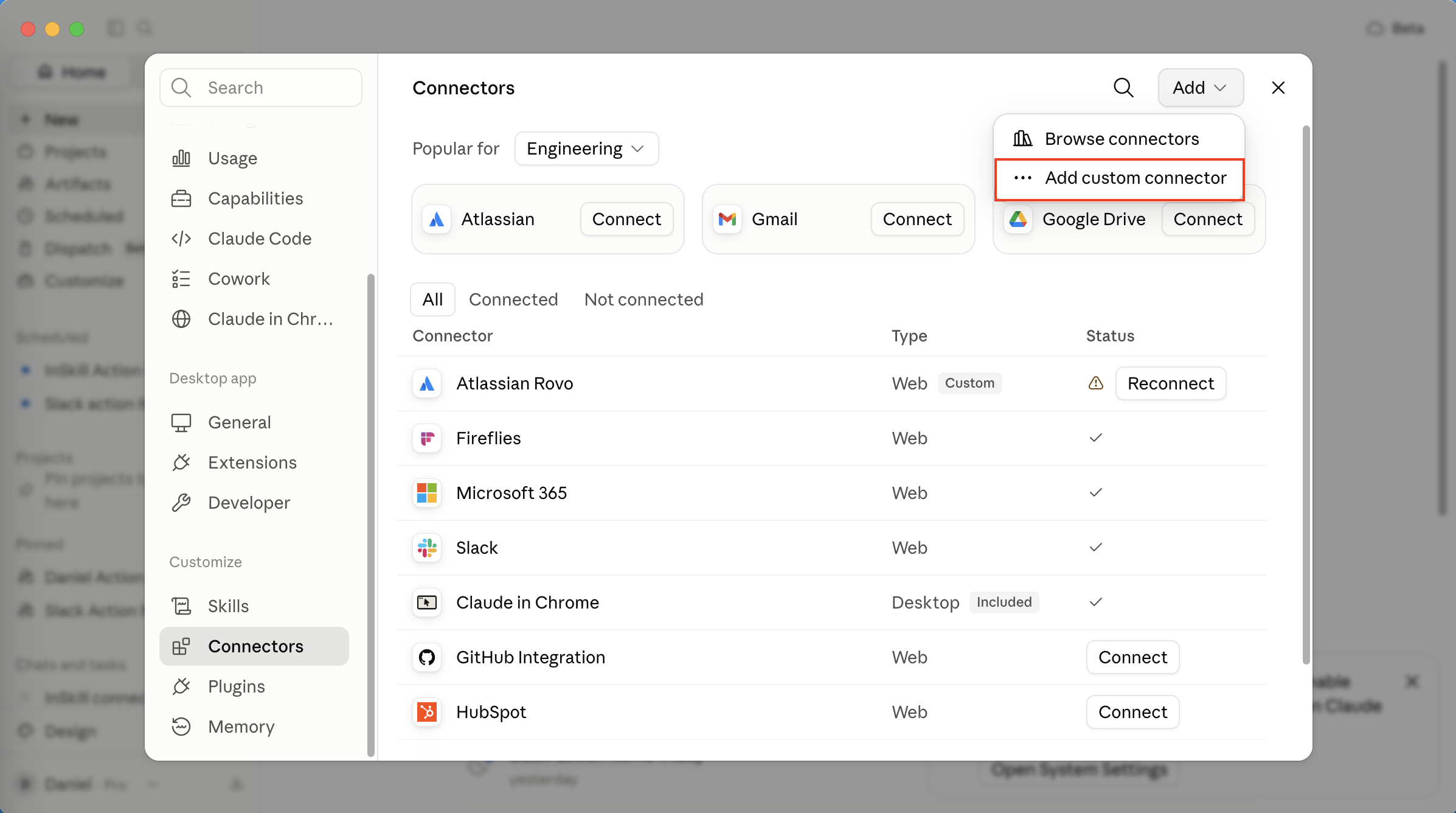
Open Settings → Connectors and choose Add custom connector.
-
Enter the server URL:
https://mcp.expert.inskill.ai/mcp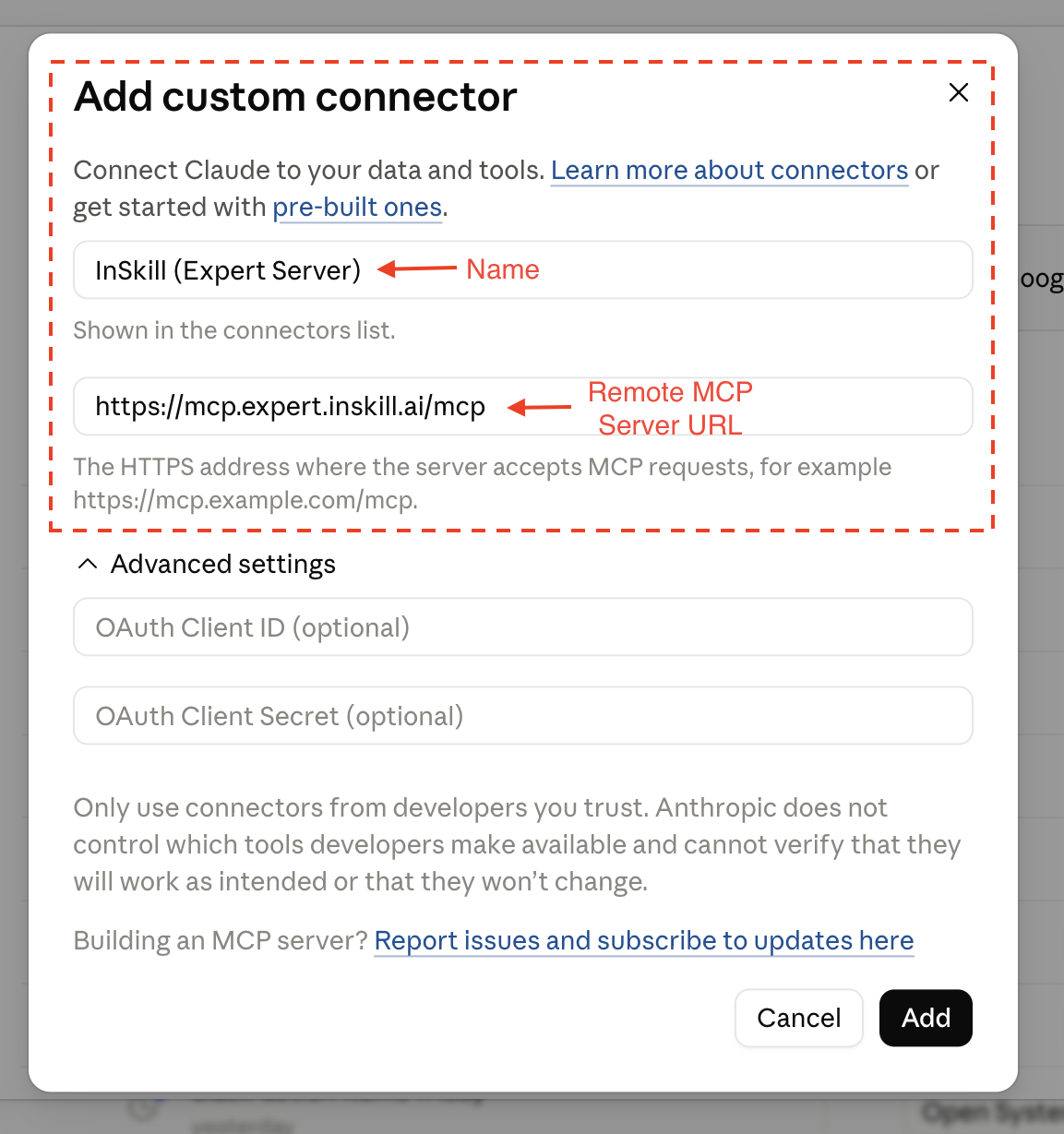
-
After selecting "Add", Claude opens the connector portal to connect to InSkill. Selecting "Connect" will result in another pop up browser window to InSkill; sign in and approve access.
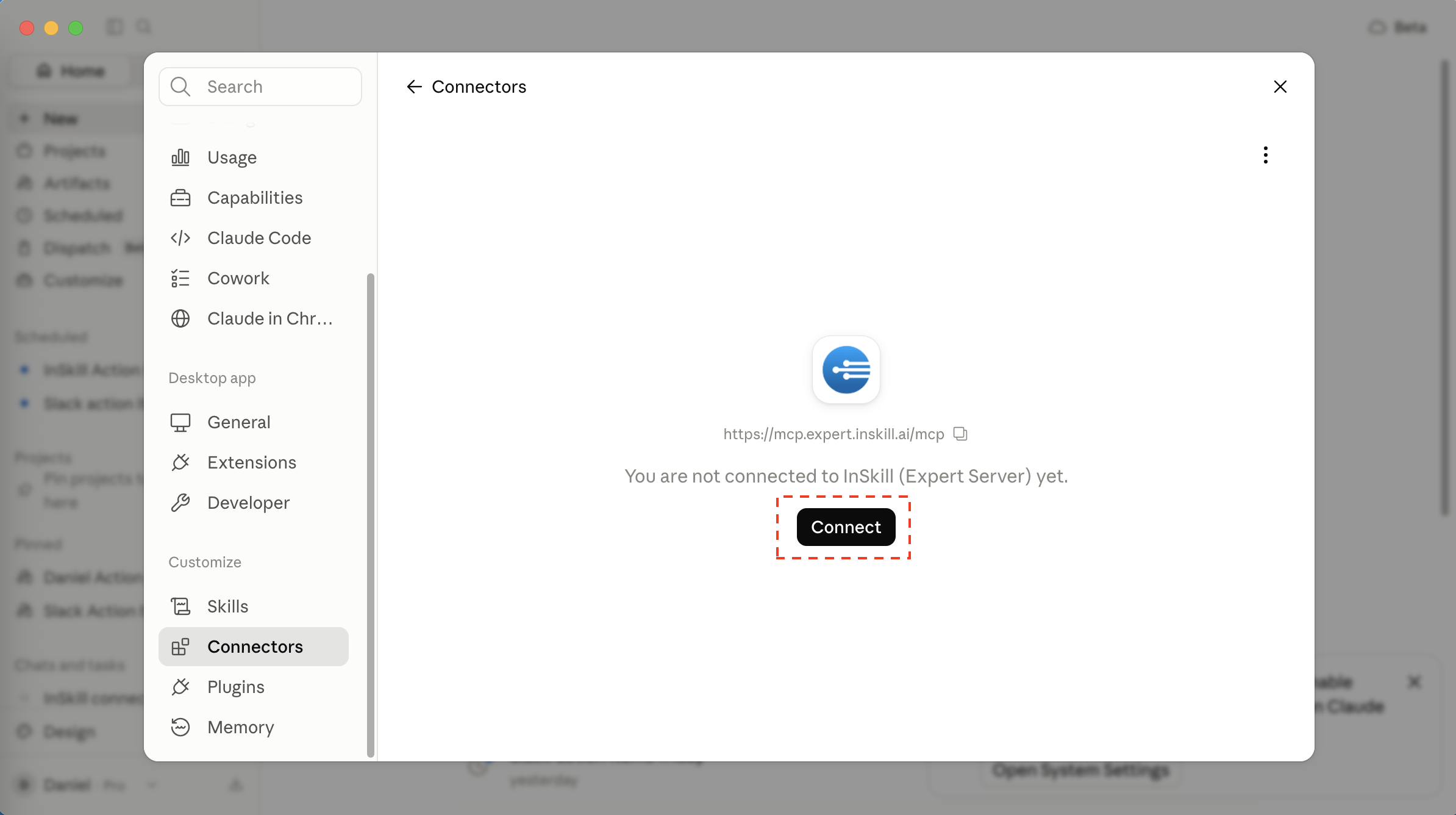
-
The InSkill tools are now available in your conversations.
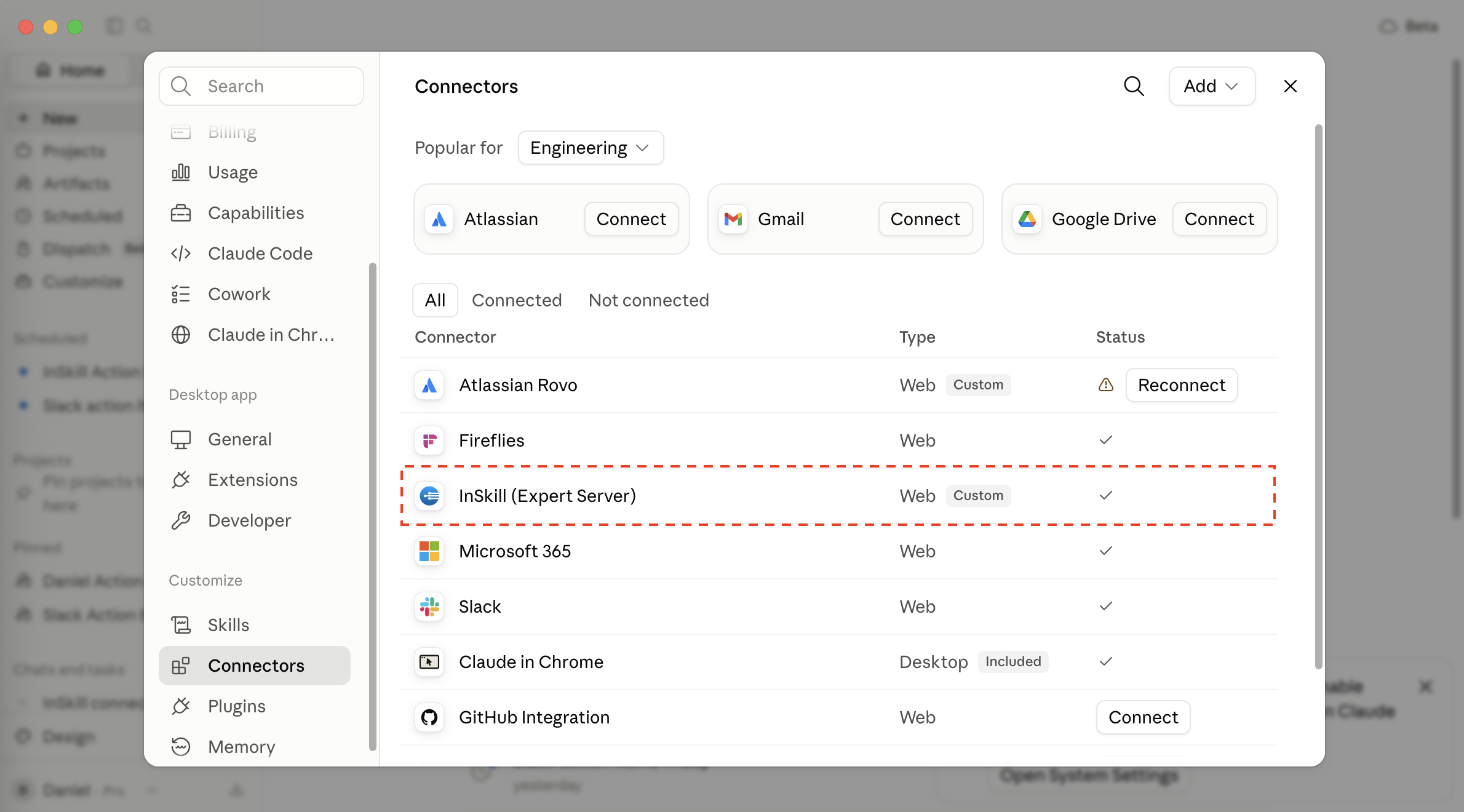
- Claude Code - Run
/mcpin a session to complete the sign-in.
claude mcp add --transport http inskill https://mcp.expert.inskill.ai/mcpThe Author Environment
To connect the Claude to InSkill authoring server, follow the same steps with one critical difference. Instead of point to the URL for InSKill's expert server you will instead be pointing to the authoring server. The author environment has its own server:
https://mcp.author.inskill.ai/mcpTwo tools differ by environment. create_product is refused on author, as copilots are created in production. push_product runs only on author and not on production as pushing is unidrectional toward production..
Cursor, VS Code, and other JSON-configured clients
Clients that use a JSON config register the server as a remote endpoint:
{
  "mcpServers": {
    "inskill": {
      "url": "https://mcp.expert.inskill.ai/mcp"
    }
  }
}
On first use the client opens a browser for sign-in. Consult your client's documentation for where its MCP config lives.
Your own application
If you are building your own AI application rather than using an off-the-shelf client, there is no connector screen and your application handles the sign-in itself. Most MCP client libraries speak the protocol for you but leave the OAuth flow to you.
Discovery starts from an unauthenticated request to the server URL, which returns 401 with a WWW-Authenticate header pointing at:
https://mcp.expert.inskill.ai/.well-known/oauth-protected-resourceThat document names the authorization server, whose metadata lives at:
https://expert.inskill.ai/.well-known/oauth-authorization-serverFrom there the flow is standard OAuth 2.1: register the client (dynamic client registration is supported), send the user to the authorization endpoint with PKCE, exchange the returned code for tokens, then send Authorization: Bearer <access_token> on every request to the MCP server. Refresh tokens are issued, so each user signs in once rather than on every session.
Tokens are always tied to a signed-in user. There is currently no way to obtain one without a user completing the sign-in, so plan for each of your users to authenticate once and for your application to hold their tokens.
What you can ask
You do not call tools yourself. You describe what you want, and the client picks the tools. These are the patterns the connector is built for. Replace anything in angle brackets with your own.
Ask a copilot a question
The copilot answers from the expertise loaded against it, rather than from general knowledge.
Ask the
<copilot>copilot how to replace the intake filter, and summarise the steps.
Ask about a specific unit
If a serial number or unit is registered as an asset, the answer can take that unit's configuration into account.
Using the
<copilot>copilot, what does error code<code>mean on unit<serial number>?
Find what expertise exists
Useful before adding anything, to see what a copilot already covers.
List the tasks and resources on the
<copilot>copilot, and tell me which areas look thin.
Author a procedure
The connector can create tasks and their steps, so a procedure can be drafted in conversation and reviewed in InSkill afterwards.
Create a task on the
<copilot>copilot called<name>, with steps covering<the procedure>.
Review how a copilot is performing
Sessions and feedback are readable, so you can see what people are asking and where answers fall short.
Show me the recent sessions on the
<copilot>copilot and what people asked.
Authentication
InSkill is the authorization server. On first connect the client registers itself (dynamic client registration), then runs a standard OAuth 2.1 sign-in (PKCE) that opens your browser once. SSO works through the normal InSkill login page. After that the client refreshes access silently; you won't be prompted again until the session ends.
Access is governed by your InSkill user role. The connector acts as the signed-in user, so every tool call inherits exactly what that user is permitted to do, scoped to their account. If a user isn't permitted to do something, the call returns a permission error, the same as it would in the InSkill portal.
This means two people connecting the same server see different things. A colleague may see copilots you cannot, and a tool that works for them may return a permission error for you. That is the intended behaviour, and it mirrors what each of you sees when you log in to InSkill directly.
Tools
The connector exposes a curated set of the InSkill public API as tools. Names match what your client will list. list and get tools are read-only; create and update tools require the corresponding permission on the signed-in user's role. Delete is intentionally not exposed.
| Area | Tools |
|---|---|
| Copilots (ask a product) | create_gpt_session, create_gpt_message (ask a question), list_gpt_sessions, get_gpt_session, list_gpt_messages, get_gpt_message, feedback_gpt_message, escalate_gpt_session, create_gpt_messages_comment |
| Products | list_products, get_product, create_product, update_product, push_product |
| Resources | list_resources, get_resource, create_resource, update_resource |
| Tasks | list_expertise_tasks, get_expertise_task, create_expertise_task, update_expertise_task |
| Steps | list_expertise_steps, get_expertise_step, create_expertise_step, update_expertise_step |
| Assets | list_assets, get_asset, create_asset, update_asset |
| Data dictionary | list_data_dictionary, get_data_dictionary, create_data_dictionary, update_data_dictionary |
| Users and roles | list_users, get_user, create_user, update_user, deactivate_user, resend_invite, list_roles, get_role |
Tool names use product where the rest of the documentation says copilot. They are the same thing: list_products lists your copilots.
The tools map directly to the InSkill public API (apiv3), so the apiv3 reference covers field-level detail for every tool.
Tools that change existing records are marked as such, so most clients will ask you to confirm before they run.
Files: uploading document, image, and video files is done through the InSkill portal or the public API's file-upload endpoint (POST /resources/{id}/upload), not through an MCP tool. The connector's resource tools manage everything else (metadata, URLs, visibility, dependencies).
Troubleshooting
- The sign-in window opens but nothing happens, or it returns me to the start.
-- Check you are signing in to the account you expect. If your browser is already signed in to a different InSkill account, sign out there first and try again. - I approved access but no InSkill tools appear.
-- Most clients fetch the tool list once when they connect. Disconnect the connector and add it again, which forces a fresh fetch. - A tool returns a permission error.
-- The connector can only do what your InSkill role allows. If the same action is unavailable to you in the InSkill portal, it will be unavailable here. Ask an administrator on your account to adjust your role. - A copilot I expect to see is not listed.
-- You only see copilots your role gives you access to. Confirm you can see it when you log in to InSkill directly. - The copilot says it cannot find the information.
-- The answer comes from the expertise loaded against that copilot, not from general knowledge. If the manual or procedure covering your question has not been added to that copilot, there is nothing for it to draw on. Adding the resource is the fix. - I want to connect as a different user or account.
-- Each connection is tied to the user who signed in. To switch, remove the connector and add it again, then sign in as the other user. Reconnecting is what clears the stored credentials. - Can I use an API key instead of signing in?
-- Not for the MCP connector, which is deliberately per-user so that permissions and attribution follow the person. If you need service-level access for a backend integration, use the InSkill public API with an API key instead.
Updated 2 months ago