
Roles
Roles are a feature you can use to determine the level of access you wish a user to have. There are several default roles pre-configured by InSkill that you can use, or you can optionally create custom roles if you have specific permissions you want to give to a user.
Role permissions are demonstrated on the “Admin” page. To access the InSkill Manage Portal, a user must have the Expertise role assigned to their user profile. By default, the Author, Helpdesk Expert, and Administrator roles have access to the Expertise role.
Default roles
The default roles given in InSkill are Users, Techs, and Experts. Experts are the highest level and are generally reserved for someone who is an expert on the specific product and needs access to the highest level of expertise and documentation. Techs are the next level down and are people who have expertise on a product and need access to additional expertise and documentation, but do not need access to the same level of information as an expert. Users are your average users who will be working with a product and need the core documentation and expertise in order to do so.
Internal roles
Authors, Helpdesk, and Admins are all internal roles that have access to additional tools within InSkill. Helpdesk users are able to do all the same things as an expert but have additional access to the InSkill Portal. Authors have these same features as a Helpdesk user, as well as being able to create and edit copilots in InSkill and use the Intelligence tab. Admins are the highest-level users within InSkill; they are able to do everything the previous users could, as well as create and edit assets, edit account info, roles, and teams.
The following are InSkill's core roles (default and internal).
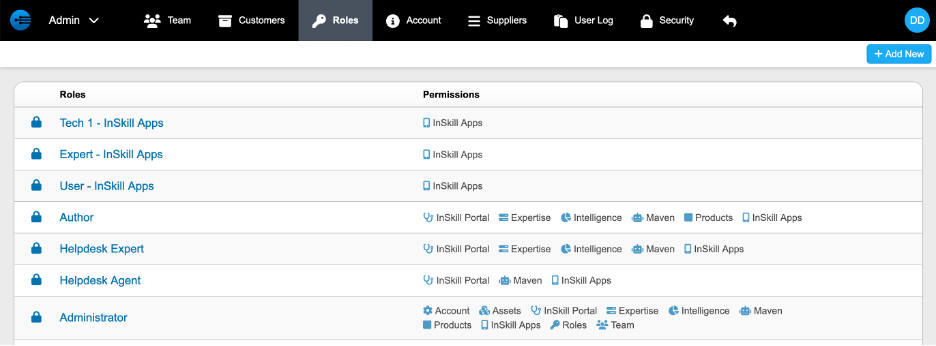
Core roles are roles in InSkill that cannot be edited. Default roles are provided by InSkill for your convenience and cover the most common usage patterns.
New roles can be created and are added by clicking “+ Add New” at the top right corner of the page.

The new role requires a name and permissions for the account. The permissions that can be granted to the new role can be seen in the following.
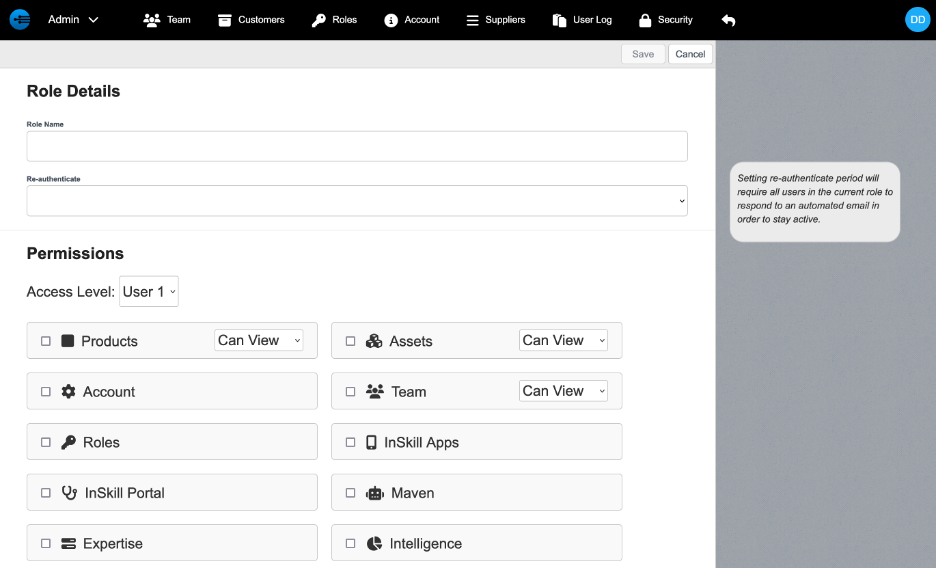
This includes Copilots, Assets, Account Settings, Team, Roles, InSkill Apps, InSkill Portal, Maven (InSkill GPT), Expertise, and Intelligence.
Dictionary
| Permission | Applies to: | Definition |
|---|---|---|
| Account | Portal | Provides access to Account Settings found under the Manage tab on the online InSkill platform. Here you can update the Logo, Name, GPT Disclaimer, CSS, and Languages. |
| Copilots | Portal | Gives the person access to creating new copilots. There are two options available: Can View or Can Edit. |
| Assets | Portal | Gives the person access to assets and groups. There are two options available: Can View or Can Edit. |
| Copilot Expertise | Portal | Gives the person access to expertise found on the Manage tab. Allows for expertise in Copilots (i.e., tasks, steps, resources), Account Resources (including Shared), and Glossary. |
| InSkill Apps | App | Provides access so a person can use the InSkill app found in the phone’s app store. |
| InSkill Portal | Portal | Provides access to the tasks found on the InSkill tab on the online InSkill website. (Website: expert.inskill.ai) |
| InSkill GPT | Portal & App | Provides access so a person can use and interact with InSkill GPT found on the InSkill tab. |
| Intelligence | Portal | Provides a person access to the Intelligence tab in the InSkill portal. This allows access to Reports, Data, and GPT. |
| Team | Portal | Provides access to the Admin tab on the InSkill website. Here you will be able to access Team, Customers, User Log, and Security. Two options are available: Can View or Can Edit. |
| Roles | Portal | Can create/edit new roles. (Cannot edit default roles from InSkill.) |
Access Level Dictionary
Access level is an important concept in InSkill. Through access levels, an author can restrict certain access throughout the website. Restriction can be done at the resource, task, or customer publishing level. InSkill is organized so your team can implement access levels easily. Role levels available are User 1, User 2, User 3, Tech 1, Tech 2, Tech 3, and Expert. InSkill recommends the following designations:
| User Type | Role Level |
|---|---|
| Customer | User 1, User 2, & User 3 |
| Employee | Tech 1, Tech 2, Tech 3, & Expert |
Portal Users vs App Users
It is important to remember that using the online portal requires signing in with an email and password. Login information will be created after adding the new member to the team. If you want the user to access the portal, please remember to provide an email associated with the user. On the other hand, if the new user is only going to use the application, then an email is not required. Instead, the account administrator can access the team member and extract the QR code associated with them. From here they can download the app and scan the QR code to join the account.
Updated about 2 months ago