
Adding Videos
Upload MP4 videos to a copilot as resources, or link YouTube and Vimeo videos as URL resources.

Training, inspection, operating, and troubleshooting videos can be added to a copilot as resources. Videos can be added in two ways: by uploading a video file directly to InSkill as a Video resource, or by linking a video hosted on a third-party site such as YouTube or Vimeo as a URL resource.
What you will need:
- A video file, or the URL of a hosted video
NoteDirect uploads are limited to 400MB and must be
mp4files. See Files for all size limits.
Uploading a Video File
Follow these steps to upload a video file directly to InSkill:
-
In the Copilots portal, select the copilot you want to add resources to.
-
Open the Resources tab.
-
Select -- Add New Resource -- > Video.
-
Enter a Name that describes the video's content. The name is required.
-
Drop, paste, or browse for the video file in the File area.
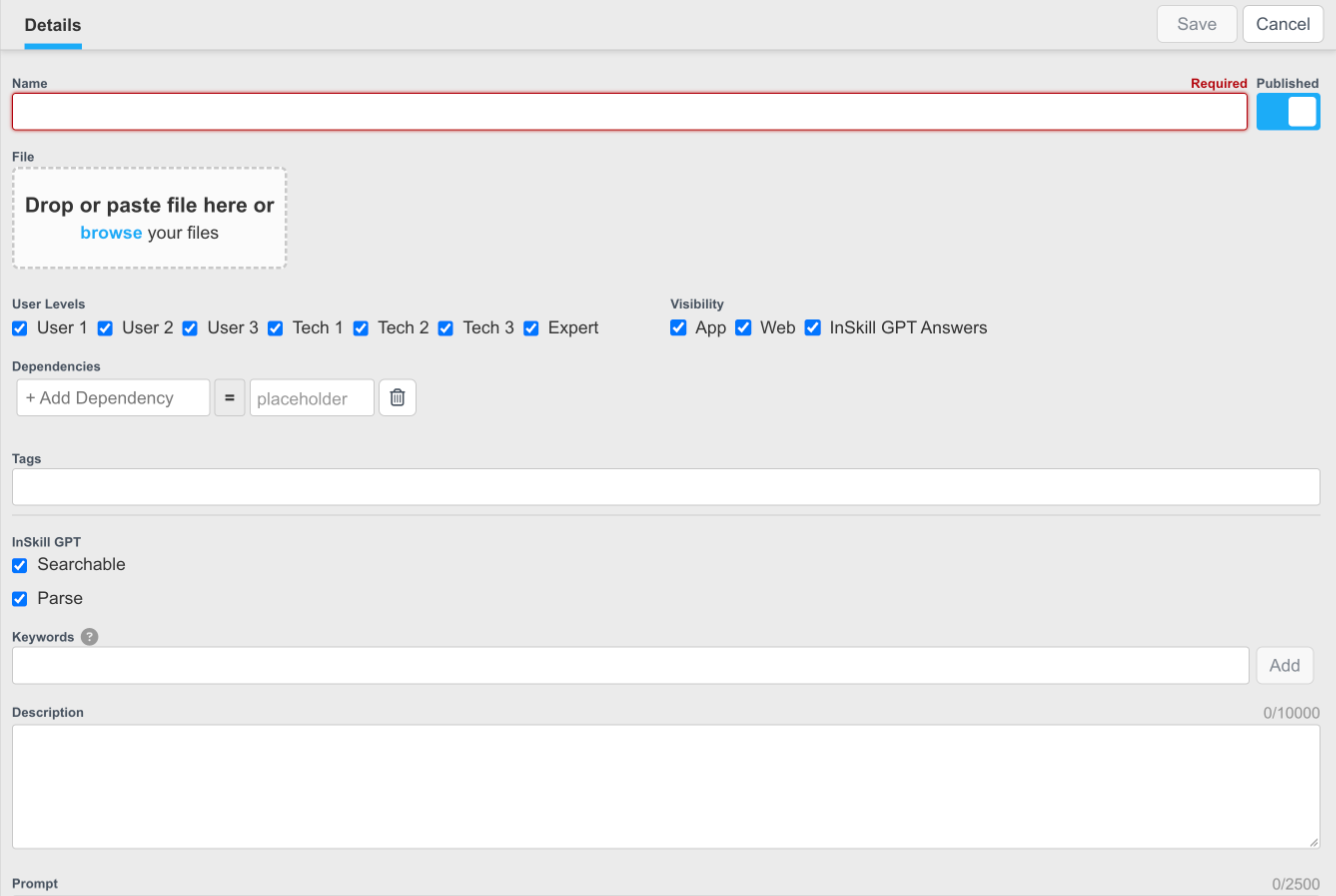
The new Video resource form
-
Set any other attributes. For a video without words or captions, add a Description of its content and clear Parse — see Editing Resource Attributes.
-
Click Save. The video appears in the resource list.
Linking a Hosted Video
To add a video hosted on YouTube, Vimeo, or a similar site, add it as a URL resource:
- In the Copilots portal, select the copilot you want to add resources to.
- Open the Resources tab.
- Select -- Add New Resource -- > URL.
- Enter a Name that describes the video's content.
- Enter the video's address in the URL field.
- Click Save. The video appears in the resource list.
InSkill GPT does not read the content of a linked video. See Adding URLs.
Updated 1 day ago