
Create a Task
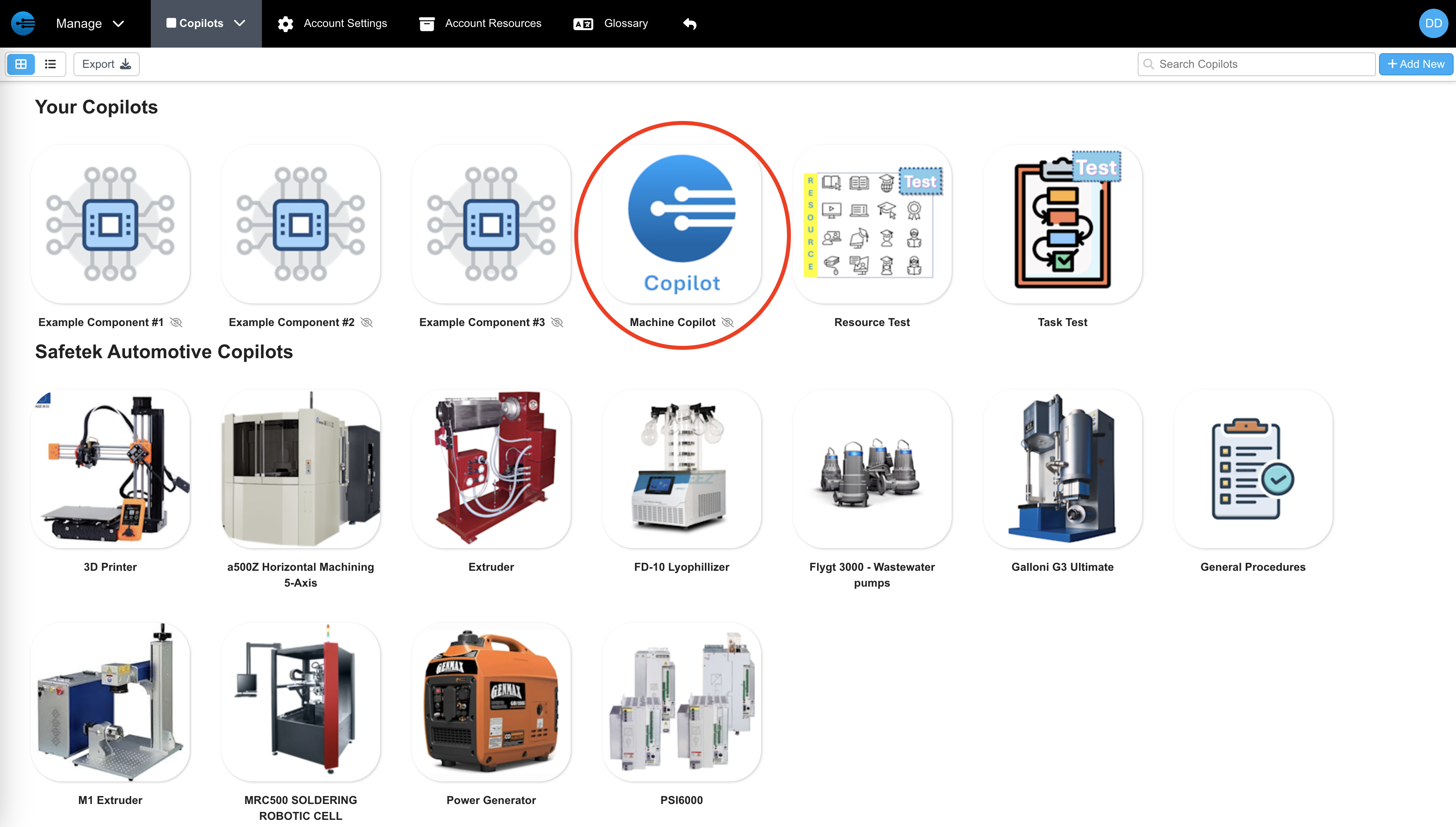
- On the Copilots page, click on the piece of equipment you want to add a procedure to
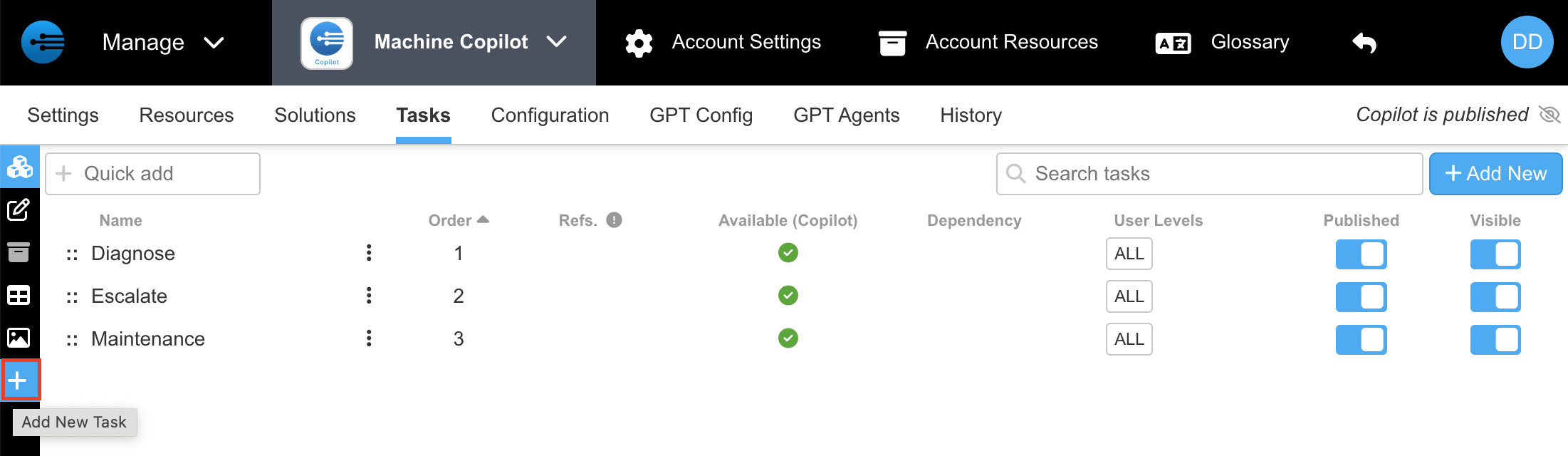
- Under the tasks tab click the plus sign to create a new task (procedure)
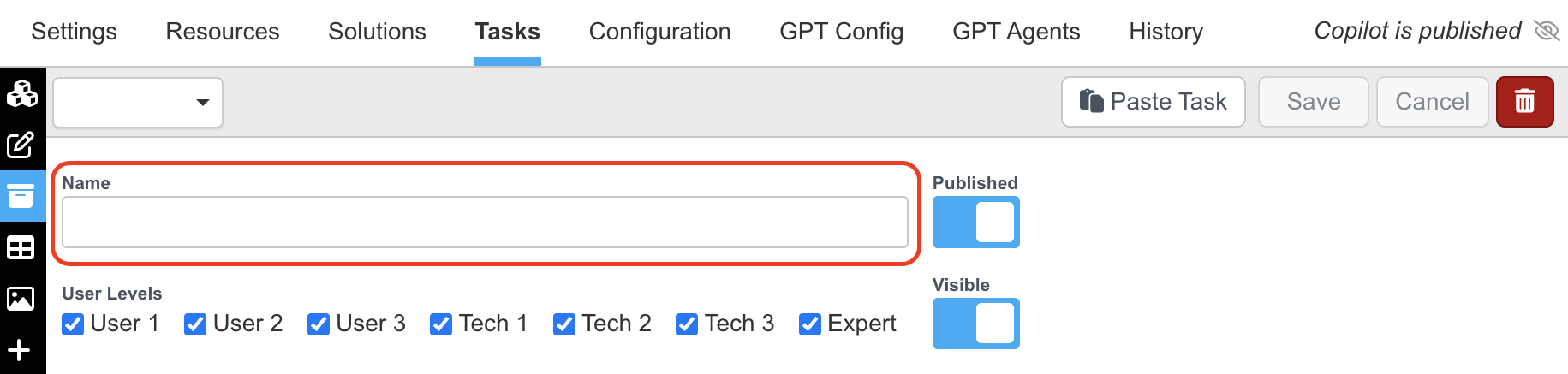
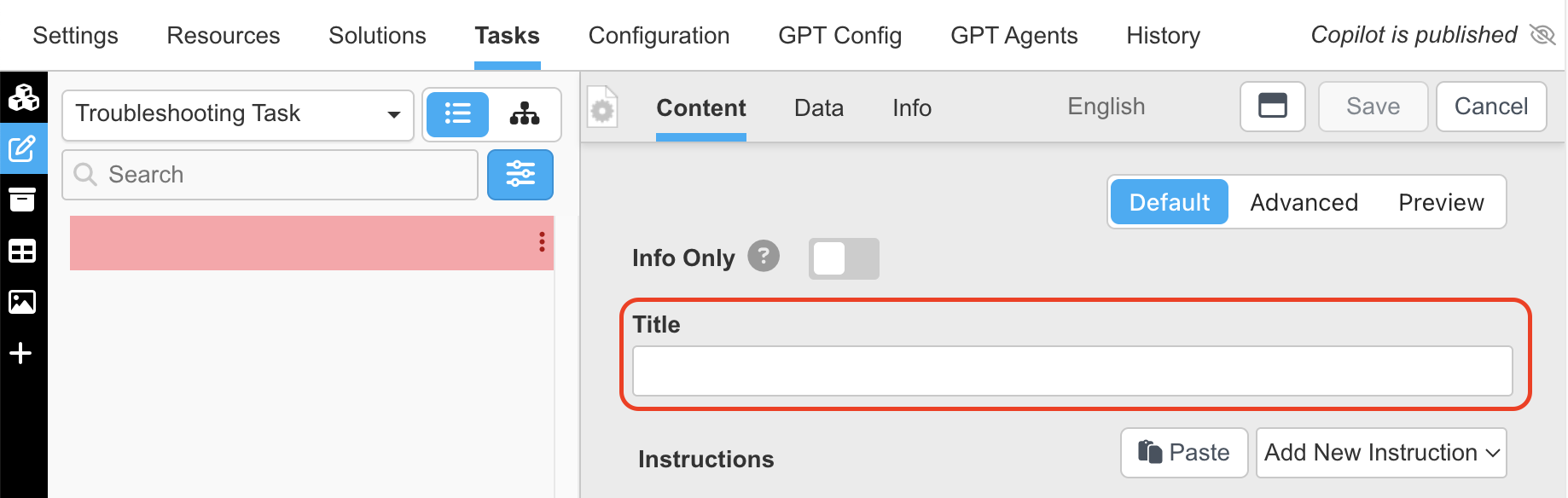
- Enter the title of task
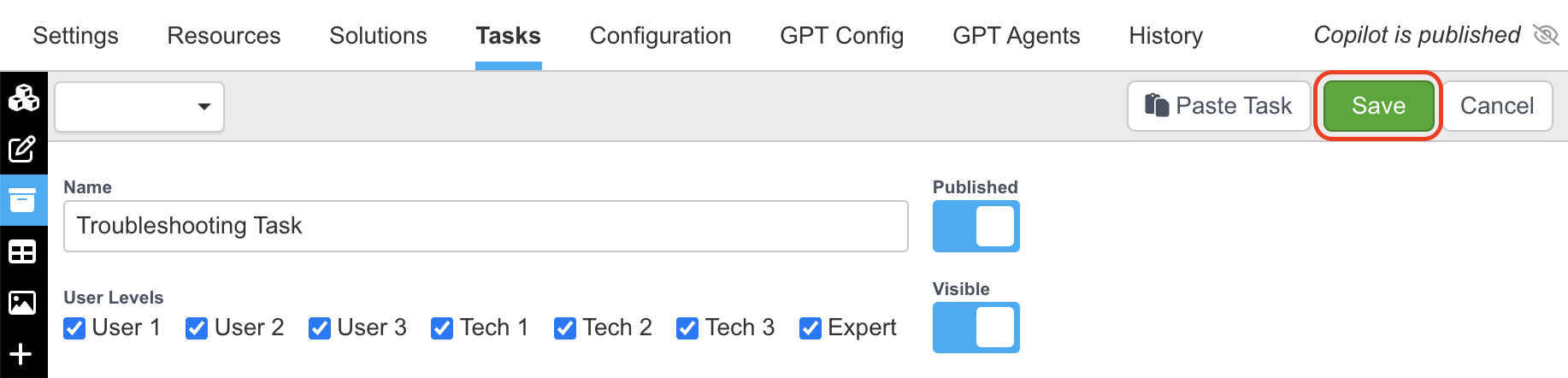
- Press Save
- After title is given, it will go automatically to the first step of task. At this point, enter the prompt you want to show up under “Title”
- To add details, click “Add New Instructions”
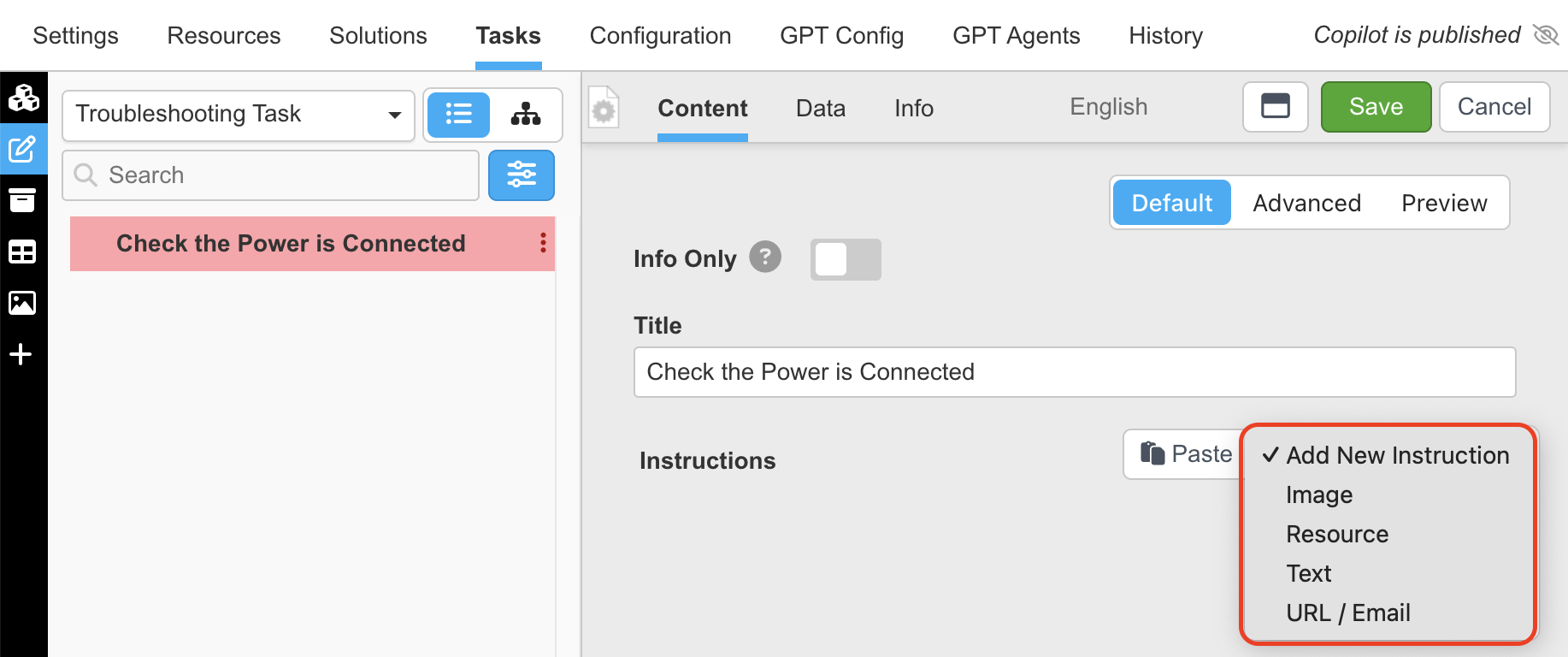
(These details will show up under the prompt of the step. Instructions can be input in the form of images, resources, texts, URL/Email, or videos)
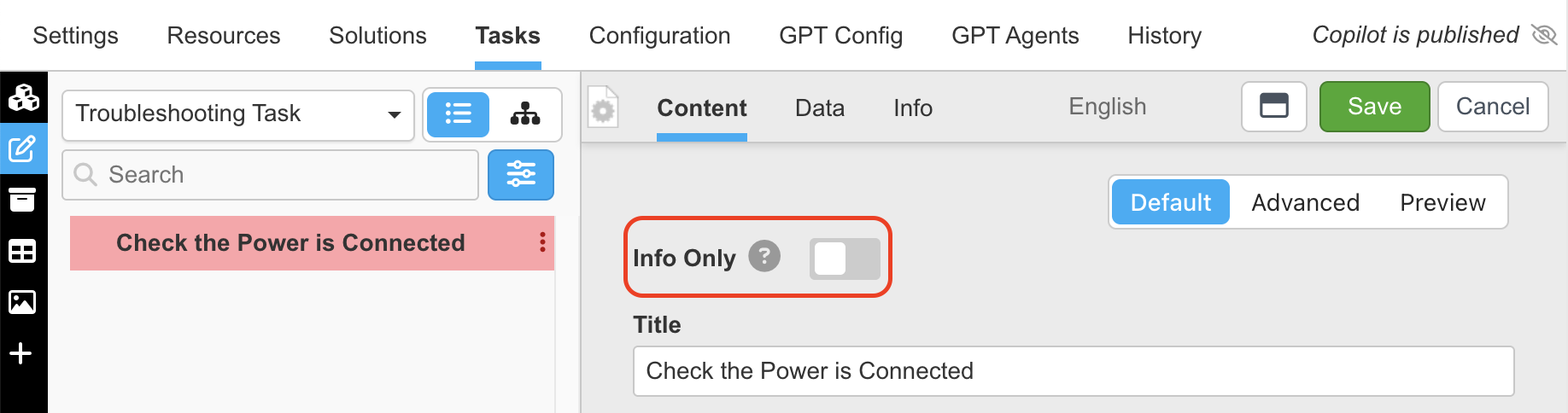
- At this point "Info Only" should be enabled if the step is meant to inform the user without any result. If "Info Only" is not enabled this step will be a solution-based process where the procedure only proceeds if the problem persists (This is useful for troubleshooting/diagnosing)
- Press "Save"

- Press the plus sign in the Step to add another step
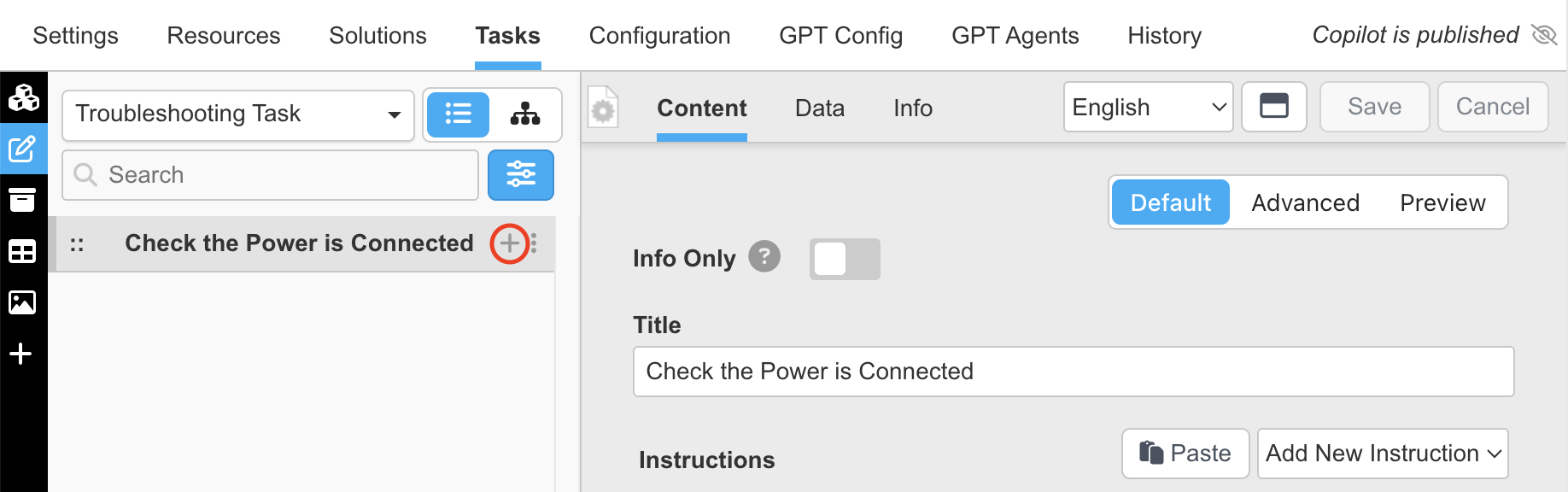
(Steps added will be shown on the left side in the form of an outline of the task process)
- Repeat steps 6-10 to add subsequent steps
Updated about 2 months ago