
How To Ask Questions
Interacting with InSkill GPT
Interacting with InSkill GPT is designed to be intuitive. Whether you are at a desk or on the factory floor, you can access your digital expert through two primary methods: the InSkill Portal (Web) and the InSkill App (Mobile).
1. The InSkill Portal (Web Interface)
The Portal is the ideal environment for deep troubleshooting, authoring, and reviewing documentation.
How to Access
-
Navigate to expert.inskill.ai or visit inskill.ai and select "Sign In".
-
Once logged in, you will arrive at the Manage Portal, displaying all available copilots.
-
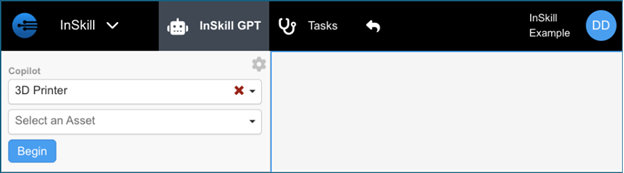
Use the Portal Dropdown in the top-left corner and select InSkill Portal.
-
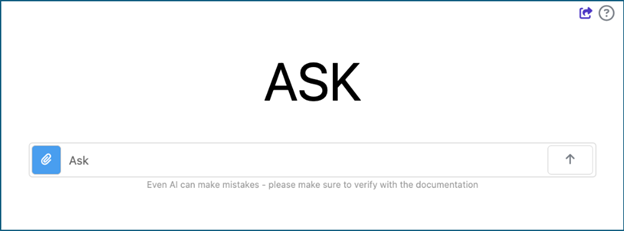
Choose your desired copilot and click "Begin" to launch the chat interface.
The Interaction
-
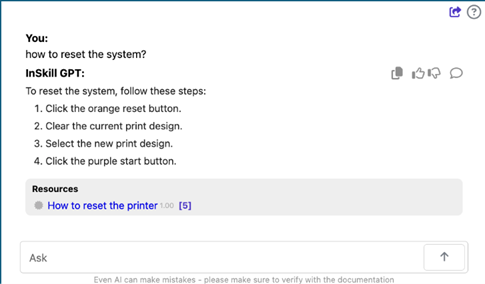
Context-Aware Chat: Simply type your question. The AI understands the specific context of your machine and provides a tailored response.
-
Sourced References: Underneath every answer, InSkill provides a list of References (shown in grey) so you can verify the information against the original manuals or videos.
2. The InSkill App (Mobile Interface)
The app is the preferred method for real-time, on-site work. It acts as an "expert-in-your-pocket" that follows you wherever the equipment is located.
How to Access
-
Open the InSkill App on your mobile device.
-
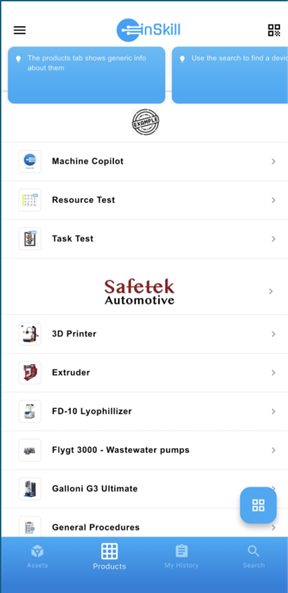
On the Product Copilot home screen, select the specific machine you are working with.
-
You will land directly on the Ask tab—your gateway to InSkill GPT.
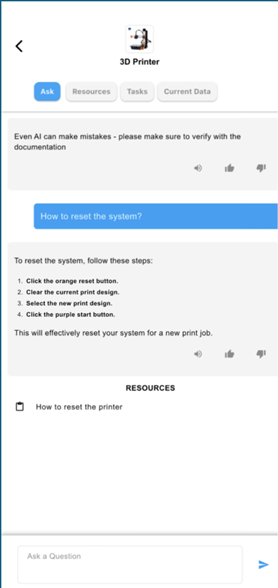
Mobile Features
- Text or Voice: Ask questions naturally.
- Text-to-Speech: Tap the Speaker Icon to have the copilot read the instructions out loud, allowing you to keep your hands on the equipment.
- Immediate References: Just like the portal, references are displayed immediately below the answer for quick verification.
3. The Feedback Loop: Improving Your Copilot
Feedback is the engine that drives InSkill’s intelligence. While optional, providing feedback is the fastest way to optimize your copilot’s accuracy.
How to Provide Feedback
-
Thumbs Up/Down: Available on both the Portal and the App. This helps the system learn which answers are helpful.
-
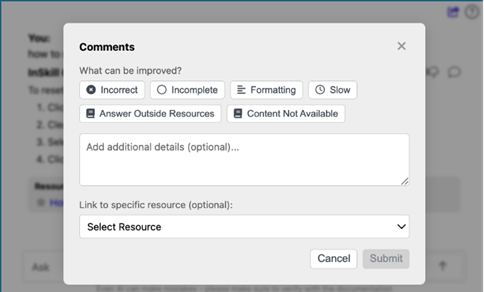
Detailed Comments (Portal Only): If an answer is incorrect or missing detail, select the Comment Icon (top right of the response).
-
Directing Fixes: In your comment, tell us where the correct information can be found. Our engineers use these insights to close knowledge gaps and update the resource library.
Note: Providing a "Thumbs Down" with a specific comment is the most effective way to ensure your team has the right knowledge for future encounters.
Updated about 2 months ago