
Copilot Settings

In the Settings tab, you can configure key product information, including the product name, logo, and any aliases (alternative names it may be known by). You also have the option to control the product’s visibility and availability.
Enabling the Published setting under status makes the product available as a usable Copilot within the app. Alternatively, you can mark the product as Invisible, allowing it to remain active and usable in GPT responses while keeping it hidden from users in the app interface.
In this tab you also can configure Components, upload a specific pre-configured style for your copilot with a CSS file, and add custom scripts.
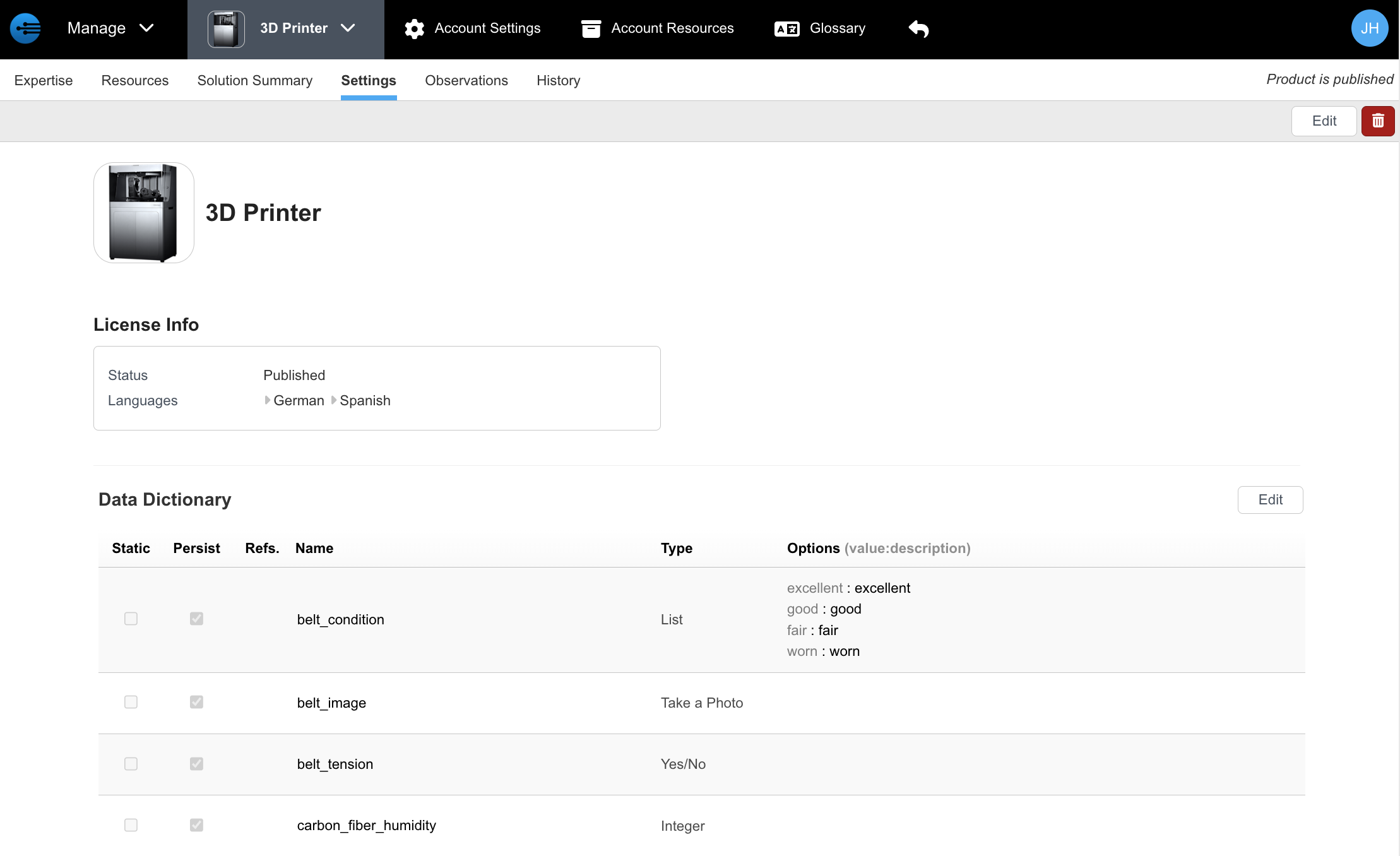
This is the product settings page. From here you can edit the product or delete it. The Data Dictionary is displayed, and using the edit button on the right, you can manage it.
When editing the product, this page manages the product name and logo (a square with a transparent background works best).
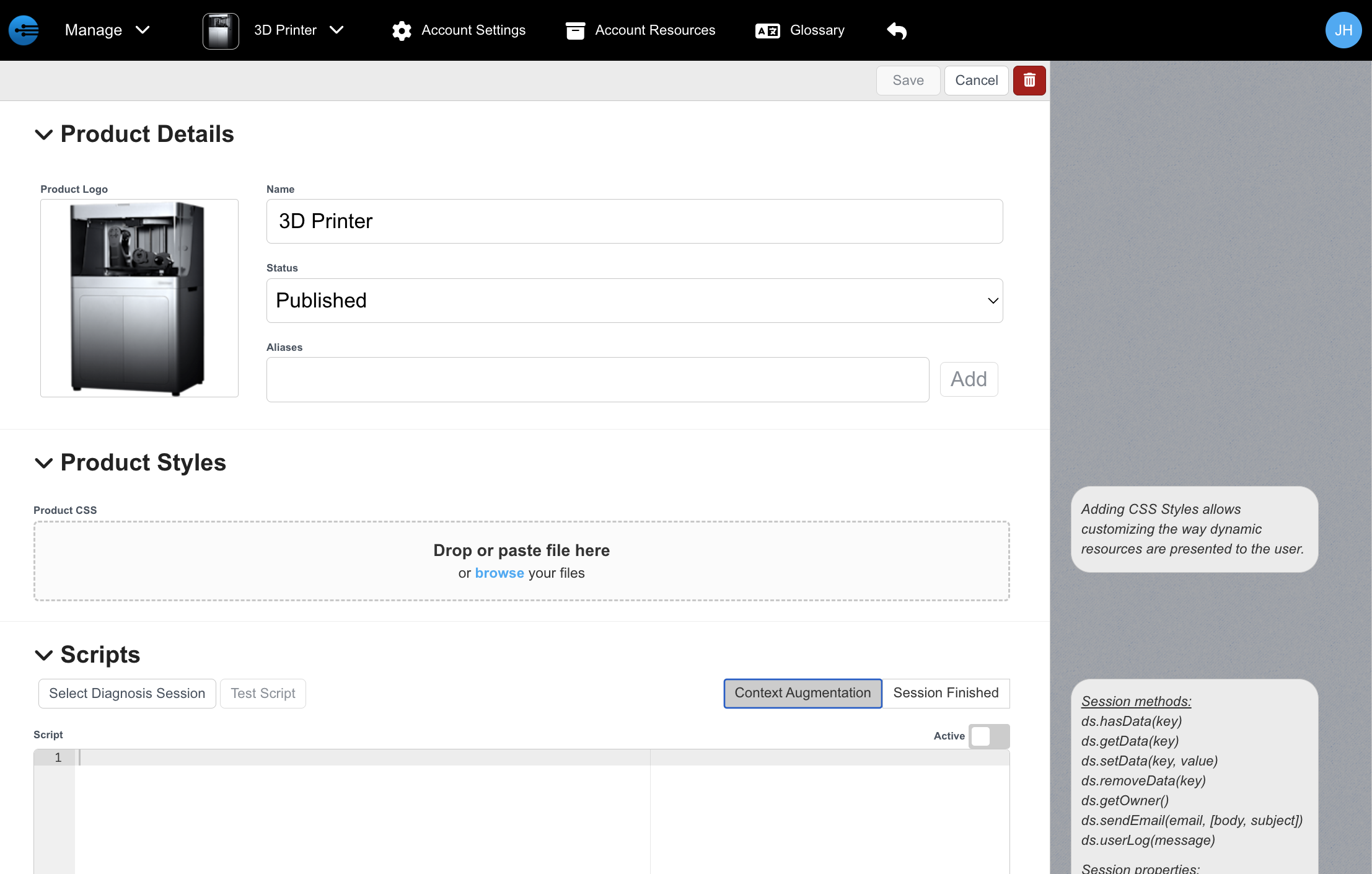
An unpublished product will not be shown to users in the InSkill app (unless a user has it specifically turned on in their user profile, usually for testing)
Aliases can be used to match a product name during imports, etc. If you import assets from another system and it refers to this 3D Printer as "3d" or "Atlantis", then entering those as aliases allows InSkill to match the right product.
Product Scripts are the way to add custom logic to the workflow of Tasks.
Copilot Details
Here, you can observe and modify the details of your Copilot. To modify the copilot, select "edit" at the top right corner of the page.
The following settings are available for customization:
Copilot Logo
This is where you upload the image that serves as the Copilot’s display icon and will be displayed across both the portal interface and the app environment.
Name
This is where you enter the designated name used to identify your Copilot within both the portal and the app.

Visibility and Status
The Status setting allows you to mark your product as either Published or Unpublished. When set to Unpublished, the product will not appear in the app and will not influence GPT responses.

The Visibility setting controls whether the Copilot is visible to users within the app. If set to Invisible, the Copilot will be hidden from the app interface but will still remain active and influence GPT responses.
Aliases

This section is where you can add alternative names (aliases) for the product.
Escalate Task
This is where you can select a task to escalate internally.

Components
This is where you can add components to your Copilot. This means you can give your Copilot access to other Copilots. When you ask a question to your Copilot, it will draw answers from its resources as well as all of the resources of its Component Copilots. This is a way to nest knowledge and amplify the power of certain Copilots.
This functionality is ideal for equipment that has multiple machines connected to one, equipment with add-ons, or general information about a line of asset-based Copilots.

Copilot Styles
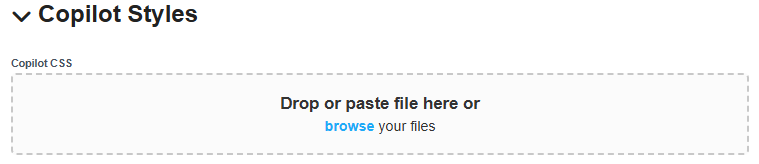
This is where you can import CSS files with custom stylings for your Copilots.
Scripts
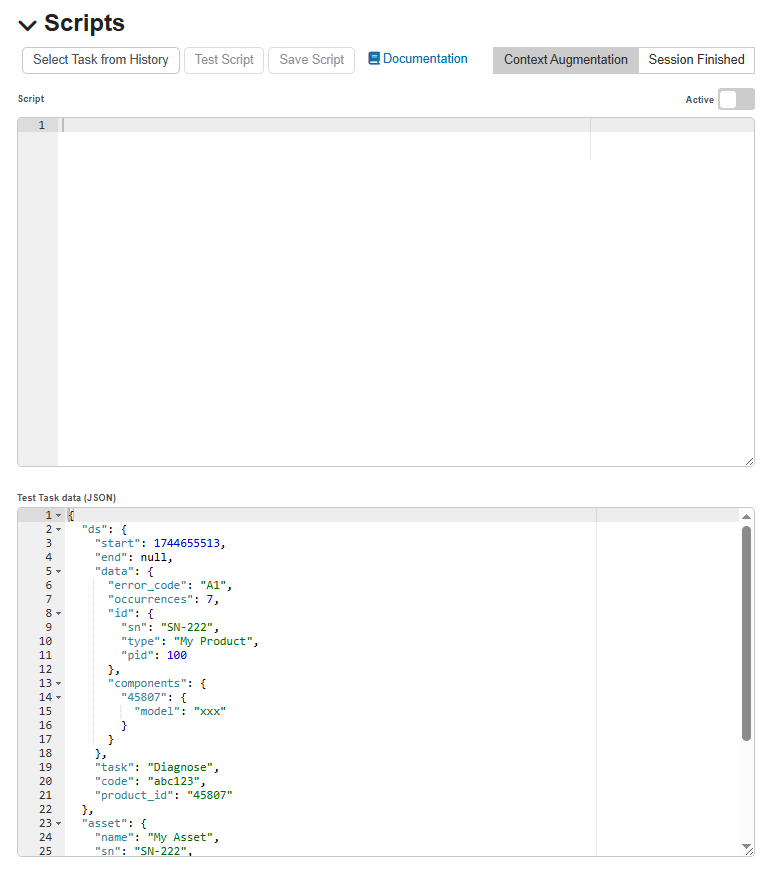
This is where you can input custom scripts for your Copilots to perform custom functions.
Updated about 2 months ago