
Dependencies
Dependencies are critical data points associated with assets, scanned QR codes, or information collected through real-time observations. Their primary function is to filter and display the most relevant tasks, steps, step instructions, and resources based on the specific context of the machine or the current situation.
What Are Dependencies?
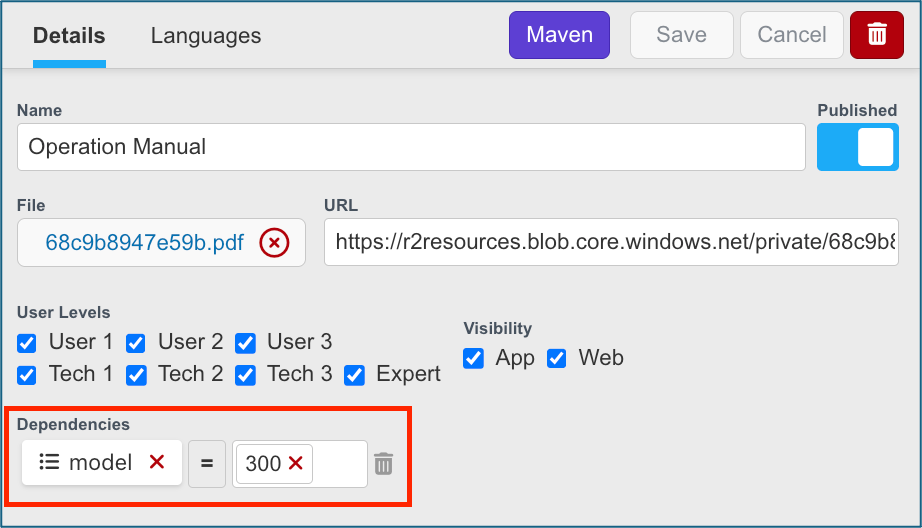
Dependencies are rules that control when a resource, step, or task becomes available. Think of a dependency like a key to a door. If the correct condition is met, the door unlocks and the user can access the information. If the condition is not met, the door stays locked.
In InSkill, dependencies allow authors to show only the information that applies to a specific machine, product, model, or user situation. This helps keep tasks and resources organized and prevents users from seeing information that does not apply to them. This makes the information InSkill provides unique to your situation and will not provide information for another model or version.
How Dependencies Filter Content
By utilizing dependencies, you ensure that a technician only sees information that is applicable to the task at hand:
- Task Visibility: You can set dependencies at the task level so they only appear under specific conditions. For example, a maintenance task might only show up if an asset has a specific option installed.
- Step Logic: Individual steps within a task can depend on asset data or information collected earlier in the process, such as specific symptoms or sensor readings.
- Targeted Instructions: Step instructions often use dependencies to provide direct links to the exact section of a manual that corresponds to that specific asset model.
- Asset Data Points: These variables often include the machine model, configuration details, or optional add-ons.
Configuration and Logic
Setting up dependencies allows authors to create complex, non-linear diagnostic paths:
- Accessing Configuration: To manage these rules, navigate to the Configuration menu. You will typically find pre-existing dependencies in a dropdown menu based on previous usage or you can create new variables manually.
- Expertise Variables: In InSkill, "Expertise" refers to the variables used within tasks. When adding a dependency, you can incorporate one or more of these variables.
- Asset Integration: If a variable is associated with an "asset," it will appear automatically as a selectable item.
- Advanced Logic Trees: For sophisticated workflows, you can create groups of dependencies and utilize AND and OR logic functions to define exactly when content should be associated.
Multiple Dependencies
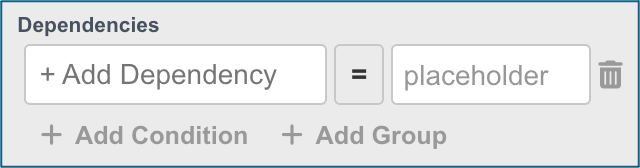
Sometimes one condition is not enough. For cases like this, InSkill allows you to add multiple dependencies to create more specific rules. Adding another dependency is easy! To add another dependency, just hover over an existing dependency and you will see two options for adding a dependency: Add Condition & Add Group
Add Condition
Adding a condition creates another rule within the same dependency group. The conditions can be connected using AND or OR. This results in either having a document with a better restriction or more options to get to the resource.
AND
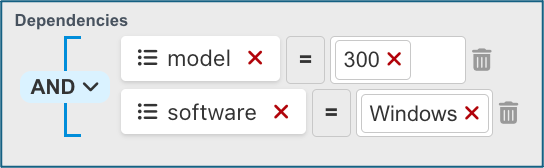
An AND statement means every condition must be true. Think of it as needing two keys to unlock a door. For example:
- Model = 300
- Year = Windows
The resource will only appear if the machine is a CareFIT model and was built 2011-2015. Additionally, InSkill will only know this to be true if these definitions are assigned via an asset, filter, or providing the definition within a step. This makes the document "more restrictive," as two definitions are needed to match.
OR
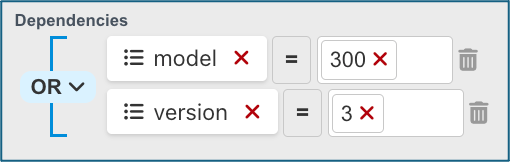
An OR statement, on the other hand, means only one condition must be true to be accessible. Think of it as one room that has multiple entrances, with each door having a different key. For example:
- Model = 300
- Version = 3
The resource will appear if either condition is selected.
Adding a Group
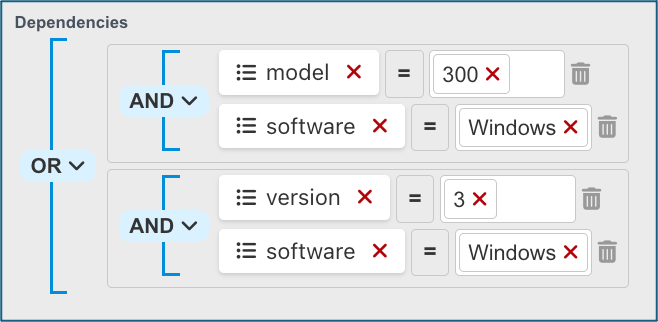
A group creates a completely separate set of conditions. Think of it as creating another door that leads to the same room. For example, a resource may become available if:
- Software = Windows & Model = 300
or
- Software = Windows & Version = 3
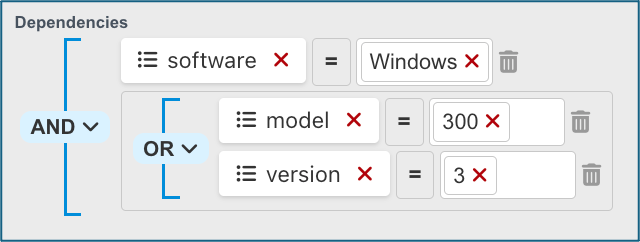
You can also flip this around, which will result in the same restrictions being implemented. As you can see, this makes the dependencies flexible and they can be used in creative ways. This allows for a multitude of ways of restricting access to a resource, step, or task.
Where to Add Dependencies
Dependencies can be added to:
- Resources | Controls which manuals, guides, or documents are available.
- Steps | Controls which steps appear within a task.
- Tasks | Controls which tasks are available to different copilots, assets, or situations.
Dependencies use variables from the Data Dictionary. These variables can be either:
- Asset Variables – Information already stored on the asset, such as model number or software version. No additional questions are required.
- Expertise Variables – Information collected from the user during a task. The user must answer a question before the dependency can be evaluated.
How to Add Dependencies
Please follow these instructions to learn how to implement dependencies in tasks, steps, or resources:
- Click inside the dependency box.
- Search for the variable you want to use.
- Select the variable.
- Select the value box (That should trigger the drop-down of dependency definitions).
- Select definitions for the variable to create dependency.
- Add additional conditions or groups if needed.
- Save your changes.
Once saved, the dependency will automatically control when the resource, step, or task is available.
Adding Another Dependency
As stated above, to add another dependency, hover over an existing dependency and two options will appear. To add a dependency select either:
- Add Condition
- Add Group
Updated about 2 months ago