
Visibility by Role
Limit a resource, task, or step to particular access levels, and turn a resource off for the app, web portal, or InSkill GPT.
To ensure that manuals and other content are only accessed by appropriate personnel, you can set the access levels a piece of content is appropriate for. Limiting visibility ensures that only qualified personnel work through particular processes, whether because of technical difficulty, advanced analysis, or safety.
Resources, tasks, and steps all work the same way: each has a User Levels list — User 1–3, Tech 1–3, and Expert — and a user sees the content only when their role's access level is selected. All levels are selected by default.
For example, if a maintenance manual that guides a Technician through fixing a high-pressure system is not appropriate for operators, clear User 1, User 2, and User 3 on that resource.
Resources
To limit a resource, open the Resources tab of a copilot in the Copilots portal, click the resource, and clear the levels that should not see it under User Levels. Click Save.

A resource's User Levels and Visibility settings
When a level is cleared, the resource is not browsable in the app by users at that level and does not appear in their InSkill GPT answers.
Resources can also be turned off for individual InSkill surfaces under Visibility: App, Web, and InSkill GPT Answers. For example, if a resource is too technically difficult to be answered on well, clear InSkill GPT Answers alone.
Tasks
A task's User Levels are set in its Task Details, or when you create the task.

A task's User Levels
Steps
A step's User Levels are on the step's Info tab.
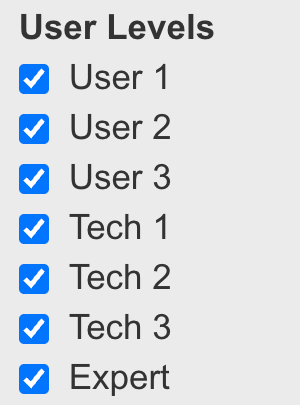
A step's User Levels
Updated about 6 hours ago