
Account Settings
These are the account settings that affect your users and customers. Upload a logo image (square works best) that will be shown to users in the InSkill app.
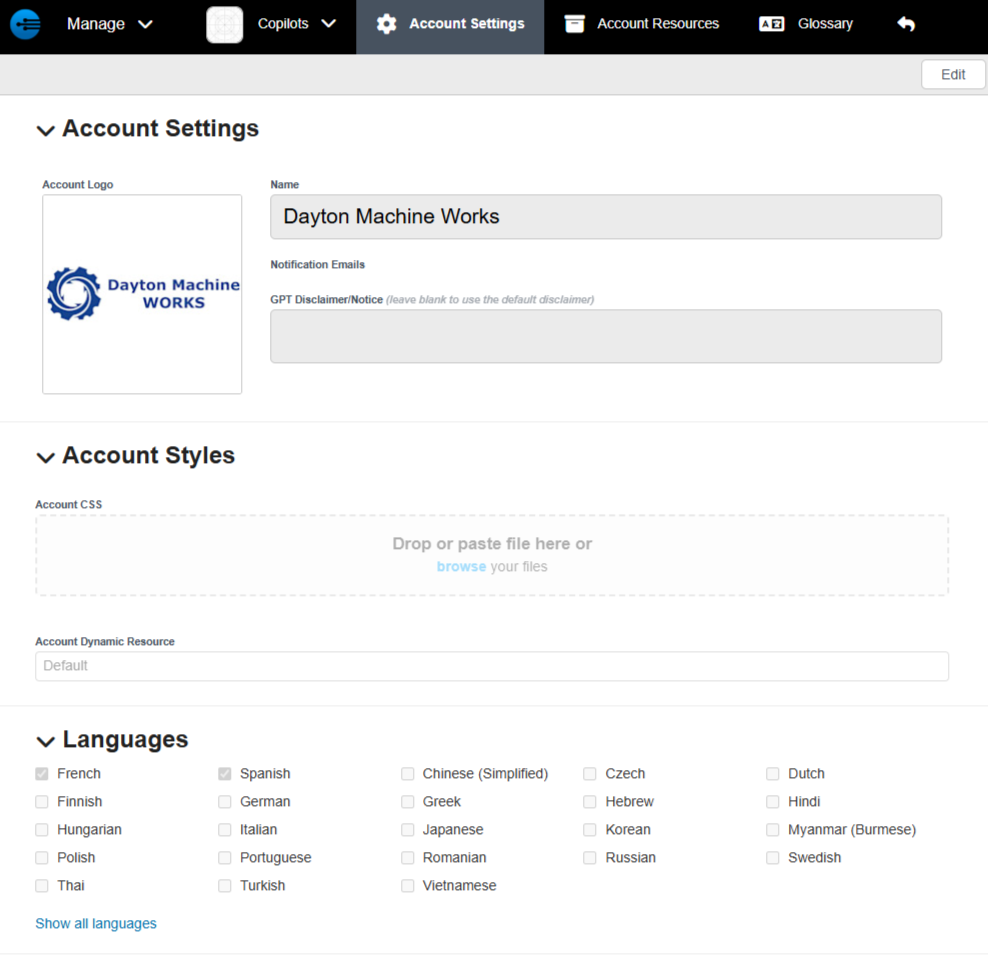
Languages selected will be used to translate your expertise from English to other languages automatically.
A CSS style sheet can be uploaded here, to be used in any web content in resources, steps, etc. If a file exists, it will be inserted into any web content automatically.
Configuring Copilot Settings: Fine-Tuning Your AI Assistant
The Settings tab is the control center for your copilot’s identity and behavior. It allows you to refine how the copilot appears to users, how it interacts with other systems, and how it handles complex support scenarios.
To edit your settings, navigate to the copilot's page and select Edit in the top-right corner. This will open the configuration screen, which is identical to the Create a New Copilot interface.
Core Operational Controls
Manage the lifecycle and availability of your copilot with these primary switches:
-
Visibility: Toggle this to control whether the copilot is visible and searchable within the InSkill mobile app.
-
Published vs. Unpublished:
- Published: The copilot is live. Its expertise is indexed, it can answer GPT queries, and it can be added as a component to other copilots.
- Unpublished: The copilot is disabled. It is removed from the search index and cannot be linked to other systems, making it ideal for maintenance or draft mode.
-
Add Aliases: Define alternative names for your copilot. This is primarily used for Asset Imports to ensure that variations in naming conventions across different systems still map to the correct copilot.
Advanced Customization & Logic
Use these advanced sections to transform your copilot from a simple chat interface into a powerful technical tool:
-
Designate Escalation Task: Select a specific procedure to serve as the official escalation path. When a user hits the Escalate button in a chat or task, they will be automatically routed into this task to gather data and connect with the correct support channel.
-
Notification Email: add emails to receive account-wide notifications.
-
Components & Dependencies:
- Add existing copilots as "sub-components" to your current project.
- Filtering: Apply dependencies to these components. For example, adding a "Filter Assembly" component with a dependency where
attachment_included = yesensures that knowledge is only available to users working on assets that meet that criteria.
-
Copilot Styles: Customize the visual presentation of the copilot. Adjust theming, colors, and branding to match your company’s identity or integrate seamlessly with a customer’s HMI.
-
Scripts: Access the InSkill Scripting Engine to build custom logic. Use scripts to perform complex calculations, trigger external API calls, or create dynamic if/then behaviors that adapt to real-time user inputs or machine telemetry.
Updated about 1 month ago