
Scanning QR Code
When a QR code is available for a device, initiating a diagnosis in InSkill is quick and straightforward. After a successful scan, InSkill presents the information contained within the QR code and gives you the option to immediately begin working with the copilot.
From the InSkill app’s home screen, select the QR Code option in the top right corner of the screen. With allowed permissions this will activate your device’s camera, allowing you to scan the QR code associated with the equipment. Once scanned, you will be taken directly to that device’s available tasks, resources, and diagnostic tools. From here you are ready to chat with your copilot!
How do you get a QR code?InSkill offers the tools needed to add this feature to your own product. InSkill supports 2 types of QR codes:
- Static QR Codes contain fixed identifying information used to recognize a device. This information does not change over time and is typically printed or permanently affixed to the machine.
- Dynamic QR Codes can be generated in real time and displayed directly within a device’s user interface. In addition to identification data, these codes may include diagnostic information such as logs, fault codes, or other data relevant to troubleshooting.
QR codes are not required and if you do not wish to use them, you can still diagnose your device and use observations to collect data.
Learn more about how InSkill uses QR Codes
Authentication and Access
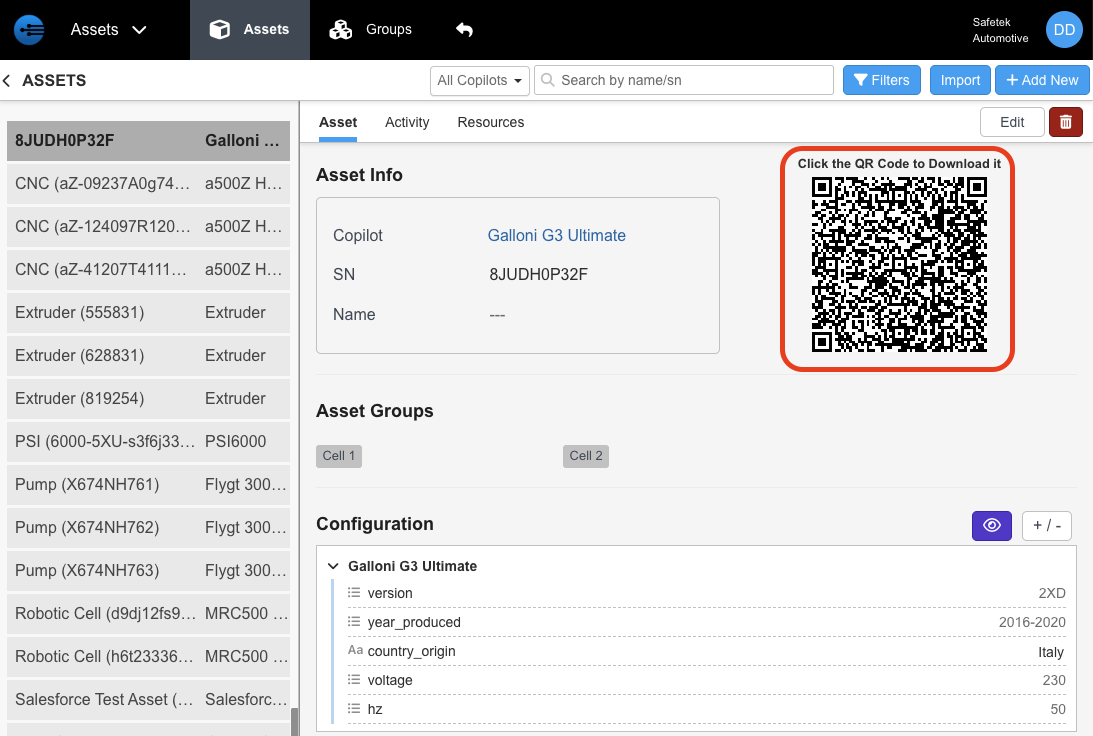
Only QR codes associated with devices you are authorized to access can be scanned. This ensures that users cannot interact with equipment for which they do not have permission. Once a QR code is scanned, you will see a detailed list of the data elements contained within the code and can proceed directly into diagnostics, troubleshooting or asking it questions.
Updated about 2 months ago