
Configuration
What is Configuration and Why Does it Matter?
The configuration tab is where you will configure dependencies for your tasks and assets. Dependencies are conditional statements that are used to collect information. For example, you can ask a user "Is this statement true" and set the dependency to "Yes/No", and the user will be able to answer the question. This information can be used by InSkill's AI to gather information to provide better recommendations for users in the future.
Another usage for dependencies is to assign a "Model" to assets and resources. By creating an asset called "Model" (the name itself is insignificant and can be changed), you can create different versions of the same product within a copilot. Say, for example, you have a machine called the "Pump 1", but it has many different variations, all with unique documentation. You can create a "Model" dependency under the asset section of configuration, set it to a "list", and then add in the different variations, for example "Pump 1.1", "Pump 1.2", etc. Now in the Resources tab you can add in all the unique documentation required for these versions of the pump and correctly assign the right version to them with the dependency. Next you would go to the Asset tab and create different assets for each version of the pump, so you will have a unique asset called "Pump 1.1" and "Pump 1.2". Now that these are created, a user in the InSkill mobile app will be able to select a specific asset and get the specific documentation and tasks that are required for working on that variation of the pump.
Where is Configuration?
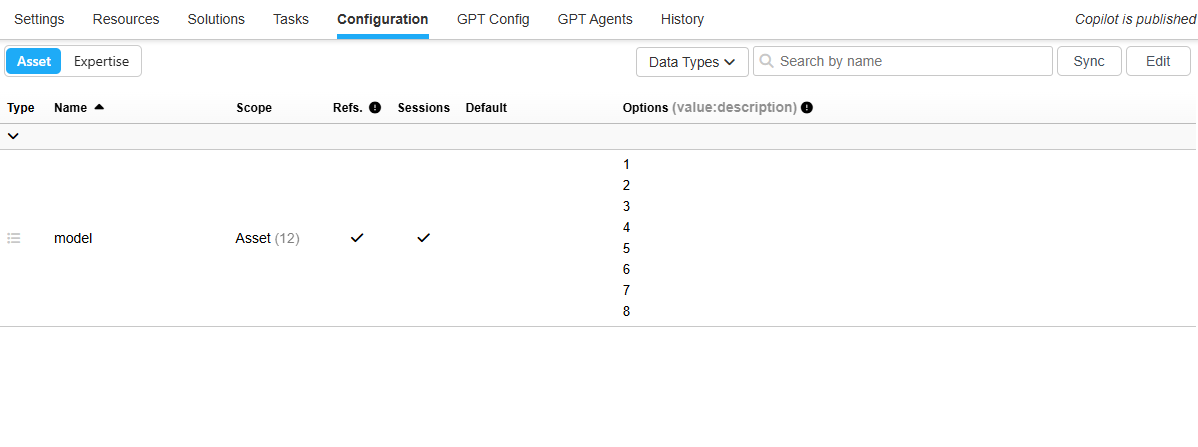
In the Assets section, you can add dependencies which you can assign to a resource to associate them with an asset. This way, in the app you are able to select an asset you want to see and it will display only its corresponding resources.
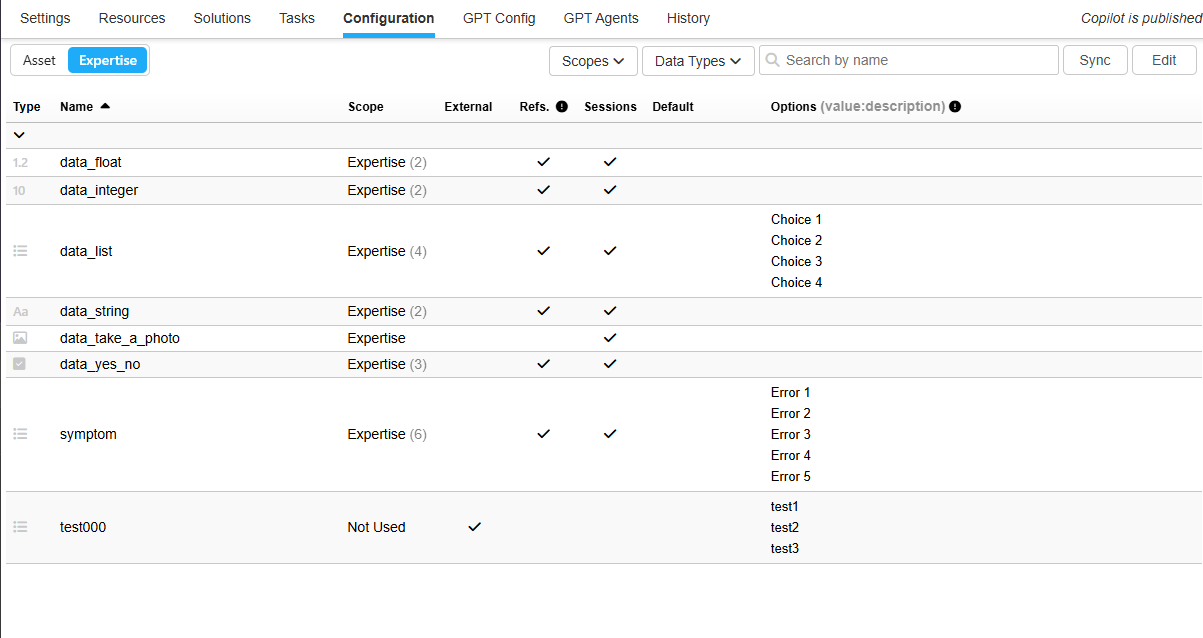
In the Expertise section, you are able to add, view, and edit dependencies that will be used in tasks. When you create steps within tasks and add dependencies, they will be visible in this window. You can also create dependencies directly from this window and then assign them to specific steps.
Adding Configuration Variables
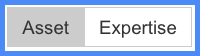
When adding dependencies in the configuration tab, there are two main sections you can choose from: the "Asset" tab and the "Expertise" tab. In the Asset tab, you will be configuring dependencies for the resources as well as assets, and in the Expertise tab you will configure dependencies for your tasks (copilots).
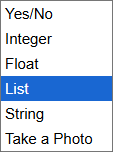
To get started, press the "Edit" button in the top right of your screen and then press (+ Add Field). You will now be able to configure your first dependency. To start, under the column labeled "Type" you will be able to select which type of dependency you would like to create. The different types are as follows:
| Variable Type | Definition |
|---|---|
| Yes/No | By using this dependency you will be able to collect information from a user by asking a question in a step. You can use this in a copilot so that if the user answers "Yes", for example, then a specific step will be shown to them, and if they answer "No" a different one will be. Additionally, you can use this with a resource so that if the user has pressed "Yes", then a specific resource with this dependency and the answer "yes" applied to it will be shown. |
| Integer | Using this dependency allows you to prompt a user to input an integer (a number with no decimal place) into a field on the app during the step they are on. This can be used to gather information for InSkill AI or to apply conditional statements. For example, if you have set a dependency with an integer to equal a specific number, then you can make it so if a user enters that specific number, a specific step or resource will be shown to them. |
| Float | Using this dependency allows you to prompt a user to input a float (a number with a decimal place) into a field on the app during the step they are on. This can be used to gather information for InSkill AI or to apply conditional statements. For example, if you have set a dependency with a float to equal a specific number, then you can make it so if a user enters that specific number, a specific step or resource will be shown to them. |
| String | Using this dependency allows you to prompt a user to input a string of text into a field on the app during the step they are on. This can be used to gather information for InSkill AI or to apply conditional statements. For example, if you have set a dependency with a string to equal a specific value, then you can make it so if a user enters that specific value, a specific step or resource will be shown to them. |
| Take a photo | The "Take a photo" feature allows users in the app to take a photo of what they are working on; a common example would be of a nameplate. You can then set up an "Observation processor" in the Tasks tab, which can be used to pull information from the photo you have taken. The observation processor is capable of reading the text in an image and converting it into usable data. Going back to the nameplate example, this can be used to read the serial number listed on a nameplate and can then associate that serial number with a specific machine the user is working on within the factory (specific machines can be configured as assets in the Assets tab). |
Data Dictionary Organization
Asset and Expertise variables come in various flavors, all of which can be implemented into your tasks. They can be initialized as either yes/no inquiries, lists, float input, integer input, string input, or visual input (photo). These data types can be isolated by selecting the drop-down arrow seen here.
Scope can also be used to filter out specific uses of your variables. This helps keep a clean data dictionary with minimal duplicates.
Updated about 2 months ago