
Task History
Similar to asset history, the execution history of a product’s tasks can also be accessed. As previously noted, an asset represents a real-world instance of a product; therefore, viewing the product aggregates historical data from all assets created from it. By default, the History tab displays all tasks. To review the history of a specific task, use the drop-down menu located in the upper-left corner of the History tab to make a selection of a specific task.
- Beginning at the Manage Portal, select the product whose history you want to look at. From here select the History tab.
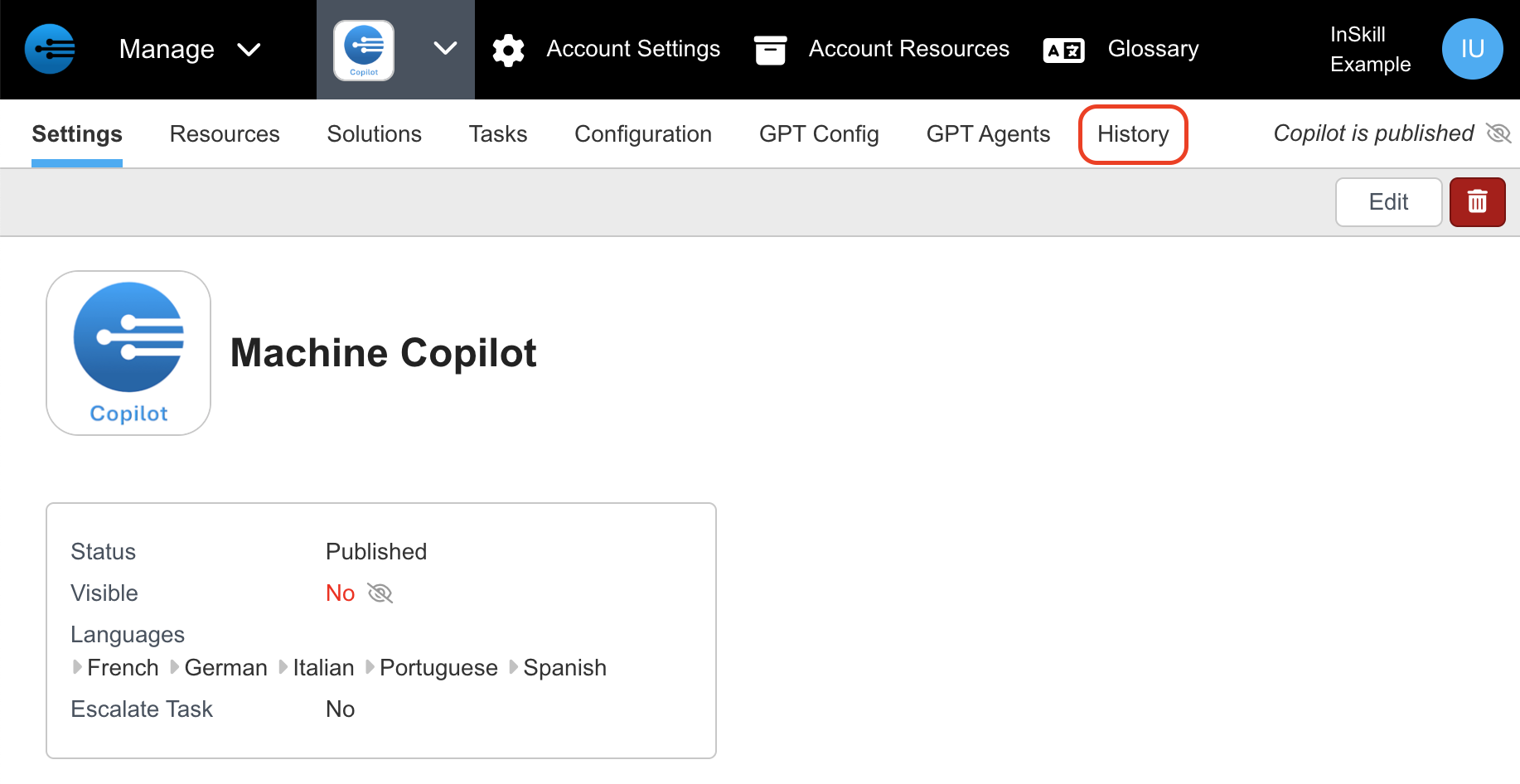
- Select the session you want to know more about
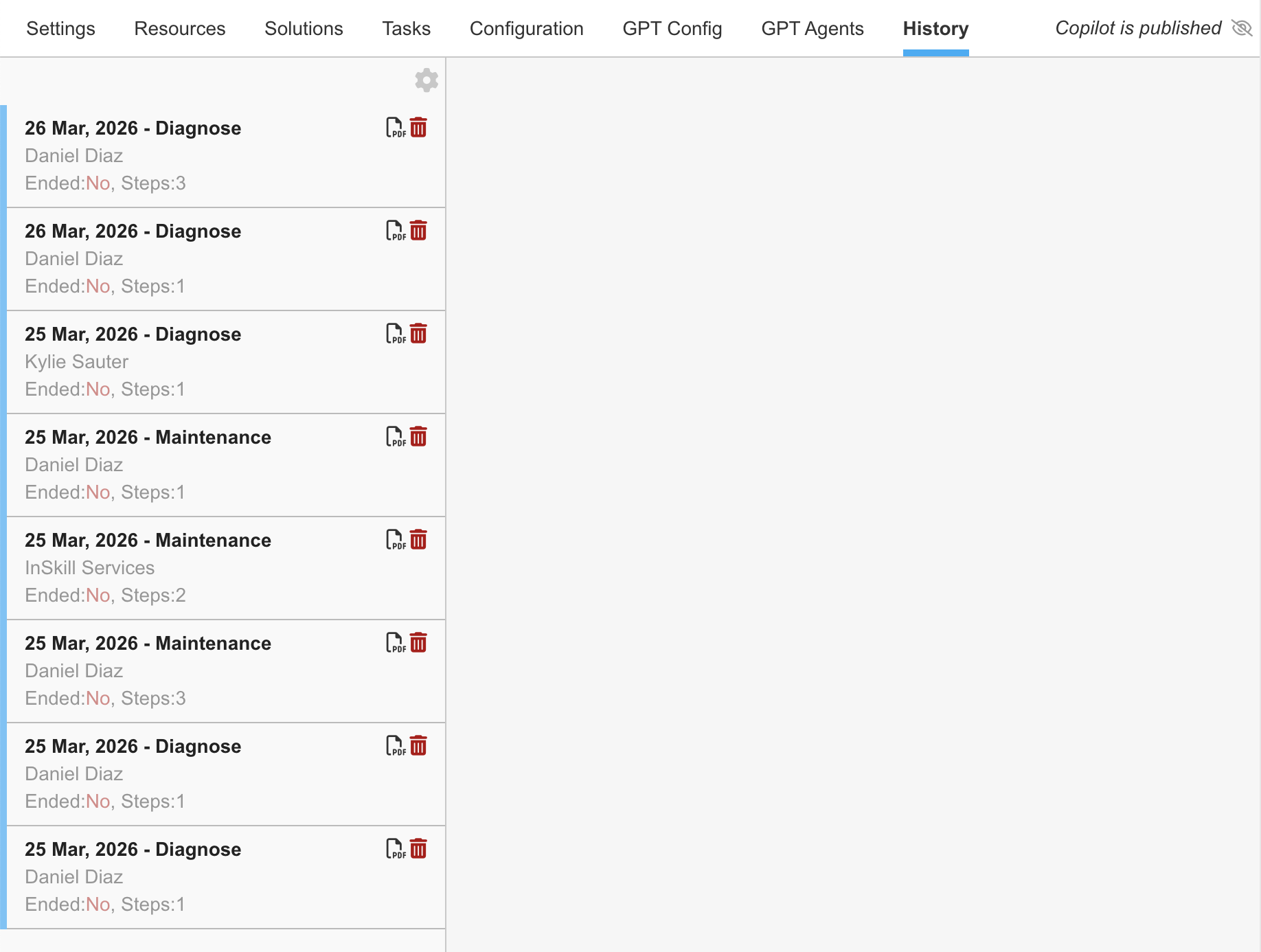
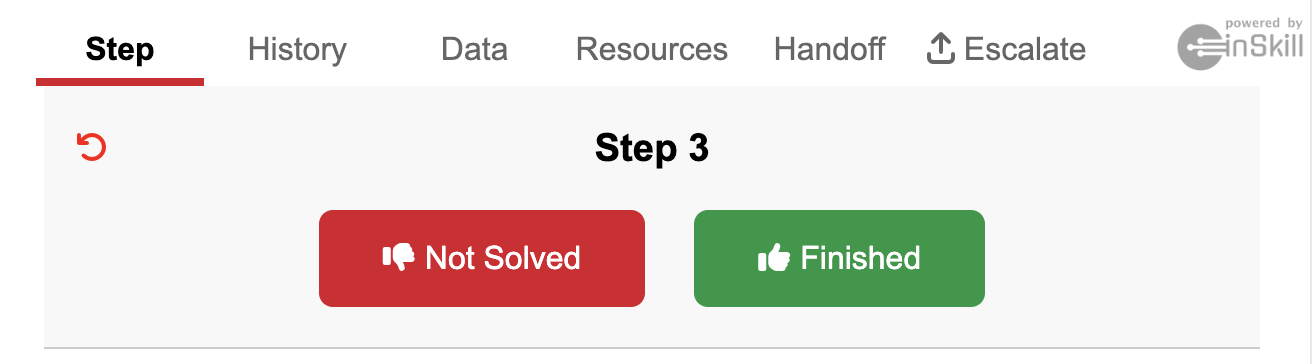
- At this point, InSkill will go step by step from which you can extract the History, Data, Resources, Handoff, and Escalate( If applicable)
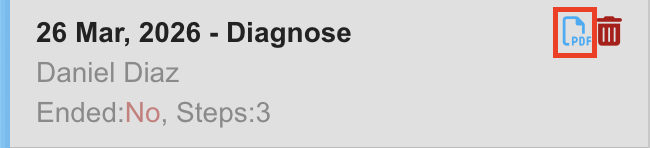
Report Mode
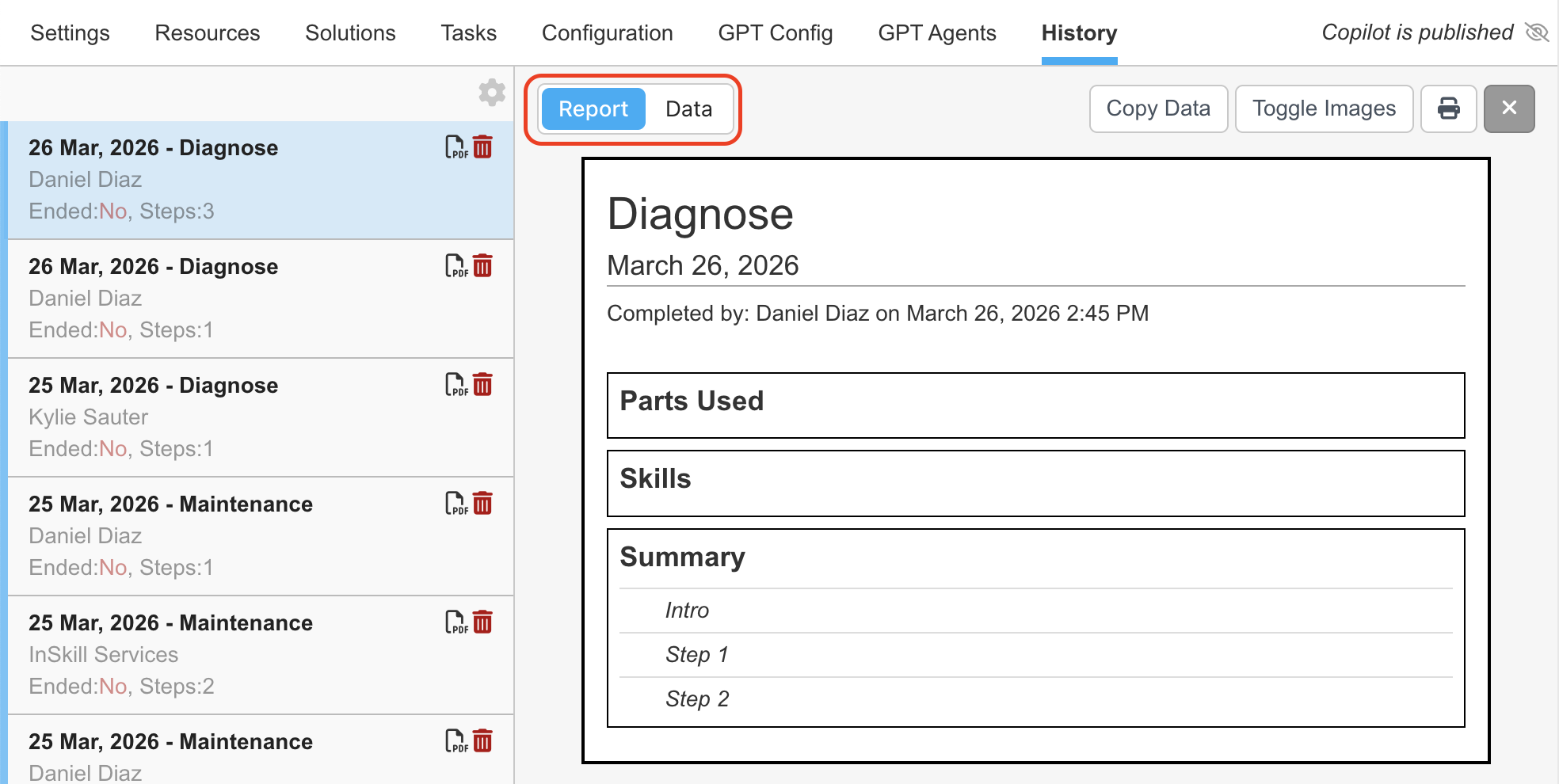
If you want to view the data in a report, please select PDF on one of the sessions
You can toggle between Report & Data (similar to Asset History). Selecting Report will show you a similar Report as seen in Asset History
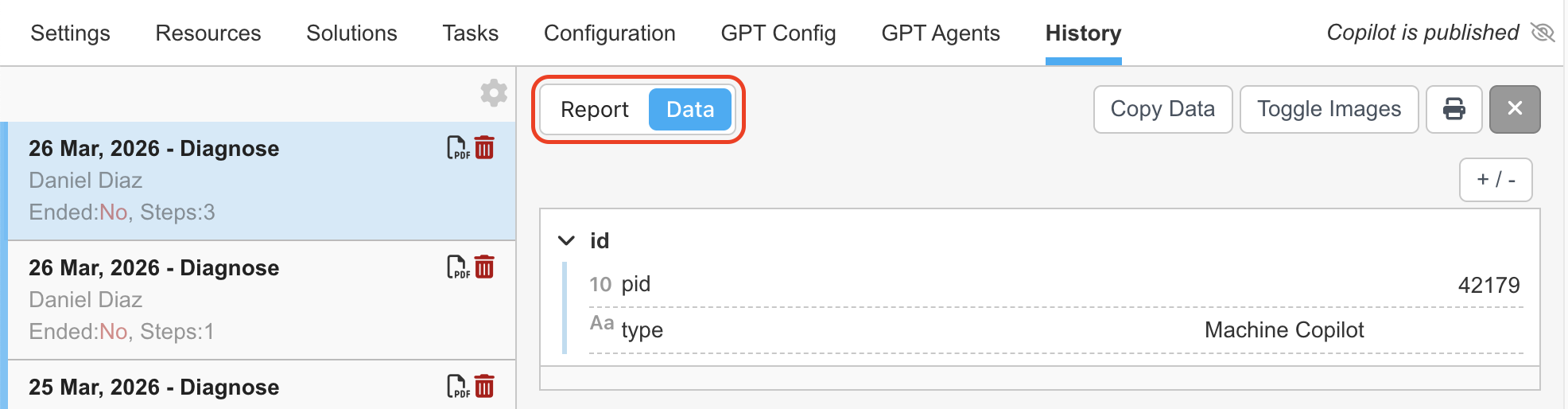
Selecting Data will provide you with a more detailed look into the session
Interactive Mode
The history tab allows you to view recent tasks that users have run. It allows you to see what steps they did, what answers they gave, parts used, costs and everything else that the user did when running the task. It also allows you to view the data, view corresponding resources and share a handoff to another user
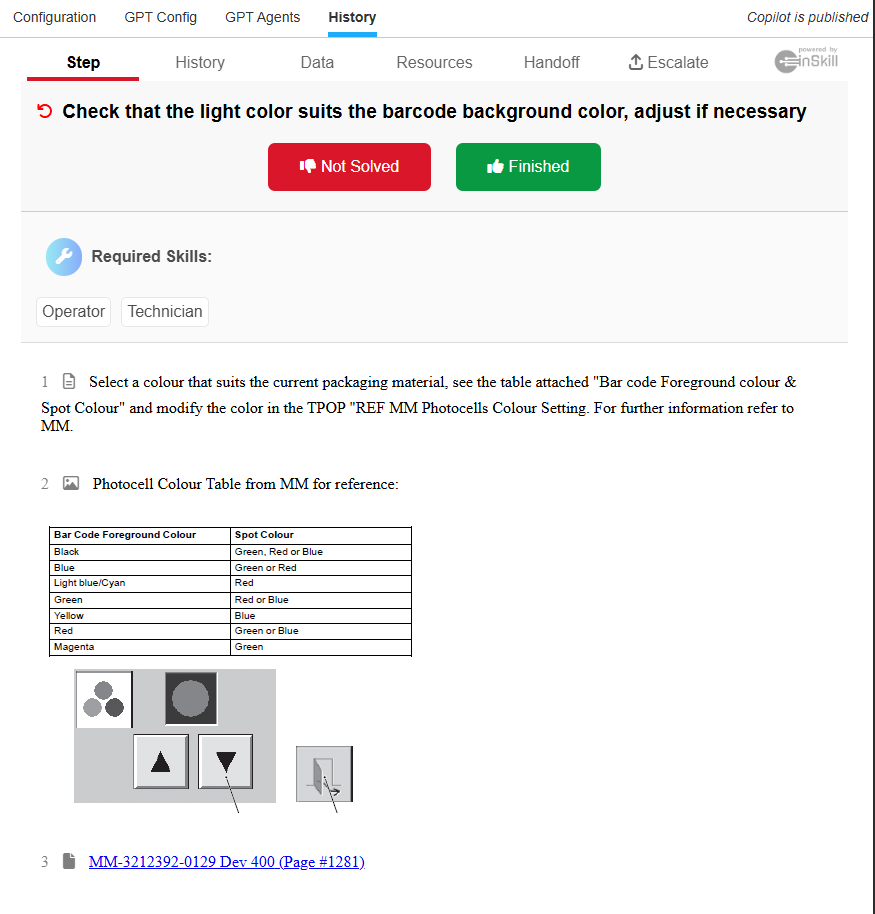
The step tab
This tab allows users to view the steps that are in the task
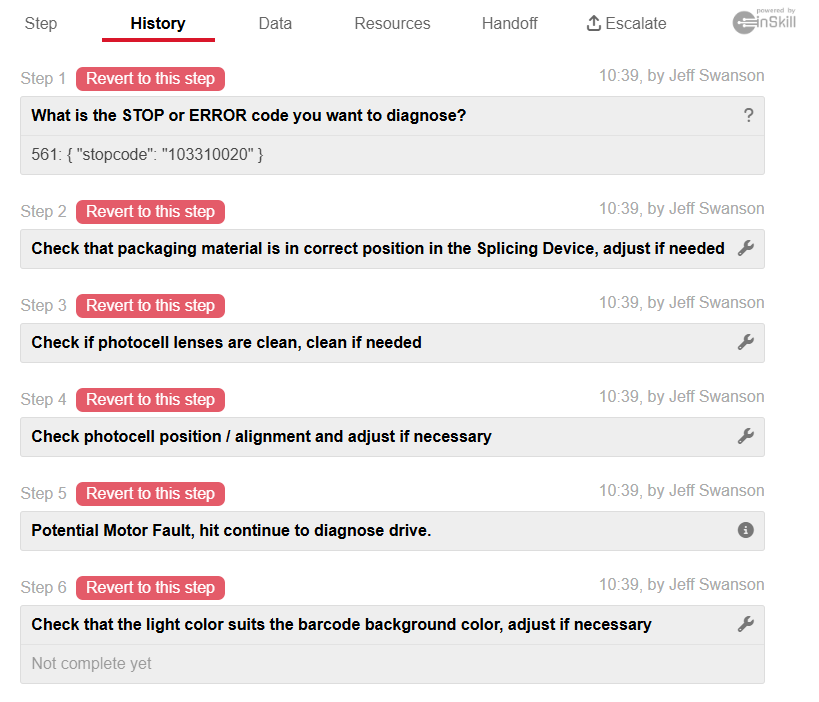
The history tab
This allows users to view which steps were performed by the user who completed the task, it will show the time and which user completed the step as well as provide a link to each step in order to view them.
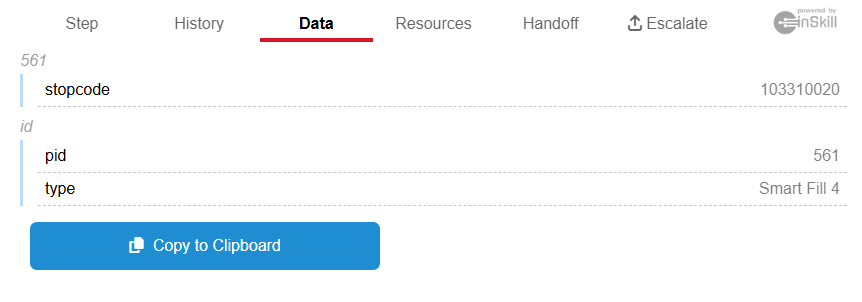
The data tab
This tab allows you to view data that has been inputted by users when completing the steps in the task
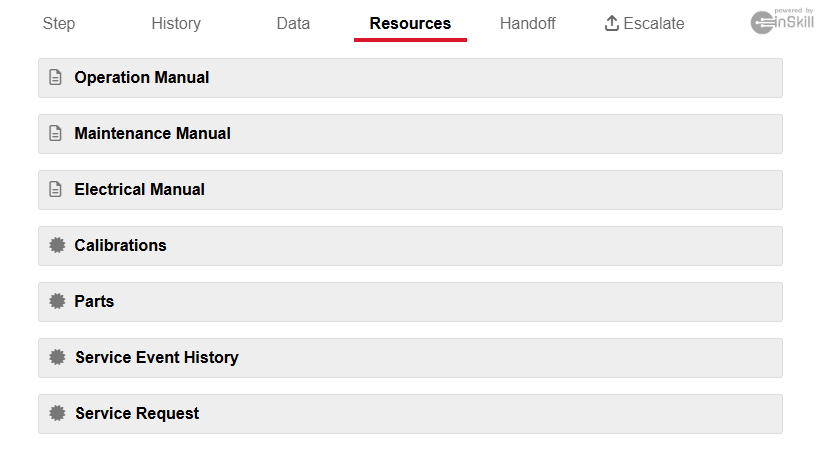
The resources tab
This tab allows you to view resources that are associated with the task
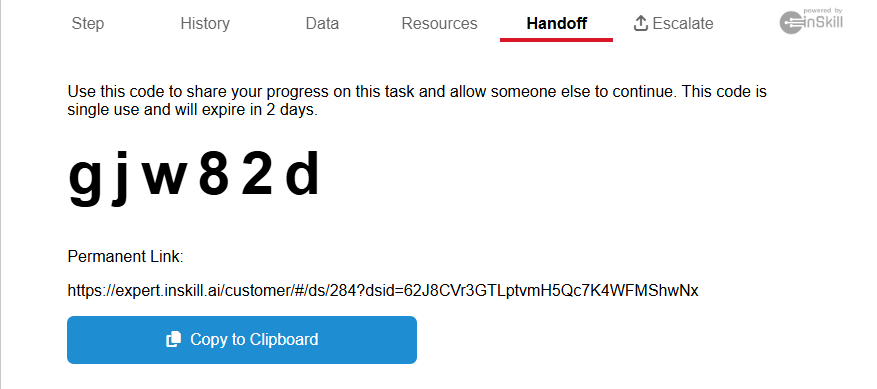
The handoff tab
A handoff allows you to let a different user continue a task where another user has left off. You can accept a handoff in the settings section of the app.
Updated?
The History Tab: Audit Trail & Insights
The History tab serves as the comprehensive audit trail for all operational actions taken within a copilot. While individual tasks maintain their own internal logs, the high-level History tab provides a bird’s-eye view of all completed workflows, ensuring accountability and transparency across your team.
Understanding the Two Levels of History
InSkill categorizes history into two distinct layers to help you find exactly the data you need, whether you are looking for your personal activity or global task performance.
| History Level | Location | Best For... |
|---|---|---|
| Copilot-Level | Main History Tab | Reviewing all tasks and actions a single user has performed on that specific copilot |
| Task-Level | Specific Task > History | Viewing global statistics, such as how many times a specific procedure was completed and by whom |
Copilot-Level History: Your Personal Log
This is your personal record of interaction. When you access the History tab at the copilot level, you can see a chronological list of every task you have initiated or finished.
- Self-Audit: Quickly verify the work you performed earlier in the day or week.
- Progress Tracking: See which tasks were successfully completed and which may have been escalated or left as drafts.
Task-Level History: Global Performance Data
If you need to analyze the frequency or timing of a specific procedure, navigate to that individual task under the Tasks tab.
- Completion Metrics: View how many times the task has been performed across the entire organization.
- Time Stamps: See exactly when colleagues completed the task to identify patterns in equipment maintenance or common failure points.
Updated about 2 months ago