
Escalate
InSkill makes it easy to escalate a session you are working on.
Escalation allows you to pass off a session to another user. The user can accept the session either in:
- InSkill app
- InSkill for web
Handoff Code
Click the escalate button (outlined in red) at the top. This will generate a code that can be shared with someone on your team. When they type the code in on their device, it will transfer the session to them.
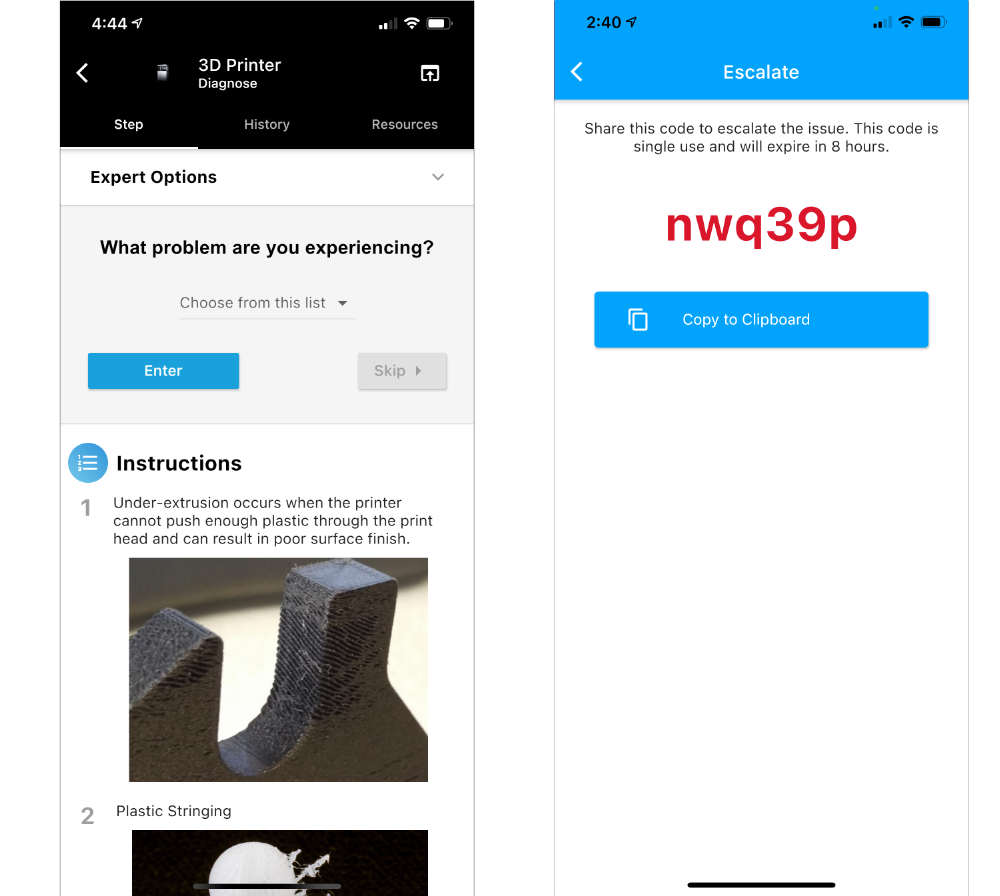
Note that these codes are time sensitive and will expire for security purposes. You also need to be authenticated on the account to be able to accept an escalated session.
UPDATED:
Escalation & Handoff Options
If you get stuck, need specialized assistance, or need to end your session, simply tap the Escalate button in the top-right corner of the Task interface. You will be presented with two primary options:
1. The Escalation Task (Support Routing)
Think of this as a "Smart Directory" curated by your administration team.
- Purpose: Guides you to the correct support representative, email address, or internal help site.
- How it Works: Instead of searching for "who to call," the Escalation Task provides a direct path to the specific person or department qualified to handle that exact machine or issue.
2. The Handoff Code (The Digital Relay)
If you need to pass a job to another technician or a different shift, the Handoff Code acts as a digital bookmark.
- The Code: InSkill generates a unique alphanumeric code for your active session.
- Seamless Takeover: When the next person enters this Handoff Code into their own device, the Task resumes exactly where you left off.
- Data Preservation: All previous inputs, photos, and completed steps are preserved, eliminating the need for the new user to restart the procedure or re-read the history.
When to Use Each Option
| Escalation Type | Best Used For |
|---|---|
| Escalation Task | When you need external support or a specialized technician |
| Handoff Code | When shifting work to another person or continuing later |
Updated 3 months ago