
Products Page
The Products page lists every copilot in your account, with asset selection and filters that personalize resources and answers.
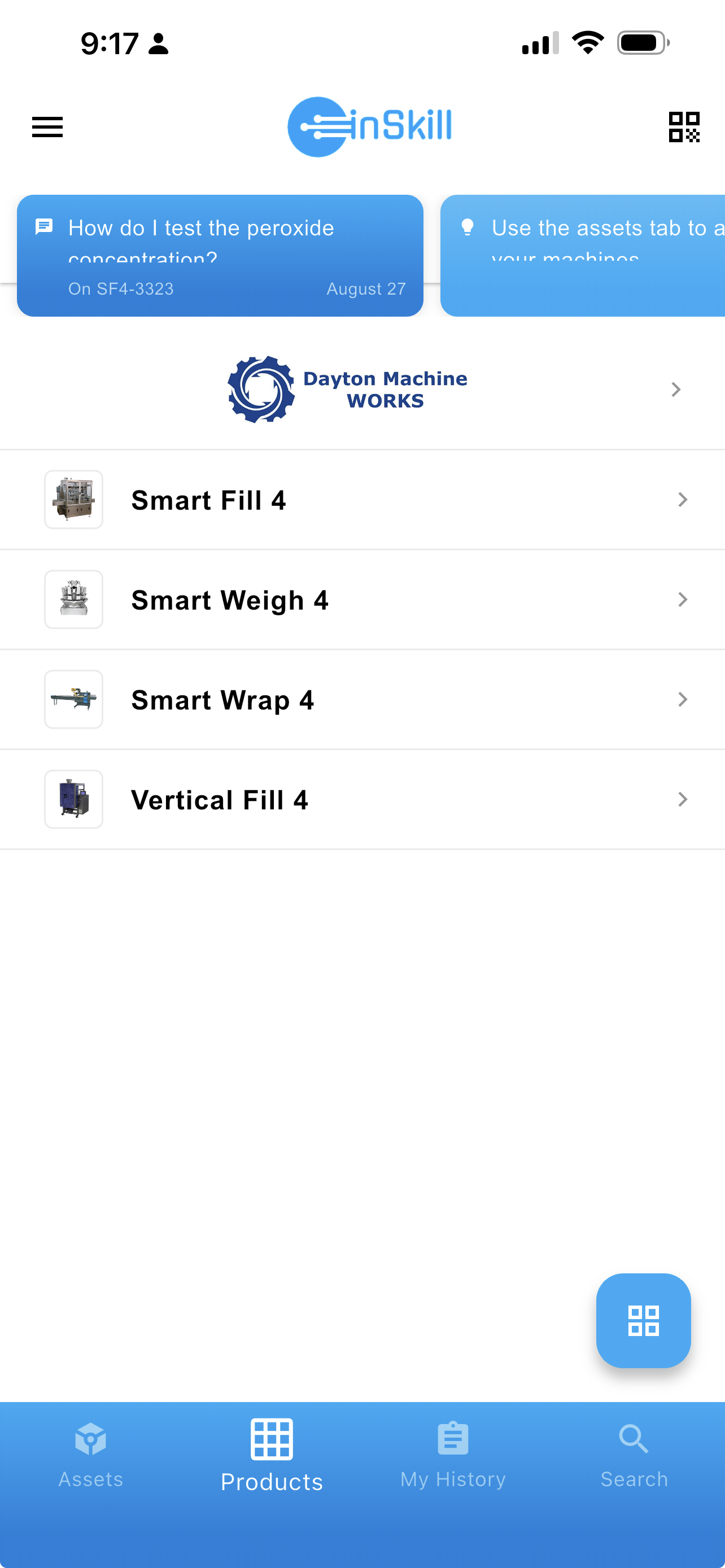
A product represents a type of machine, where an asset represents an individual one. The Products page — reached from Products in the bottom navigation — is the central hub for every copilot available to your account, whether it was created inside your organization or shared with you by an equipment manufacturer. Your recent questions and tips appear at the top, above the product list.
Organization and Visibility
Your copilots are grouped so you can find the right support quickly:
- Internal copilots — those from your own organization — appear at the top of the list, marked with your company's logo.
- Published copilots appear below them: copilots published to you by other organizations, such as OEMs or machine builders. This is common in facilities running equipment from several manufacturers.
- Access control governs the whole list. Your account administrator determines which people can see and interact with which copilots, so sensitive information stays protected. See Visibility by Role.
Account Resources
The Products page is also a gateway to broader manufacturer knowledge.
Selecting a manufacturer's logo takes you to that manufacturer's account resources. Where a copilot's own resources apply to one machine, account resources hold higher-level material — general safety manuals, corporate policies, or training videos — that applies across several copilots from the same manufacturer.
Personalizing a Product
A product covers every configuration of a machine line, so the more the copilot knows about the unit in front of you, the more specific its resources and answers become. There are two ways to personalize it.
Selecting an asset
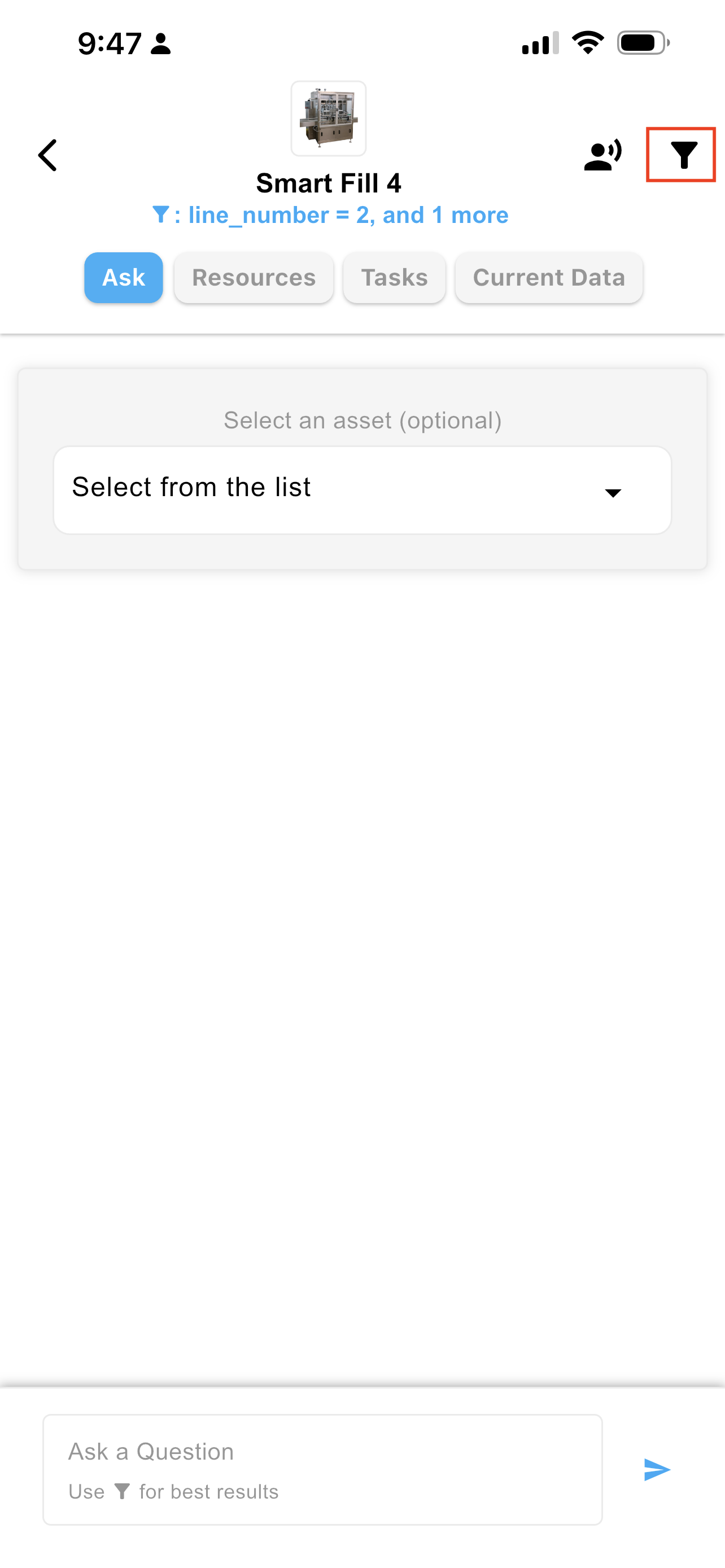
If assets are available for the product, a Select an asset dropdown appears on the Ask tab. Pick the asset you are working on, and the conversation is grounded in that specific machine.
Applying a filter
Tap the filter icon at the top right to choose a model or key options — the product's configuration variables, such as a line number or an installed option. A filter shapes both the resource set you see and the answers you get, and the active filter is shown under the product name.
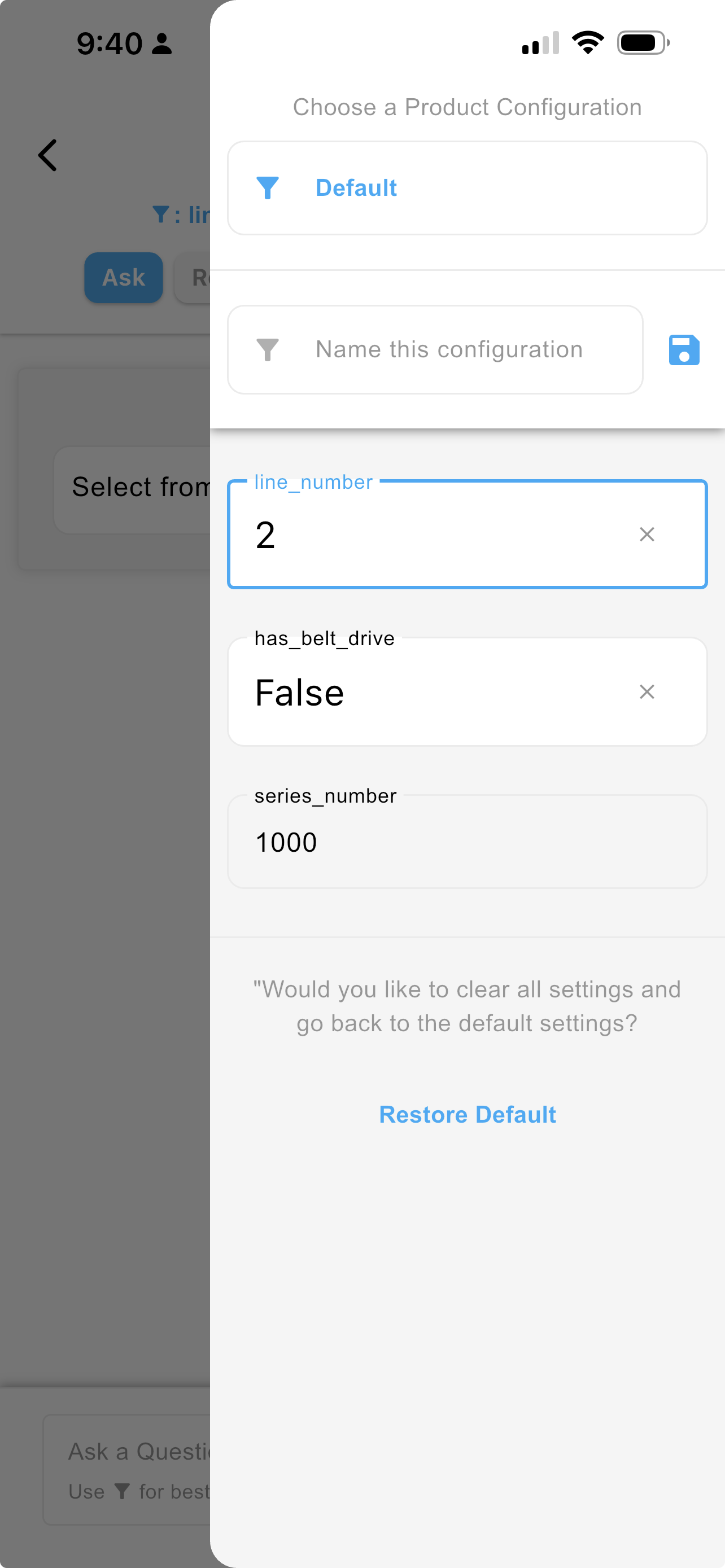
A configuration can be named and saved for reuse, so a technician who always works on the same line sets it once. Restore Default clears the settings.
Ask
The Ask tab is a conversation with InSkill GPT about the product, shaped by the asset or filter you have applied. Depending on the nature of the question, InSkill GPT may ask questions of its own and offer follow-ups.
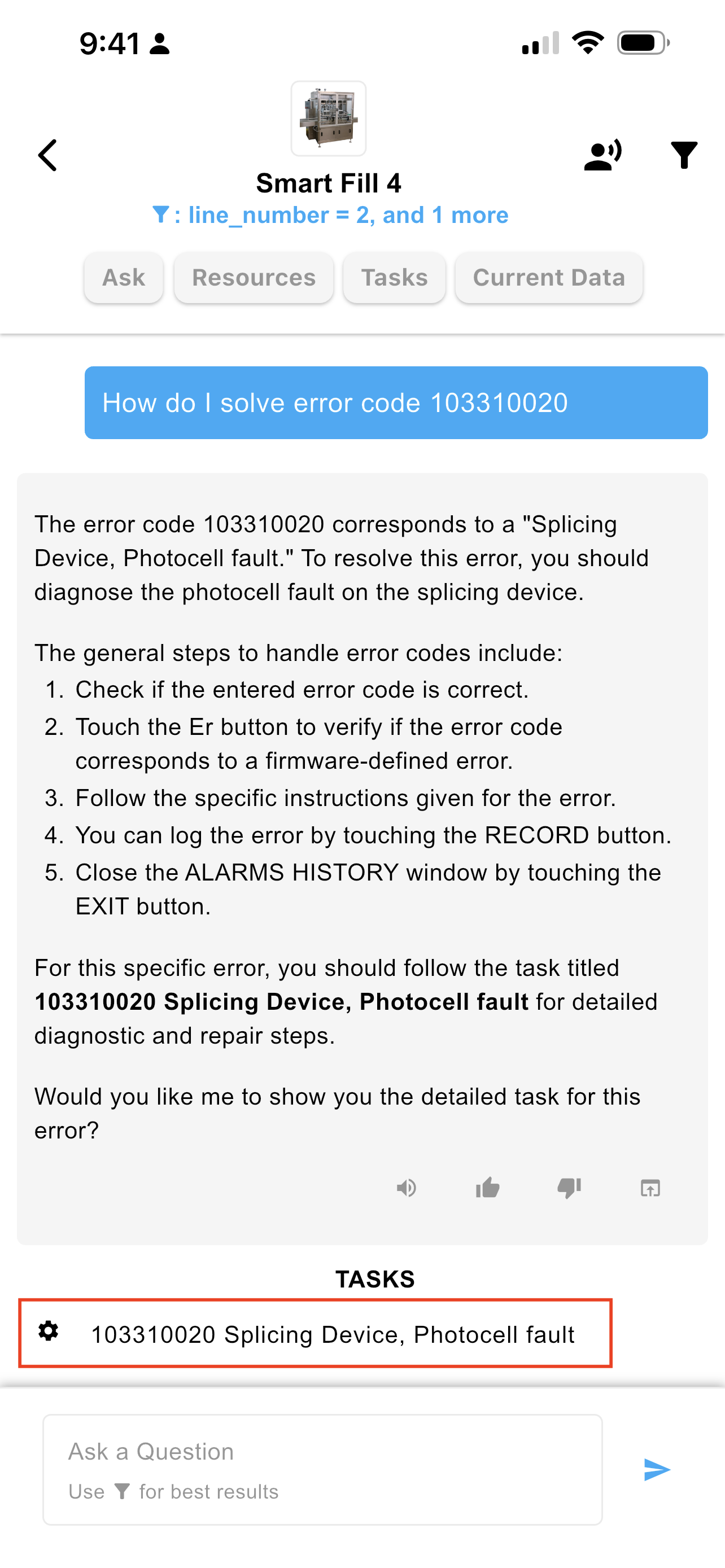
When a question matches expertise the copilot holds, the answer brings it with it. In the example below, an error code is entered that has a task created for it: the answer summarizes the task, and a direct link to the task appears below the answer.
Running the task from an answer
Select the task to open its step-by-step guide, which walks through the diagnostic with instructions and diagrams. Not Solved and Finished record the outcome of each step and drive what comes next. The icons at the top right provide two options: add a comment to the guide, or escalate the issue to an escalation center — see Escalate.
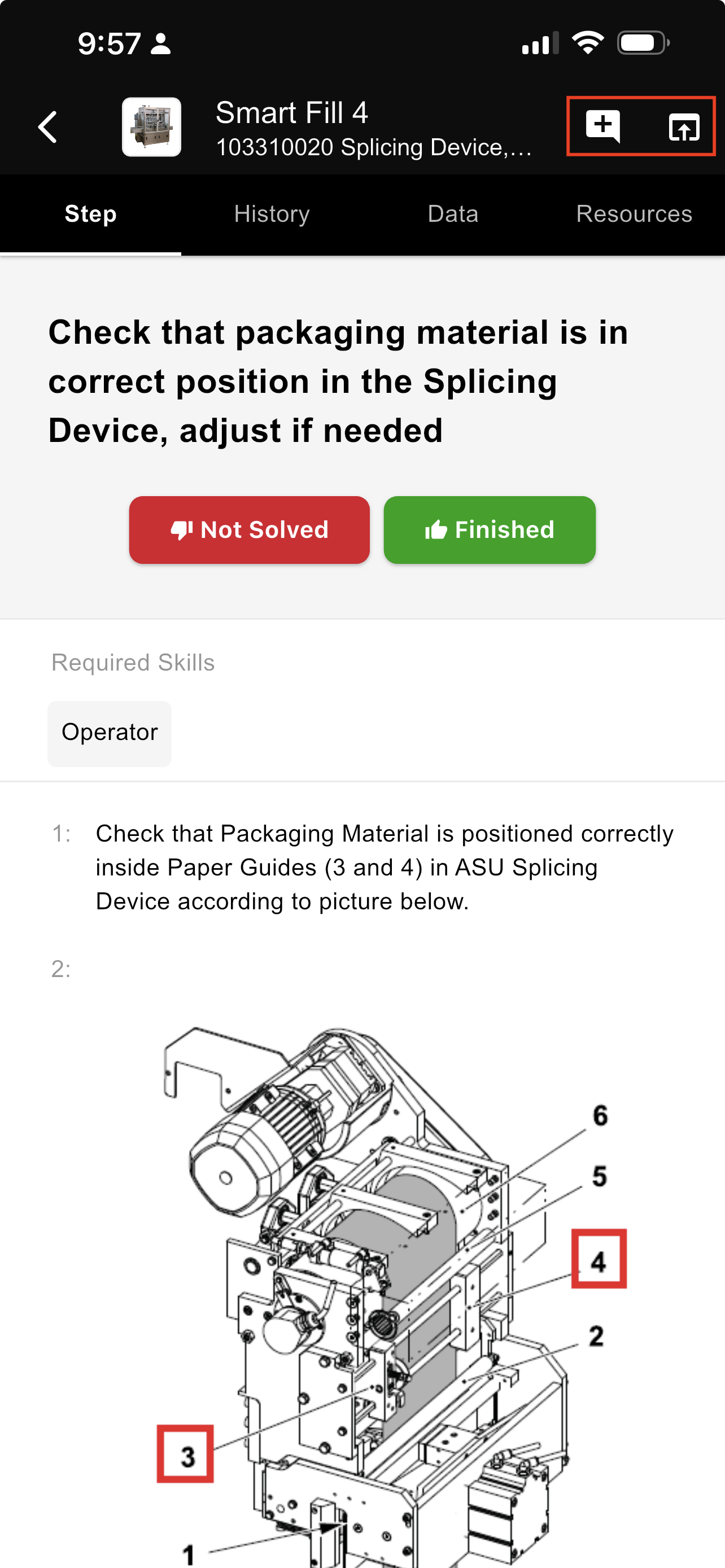
Steps that collect data
Some steps ask for information instead of giving it — a reading, a measurement, or a choice. Enter the value and the step saves it with the session, so the data stays with the machine's history.
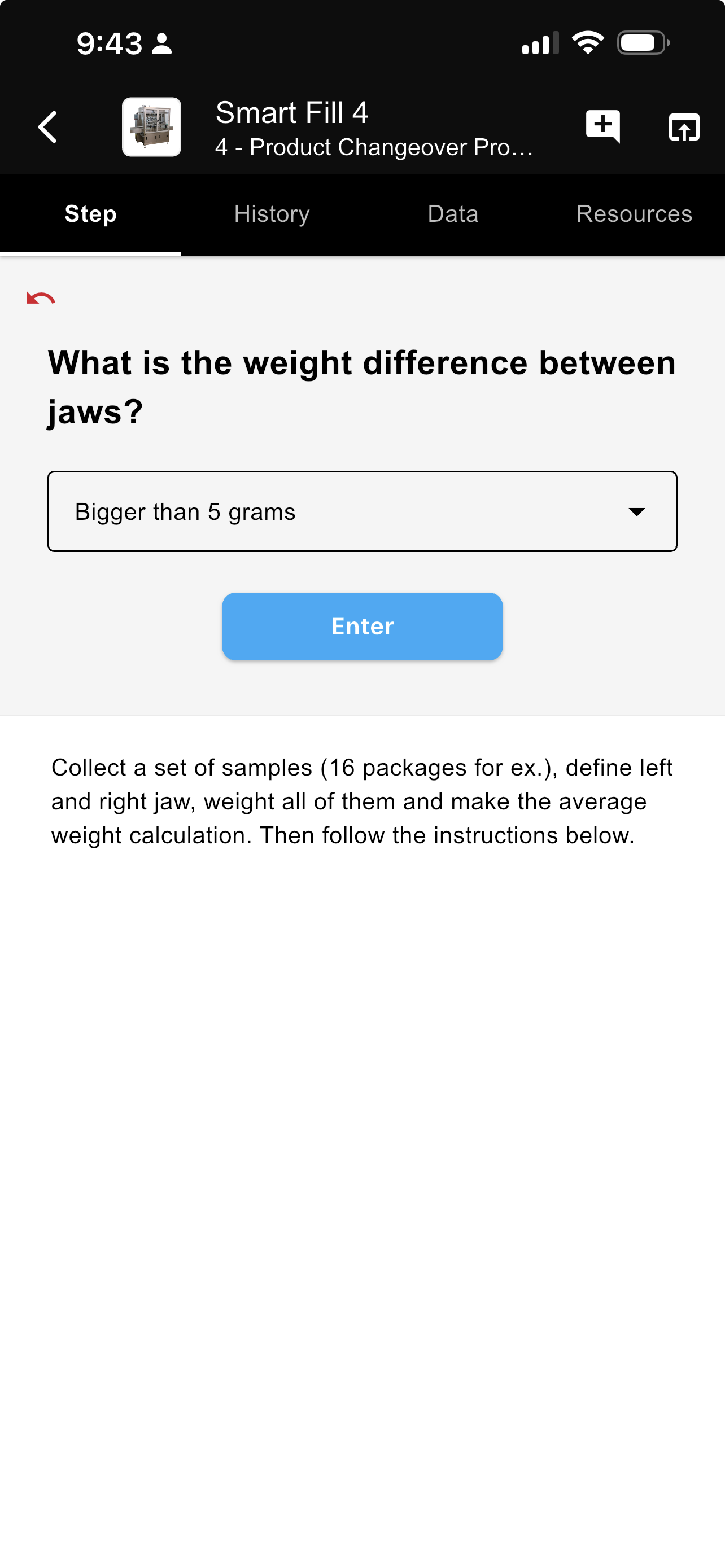
For running tasks in full, see Tasks.
Resources
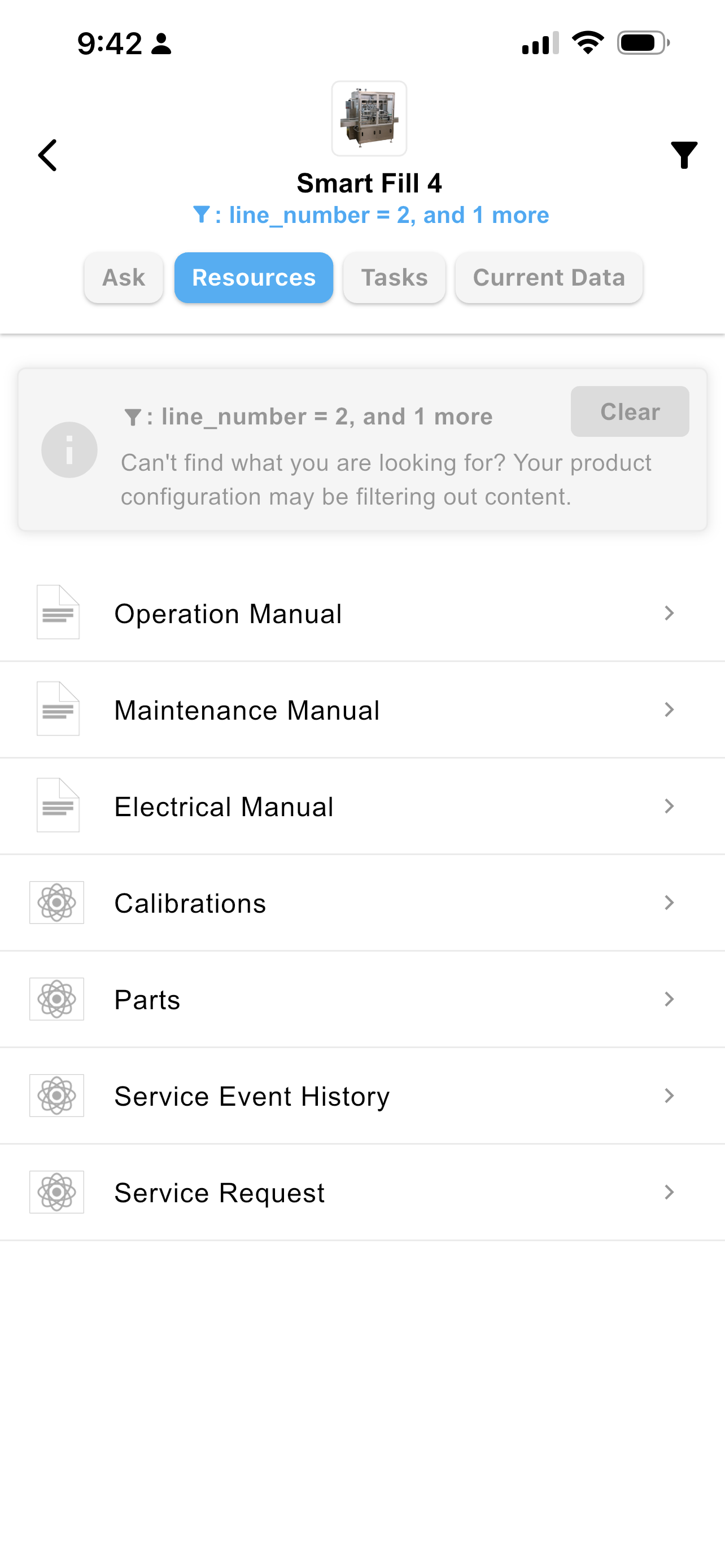
The Resources tab lists the product's documents and dynamic resources, filtered by the configuration you have applied. The banner shows the active configuration, with Clear to remove it — if something you expect is missing, your product configuration may be filtering out content.
Updated 4 days ago