
Data Dictionary
Reference for the data dictionary on the Configuration tab: its Asset and Expertise views, columns, filters, and how to add variables.
The data dictionary is your inventory of the variables used in tasks, steps, and resources. It is the place to add, edit, or delete variables for your team, and it is what you see on the Configuration tab after opening a copilot.
When creating dependencies and feedback, variables must exist to store the information gathered. You can create them in two places: in the data dictionary, or directly in a step on the Data tab. Both work, but creating variables in the data dictionary is recommended. It keeps the dictionary clean and minimizes discrepancies between the variables in the dictionary and those in tasks.
Asset and Expertise Views
The data dictionary has two views, selected with the Asset and Expertise buttons at the top left:
- Asset shows the variables used in assets. An asset variable describes the machine, is set on each asset, and can also be used in tasks.
- Expertise shows the variables used only in tasks. A variable used in a task is scoped to that task.
For when to use each, see Asset Variables vs Expertise Variables.
The Asset view
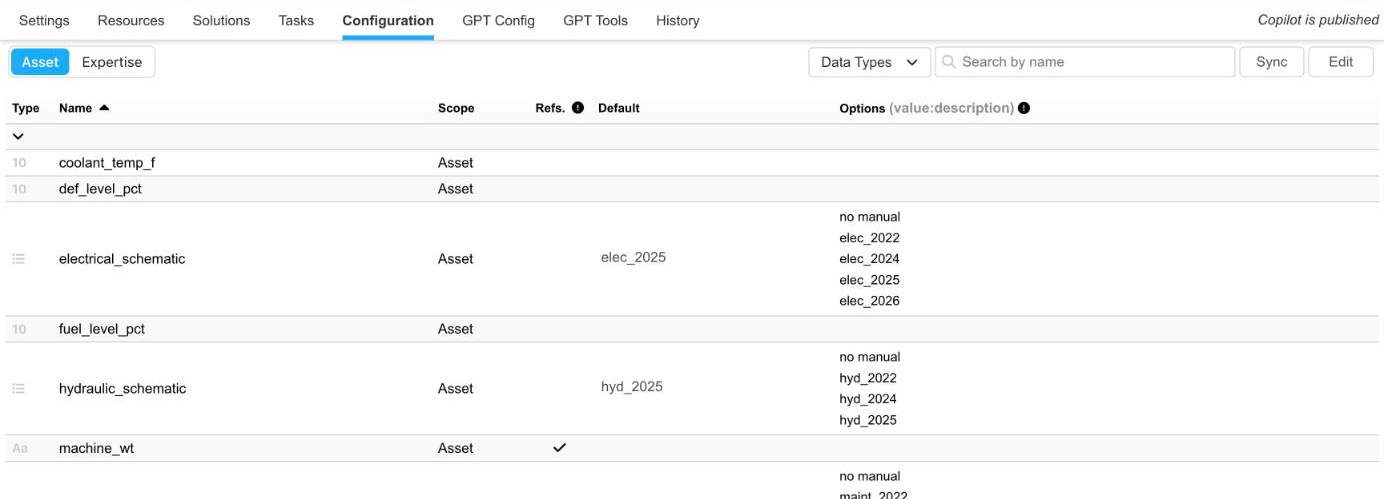
The Asset view of the data dictionary
Each row shows:
| Column | Description |
|---|---|
| Type | An icon for the variable's data type, such as a list or a string. |
| Name | The variable name used in dependencies. Click the column heading to sort. |
| Scope | Where the variable is used. Asset variables show Asset. |
| Refs. | Checked if the variable is referenced by dependencies, or is used as a looping or observation variable. |
| Sessions | Checked if the variable has been used in sessions. |
| Default | The value used when none is set. |
| Options | For List variables, the allowed values. Values appear as ... for brevity when they match their label. |
The Expertise view

The Expertise view of the data dictionary
The Expertise view lists the variables used in tasks. When you create steps within tasks and add dependencies, they appear here. You can also create them here first and then assign them to specific steps.
It uses the same columns as the Asset view, plus:
- A Scopes filter, which narrows the list to variables scoped to Product, Task, Not Used, or Inherited.
- An External column.
Variables from components
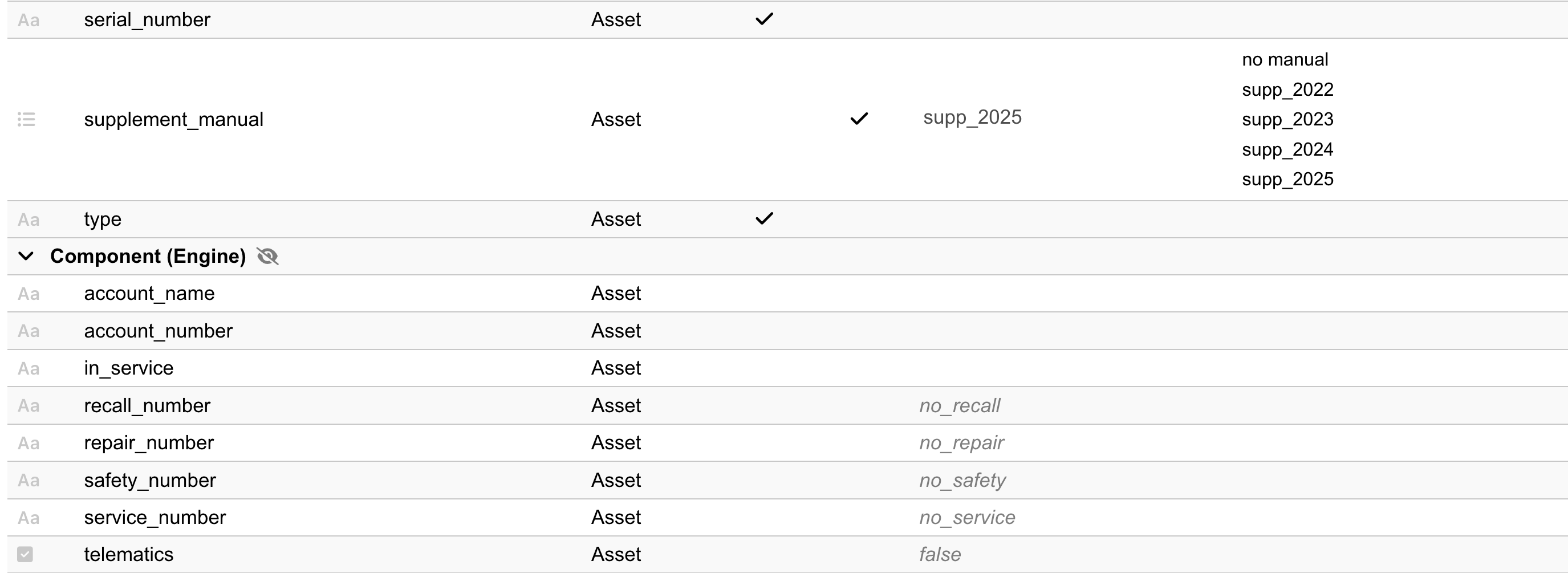
A component's variables in their own group
Variables are organized by where they originate. The copilot's own variables are listed first, followed by a collapsible group for each of the copilot's components, such as Component (Engine).
Finding Variables
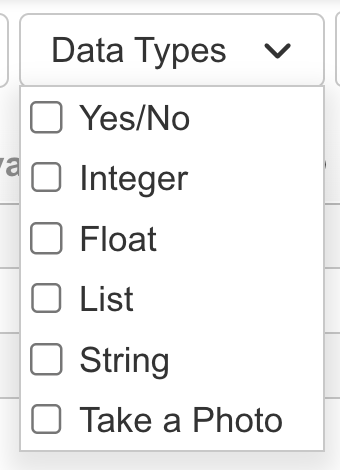
The Data Types filter
Both views share the same toolbar:
- Data Types filters the list to one or more variable types: Yes/No, Integer, Float, List, String, and Take a Photo.
- Search by name finds a variable by its name.
- Sync scans all of the copilot's tasks and assets and verifies that every variable they use is part of the data dictionary. It is normally needed only for legacy accounts.
- Edit puts the data dictionary in edit mode, where you can add, modify, and delete variables.
In the Expertise view, combine Data Types with Scopes to find specific uses of your variables. This helps keep a clean data dictionary with minimal duplicates.
Adding Variables
Choose the view first: Asset for variables that describe the machine and filter resources, Expertise for variables used in tasks.

The toolbar in edit mode
Follow these steps to add a variable:
- Click Edit in the top-right corner of the screen.
- Click + Add Field.
- In the Type column, select the type of variable you want to create, and enter its name.
- Set a Default value and, for List variables, the Options.
- Click Save, or click Cancel to discard your changes.
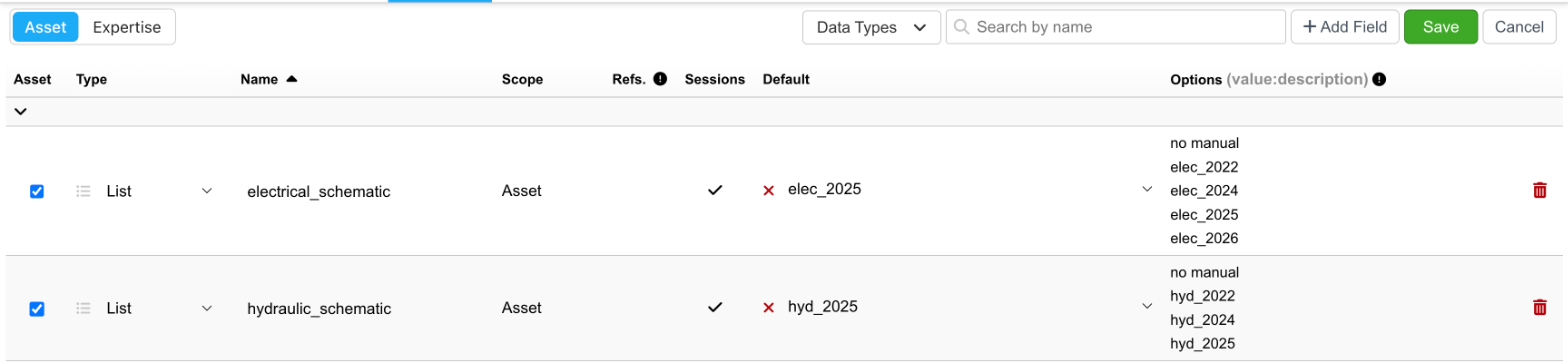
The Asset view in edit mode
In edit mode, each row also shows an Asset checkbox, a Type dropdown, an editable Default (click × to clear it), and a trash icon to delete the variable.
Variable Types
| Variable type | Definition |
|---|---|
| Yes/No | Collects information by asking the Technician a question in a step. In a task, answering Yes can lead to one step while No leads to another. You can also apply it to a resource, so that a resource carrying this dependency appears only when the Technician answers yes. |
| Integer | Prompts the Technician to enter a whole number in the app during the step they are on. Use it to gather information for InSkill AI, or to apply conditional statements — for example, showing a specific step or resource only when the entered number matches. |
| Float | Prompts the Technician to enter a number with a decimal place. Use it to gather information for InSkill AI, or to apply conditional statements based on the value entered. |
| List | Defines a fixed set of values to choose from, entered in the Options column. Use it for asset attributes such as model or manual edition, or in a step to have the Technician pick one value. |
| String | Prompts the Technician to enter a string of text. Use it to gather information for InSkill AI, or to apply conditional statements based on the text entered. |
| Take a Photo | Lets the Technician photograph what they are working on — commonly a nameplate. You can then set up an observation processor in the Tasks tab to pull information from that photo. The processor reads the text in an image and converts it into usable data: in the nameplate example, it can read the serial number and associate it with a specific machine in the factory. See Observations. |
Updated 12 days ago