
Creating Variables
Creating a variable, as previously discussed, can be done either (1) under the configuration tab or (2) directly in a task under the data tab. Best practices show that creating the variable under the configuration tab is the most effective way to add a new variable for a couple of reasons. The main reason is that this method keeps the variables in an organized and defined table. This reduces any duplicates of variables, such as multiple variables with either the same name and different information or vice versa, with a different name but the same information.
Another reason it is better to handle variables in the data dictionary is because any changes made in the data dictionary will affect the variables downstream. In other words, if a variable is edited in the data dictionary, then all instances of this variable will be automatically edited with the data dictionary instance. On the other hand, if variables are edited in the task, then that change is only observable in that particular step and the changes made won't affect the variable in other instances. Editing variables in the task thus allows for discrepancies between variables, which can cause huge headaches when scaling up the account.
Please note that both asset and expertise variables are created using the same procedure.
Creating Variables in the Data Dictionary
- Go to the configuration tab after selecting a product

- Select "+Add Field" in the top right corner of the page

- Name the variable

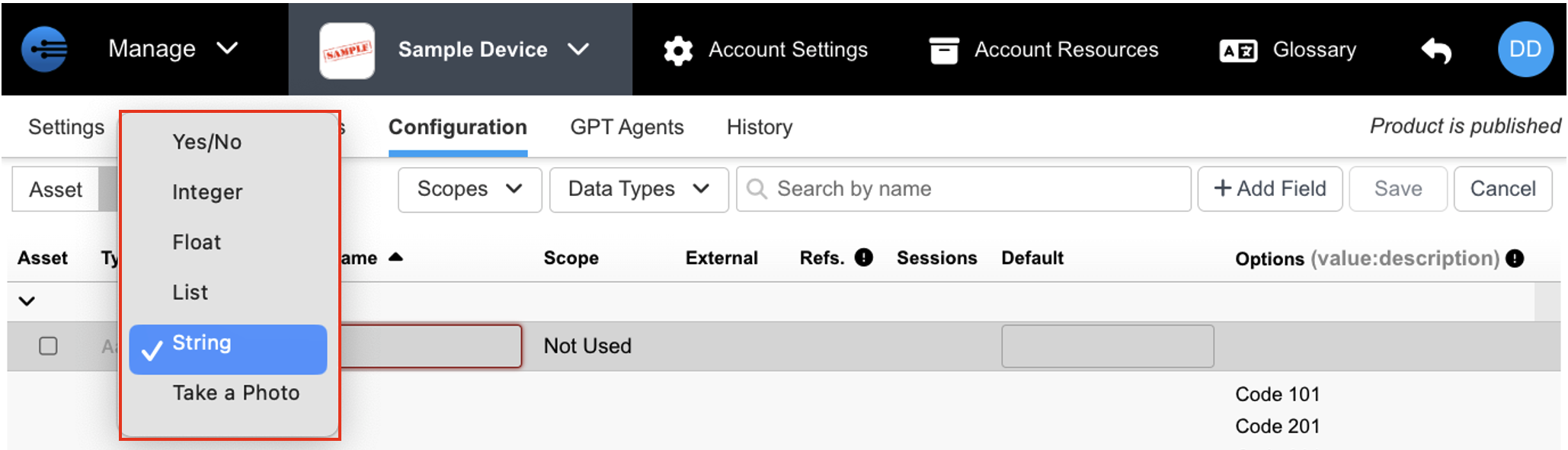
- Select the drop-down arrow to specify the type of variable being created
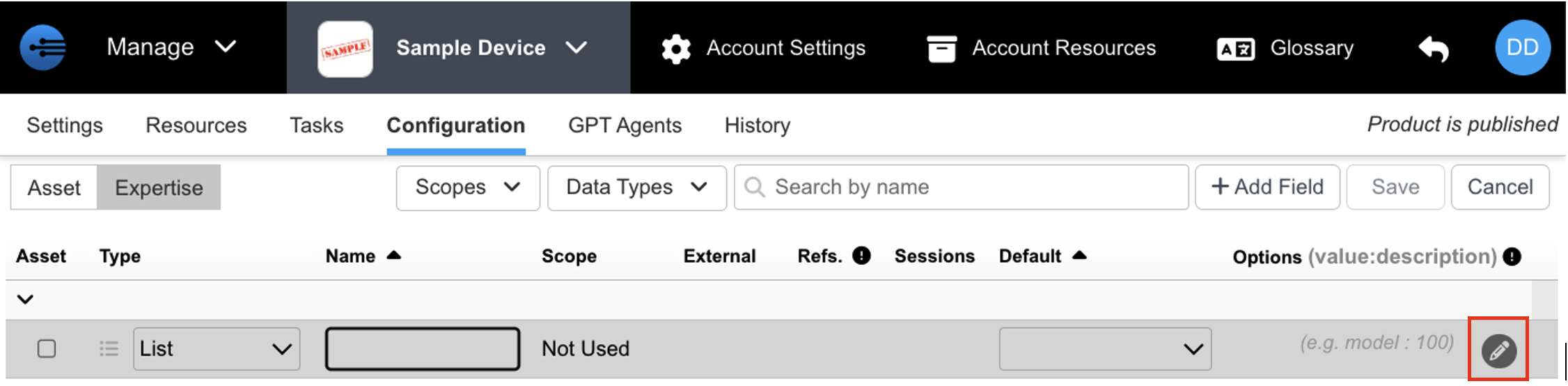
- If a list is created, variable options can be incorporated by selecting the pencil on the right side of the page. (List is the only type of variable that has this feature)
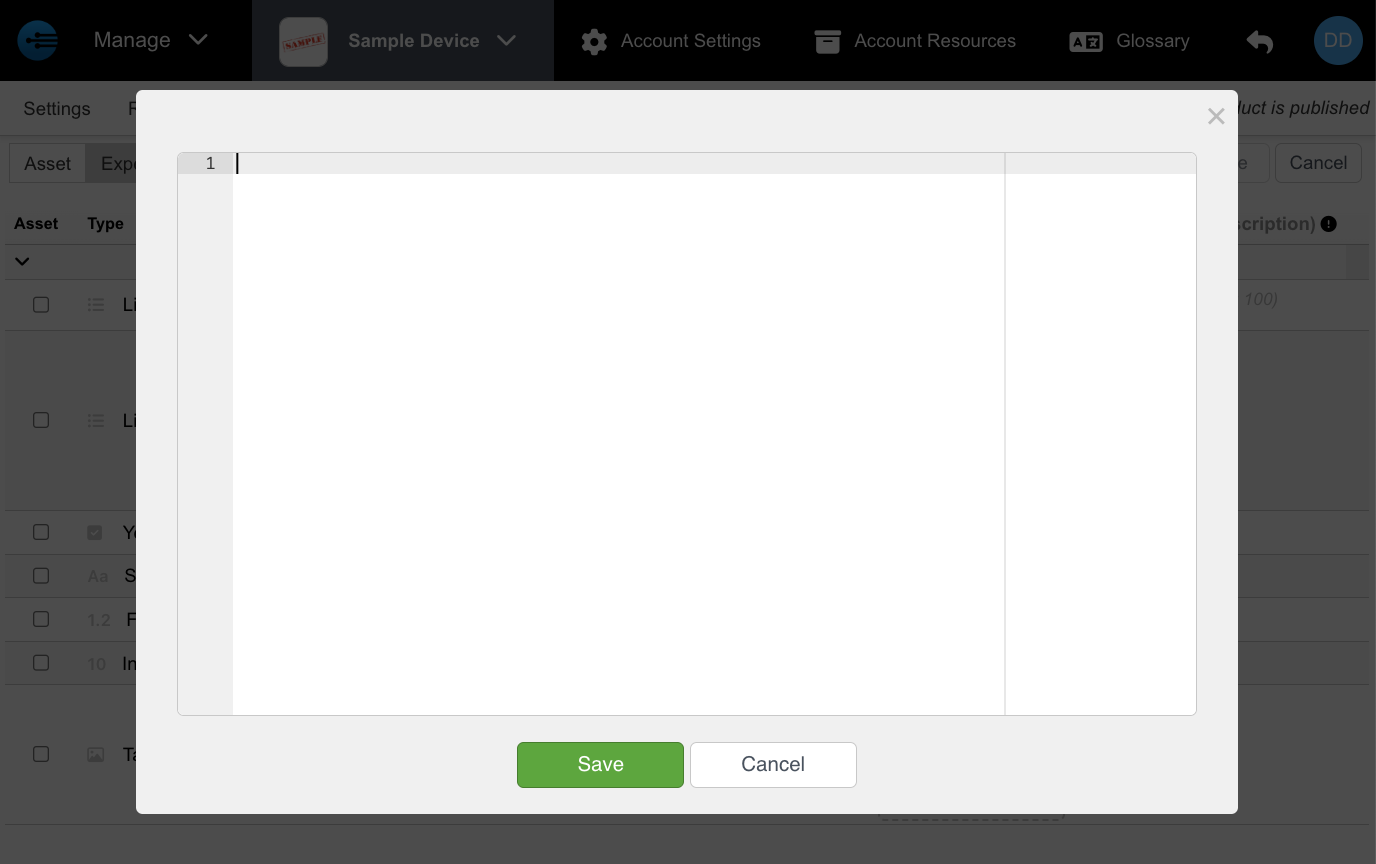
- A prompt box will appear from which you can begin entering the options you want displayed in the list. (Please note that the options are separated by pressing Enter after every option is entered)
Creating Variables in Tasks
- To create a variable directly in a task go to the data tab and enter the name of the new variable under Feedback then press + Add to create
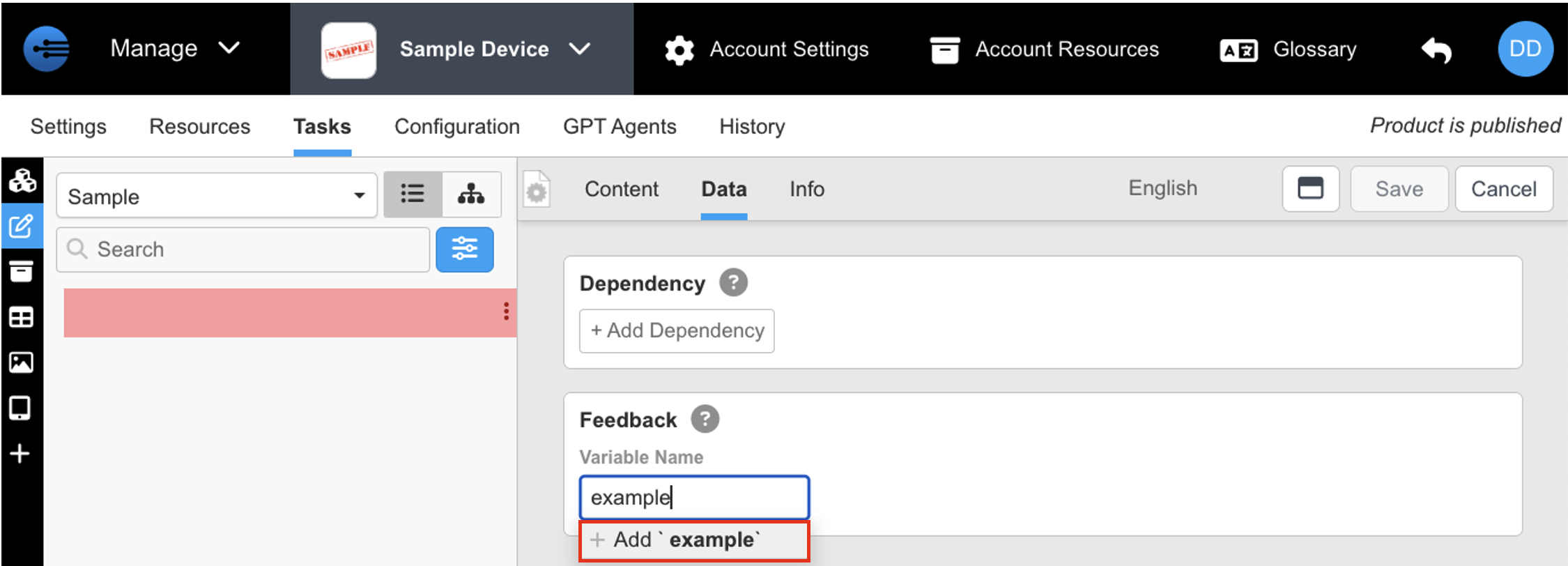
- Once +Add is pressed, the variable is created. Next, choose the type of variable you want to create by pressing the drop-down arrow.
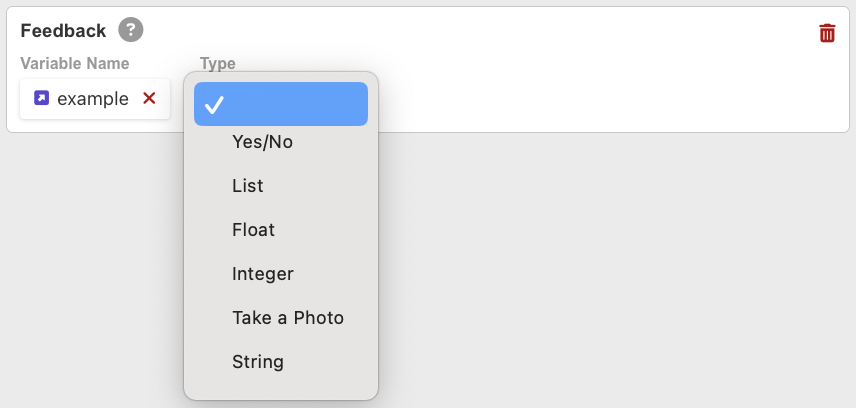
- Press save at the top right of the page to save the newly created variable
Editing Variables
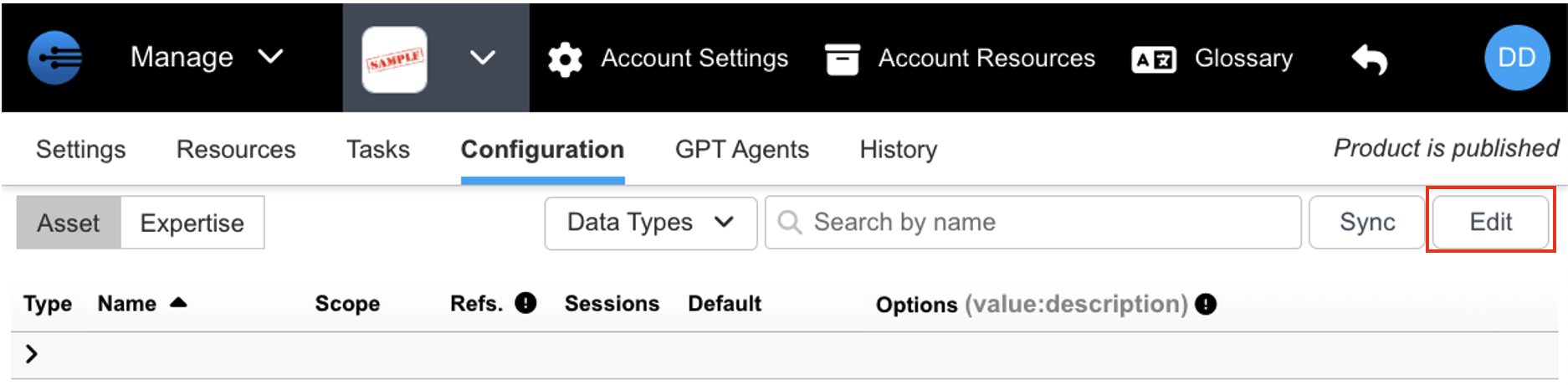
To edit a variable, click edit in the top right corner of the configuration page. Here the user can edit its variable type, name, its options and its default settings. Remember to press "Save" after editing your variables.
Updated 2 months ago