Author Account
The Author Account is a staging copy of InSkill for building and testing content before pushing it to production, with notes for script and API developers.
The Author Account is InSkill's editing environment. It lets your team create, refine, and verify content in a sandbox without affecting live production at expert.inskill.ai.
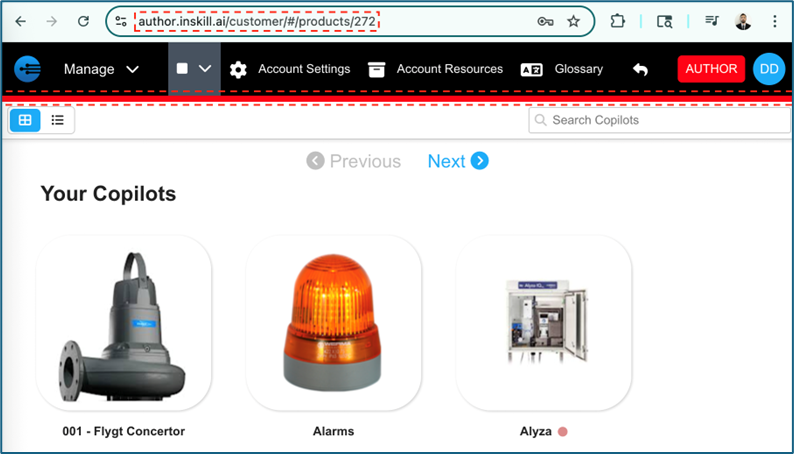
The Author Account: the production interface under a red bar
Getting Access
Your administrator must grant you access to the Author Account before you can work in it.
Copilots and components cannot be created in the Author Account. Create the copilot in production first, so that it exists in the Author Account, and then edit it there.
CautionOnly the copilot's initial settings carry across to the Author Account. Later edits made in production do not appear in the Author Account.
Identifying the Author Account
Two things distinguish the Author Account from production, so live data is not modified by accident:
- The URL begins with
author.inskill.ai. - A red bar across the top of the screen is a constant reminder that you are in the Author Account.
The Author Account is identifiable by the red bar at the top of the screen
What You Can Edit
The Author Account is the primary workspace for updating and refining your expertise:
- Copilots: adjust high-level settings and GPT configuration.
- Resources: upload and manage the manuals, videos, and documents used as source material.
- Tasks: build and edit interactive, step-by-step diagnostic procedures.
- Scripts: develop custom logic for data retrieval or external integration.
- Solutions: refine the gold-standard answers that ground the AI's responses.
Testing Your Content
Before pushing updates to production, verify two things: how InSkill GPT responds, and whether your task logic holds up.
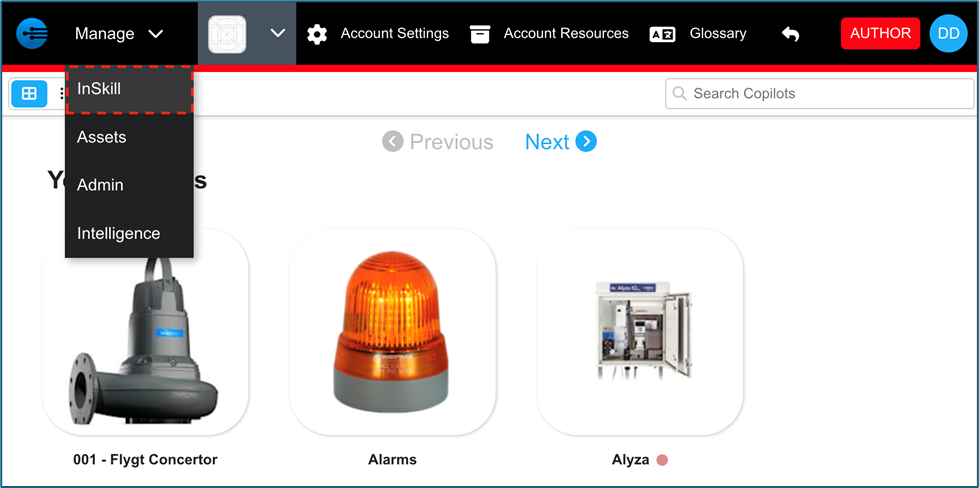
Testing a copilot in the Author Account
Testing InSkill GPT
Simulate how a Technician actually behaves in the field:
- Ask natural questions phrased the way someone would ask under pressure.
- Verify resources — check that the AI cites and pulls from the correct documents.
- Give feedback using the comment or thumbs-down controls when an answer is wrong or weak. That flags the underlying issue for the engineering team. See Evaluating Responses.
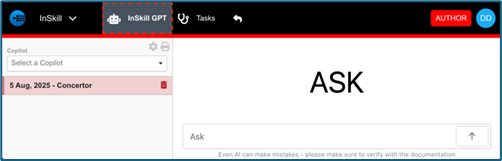
An InSkill GPT test session, with the feedback controls
Testing task logic
Run diagnostic tasks all the way through to confirm the workflow is sound:
- Dependency check: verify that answer-dependent paths work — if a Technician selects Yes, does the following step reflect that choice?
- Escalation verification: if you have automatic escalations, such as creating a Salesforce or Dynamics ticket, trigger them during testing to confirm data reaches the external system as designed.
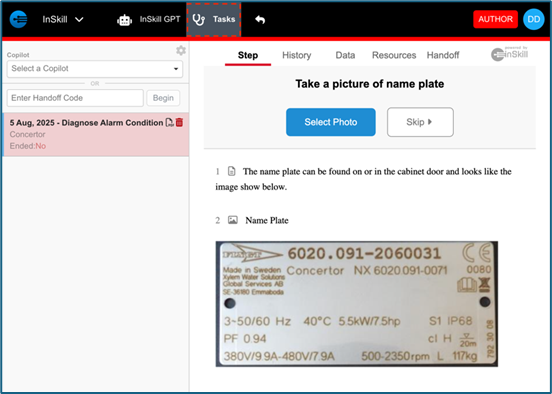
Running a task end to end to check its logic
Pushing Changes to Production
Deployment happens per copilot, which gives you control over your release schedule.
Follow these steps to deploy:
- Open the copilot you want to update.
- Select the Settings tab.
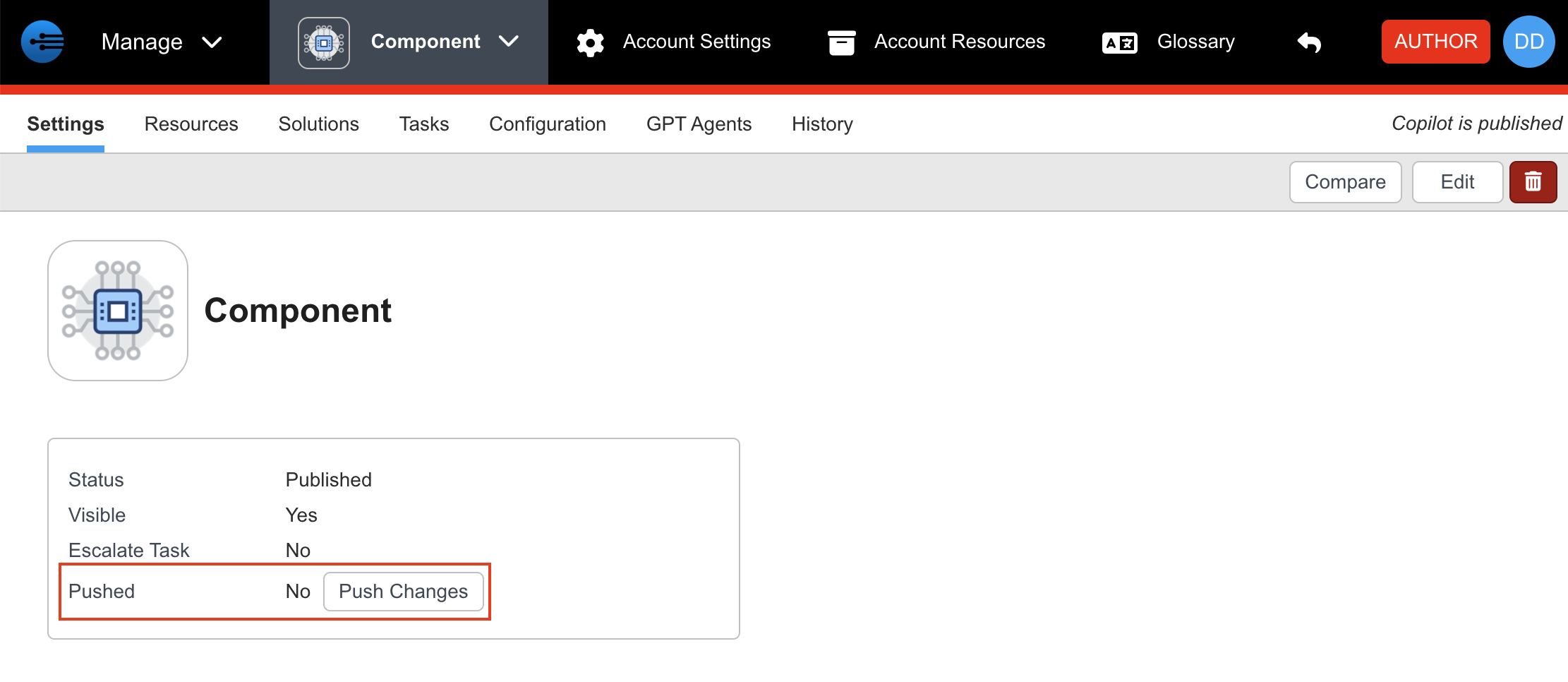
- Find the information prompt under the copilot name and click Push Changes.
Production is updated to match your Author Account version, and Technicians have access to the updated content immediately.
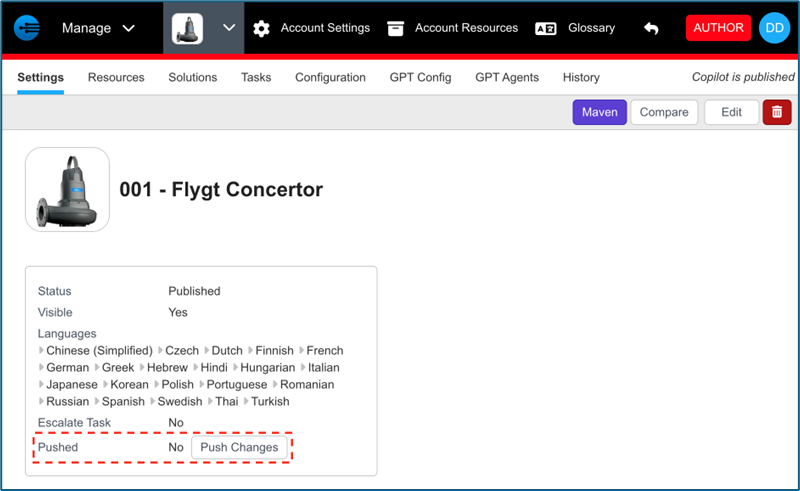
Push Changes on a copilot's Settings tab
CautionChanges can only be pushed, never pulled. Confirm your edits are final before syncing to production.
For Developers
- Scripts can tell where they are running:
Inskill.Server.productionistrueonexpert.inskill.aiandfalsein the Author Account, so a script can use test data while you test. See Reference. - MCP: the Author Account has its own MCP server,
https://mcp.author.inskill.ai/mcp. See MCP Server. - Exporting a copilot: the public API's Export as JSON endpoint returns a complete copilot — its settings, tasks and steps, scripts, observations, translations, data dictionary entries, GPT tools and configurations, and resources. Use it to back up a copilot or to transfer it between environments. See REST API.
Updated about 4 hours ago