
The Editor
Tasks List
This screen provides an overview of all tasks associated with your Copilot.
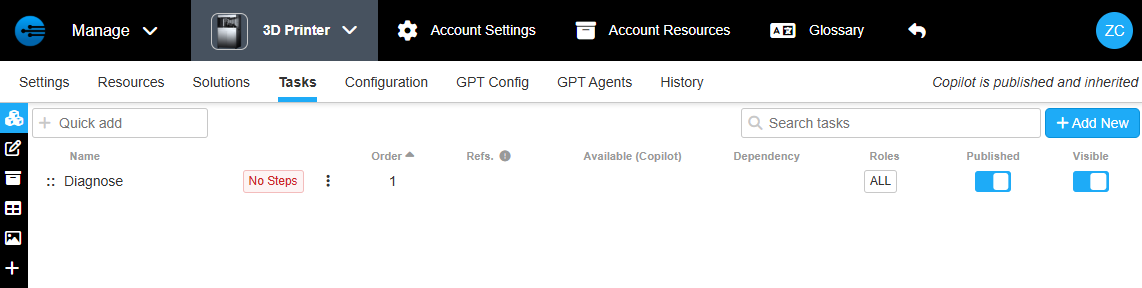
Task List view does the following:
- To reorder tasks, the handle in front of each task is used to drag to a new location in the order. This is the order Tasks will be shown in the mobile app.
- Visibility determines if a Task is visible to a user. User 1,2,3 are typically for operators or less trained people. Tech 1,2,3 are typically for trained field service.
- Published state controls if the Task is visible to any users. An unpublished Task is hidden.
- References tell you how many times this Task is used in other Tasks (run as a Subtask)
- If a Task has Dependency, it is shown here.
Add New

Press this button to add a new copilot:
-Select task
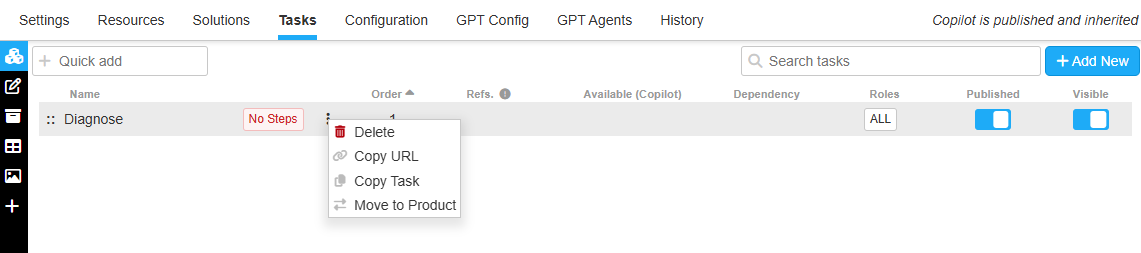
When selecting tasks you can press the three dots to the right of the title to have the options to delete, copy the url, copy the task (which can be used to paste the whole task into another copilot or account) and the option to move to a different copilot.
Quick Add

Allows you to create a task quickly by just entering the name and pressing enter. This is intended to add multiple tasks in a row quickly.
Search

If you have many tasks you can enter the title of the one you are looking for in the search bar to find it quickly
Updated about 2 months ago