
Solutions
InSkill Solutions: The Knowledge Engine
The Solutions tab is the "approved memory" of your Machine Copilot. This is where user-generated insights, GPT-assisted fixes, and imported documentation are managed, governed, and published for reuse by field teams.
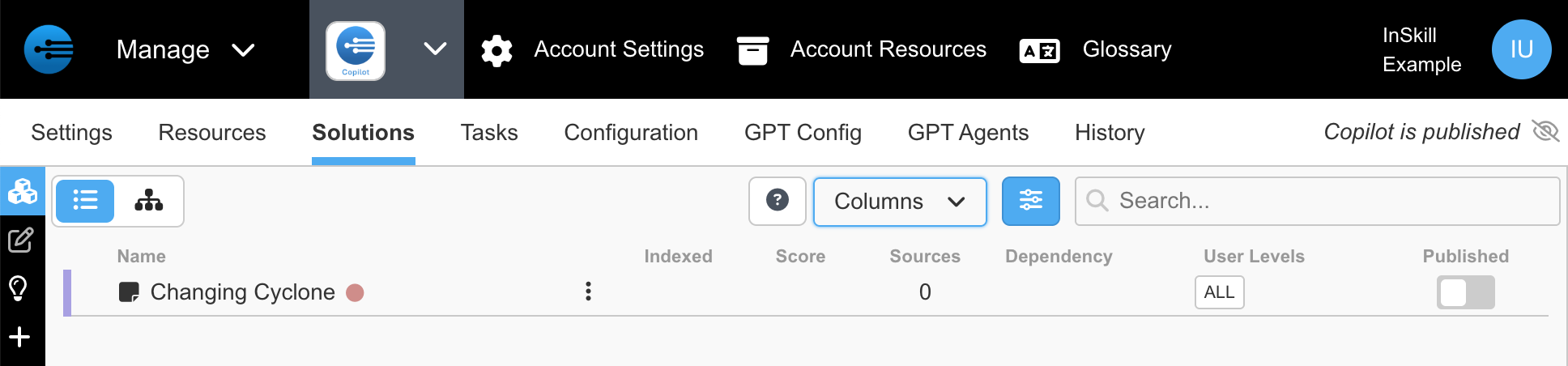
Anatomy of a Solution Entry
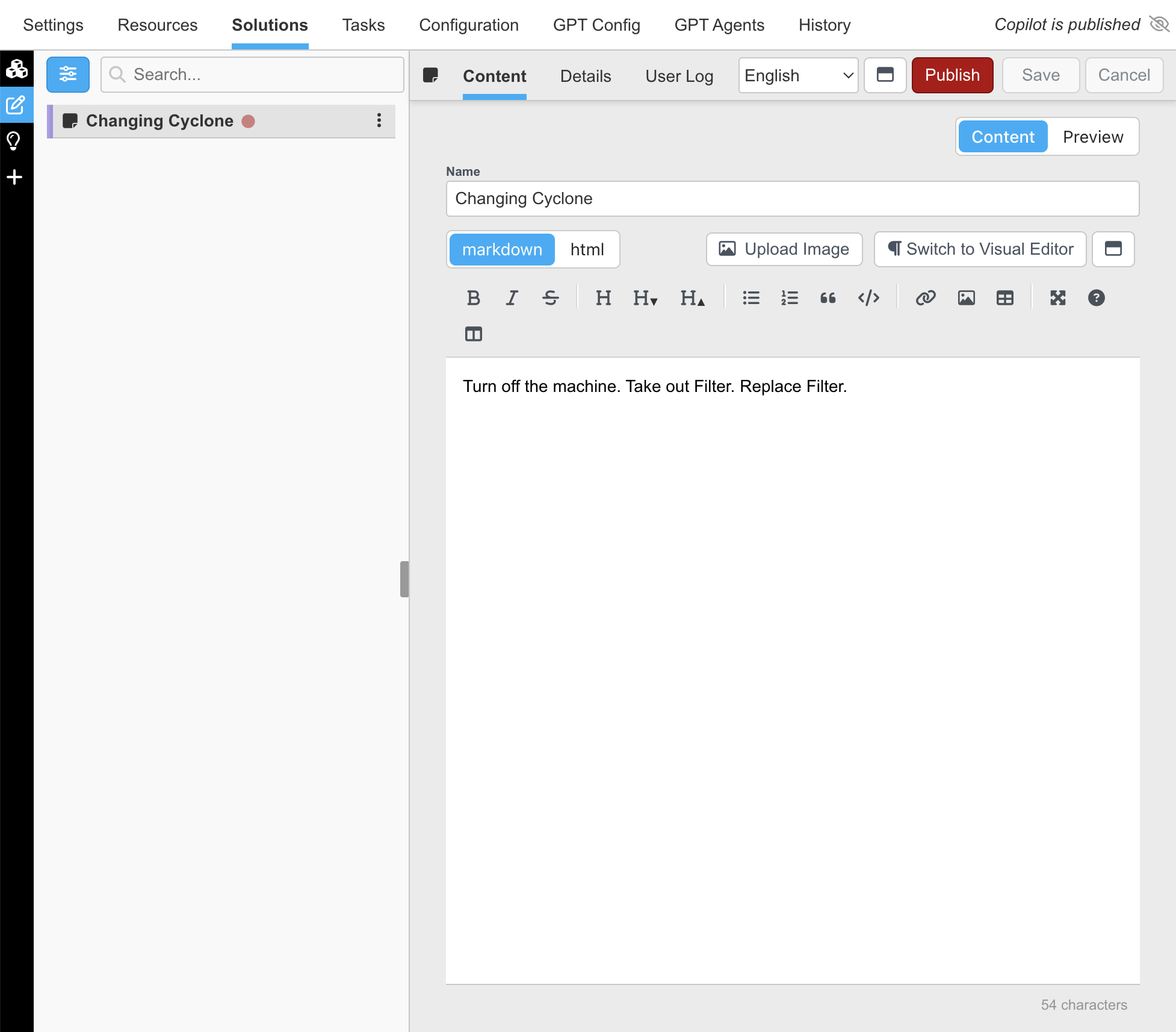
Using the "Changing Cyclone" entry as an example, here is how InSkill categorizes knowledge:
-
Name: The title of the solution. This is the primary reference GPT uses to surface the answer.
-
Status Badges:
- Red Dot / Gear Icon: Indicates configuration dependencies or editable logic.
- "New" Badge: Highlights recently added or created solutions.
- "User Generated" Badge: Marks knowledge that originated from a real-world interaction in the field rather than a manual import.
-
View Options: Toggle between List or Grouped views using the icons on the left to organize solutions by category or filter.
Governance & Publishing
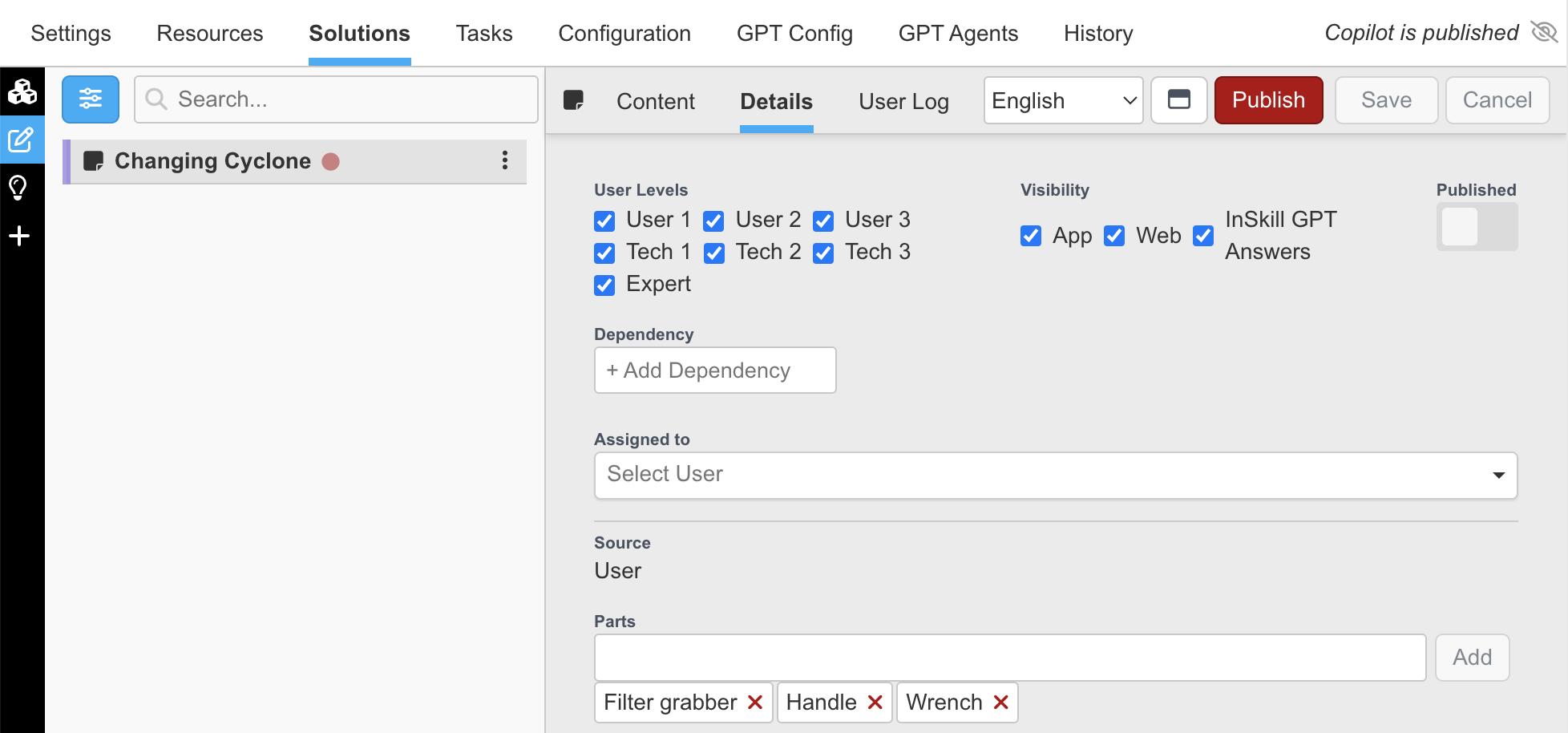
The columns on the right ensure that the right information reaches the right person under the right conditions:
| Feature | Function |
|---|---|
| Dependency | Links the solution to specific asset variables, machine types, or installed options. |
| Roles | Defines access levels—restricting visibility to Technicians, Operators, Engineers, or Admins. |
| Published (Toggle) | The master switch. ON makes the solution available to users and the GPT engine; OFF keeps it as a draft for internal review. |
Importing & Management
The Solutions engine is designed to ingest your existing support data—such as customer service tickets, call logs, and emails—and transform it into a structured, searchable knowledge base. By importing these records, InSkill identifies recurring topics, deduplicates similar inquiries, and builds a "gold standard" response library for your copilot.
1. Import File Formatting
To ensure a successful import, your data must be formatted as either an Excel (.xlsx) or CSV (.csv) file. Any other file types will result in an error prompt.
Required & Optional Columns
The InSkill processor relies on specific column headers to index your data correctly. You must include the required headers at a minimum.
| Category | Column Header | Description |
|---|---|---|
| Required | id | A unique identifier for the record (e.g., Ticket #) |
| Required | content | The body of the support interaction. Use content_xxx for multiple parts (e.g., content_reply) |
| Optional | title | A brief headline or subject for the solution |
| Optional | model, variant, asset | Links the solution to specific machine types or serial numbers |
| Optional | customer, site | Categorizes the solution by client or physical location |
| Custom Meta | metadata_xxx | Include up to 11 custom columns (e.g., metadata_country) |
Note on "Type": During the upload process, you can optionally select Ticket or Email. This helps the AI better understand the structure of the conversation it is indexing.
2. The Import Process
Follow these steps to move your raw data into the InSkill ecosystem:
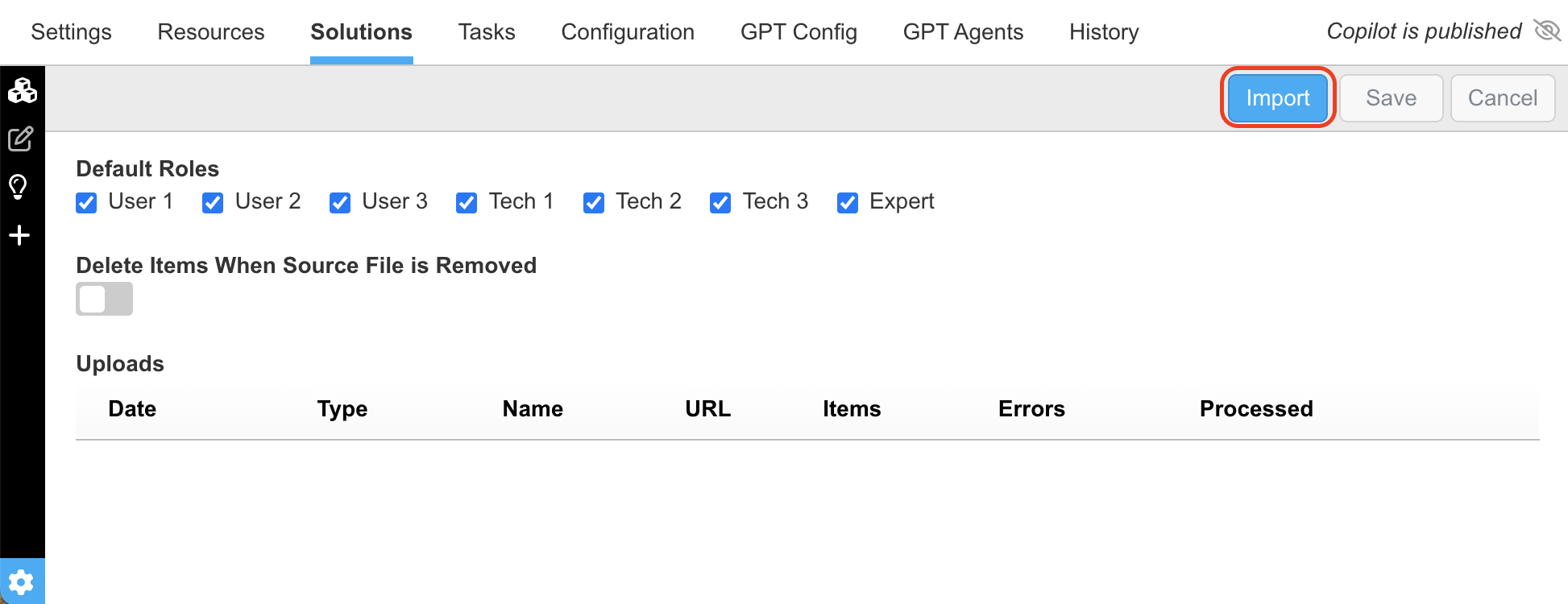
- Access the Import Tool:
Navigate to the Solutions tab. Click the Settings icon (bottom-left gear)
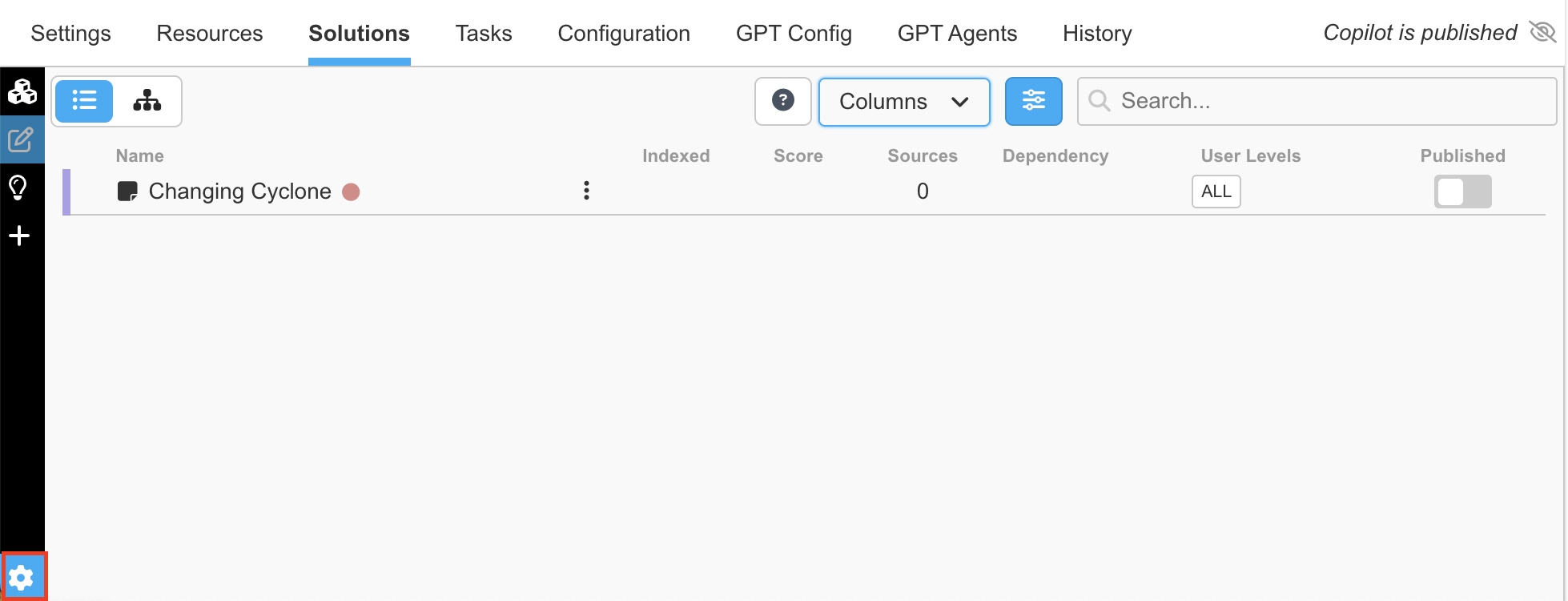
then select Import in the top-right corner.
- Upload Your File:
Drop, paste, or browse for your formatted file. Once uploaded, InSkill generates a unique URL to hold the data for processing.
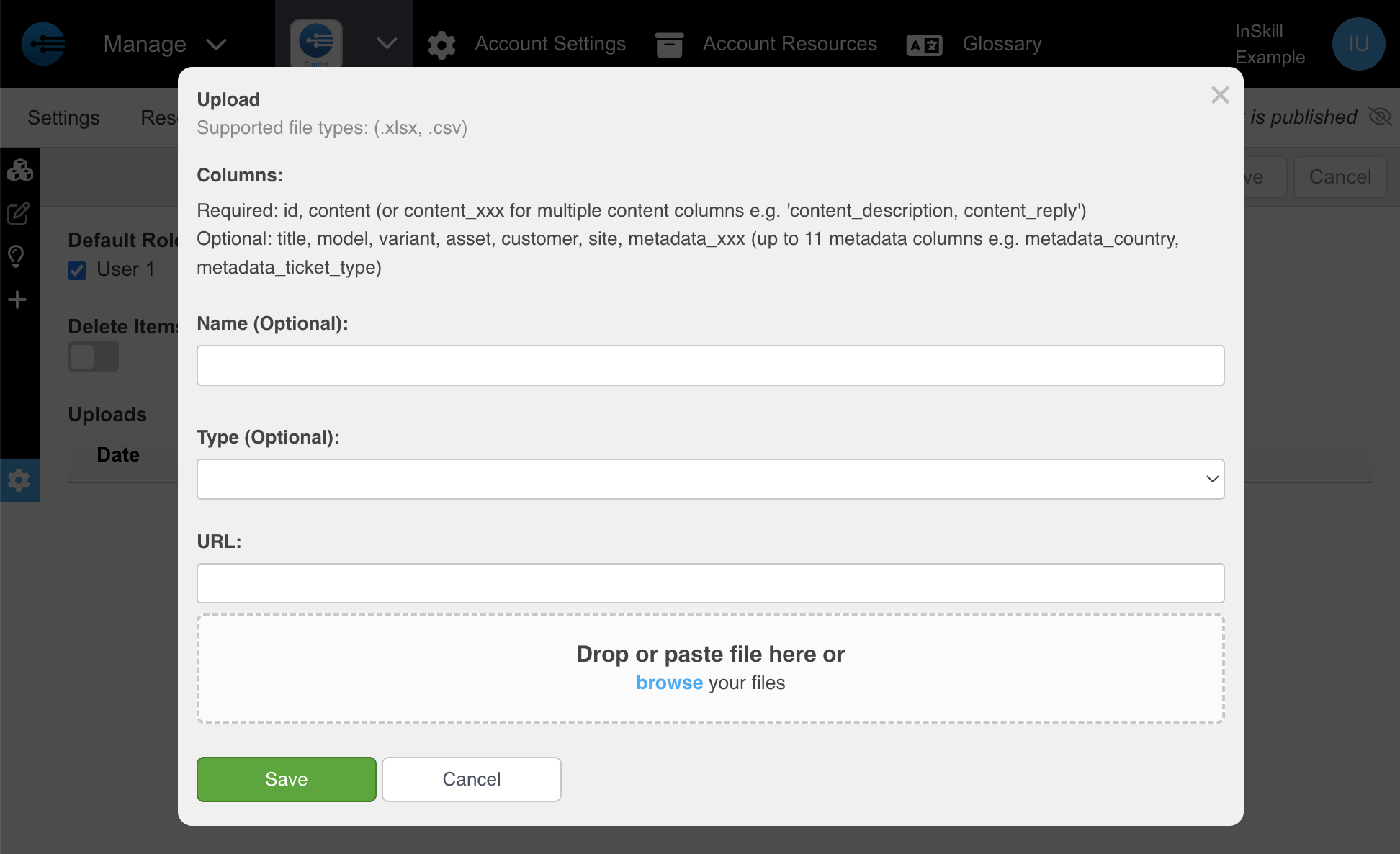
(Optional): Select the type of solution you will be uploading

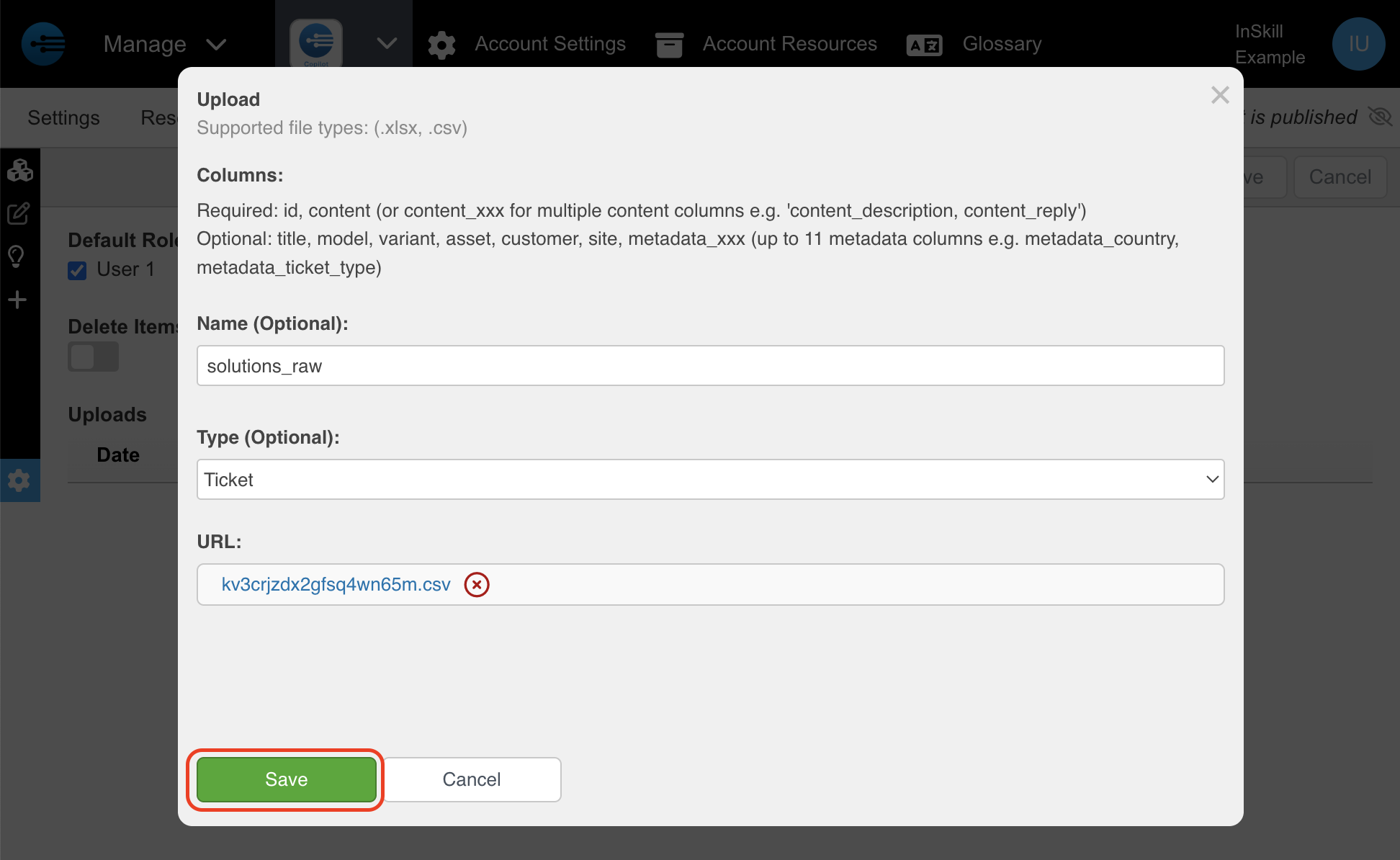
- Save & Process:
Click Save to finalize the upload. Your entries will appear in the Solutions list once the AI has finished indexing.
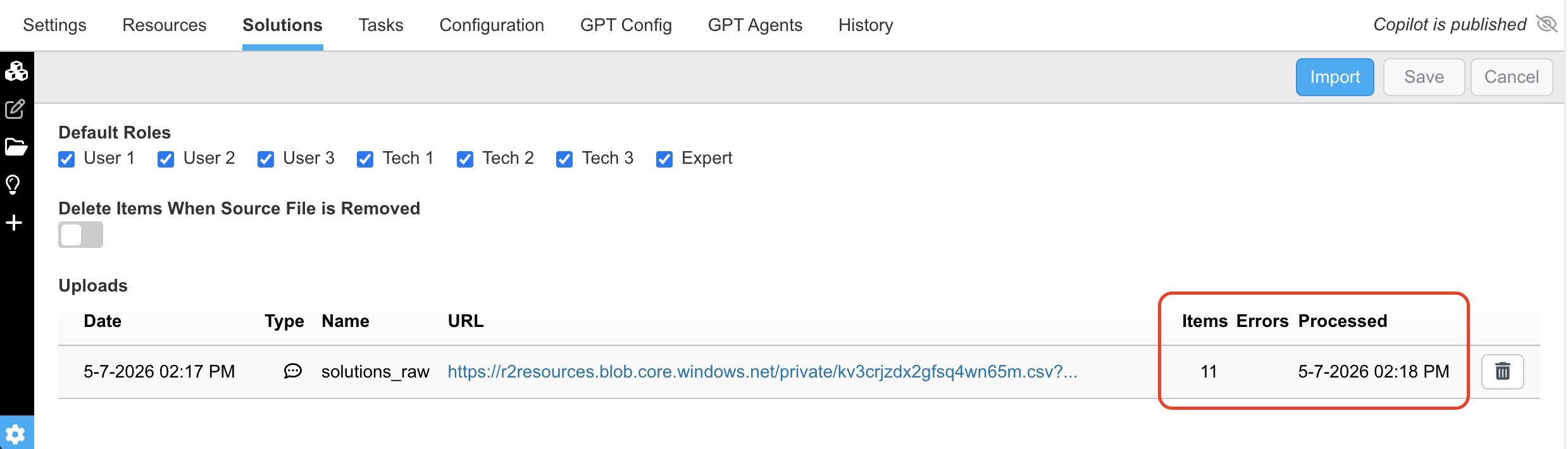
- Track Status:
Click the Settings icon (bottom-left) to view the date and time associated with your latest import.
3. Review & Approval
Imported solutions are initially saved as Drafts. They must be verified by your team before they become live for the copilot or field technicians. Below are the new Solutions just uploaded in the above steps.
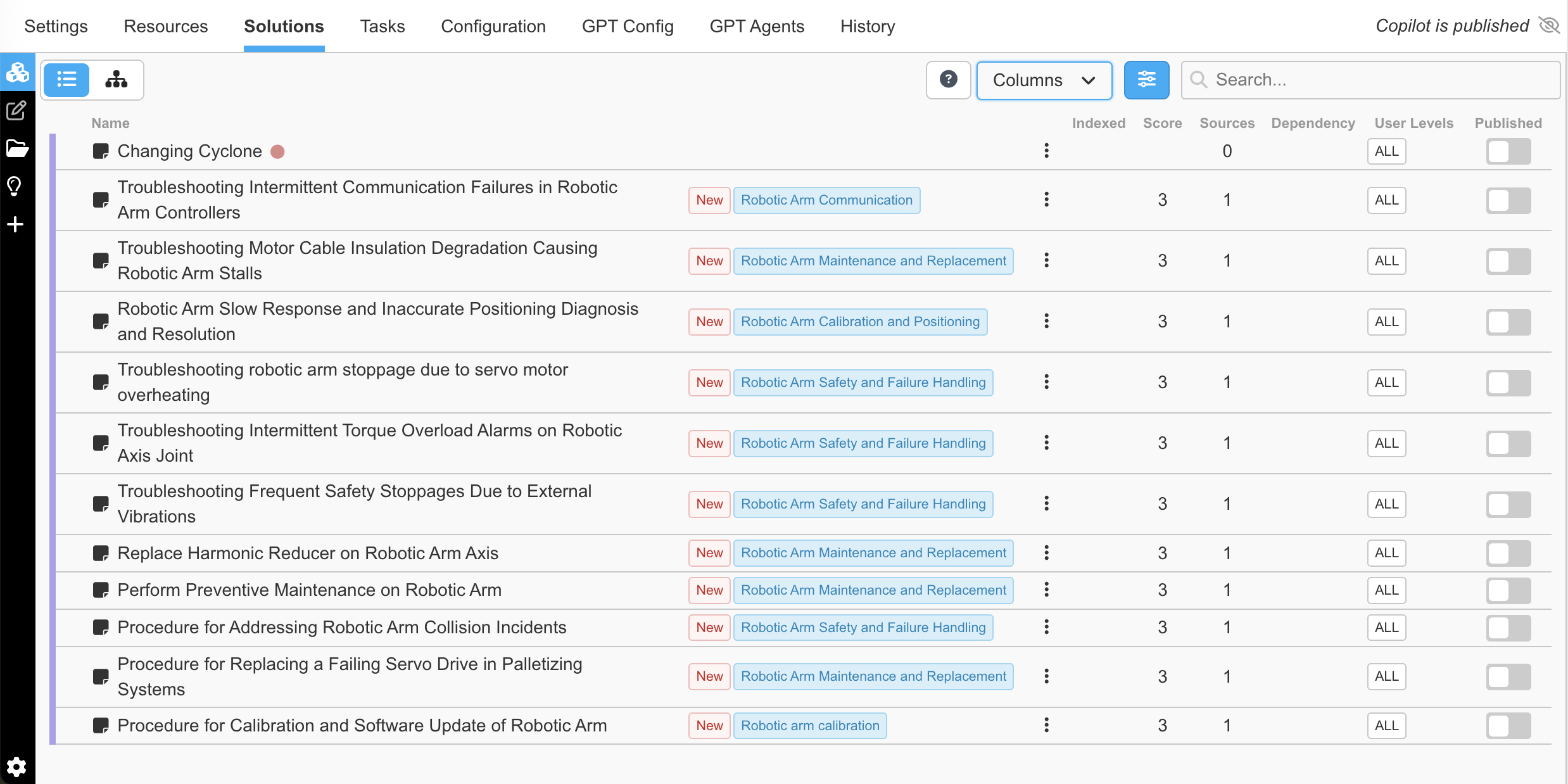
- Verify & Edit: Select an individual solution to review the extracted text and metadata. Edit the content as needed to ensure clarity and accuracy.
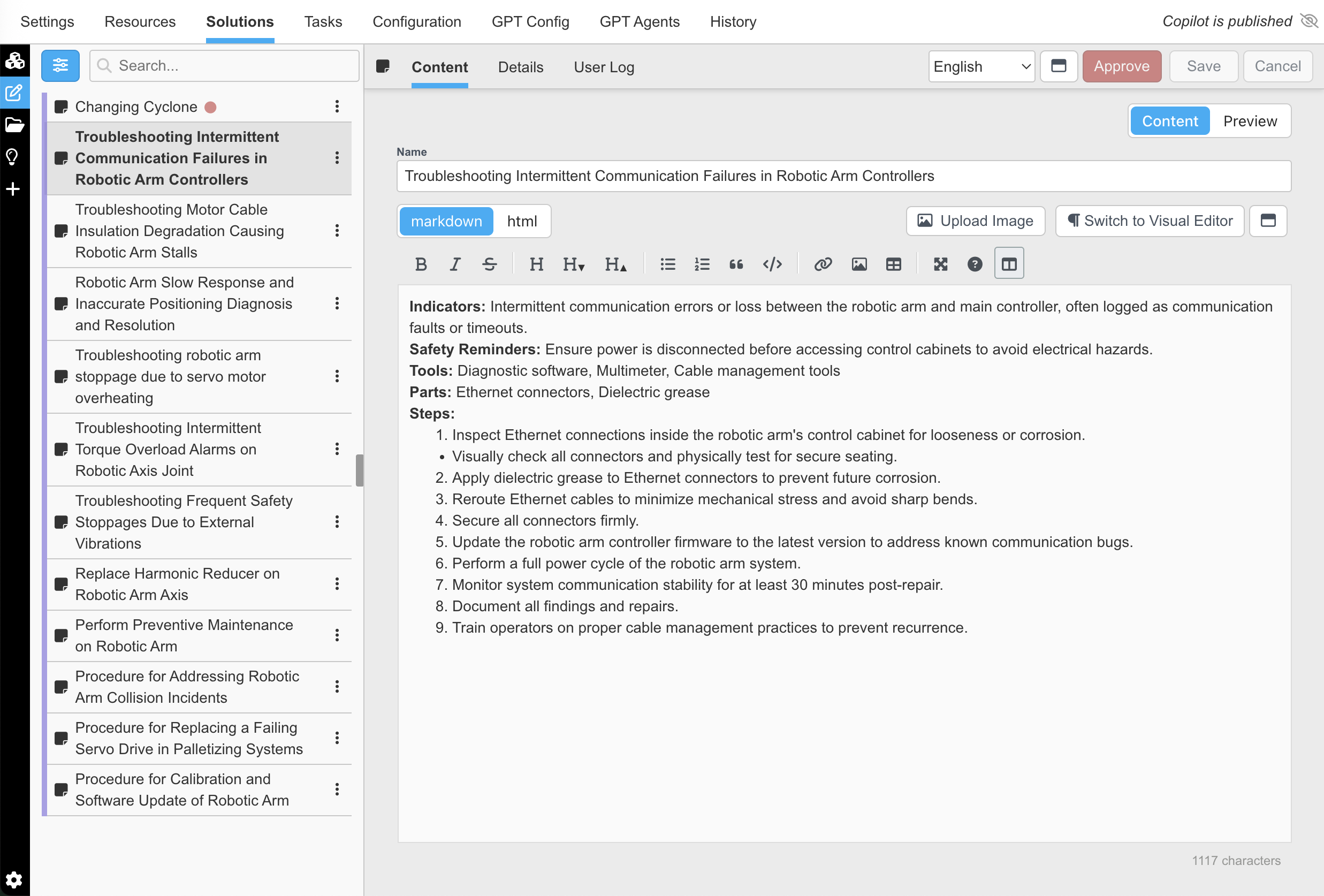
- Approve: Once satisfied, click the Approve button.

- Publish: After approval, the button disappears—indicating the solution is now live and will be used by the GPT engine to answer future inquiries with high-confidence, verified verbiage.

Once published the yellow checkmark will disappear and Publish --> Unpublish. When unpublished is selected a red dot will appear next to the title in the content column (As seen for Changing Cyclone).
