
Tasks and Resources
Open a copilot's tasks and source documents from the sidebar panels in the Ask workspace.
The copilot sidebar holds three panels below Ask: Tasks, Resources, and History. Each shows a count, and each expands in place when you select it. Only one panel is open at a time.
Tasks
Tasks lists every task the copilot can run. Select a task to run it without asking a question first.
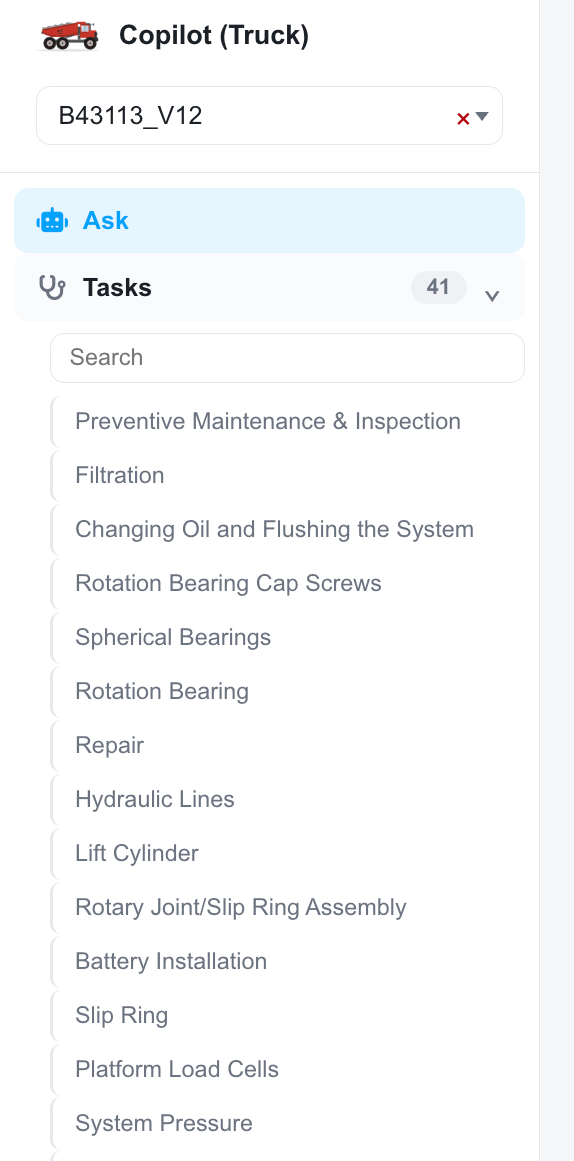
The Tasks panel in the copilot sidebar
Use the search box at the top of the panel to filter a long list. For what the different kinds of task do, see What are Tasks.
Resources
Resources lists the source documents behind the copilot's answers: manuals, schematics, and any notices attached to the asset.
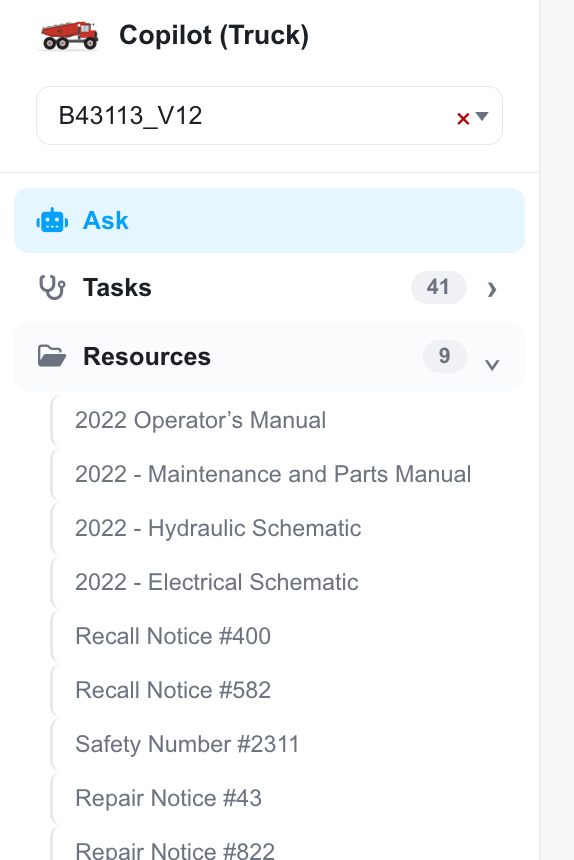
The Resources panel, with an asset's notices included
Select a resource to open it. Use this panel when you want to confirm an answer against the document it came from.
With no asset selected, the panel lists the copilot's own resources. Select an asset and that machine's documents join the list, which is why the count rises. In the example above, selecting an asset takes the truck copilot from 4 resources to 9, adding its recall, safety, and repair notices.
History
History lists your sessions on this copilot, newest first, with the type and age of each.
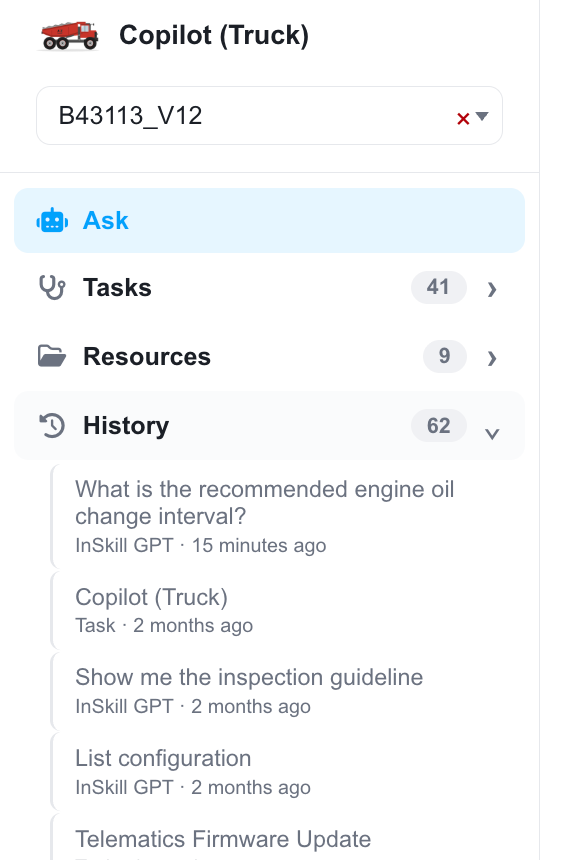
The History panel in the copilot sidebar
Select a session to reopen it in the main pane. To see your sessions across every copilot, with filters, use the History tab at the top of Ask.
Updated about 4 hours ago