
My History Page
My History lists every question and task run on this device; finished items open a report, unfinished ones pick up where you left off.
The My History page — reached from My History in the bottom navigation — shows everything that has been done on this device, for both assets and products. It lists all questions asked, resources accessed, and tasks executed, grouped by how long ago they happened, with your most recent activity in the cards across the top.
A green check marks a finished task. An entry without one is still open.
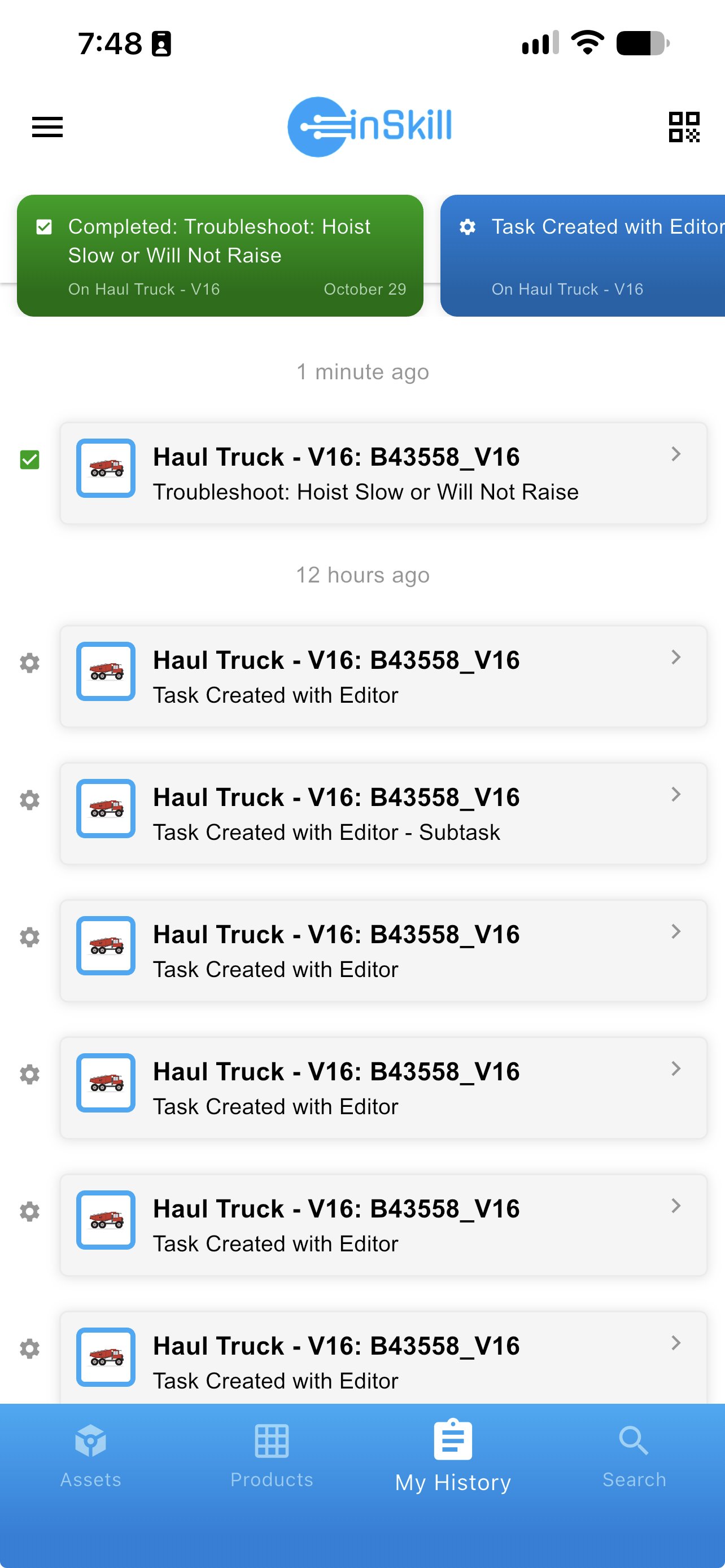
The My History page, with finished and unfinished tasks
Opening a History Item
What happens when you select an entry depends on whether it finished.
| Entry | What opens |
|---|---|
| A finished task, with a check | The report of what was done — see below |
| An unfinished task | The task itself, at the step where you left off |
| A question | The session, with the conversation as you left it |
That is what makes the page more than a log: a job interrupted at the end of a shift is picked up from this page, not started again.
The Report
A finished task opens on Report: the task name, when it started and finished, who performed it, and each step in order with the values recorded at it.
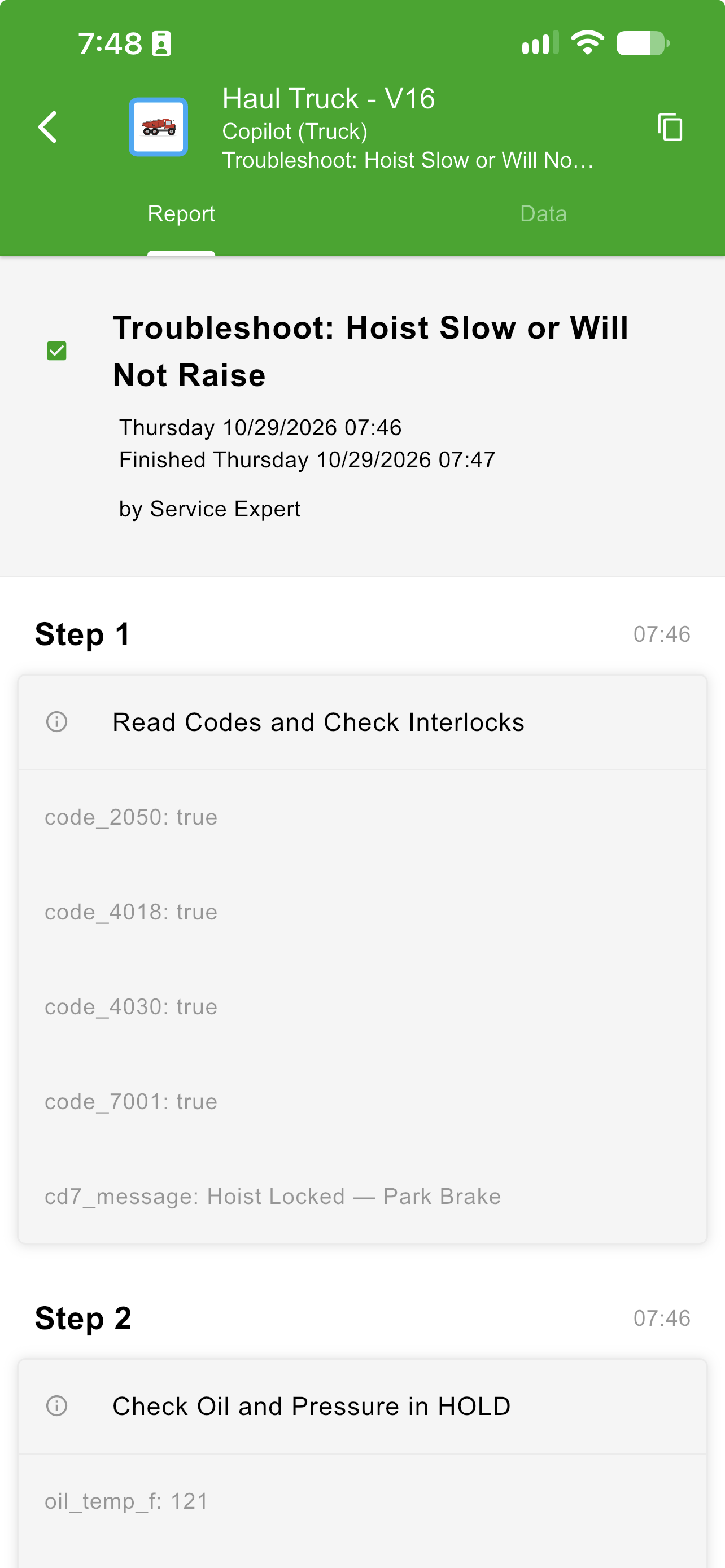
The report of a finished task
The Data
The Data tab shows a second report: the data collected during the session, alongside the machine's own variables. This part is especially valuable for inspections, where the readings and values recorded are the point of the work.
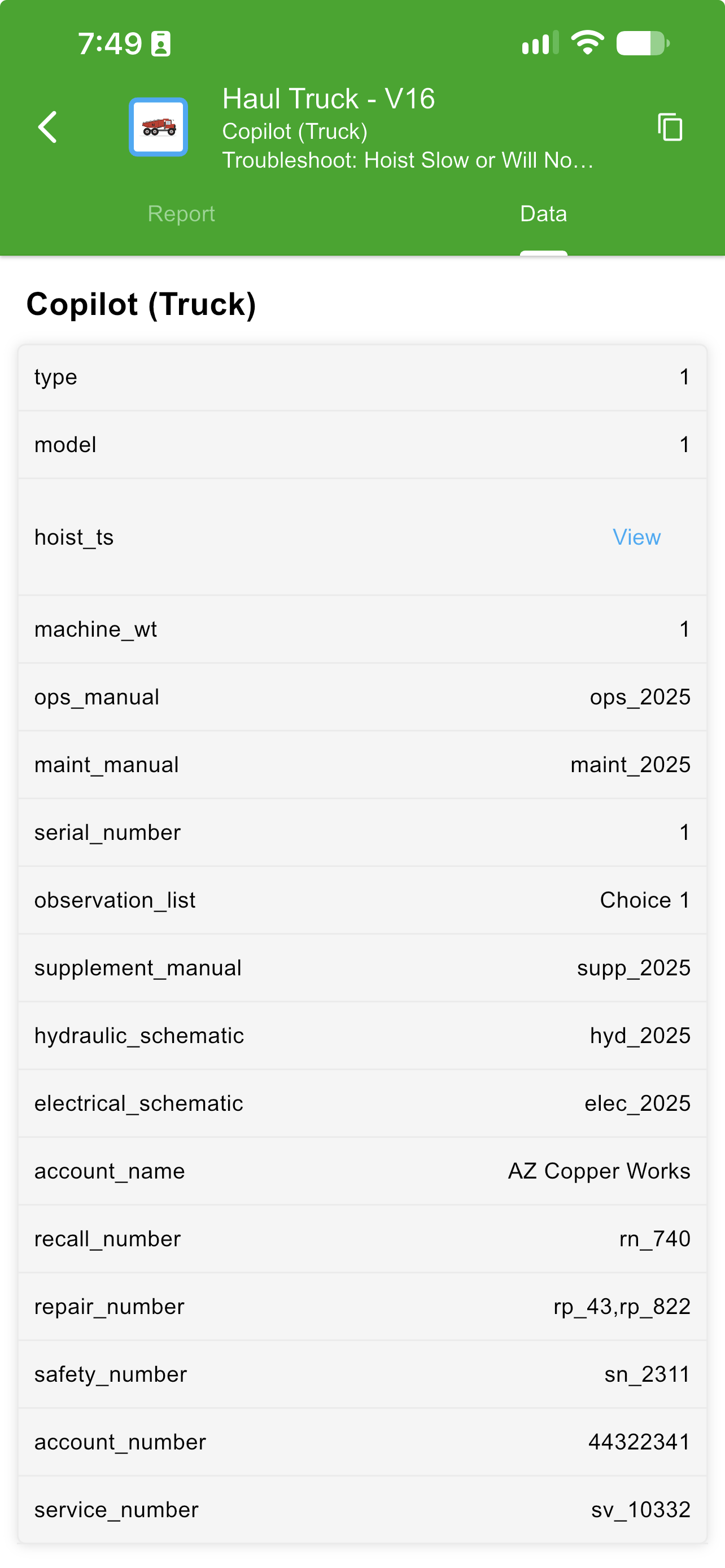
The data collected during a session
Copying a Session
The copy control at the upper right copies the report and the data to the device's clipboard, so either can be emailed to another person or posted into a different system.
Updated about 4 hours ago