
Asking a Question
Start an InSkill GPT session in Ask, set the session filters, and read the answer, next steps, and suggested tasks.
Opening a copilot takes you to its workspace. The left sidebar holds the copilot name, the asset selector, and the copilot's Ask, Tasks, Resources, and History panels. The main pane is where you talk to InSkill GPT.
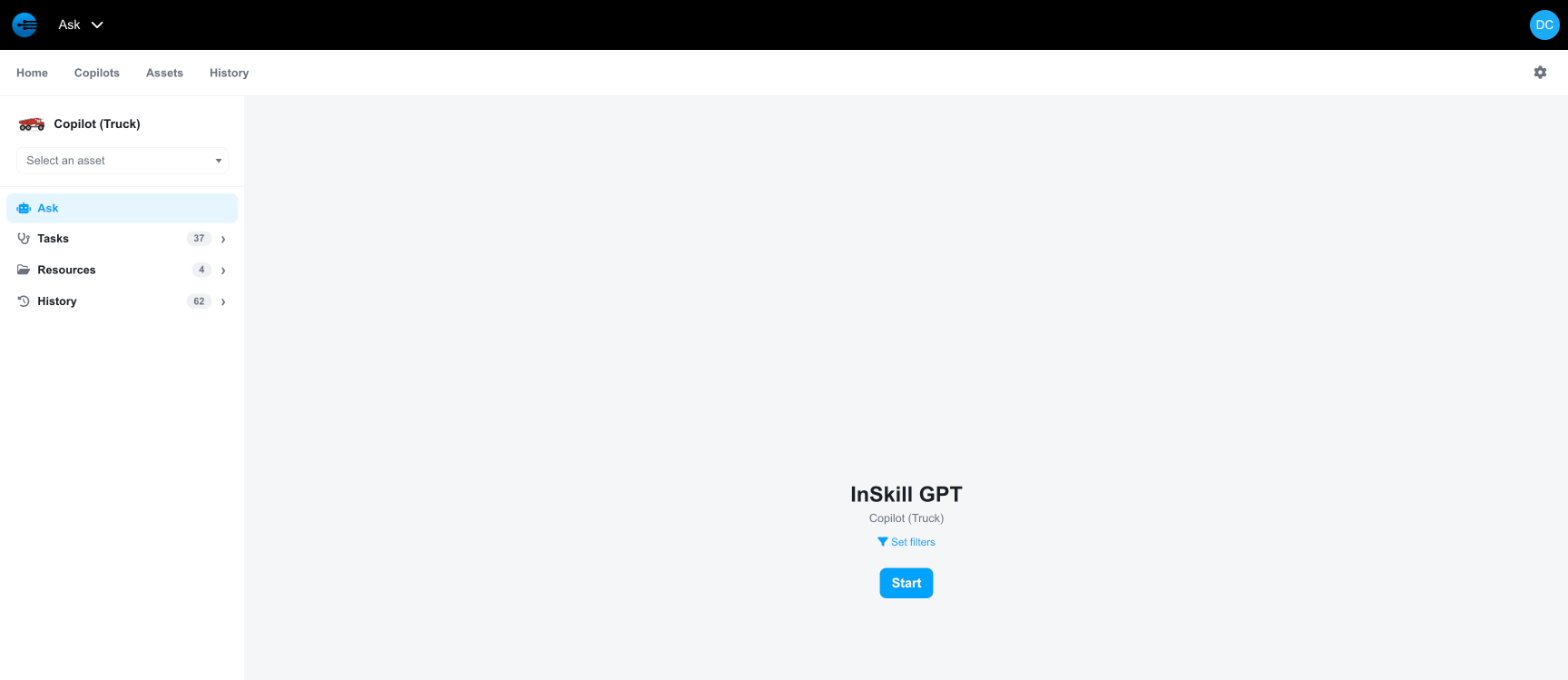
A copilot workspace in Ask
Starting a Session
-
(Optional) Select the asset you are working on from the Select an asset list. The serial number then appears under the copilot name, and the asset's own tasks and resources join the session.
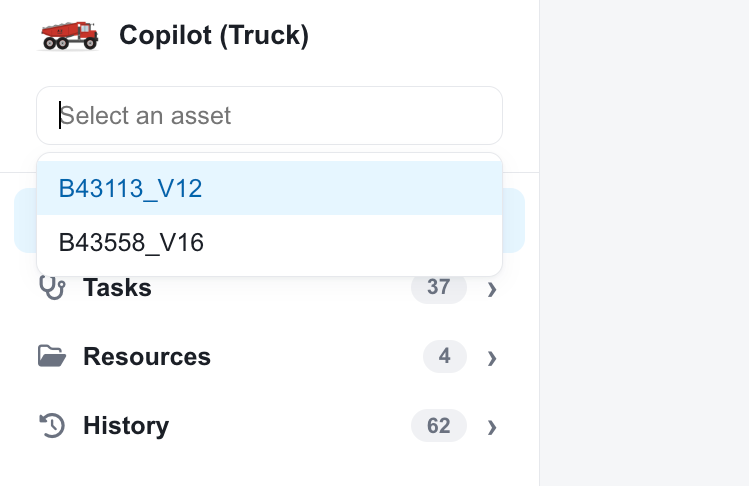
The Select an asset list
-
(Optional) Select Set filters to narrow what the copilot draws on.
-
Select Start.
InSkill GPT opens with an empty question box.
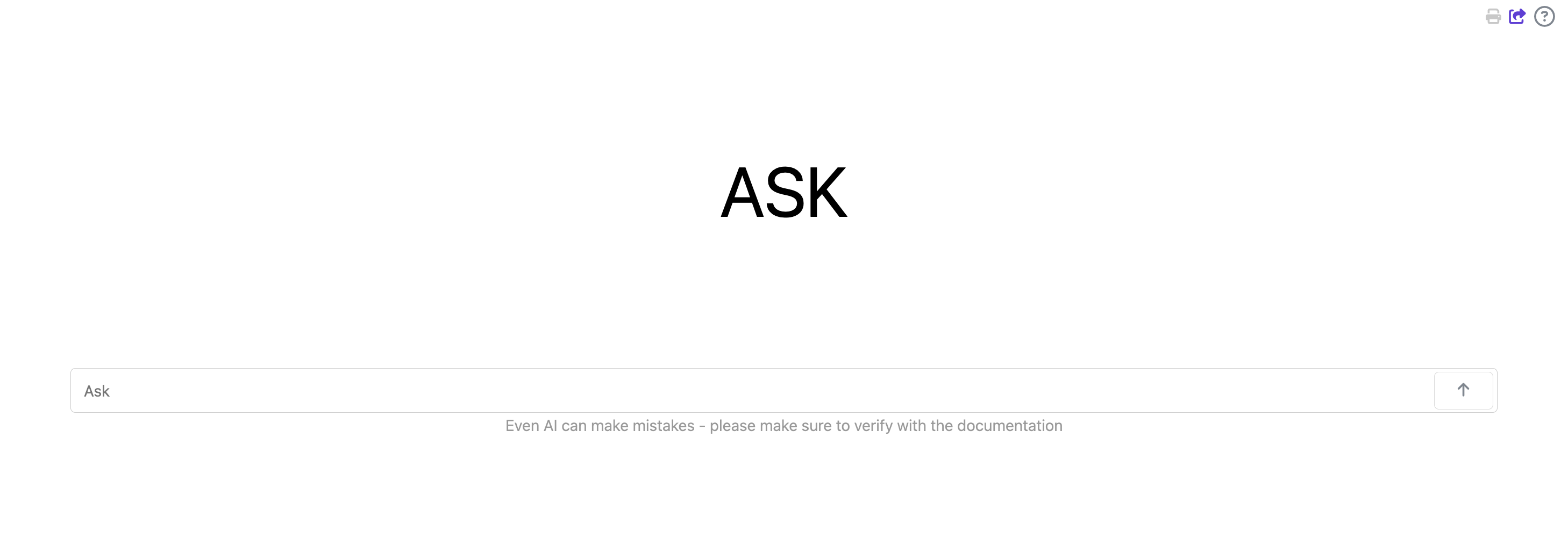
A new session, ready for a question
-
Type your question and press Enter, or select the arrow at the right of the box.
Session Filters
Set filters lists the copilot's expertise variables with their current values. Each one narrows the content the copilot reads before it answers, so a question about the 2025 maintenance manual is not answered from an older edition.
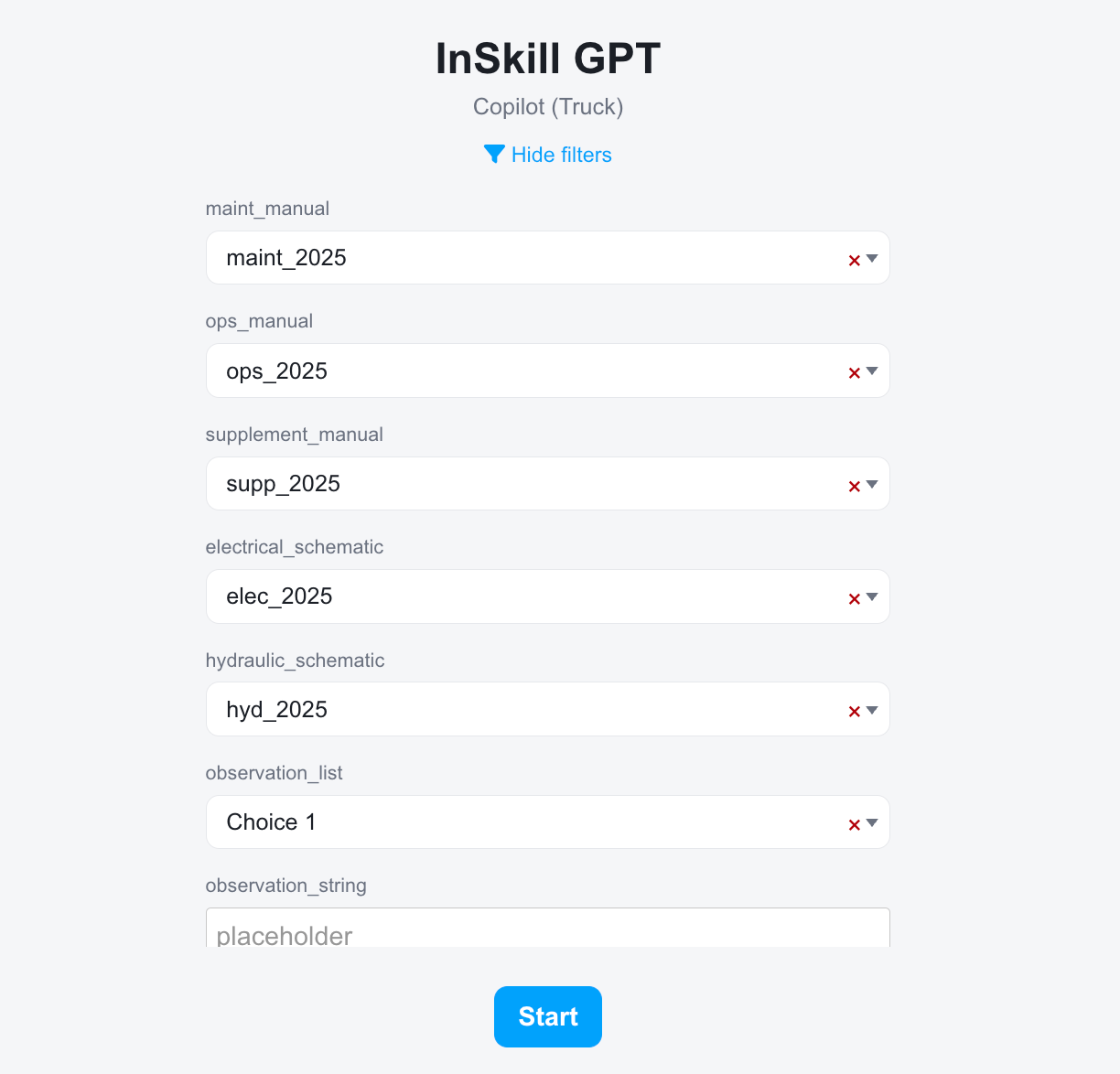
Session filters for a truck copilot
Change a value from its list, or select the red × to clear it. Select the × on a filter you want the copilot to ignore. Select Hide filters to collapse the list again, then Start.
Which variables appear depends on how the copilot is configured. See Creating Variables for how they are defined.
Reading an Answer
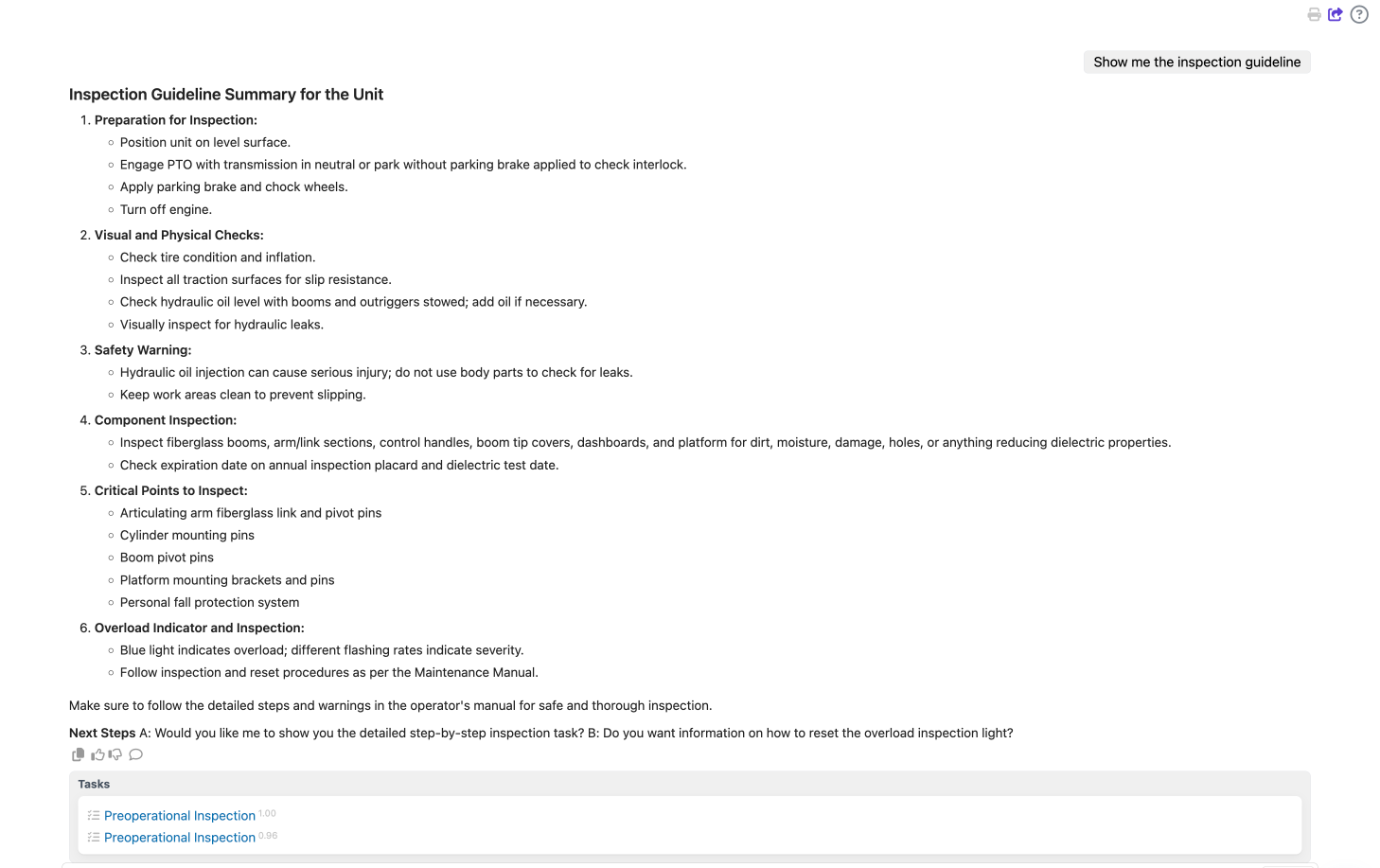
An answer with next steps, feedback controls, and suggested tasks
An answer has four parts:
| Part | What it is |
|---|---|
| Answer | The response, formatted with headings and lists where the content calls for it. Your question stays on the right, above it. |
| Next Steps | Two follow-ups the copilot suggests. Ask for one by name to continue. |
| Feedback controls | Copy the answer, rate it up or down, or add a comment. Ratings feed the Intelligence reports. |
| Tasks | Tasks the copilot judged relevant, each with a relevance score. Select one to run it. |
Keep typing in the box at the bottom to continue the session. Every exchange is saved, so you can reopen it later from History.
Verify before you actEvery session carries the reminder that AI can make mistakes. Check the answer against the source documents before you work on the equipment.
Updated about 4 hours ago