
Viewing Resources
The Resources tab: the documents that apply to the machine, why some are filtered out, the viewer, and what is held on the device.
The Resources tab holds the manuals, schematics, drawings, videos, and dynamic resources for the machine you are working on. It is the quickest way to reach a document mid-job without leaving the copilot.
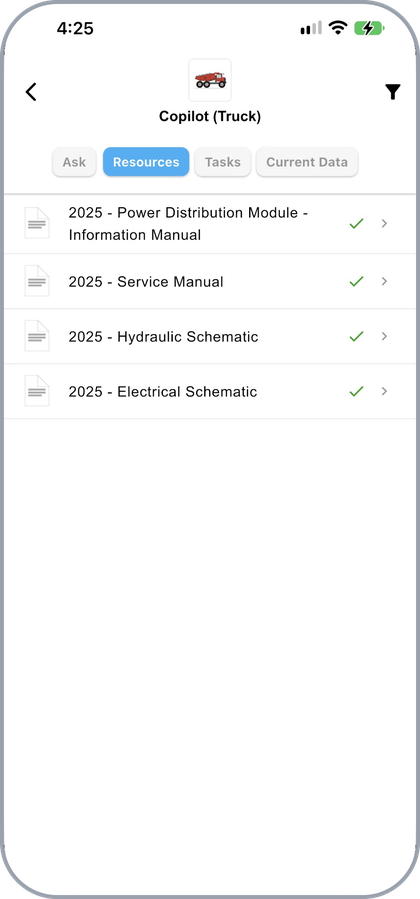
A copilot's Resources tab
What You See, and What You Do Not
The list is never the whole library. Two things narrow it.
| Narrowed by | Effect |
|---|---|
| Your access | Only resources your security profile permits are listed |
| The machine | On an asset, only resources matching that machine's variables. On a product, only resources matching the asset or configuration filter you applied |
On an asset, this is the point: the list is the document set for that serial number, not for the line.
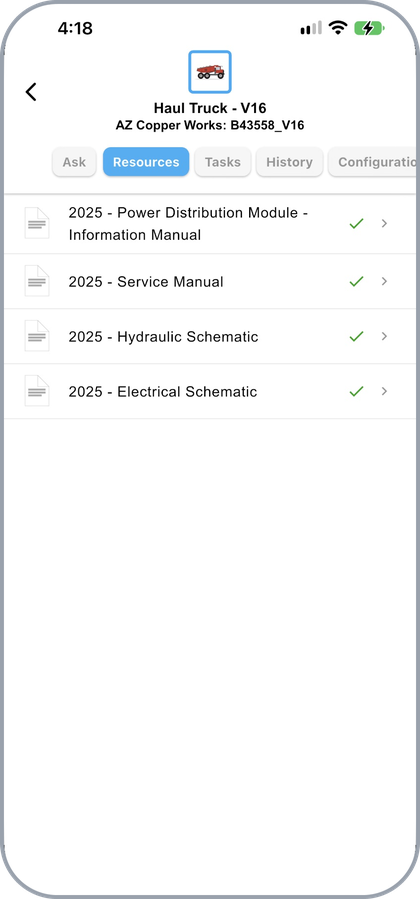
An asset's Resources tab, limited to that machine
On a product, a banner names the active configuration, with Clear to remove it. If a document you expect is missing, the filter is the first thing to check — the banner says so directly.
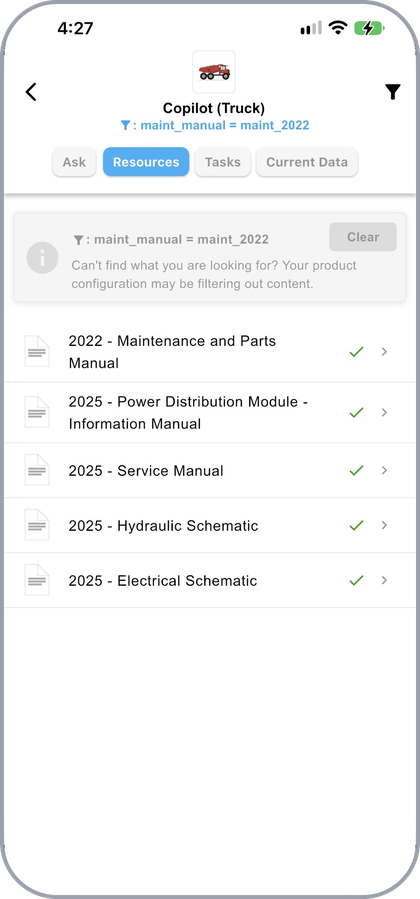
A product's Resources tab with a configuration filter applied
What Is on the Device
Each resource shows whether it is held locally.
| Mark | Meaning |
|---|---|
| Green check | On the device; opens without a connection |
| Blue cloud | Not downloaded; opening it will fetch it |
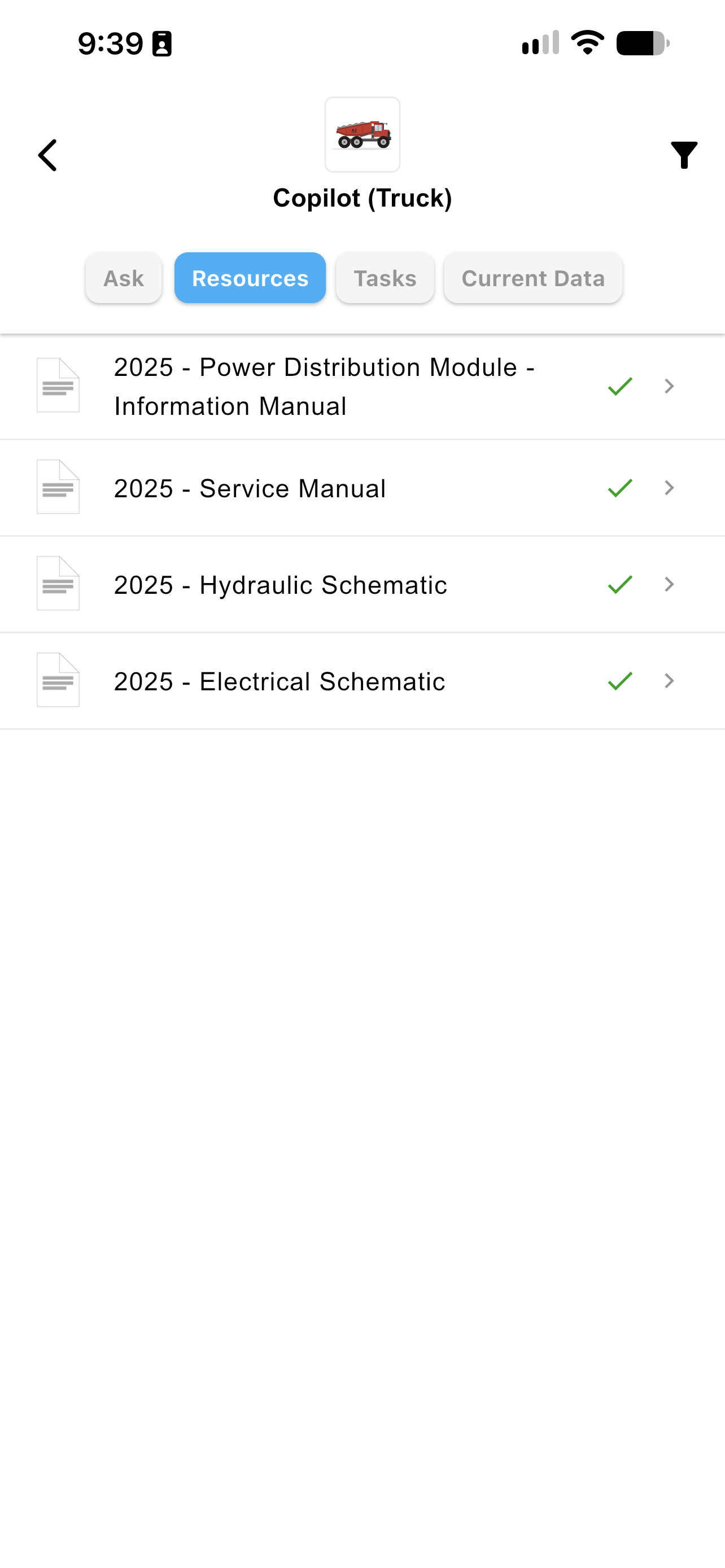
Every document on the device
Tapping a cloud downloads that one document — the quickest way to grab a manual before heading somewhere without coverage. A list can show both marks at once while a sync is partway through.
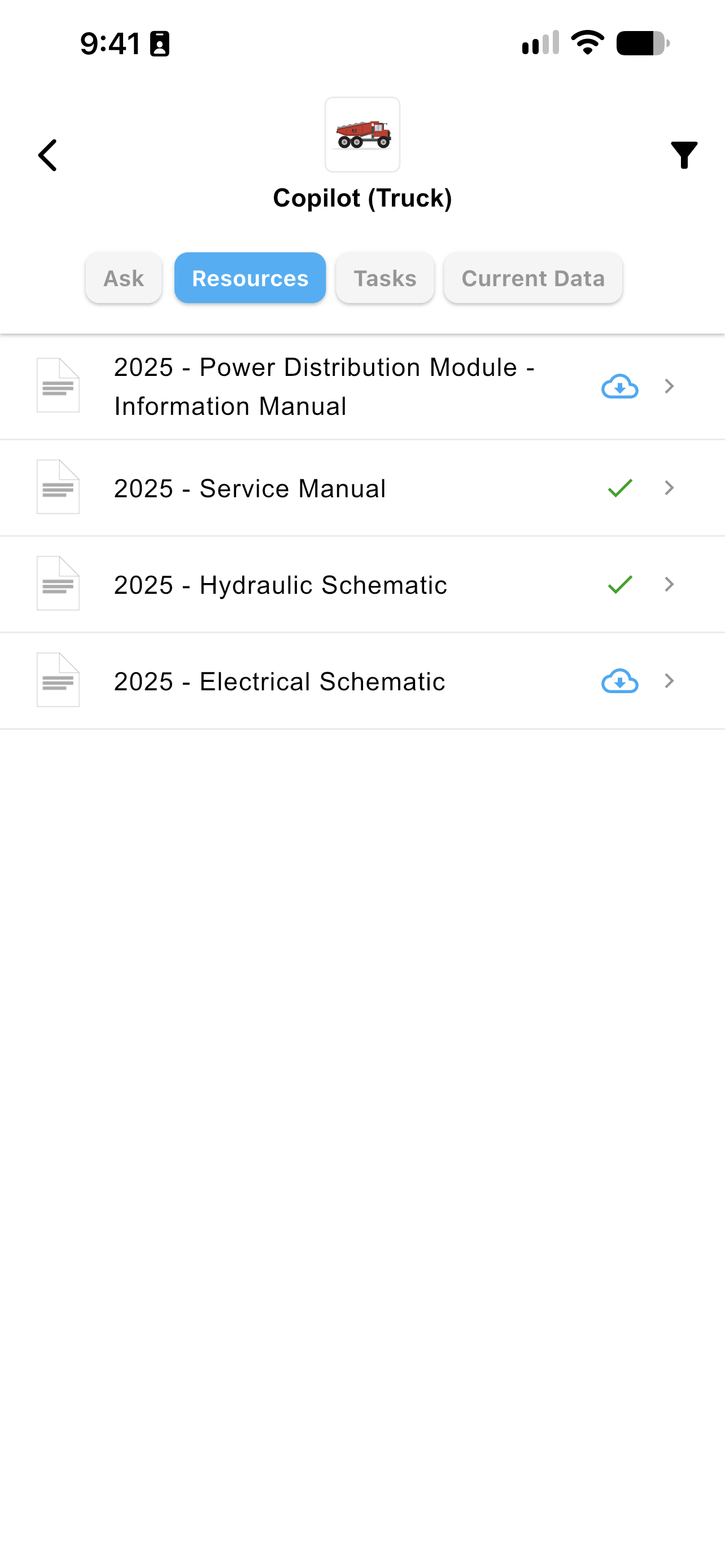
Some documents downloaded, some still in the cloud
To bring down a whole set ahead of time rather than one file at a time, see Offline Settings.
The Document Viewer
Selecting a resource opens it in the viewer. An answer's reference opens the same viewer at the cited page — see Asking Questions.
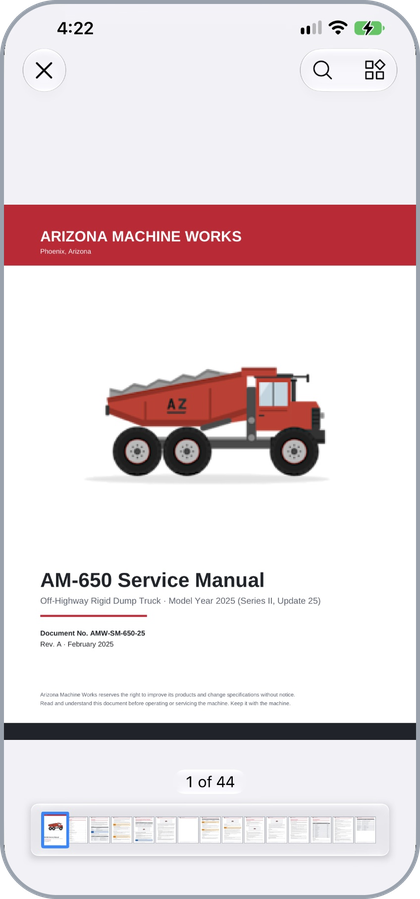
A manual open in the document viewer
Search the document to find a term without paging through it.
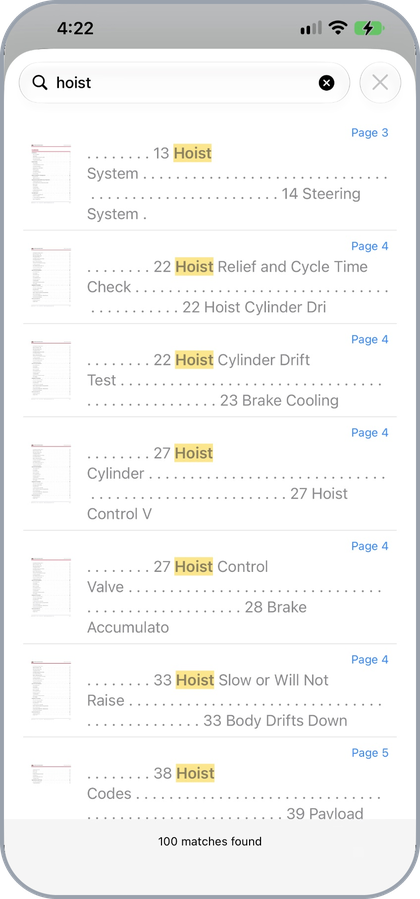
Searching within a document
Or switch to thumbnails to move through it by page.
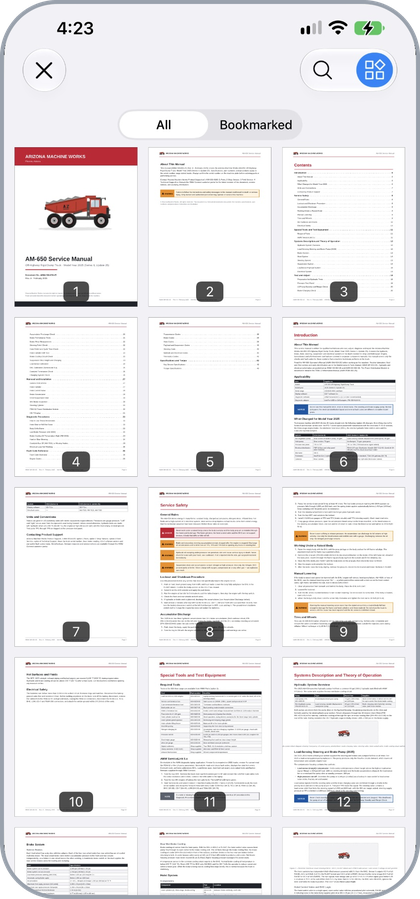
The viewer's page thumbnails
The Resources tab stays available while a task is running, so a manual can be checked mid-step without leaving the procedure. See Running a Task.
Updated about 4 hours ago