
Dynamic Steps
Author a dynamic step's body directly — Markdown for formatting, HTML and JavaScript for interactive behavior — like a dynamic resource.
When instructions are not enough — the step needs rich formatting, a calculation, an input form, or its own logic — author the step's body directly. A step authored this way is a dynamic step. Like a dynamic resource, it is an HTML page whose JavaScript can use the InSkill script API. The step editor offers three modes at the top right: Default is the guided instruction editor, Advanced is a blank canvas — a visual editor that works like a word processor, or a text editor for code — and Preview shows the step as the Technician will see it.
Using the Visual Editor
Advanced opens the visual editor, with menus and a toolbar for formatting, links, lists, and tables. Upload Image adds a picture to the step body.
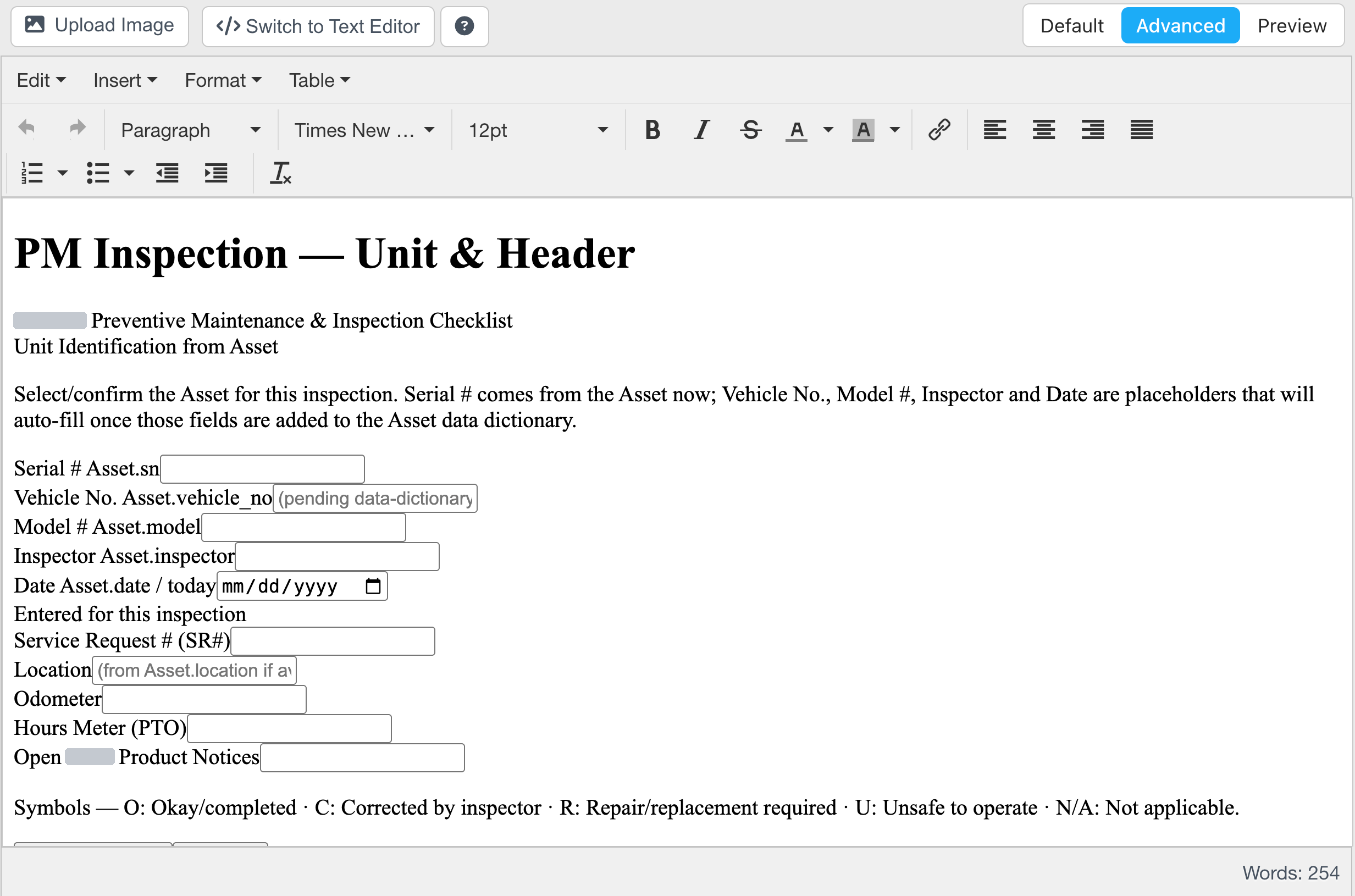
The Advanced visual editor
Using Markdown
The step body detects its format automatically: content that starts with a Markdown heading (#) or plain text is rendered as Markdown, while content containing HTML tags is rendered as raw HTML. For a formatted step with no scripting, write Markdown directly in the text editor — headings, lists, bold, and tables all render — without touching HTML at all.
Using HTML
Click Switch to Text Editor in Advanced to edit the step body as raw HTML. Switch to Visual Editor returns to the visual editor.
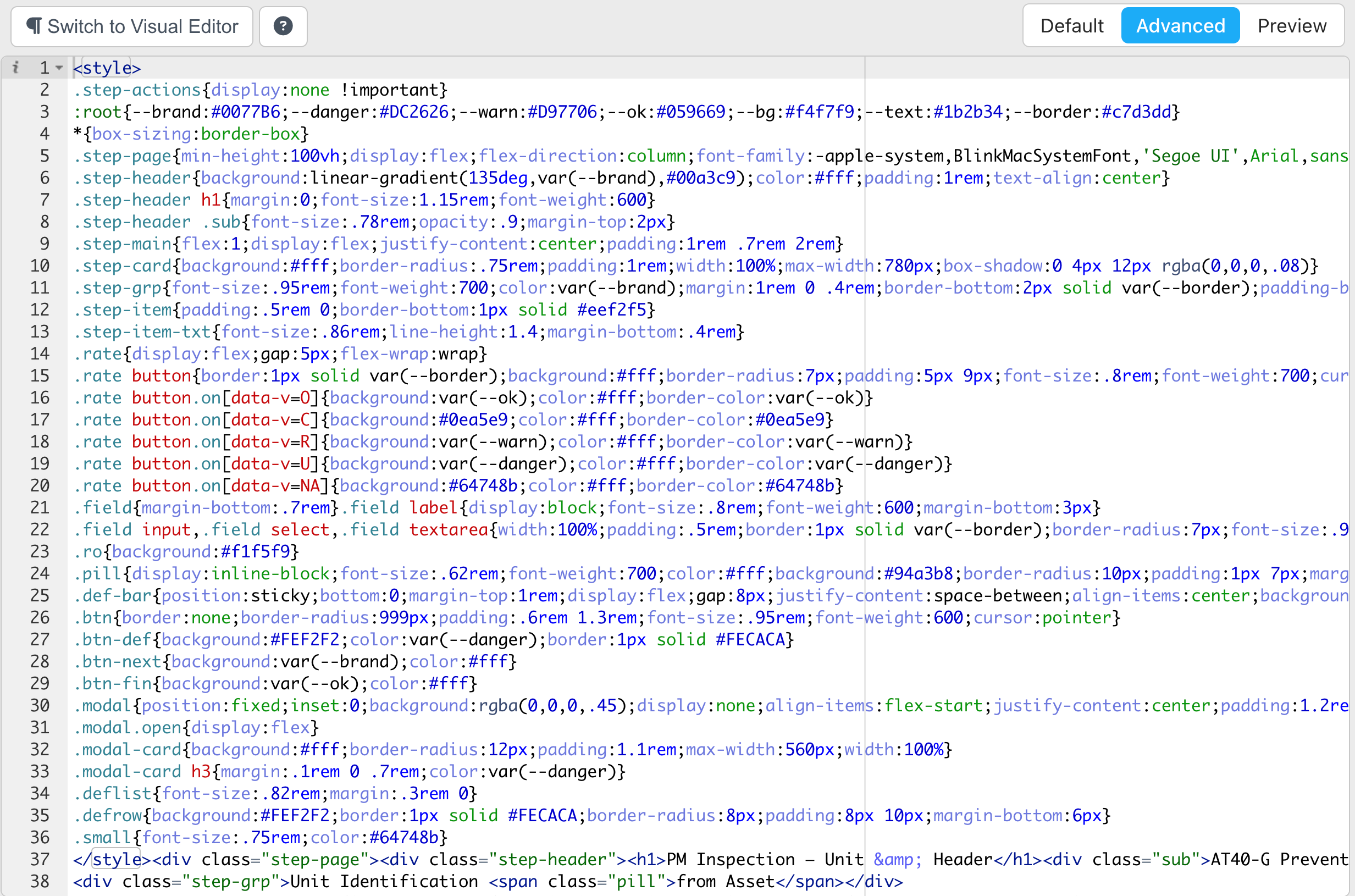
The text editor, showing a step body's HTML and CSS
A dynamic step can build a full web UI — input fields, calculations, graphs — and can read and save task data through the Inskill scripting namespace, for example Inskill.Session.setData('error_code', 5). The step body is wrapped into a complete HTML document, so do not include DOCTYPE, head, or body tags.
Click Preview to see the step as the Technician will. Open in New Window opens the preview in its own browser window.
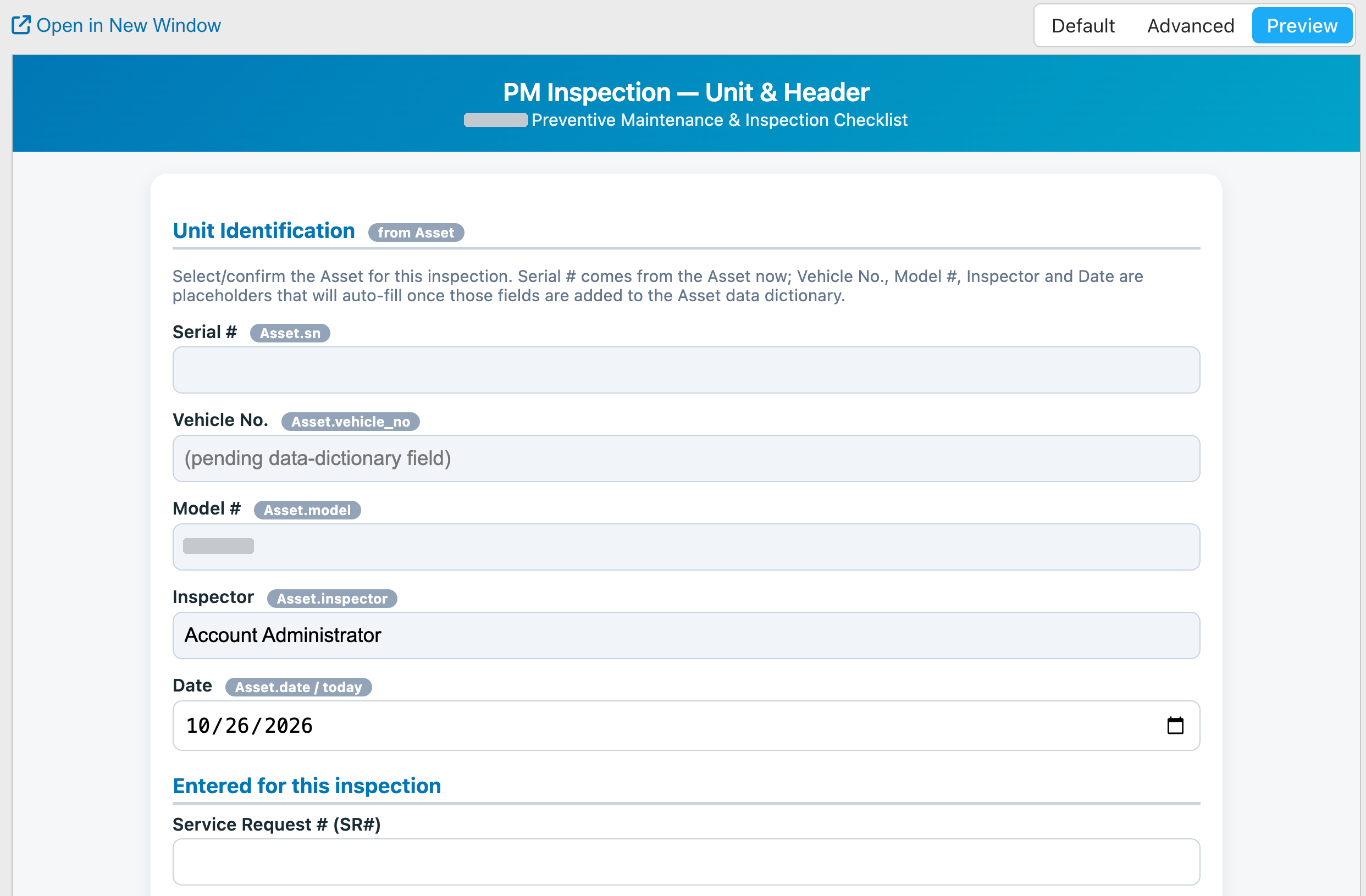
Previewing a dynamic step
Styling can live at three levels: <style> tags in the step body itself, a CSS file uploaded in Copilot Settings for one copilot, or a CSS file uploaded in Account Settings for every copilot in the account. See Styling with CSS.
A dynamic step can also adapt to the asset. The tag <inresource name="parts" /> in a step body replaces the step's content with the asset's resource of that name when one exists — so a step can hold default content that specific assets override with their own. The resource should be an uploaded HTML file, written like a step body, without DOCTYPE, head, or body tags. If the resource is not found, nothing happens.
Scripting a Dynamic Step
A dynamic step can run its own JavaScript in a <script> tag: read and save task data, move to the next step, end the task, upload a photo, or show a wait spinner. See Dynamic Scripts.
Giving a Step the Whole Screen
By default, the app and web portal frame every step with its title and the standard buttons and elements. A dynamic step that supplies its own controls can take the entire screen instead: turn on Headless at the top of the step's Content tab, in Default view. A headless step shows no title or standard buttons — only its own content — so make sure the step's HTML gives the Technician a way to move on, such as a button that calls Inskill.Session.message({ 'continue': '' }). See Dynamic Scripts.

The Headless toggle
Updated about 4 hours ago