
Asking Questions
The Ask tab: narrowing a question with a filter, putting it to InSkill GPT, reading the answer, and checking the sources behind it.
Ask is the primary way into a copilot. Put a question in your own words and InSkill GPT answers from the documentation for the machine in front of you — not from the internet, and not from documentation for a different model.
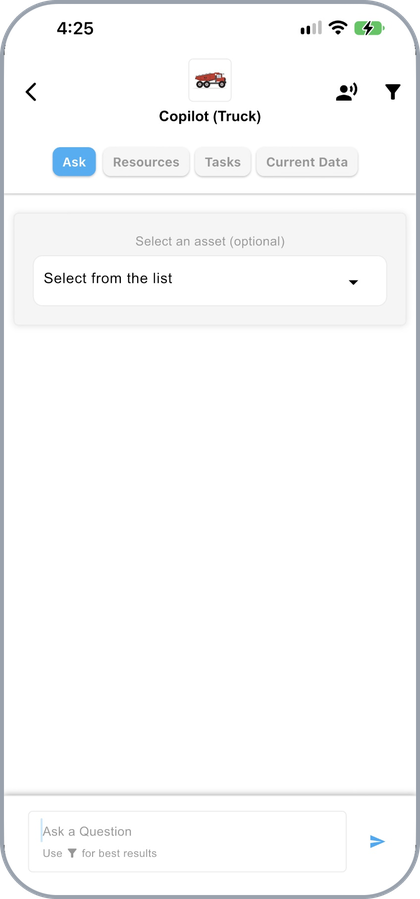
A copilot's Ask tab, ready for a question
Products and Assets Behave Differently
| Product | Asset | |
|---|---|---|
| Where the conversation lives | Each question opens its own named tab, to the right of Current Data | The conversation stays on the Ask tab itself |
| What the answer covers | Every documented version of the machine line, narrowed by any asset or filter you applied | Only the documents matching that machine's own variables |
On a product, several open questions stay available side by side, so you can leave one and come back to it.
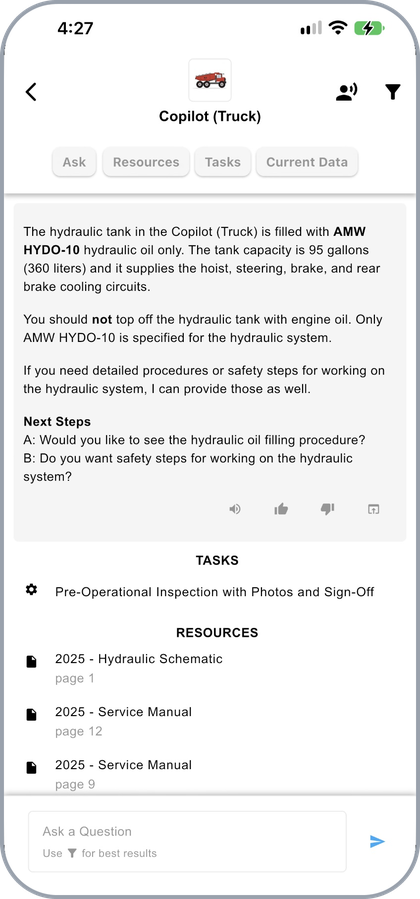
A question in its own session tab on a product
Applying a Filter
A product copilot covers a whole machine line, so an unfiltered answer covers every documented version of it. A filter narrows that to the machine in front of you — which is why the ask box prompts you to use it for the best results.
Tap the filter icon at the top right of the Ask tab to open Choose a Product Configuration.
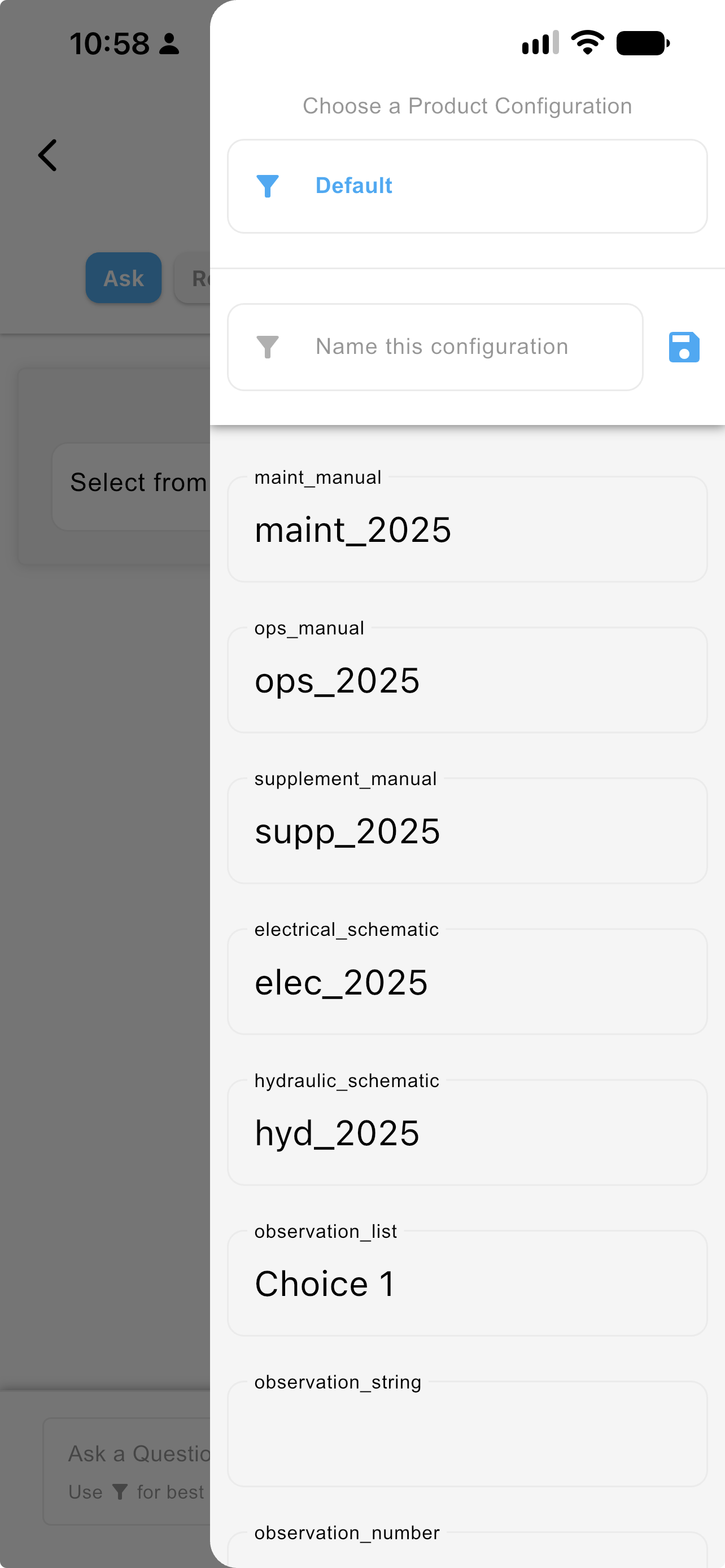
The Choose a Product Configuration panel
The panel has three parts.
| Part | What it does |
|---|---|
| Default | The unfiltered view — every version of the machine line. Pick it to clear a filter and start again. |
| Name this configuration | Names the set of values below it. The save control beside the field keeps it, so a Technician who works the same configuration every day sets it once and picks it by name afterwards. |
| The variable list | The copilot's variables, each with the value currently applied to it. |
Scroll the list to reach the rest of the variables. Each one is named above its value — maint_manual, ops_manual, electrical_schematic, hydraulic_schematic, and so on. A variable left blank is not filtered on; one with a value narrows both the answers and the resource list to material tagged to match.
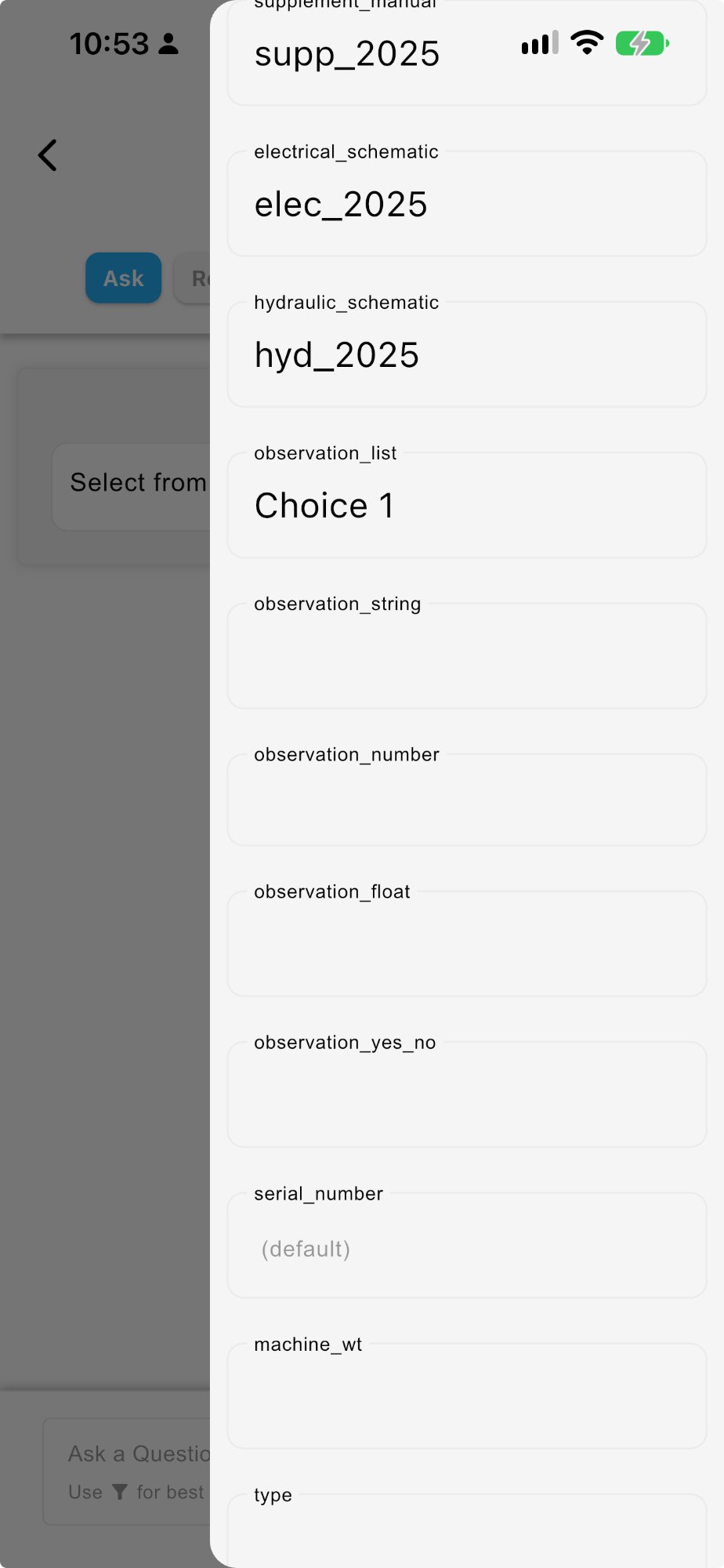
Further variables, lower in the same panel
Once a filter is applied, the active configuration is named under the product name, and the Resources tab shows a banner with Clear to remove it — see Viewing Resources.
TipIf an answer looks thinner than you expect, or a document you know exists is missing, check the filter first. A filter that is too narrow is the usual cause.
The variables themselves are defined in the data dictionary, and the same values are what an asset carries permanently — see Viewing Configuration. Where assets exist for the product, picking one from the Select an asset dropdown does the same job without setting anything by hand. See Products Page.
Reading an Answer
An answer is built from the machine's documentation and tells you where each part came from.
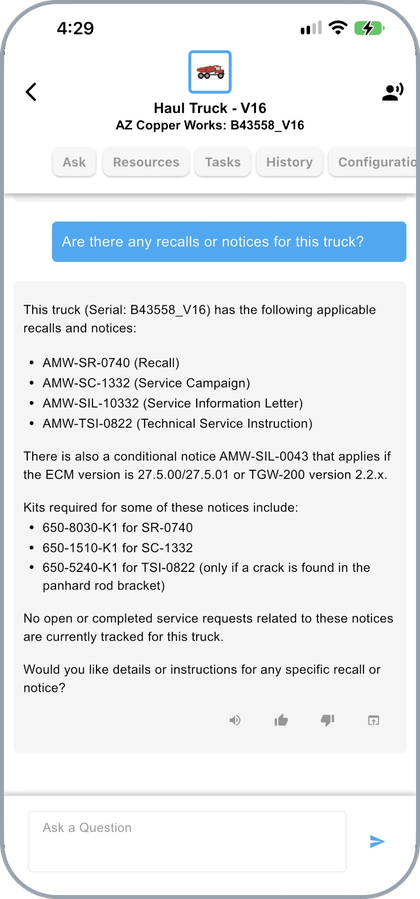
An answer on an asset, specific to that machine
Below the answer:
- TASKS lists any procedure that covers what you asked, so a question about a fault can hand you the task built for it — see Running a Task.
- RESOURCES lists the documents it was drawn from, down to the page.
- MORE reveals the rest of a long reference list.
- Next Steps offers follow-up questions where the answer suggests them.
Depending on the question, InSkill GPT may ask a question of its own rather than guess — a clarifying question is a sign it needs one more detail to answer accurately.
Answers built from the machine's own variables
Where the answer depends on how a unit is configured, it comes from the variables recorded against that machine rather than from a manual. Asking what to check each day returns the readings defined for that truck, and offers the task that walks through them.
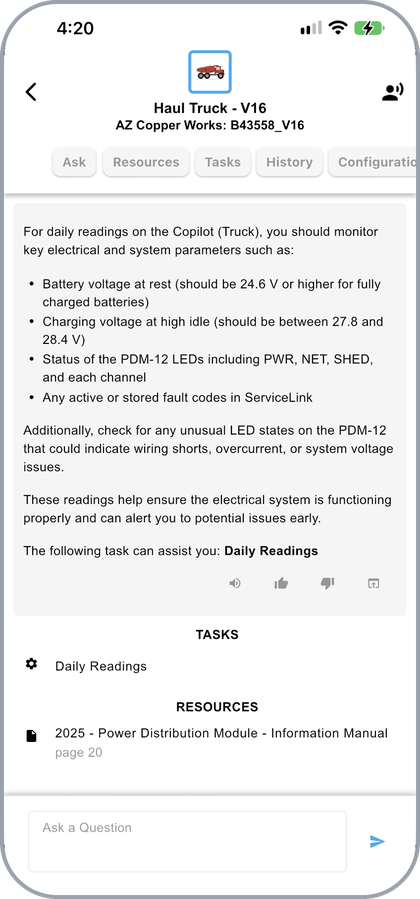
An answer built from the machine's own variables, with the matching task
Checking the Sources
Every answer lists what it was drawn from. Tap a reference to open the source document at the cited page.
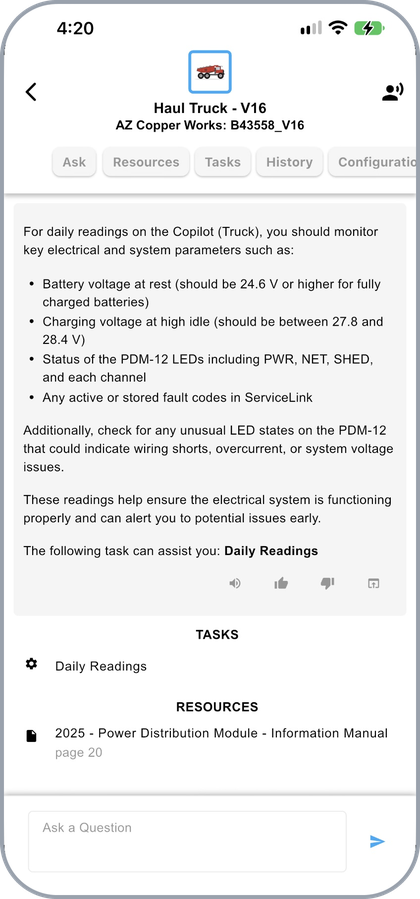
The tasks and resources behind an answer, with page numbers
The document opens in the viewer at that page — see Viewing Resources.
Answer Controls
Each answer carries its own controls.
| Control | What it does |
|---|---|
| Speaker | Reads the answer aloud |
| Thumbs up / down | Records whether the answer was helpful, which feeds back into the copilot |
| Escalate | Opens the copilot's escalate task, carrying the question with it — see Escalate |

The listen, rating, and escalate controls under an answer
Asking Without Your Hands
The whole exchange can be run by voice — ask aloud, confirm by voice, and hear the answer read back, with the references available without leaving voice mode. See Hands-Free Operation.
Every question asked is recorded and can be reopened later from My History Page, or from the History tab of the asset it was asked against.
Updated about 4 hours ago