
Session History and Settings
Review and filter your sessions, from the InSkill app and Ask, on the History tab, and change InSkill Settings.
The History tab shows your sessions, newest first, across all copilots, whether you ran them in the InSkill app or in Ask.
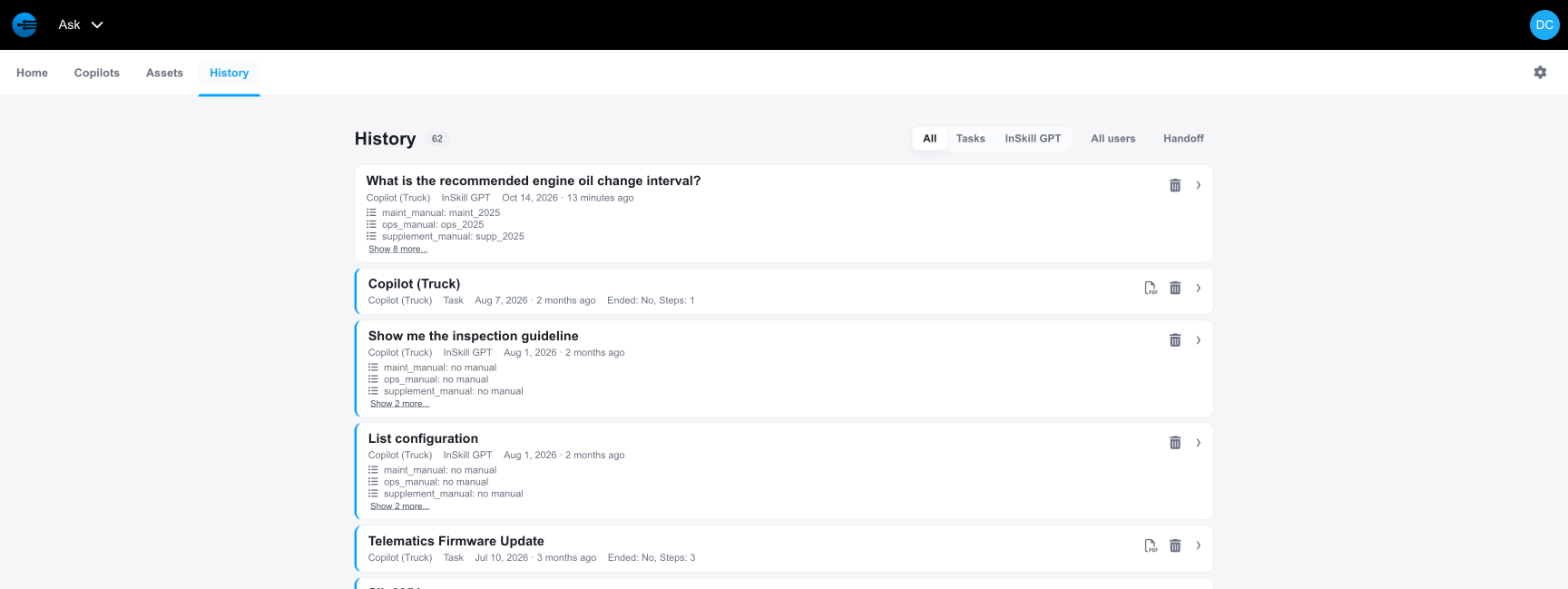
The History tab in Ask
Filtering the List
The controls above the list narrow what you see.
| Filter | What it shows |
|---|---|
| All | Every session. |
| Tasks | Only task sessions. |
| InSkill GPT | Only question-and-answer sessions. |
| Handoff | Only sessions that were handed off to another Technician. |
Reading an Entry
Each entry carries the session title, the copilot, the session type, and the date with how long ago it ran.
Task sessions also show whether the task ended and how many steps ran. Question sessions list the filter values the session used; select Show more to see the rest.
Select an entry to reopen the session. Select the trash icon on the right to delete it. Task sessions also offer a PDF icon, which exports the session as a document.
InSkill Settings
Select the gear icon at the right of the tab bar to open InSkill Settings.
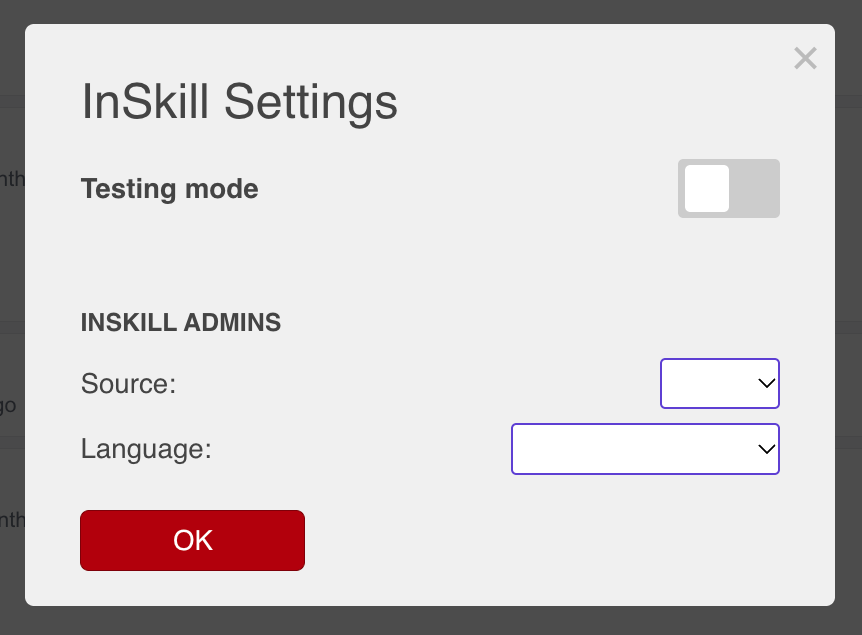
The InSkill Settings dialog
| Setting | What it does |
|---|---|
| Testing mode | For administrators and developers testing a copilot. Keeps their test sessions out of the logs and the Intelligence portal's reports on real work. See Testing Mode. |
| Source | Sets the content source the session reads from. Available to InSkill administrators. |
| Language | Sets the language the copilot answers in. Available to InSkill administrators. See Languages. |
Select OK to apply your changes.
Updated about 4 hours ago