
Configuring Step Attributes
The Info tab options that control a step — tags, parts, skills, Stop Here, Trigger script, Preserve Data, and user levels.
The Info tab holds everything else that controls how a step behaves:
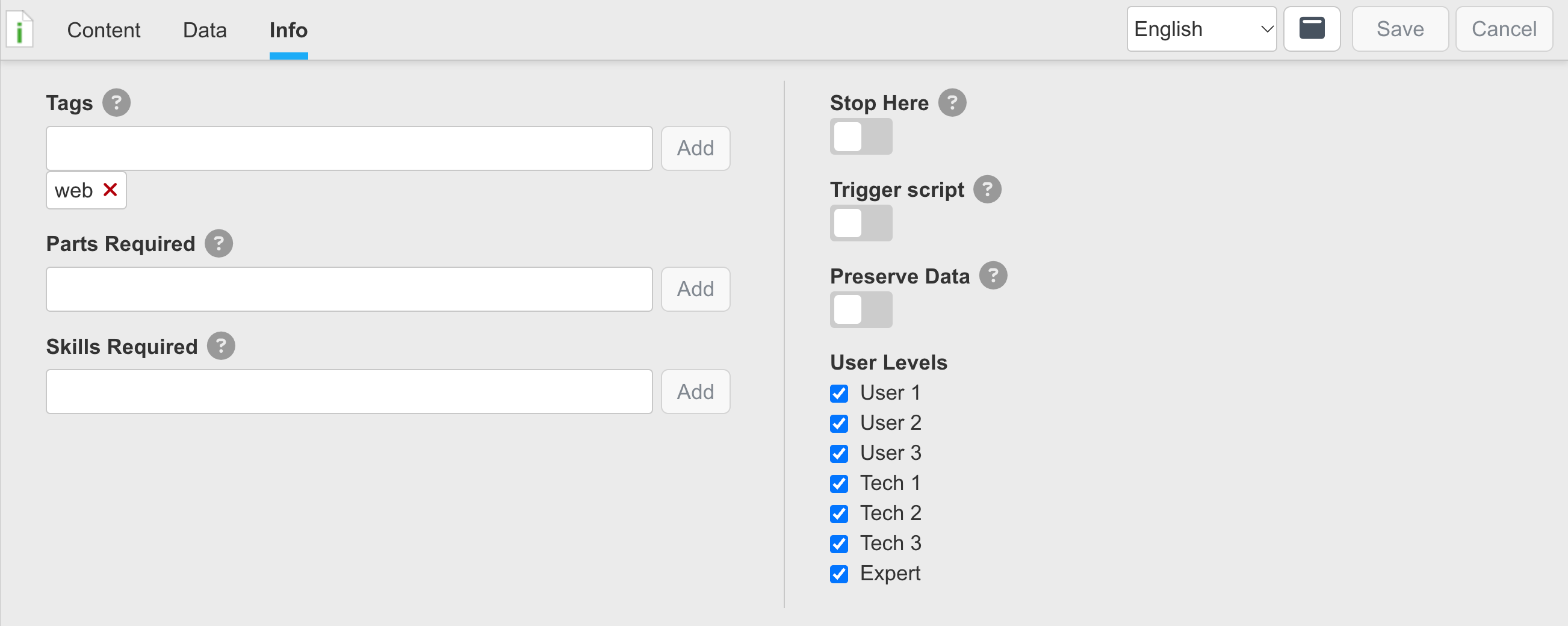
A step's Info tab
| Option | What it does |
|---|---|
| Tags | exit leaves the current task after this step, like a return in the middle of a task. reuse, set on a subtask, lets the subtask run more than once in a session — without it, a subtask that has already run will not run again. Type a tag and click Add. |
| Parts Required | The parts that may be used in this step. The Technician taps a part to indicate it was used; parts can be generic or carry a part number to track replacements. |
| Skills Required | Special skills required, such as electrical or plumbing. Shown to the Technician. |
| Stop Here | The step shows no continue button, making it the last step in the task. Use it in a subtask that escalates to support and should not continue. |
| Trigger script | When the step is finished, it triggers the copilot's session-finished script in the cloud. If the task runs offline, the script can only be triggered once the task is uploaded from the mobile device. |
| Preserve Data | Keeps the data the Technician entered if they revert to the previous step. |
| User Levels | The user levels that see the step. Clear a level to hide the step from it, so only qualified personnel execute the step. |
Updated about 4 hours ago