
Scanning Asset QR Codes
Scan the QR code on a machine to go straight to that asset's tasks, resources, and copilot.
An asset QR code identifies one specific machine. It is typically printed onto waterproof material and placed on the machine itself, so a Technician can walk up to the equipment and scan it — no searching through lists to find the right asset. Codes can also be printed in the run book.
Scanning takes you straight to that asset: its tasks, resources, and copilot, ready to work.
Scanning a Code
The QR scanner is opened from the icon at the top right of the app's home screen.
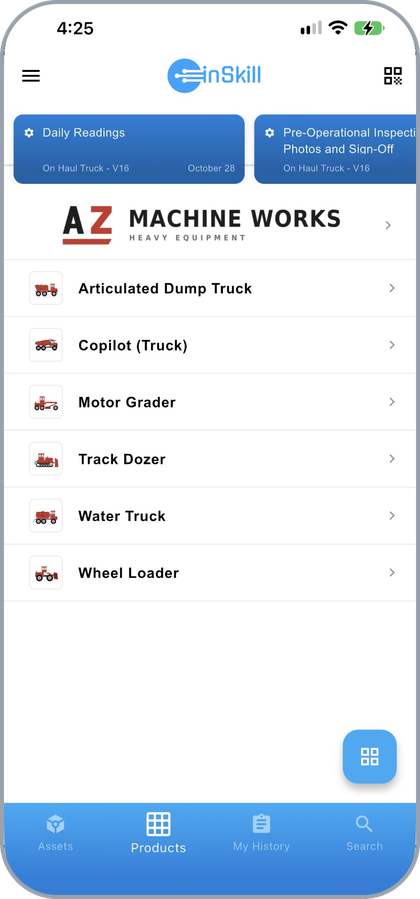
The QR scanner icon at the top right of the home screen
Follow these steps to scan an asset:
- On the app's home screen, select the QR scanner icon in the top-right corner.
- Allow camera access when prompted.
- Scan the code on the machine.
The Scan QR Code screen opens the camera. Hold the device so the code fills the frame.
The Scan QR Code screen
You are taken directly to that asset's available tasks, resources, and diagnostic tools.
Where the Code Comes From
Each asset's QR code is on its Asset Details page in the Assets portal. This is the code that identifies that individual asset, and the one to print and place on the machine. See Creating an Asset.
You can only scan QR codes for assets you are authorized to access, so a Technician cannot reach machines they do not have permission for.
Types of QR Code
InSkill supports two types of code:
- Static QR codes carry fixed identifying information used to recognize a machine. That information does not change, so the code can be printed on waterproof material, affixed to the machine, or printed in the run book.
- Dynamic QR codes are generated by the machine itself. Some OEMs add a screen to their operator console that produces an InSkill QR code for a Technician to scan. Alongside identifying the asset, this code can carry live information from the machine, such as logs or fault codes.
NoteQR codes are optional. Without them you can still reach an asset from the Assets page or the Search page.
Updated about 4 hours ago