
Running a Task
Find a task from the Ask page or the Tasks page, why the app suits tasks, then work through its steps, history, data, resources, comments, and escalation.
Tasks are manufacturer-approved, step-by-step guides that walk a Technician through diagnostics, maintenance, inspections, and procedures, so every job is done correctly, consistently, and safely. They are available whether you open a product or an asset. This page covers finding a task in the app and running it.
Finding a Task
Tasks can be accessed in two ways.
From the Ask page
Tasks are part of the expertise set of InSkill. A question that uses that expertise lists the task under the answer, alongside the resources it was drawn from — so asking about a fault can hand you the task built for it, without knowing the task existed. Starting from a question also keeps the conversation, which records the issue that led to the task. See Asking Questions.
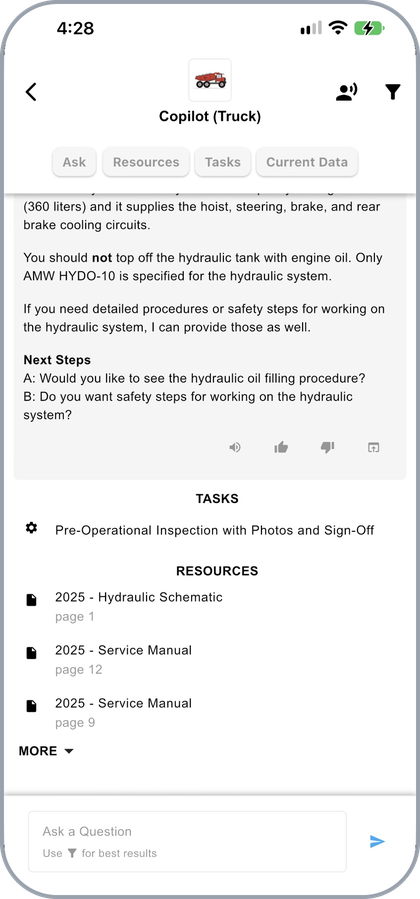
An answer that offers the matching task
From the Tasks page
Tasks can also be accessed from the Tasks page of an asset or product, which lists every task available for it.
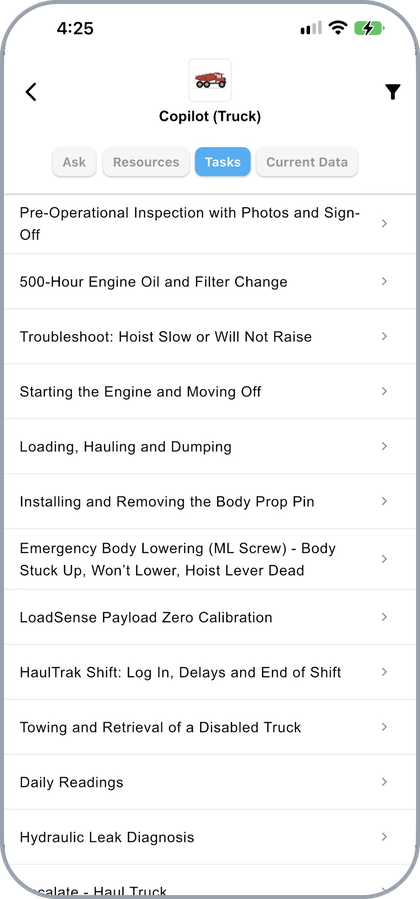
A copilot's Tasks tab
Why Run Tasks in the App
Tasks can be viewed in Ask on the web, but the app is built for running them in the field:
- Photo observations: capture images with the device camera, straight into the task or the chat, to document as-found conditions and verify a repair.
- Speech to text: enter data, record notes, or answer prompts by voice when your hands are full.
- Interactive guidance: your inputs decide the next step, so you only see what applies to your situation.
- Speed: the mobile interface is built for the factory floor, so it is the quickest way to record observations and meet compliance requirements without leaving the equipment.
Running a Task
A task presents one step at a time. Each step shows what to do, the skills required to do it, and any images, diagrams, or videos that support it. You work through the steps in order, recording what happened as you go.
The tabs across the top stay available throughout: Step is the step in front of you, History shows the steps already completed, Data shows the values collected, and Resources holds the documents for the machine.
What a step carries
A step shows the instruction and names the source it came from. Safety callouts are set apart and must be read before you continue, and the questions at the foot of the step decide what the task does next.
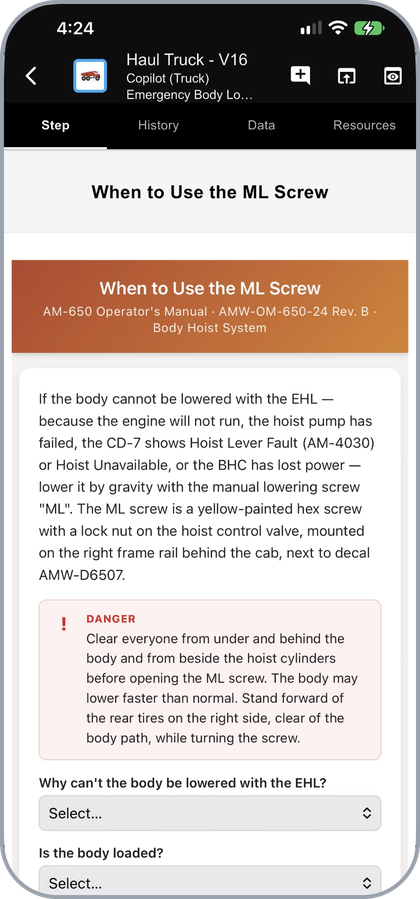
A step with its source, a safety callout, and its questions
Instructions are numbered, and each one can be text, a link to a page of a manual, an image, or a video or web link. They are shown in order, so a step reads as the sequence of things to do rather than a wall of text.
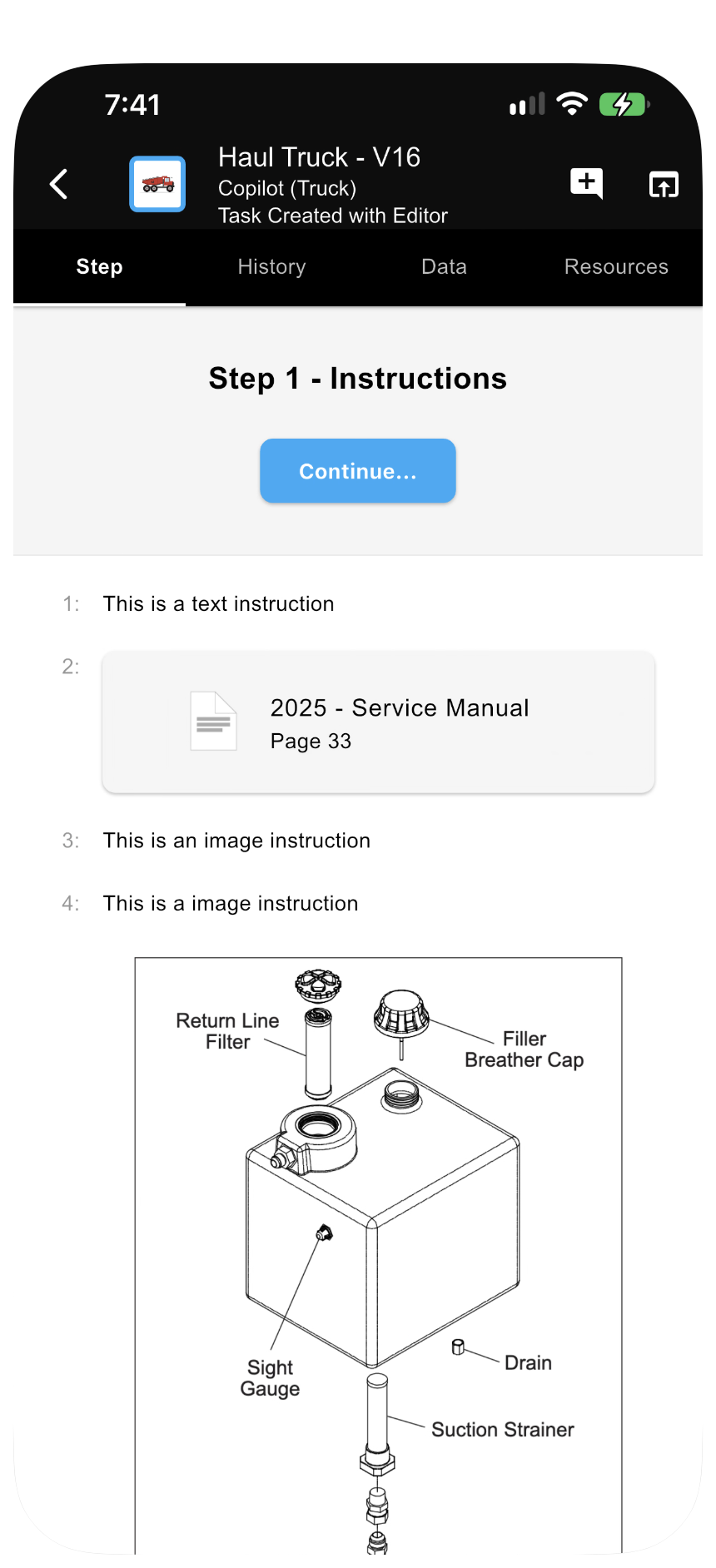
Numbered instructions, including a link to a manual page
Scrolling the same step reveals the diagram an instruction refers to and the video or web link that follows it.
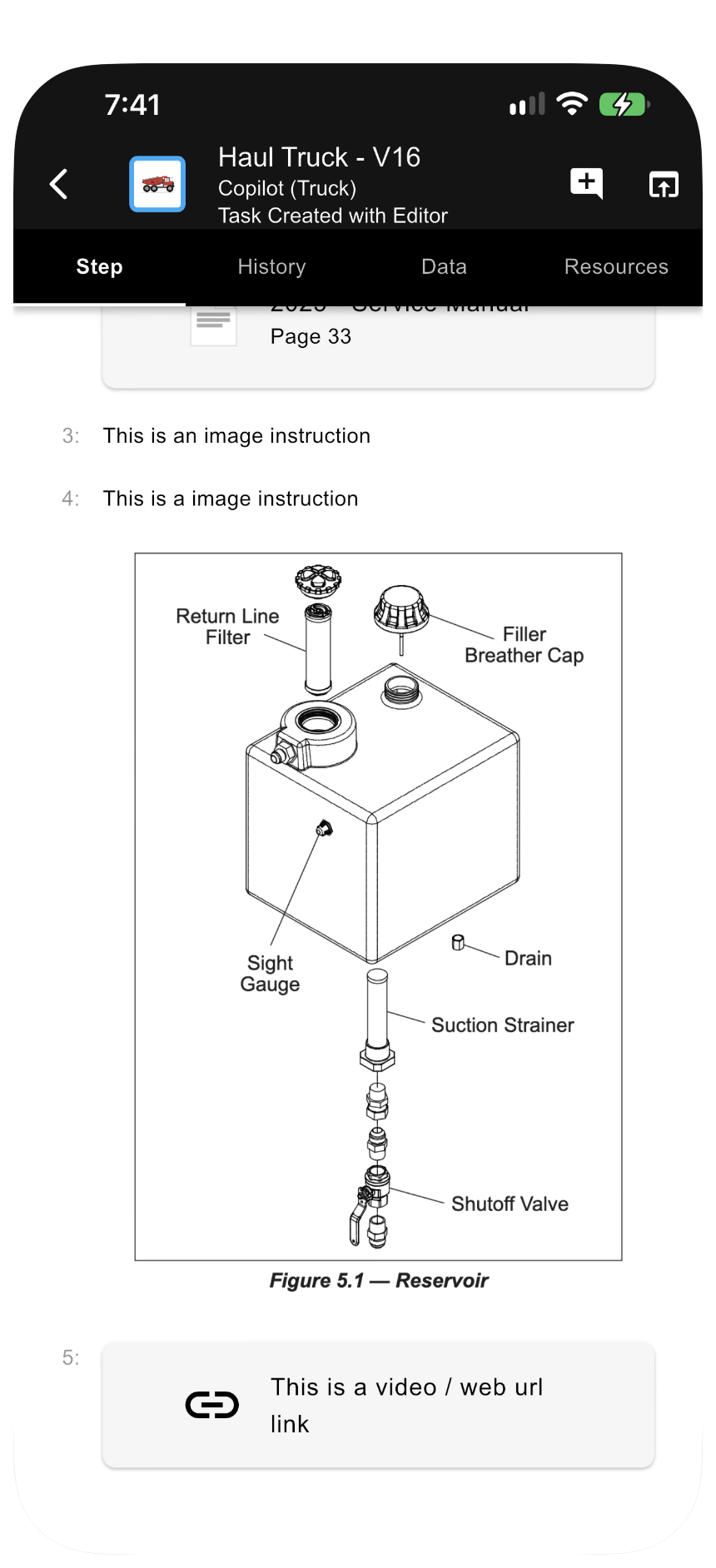
The same step, with a diagram and a video link
A step can also be authored as formatted text, with headings and lists rather than numbered instructions.
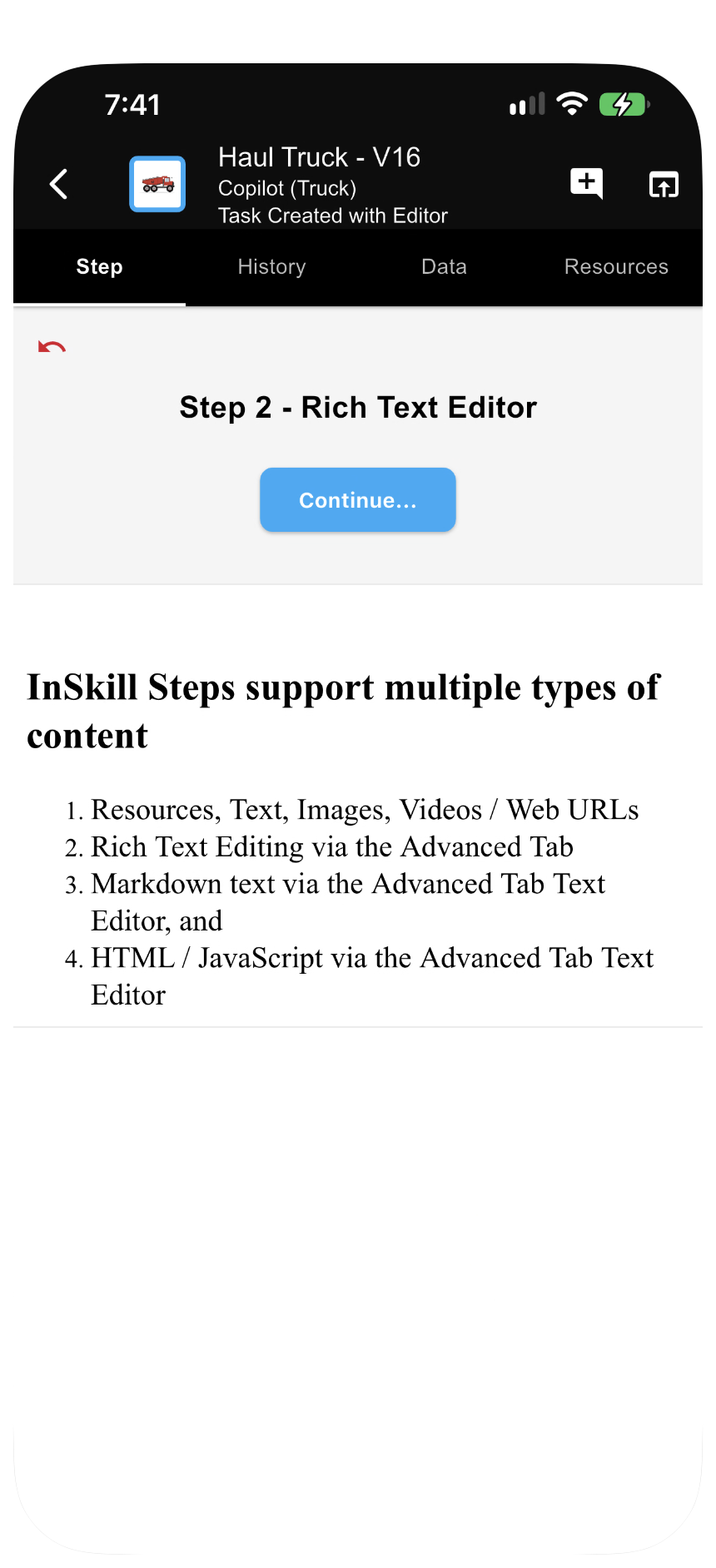
A step written as formatted text
Steps that collect information
A step may ask for information before the task can continue — a reading, a measurement, or a selection such as the error code being diagnosed. Enter the value and press Enter.
A step can collect several values at once as a form. Fields marked from Asset are filled in from the machine's own configuration, so you confirm them rather than type them. See Viewing Configuration.
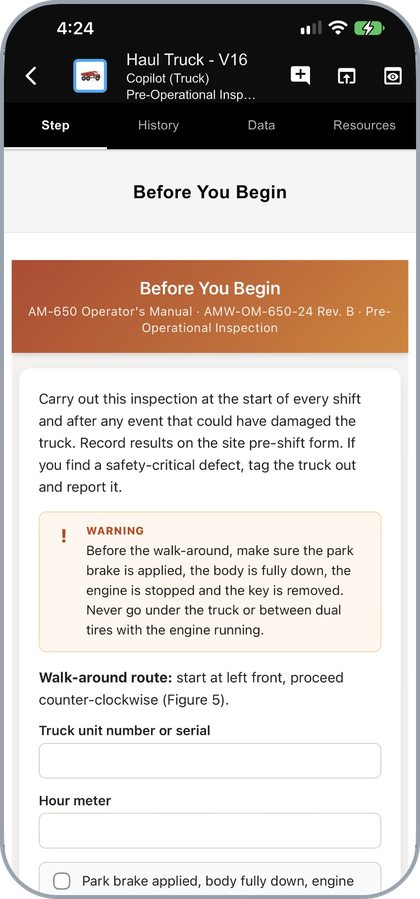
A form step, with fields filled in from the asset
A dynamic step can present a full form of its own — a service request, for example, with required fields, dropdowns, dates, and an assignment section. Complete it and press Continue.
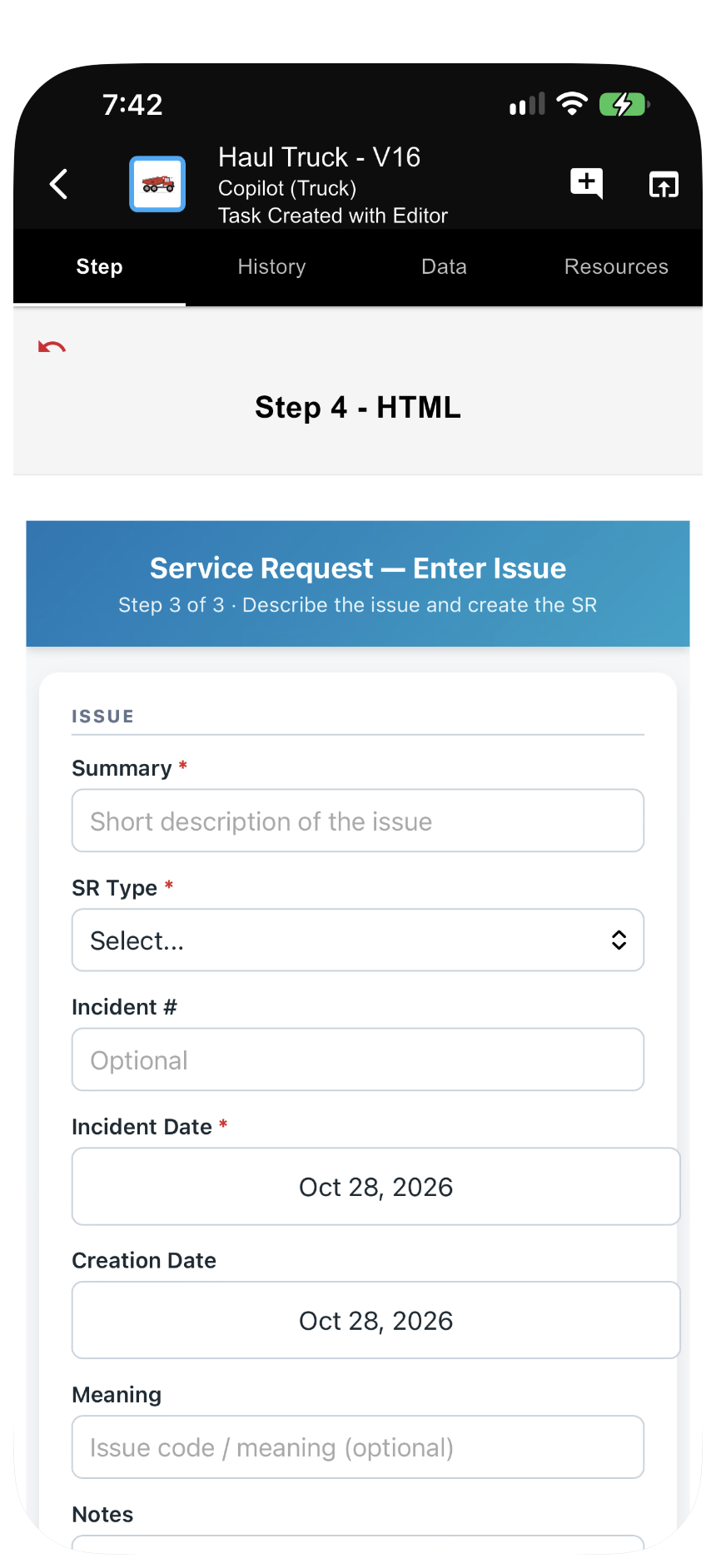
A dynamic step showing a service request form
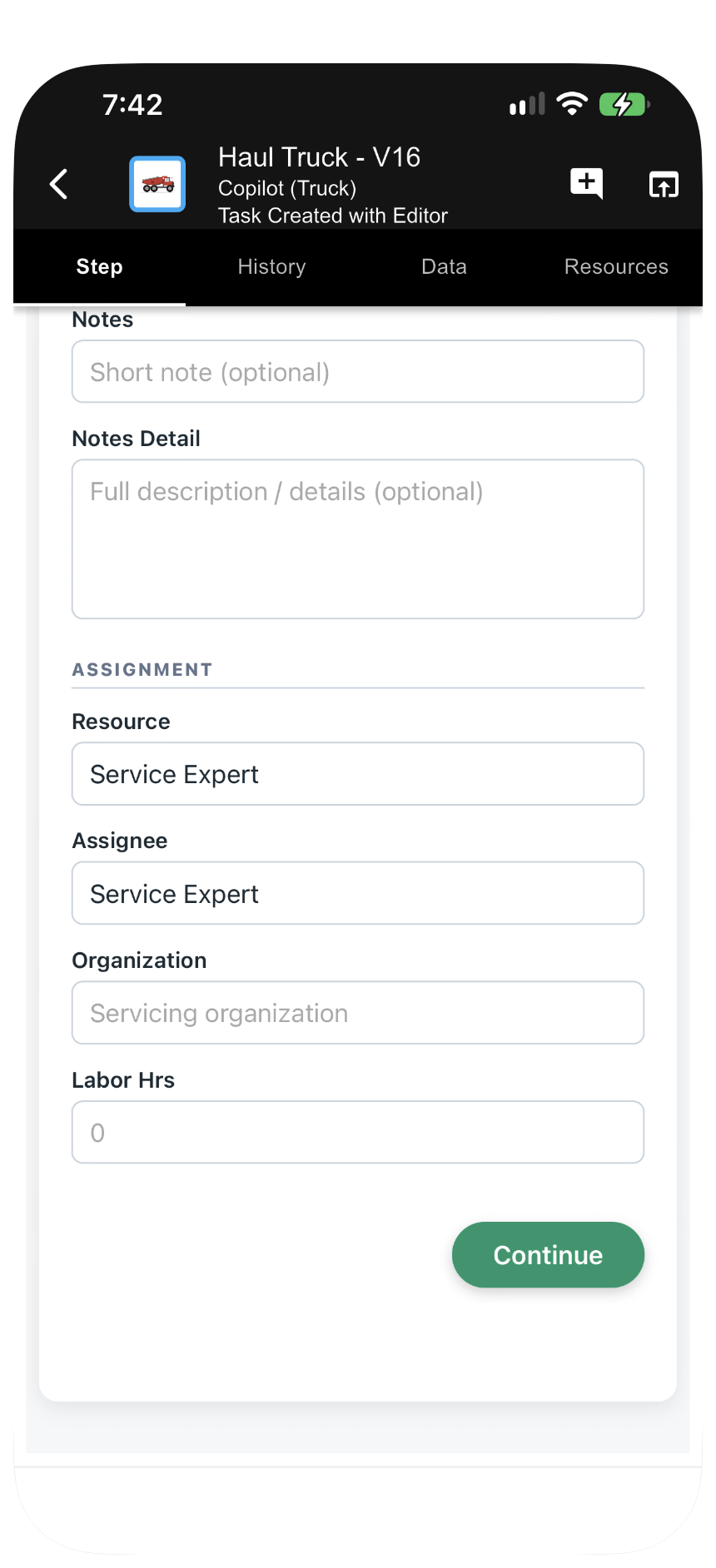
The rest of the form, with Continue
Steps that ask for a photo
A photo observation step asks you to photograph something on the machine. Press Camera to take the photo or Library to choose one already on the device, then Upload. Skip moves on if the photo cannot be taken.
The step shows what to photograph and what a good photo looks like. Where a photo processor is configured, InSkill reads the values off the image — the model, type, serial number, and weight from a nameplate, for example — and records them with the session, so they do not have to be typed.
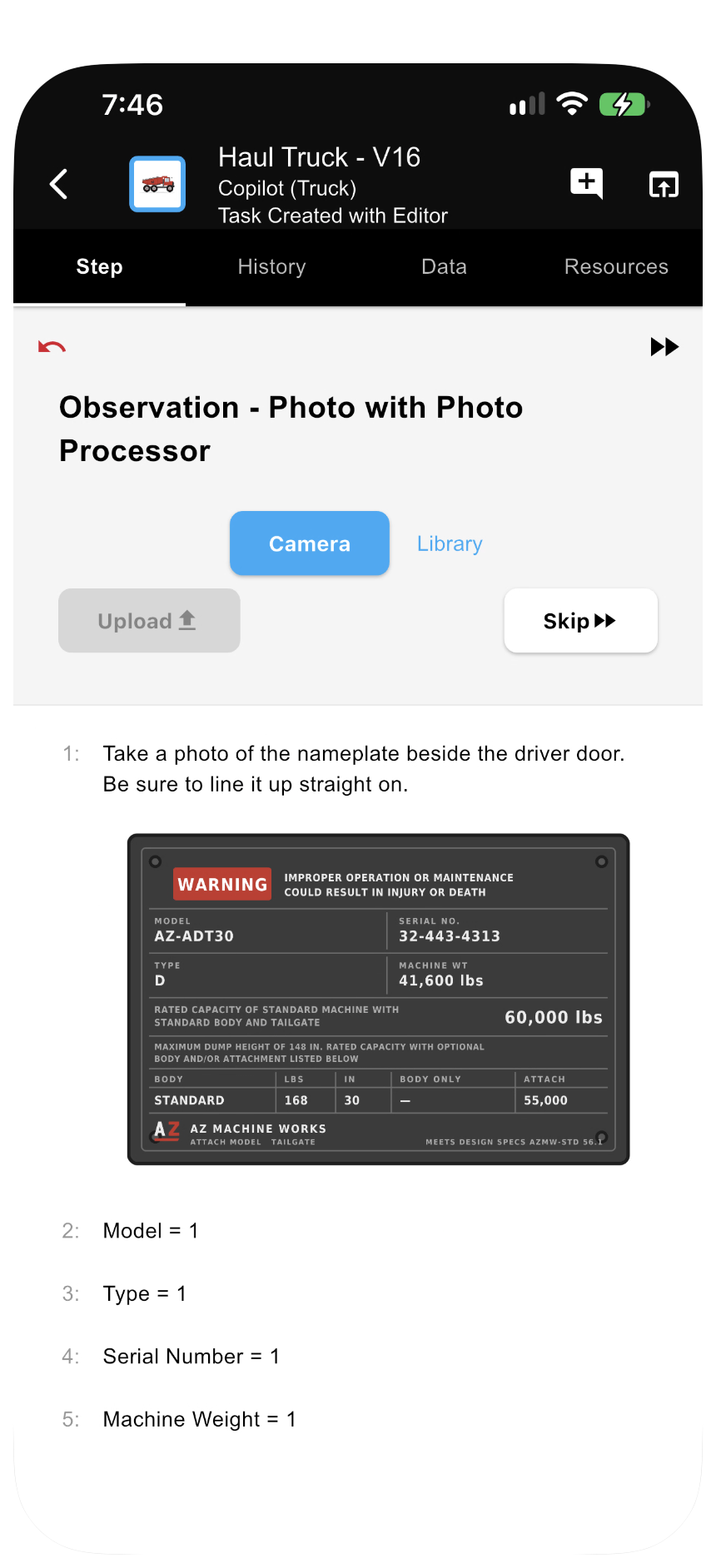
A photo observation step, with the values read from a nameplate
Steps that branch
A step can ask a yes-or-no question and send the task down a different path depending on the answer. Press Yes or No; the step that follows is the one that matches.
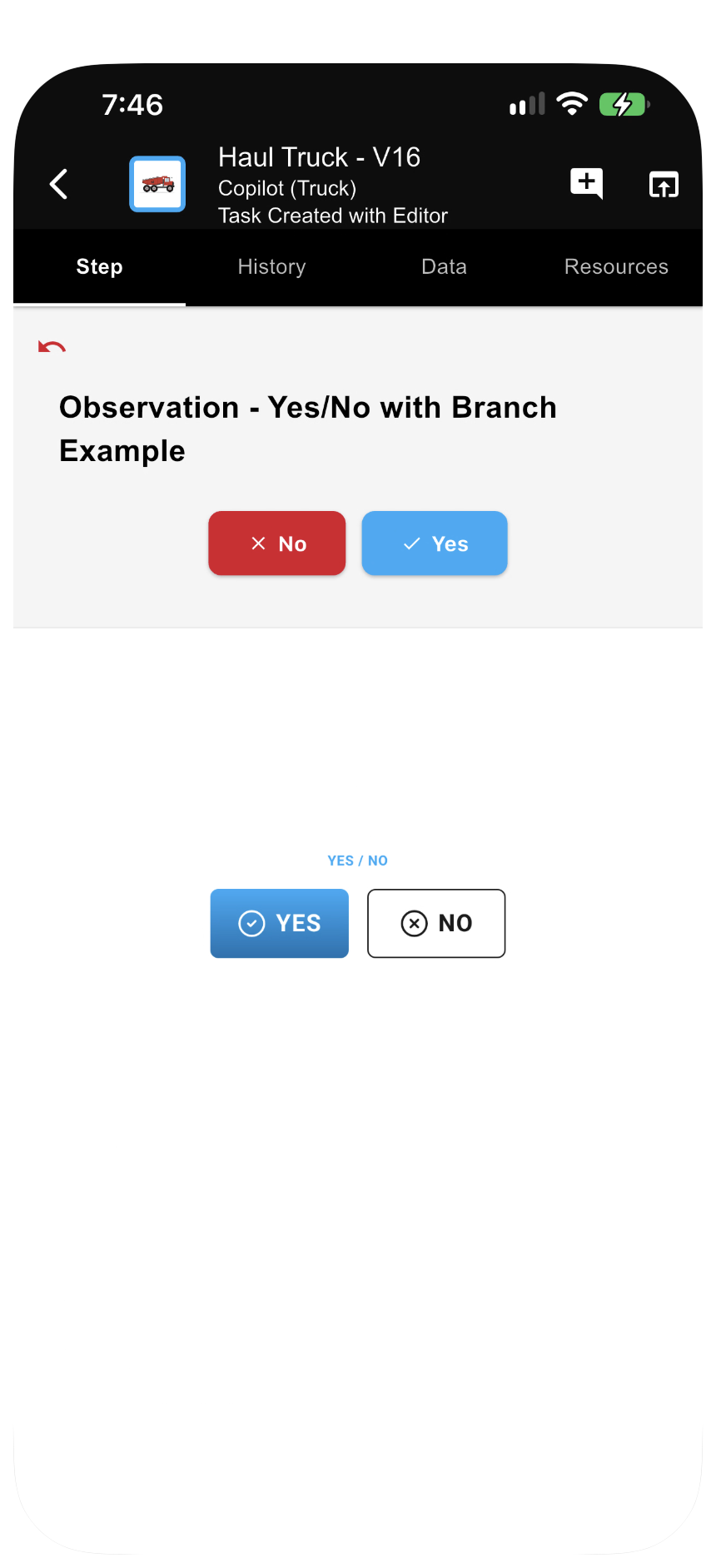
A yes-or-no step that decides the next step
Steps that propose a solution
Once InSkill has what it needs, it proposes the first thing to check or correct. Each proposed solution is numbered — Solution 1 of 5, and so on — and gives the likely cause, the fix as numbered actions, and what result to check for.
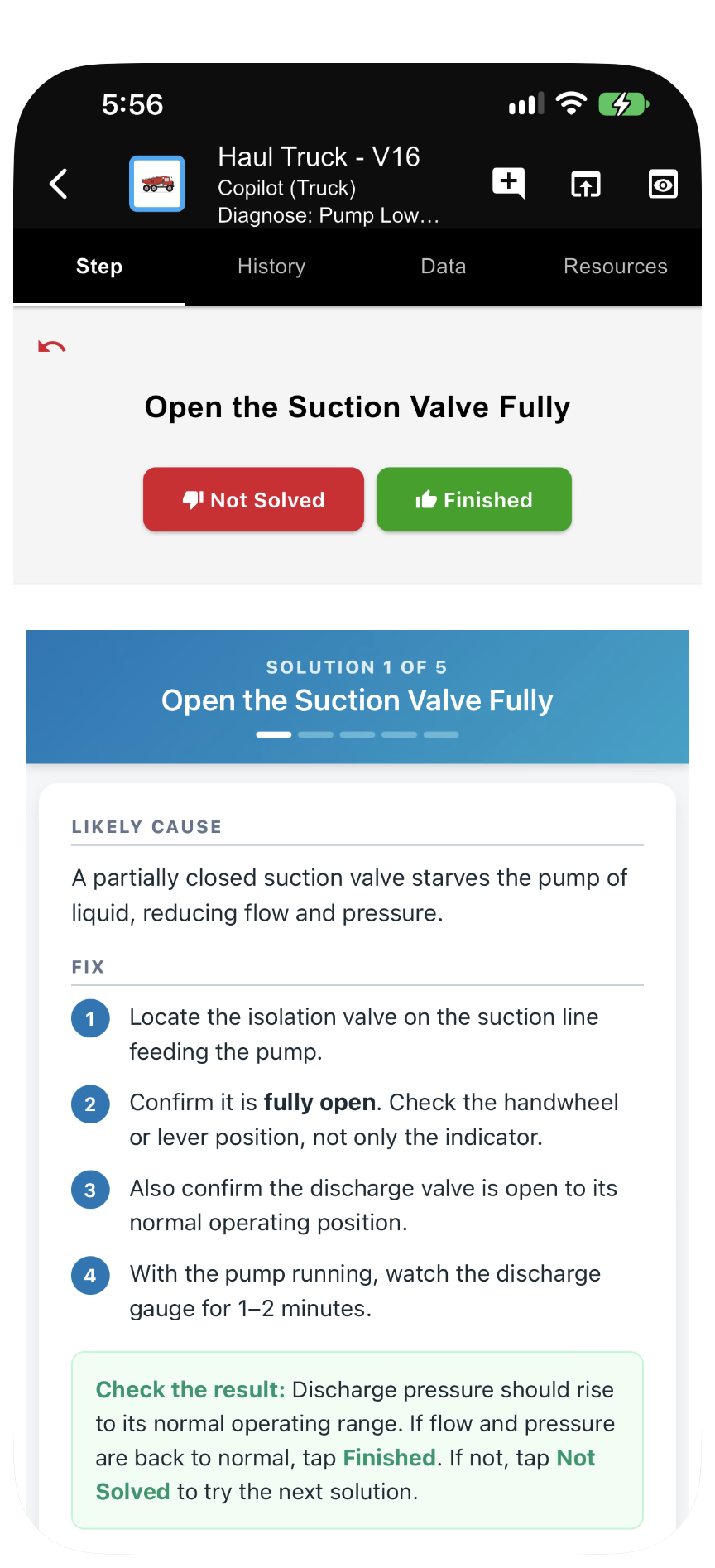
The first proposed solution
Follow the instruction, then record the outcome:
- Finished — the step resolved the problem, and the task closes out.
- Not Solved — the step did not resolve it, and InSkill proposes the next thing to try.
Selecting Finished closes the task, and its history remains available, showing each step that was performed, when, and how it was resolved. Every run is recorded against the asset or product. See My History Page.
Leaving a task
Backing out of a running task asks you to confirm. Press Yes to leave, or No to stay on the step.
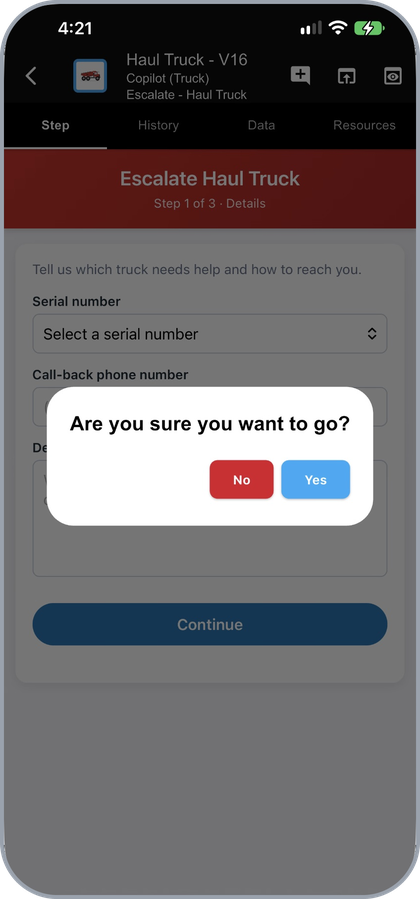
Confirming that you want to leave a task
History
The History tab shows the steps performed so far in this task, in order, with the time each was completed. Questions show the value that was entered, and each proposed solution shows whether it resolved the problem. A step still in progress is marked Not complete yet.
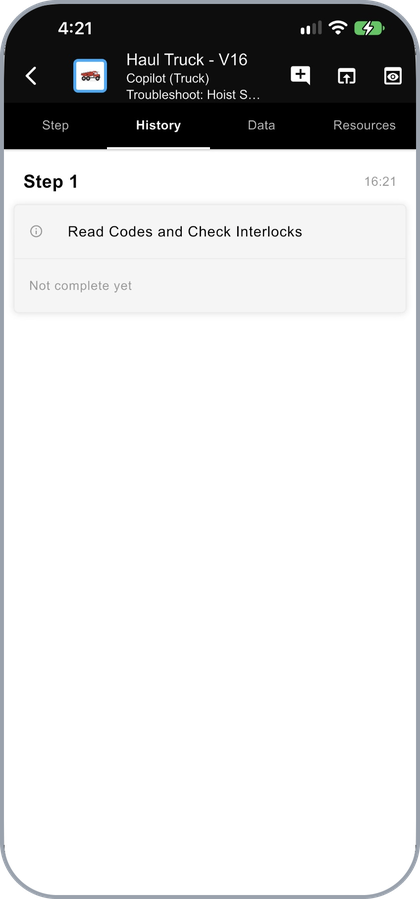
The steps completed so far
Data
The Data tab shows the values collected during the task, alongside the machine's own data — the variables recorded against it, and its serial number, copilot, and id.
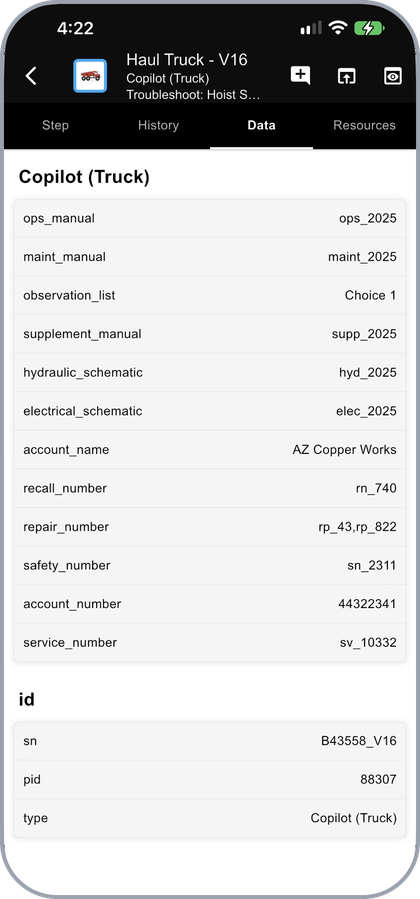
The values collected and the machine's own data
Resources
The Resources tab holds the documents and dynamic resources for the machine, which is the quickest way to reach a manual mid-job. Selecting a resource opens it. A green check marks a resource already downloaded to the device — see Viewing Resources.
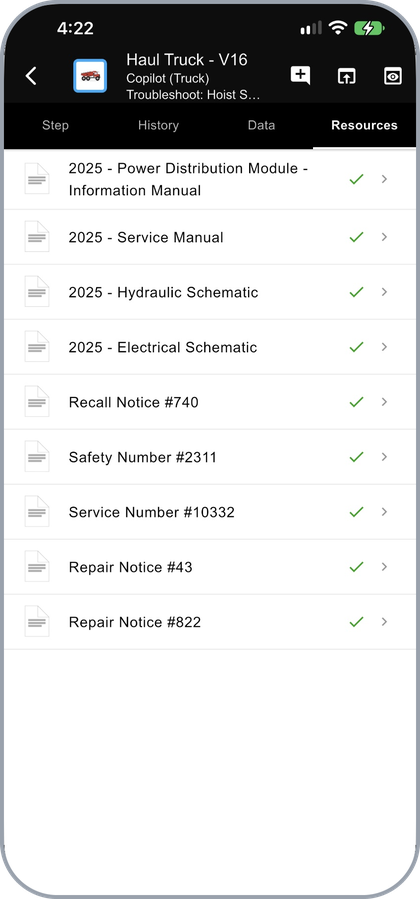
The machine's documents, available during the task
Comments
The comment icon at the top right records feedback on the task itself — whether something was inaccurate or unclear, or should be done differently. Enter the comment, and attach a photo with Camera or Library if it helps, then press Upload.
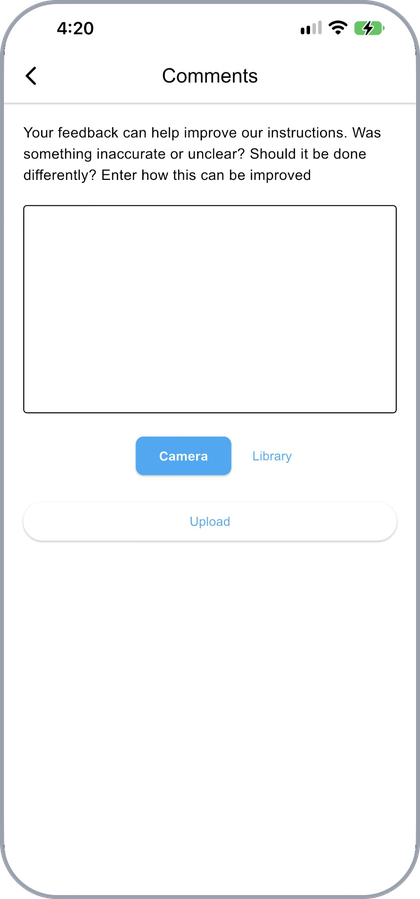
Leaving feedback on a task
Escalate
The escalate icon at the top right runs a task named Escalate, which performs the escalation logic for that copilot. See Escalate.
Updated about 4 hours ago