
Authoring View
The Authoring View is where you see, create, and modify a task's steps: the step viewer on the left, and the step you are editing on the right.
The Authoring View is where you create and modify a task. The screen has two sides. The step viewer on the left shows every step in the task. The panel on the right is where you edit the step you select, on its Content, Data, and Info tabs.
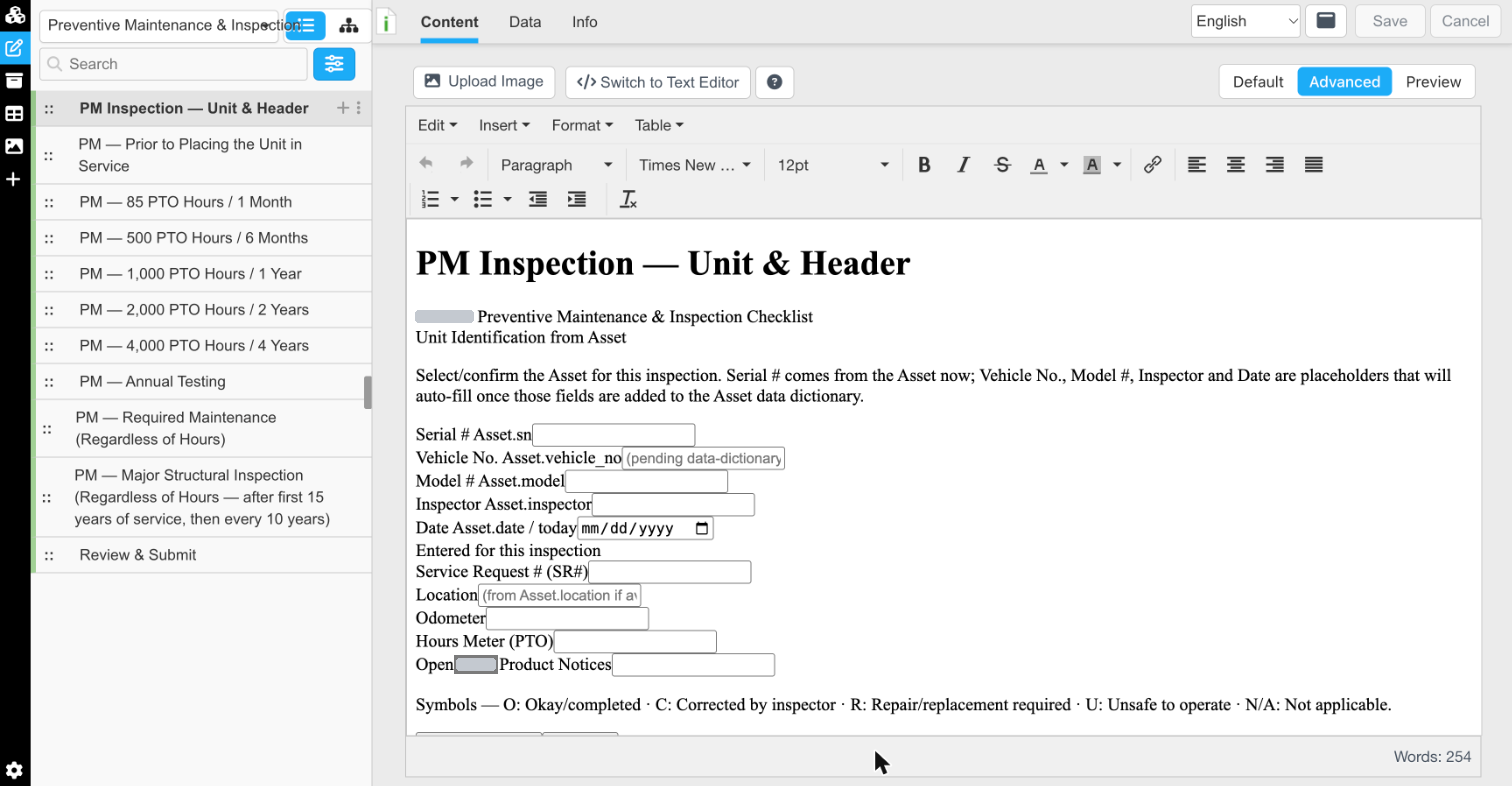
The Authoring View: the step viewer and the selected step
At the top of the step viewer are the task picker, which switches to another task, the two view buttons, Search, and the filter button.
Step View Modes
The step viewer has two modes. You can create and edit steps in either one.
Step List View
The tree button shows the full list of steps, with all of their structure.
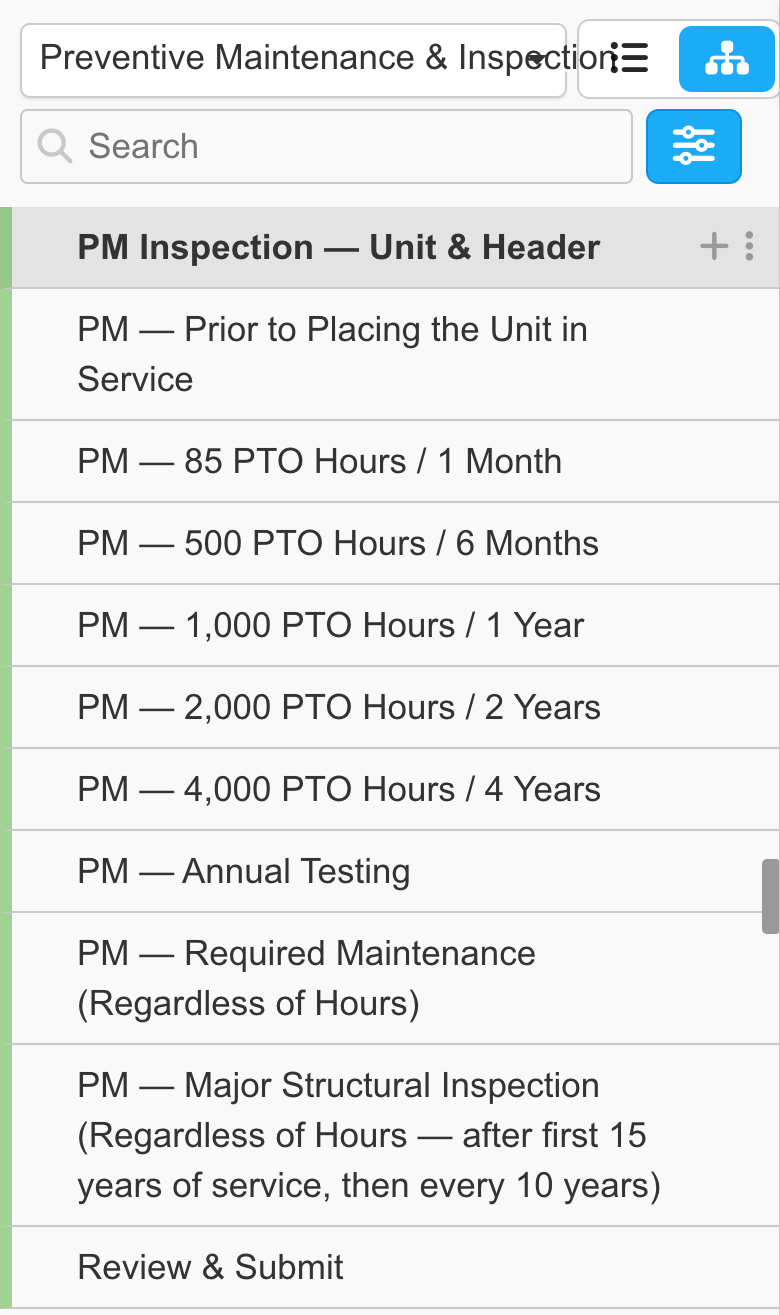
The Step List View
Step Sorter View
The list button shows the same steps with a four-dot handle to the left of each name. Drag a step by its handle to move it up or down.
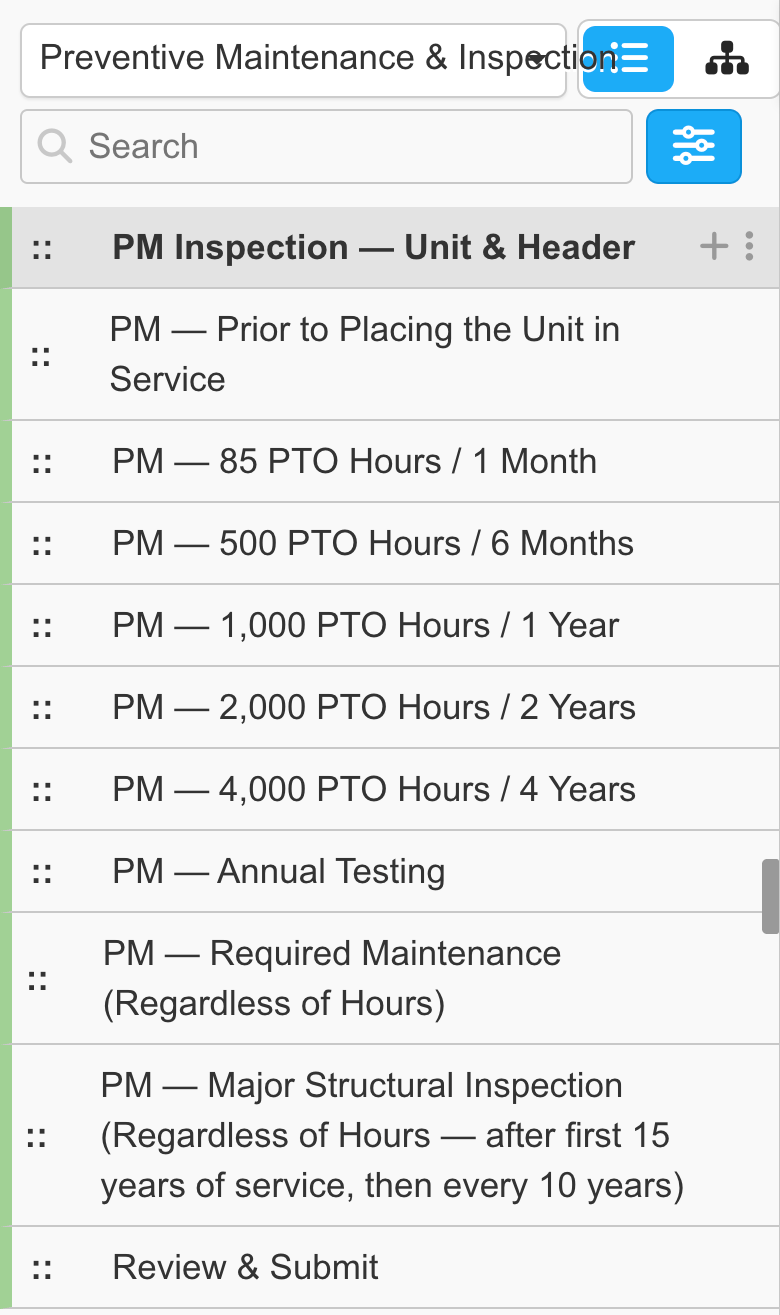
The Step Sorter View, with drag handles
Adding a Step
Follow these steps to add a step after an existing step:
- Click the + icon to the right of the step.
- Enter a title and press Enter. InSkill creates the step, then adds a new step after it automatically.
The Step Action Menu
Click the three dots to the right of a step to open the step action menu:
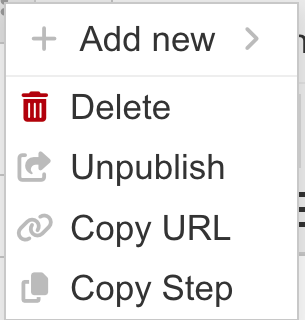
The step action menu
| Choice | What it does |
|---|---|
| Add new > Subtask | Adds a subtask after the step. |
| Add new > Paste Step | Pastes a copied step after the step. |
| Delete | Deletes the step. |
| Unpublish | Unpublishes the step. |
| Copy URL | Copies the URL of the individual step. |
| Copy Step | Copies the step to the clipboard. |
The Step Filter
Click the filter button beside Search to show the Filter field, then pick what the step viewer shows: by published state (Unpublished, Published), step type (Information, Observations, Solutions), and the user levels a step is shown to.
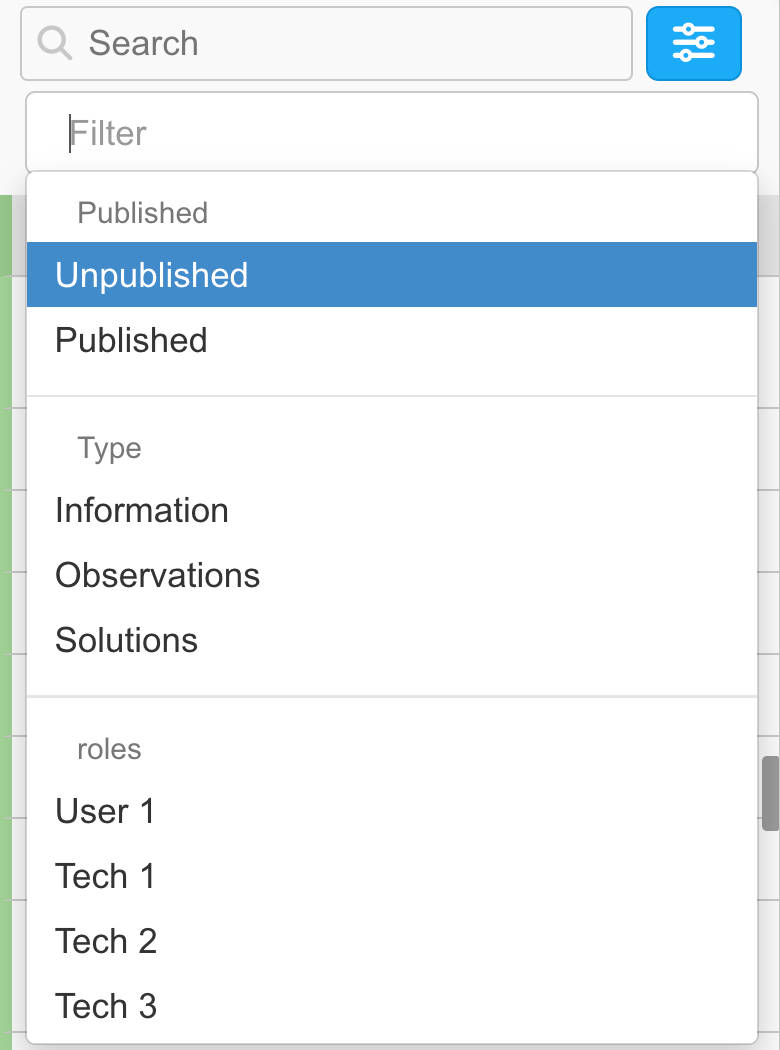
The step filter list
Updated about 4 hours ago