
Branching and Subtasks
Branch a task with linked list observations and dependencies, and reuse shared sequences as subtasks.
A new task runs straight down. Real work branches on what the Technician observes — the symptom, the model, the reading.
The main branching tool is a linked list observation:
-
On the step where the flow should split, open the Data tab and create a feedback variable — for example
symptom— with the type List. -
Type each choice in a Label box.
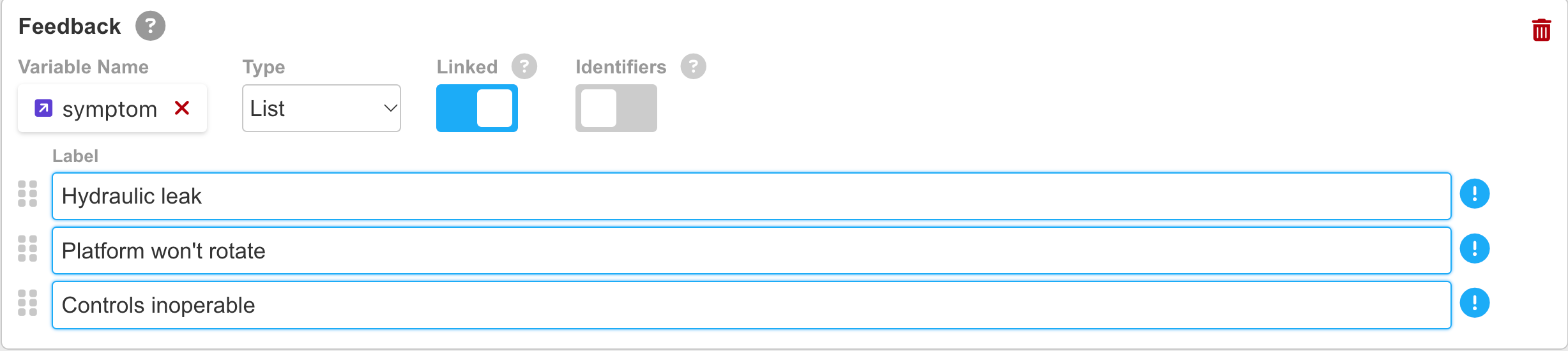
A linked List variable with three choices
-
Click Save. Because Linked is on, a branch appears in the step tree for each entry. The Technician's selection decides which branch runs. Click the tree icon next to the task dropdown to see the branches under the step, then add steps to each branch.
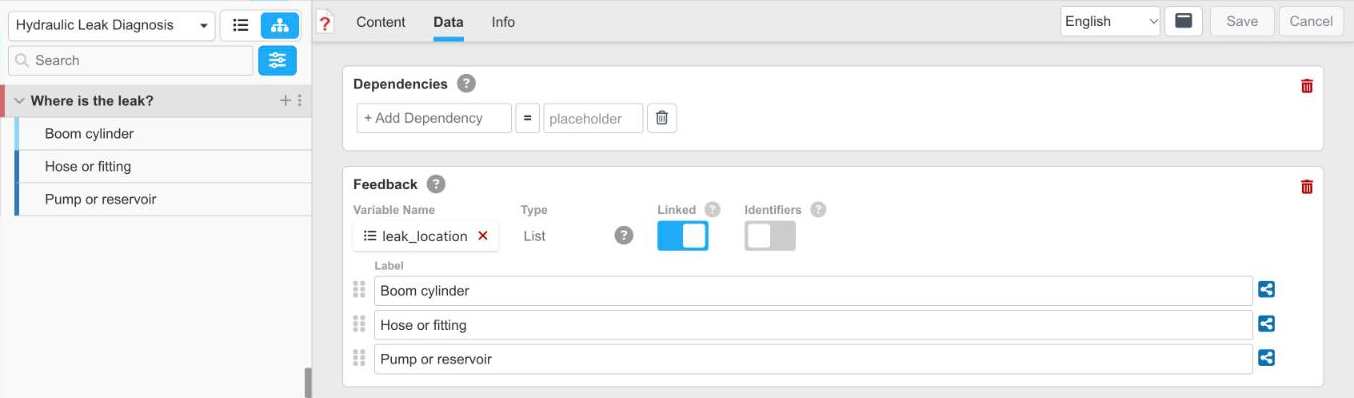
One branch in the step tree for each choice
For conditions rather than choices, put a dependency on a step so it appears only when the condition is met — for example, only for machines whose model = 300. The operators are =, >, <, and !=, and a dependency can sit on a whole step or on a single instruction inside it. If the statement is true, the step is presented; if not, it is skipped and the next relevant step is shown.
Sequences shared across tasks — escalation, restart, lockout/tagout — are built once as their own task and run anywhere as a subtask: on a step's ... menu, select + Add New > Subtask and choose the task to incorporate. Editing the subtask updates every task that calls it.
Updated about 4 hours ago