
Authorizing the InSkill App
Complete the startup wizard, then join your account by scanning the QR code in your invitation — or with SSO, the Register link, or your user code.
The first time you open the InSkill app, a short startup wizard introduces the app and asks for the permissions it needs. You then join your account and are ready to work.
You must be invited to an account before you can use the app. Each Technician receives an email invitation carrying everything needed to join: store download links, a personalized QR code, a Register InSkill button, and a user code.
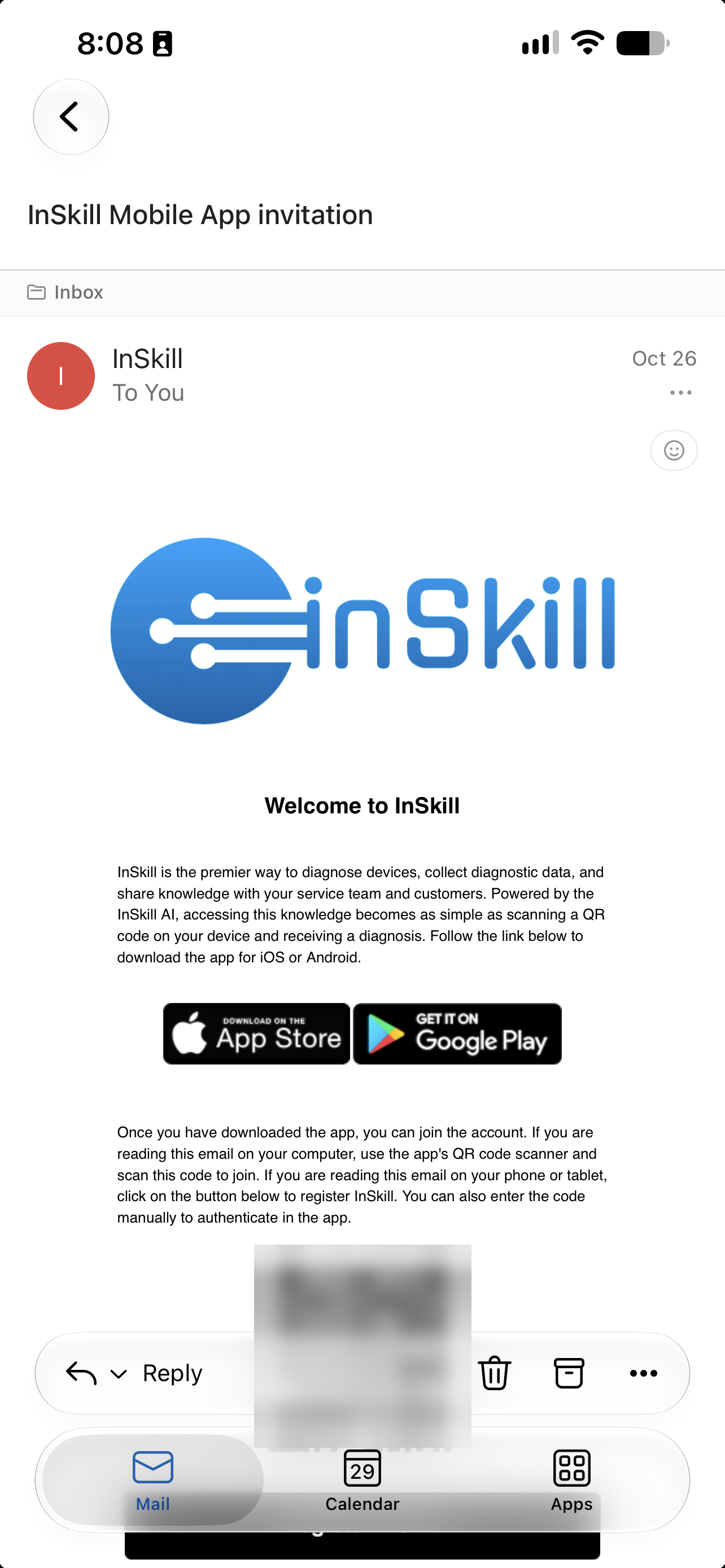
The email invitation, with the QR code obscured
NoteThe QR code in this illustration is obscured on purpose. The code in your own invitation is personal to you — treat it as you would a password.
The Startup Wizard
-
The wizard opens with a welcome screen explaining what InSkill does. Press the arrow to continue.
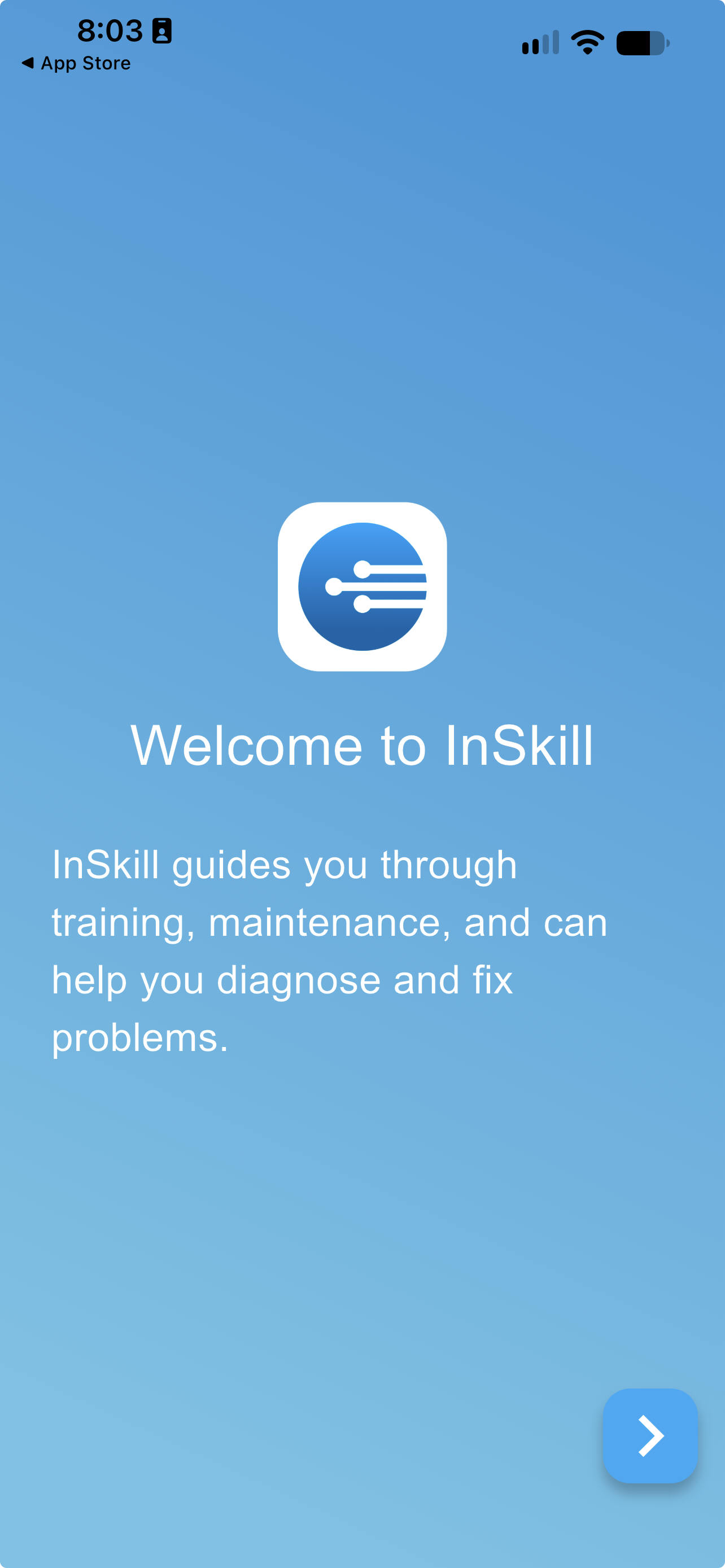
The startup wizard's welcome screen
-
The next screen explains that InSkill uses QR codes to reach information, tasks, and resources, and that this needs camera permission. Press the arrow to continue.
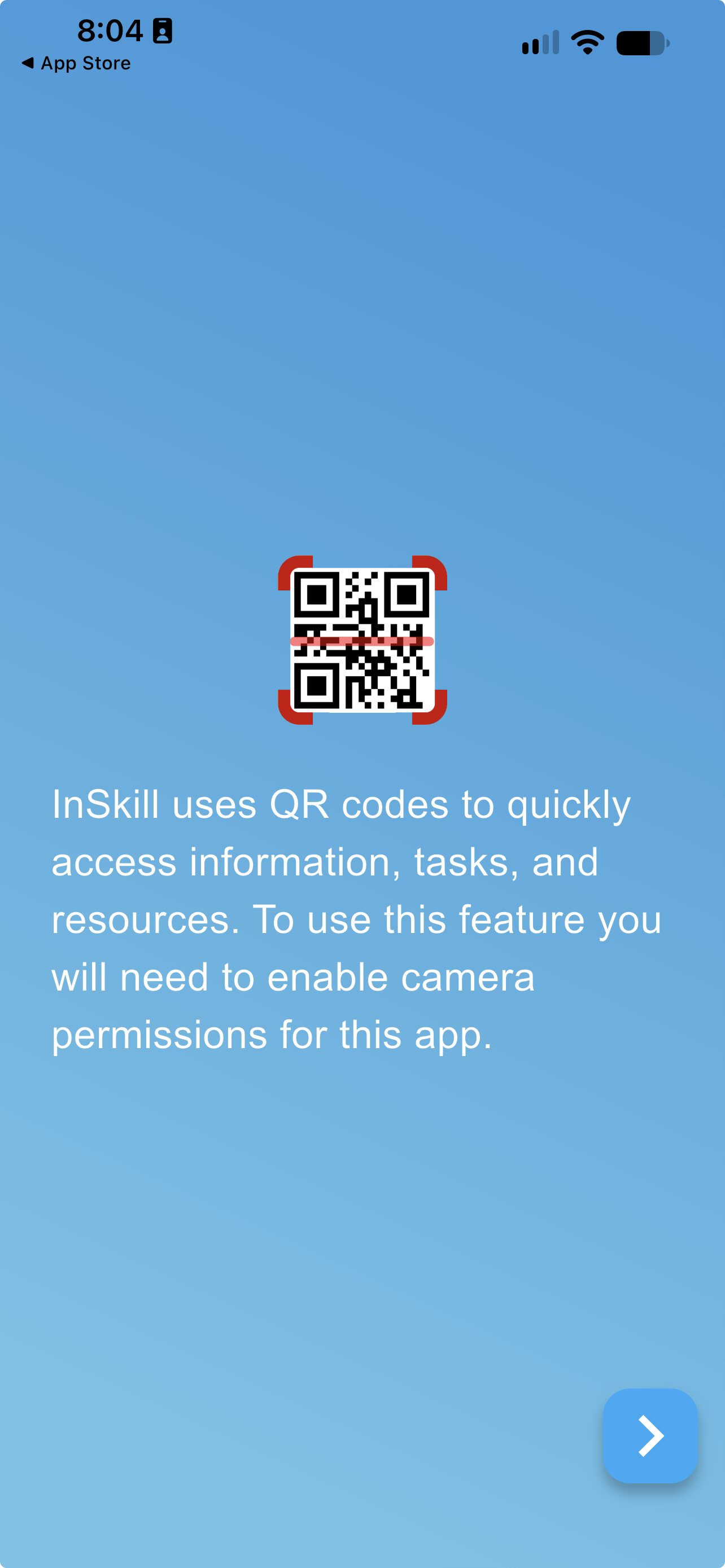
Why InSkill needs the camera
-
Press Allow when the device asks for camera access.
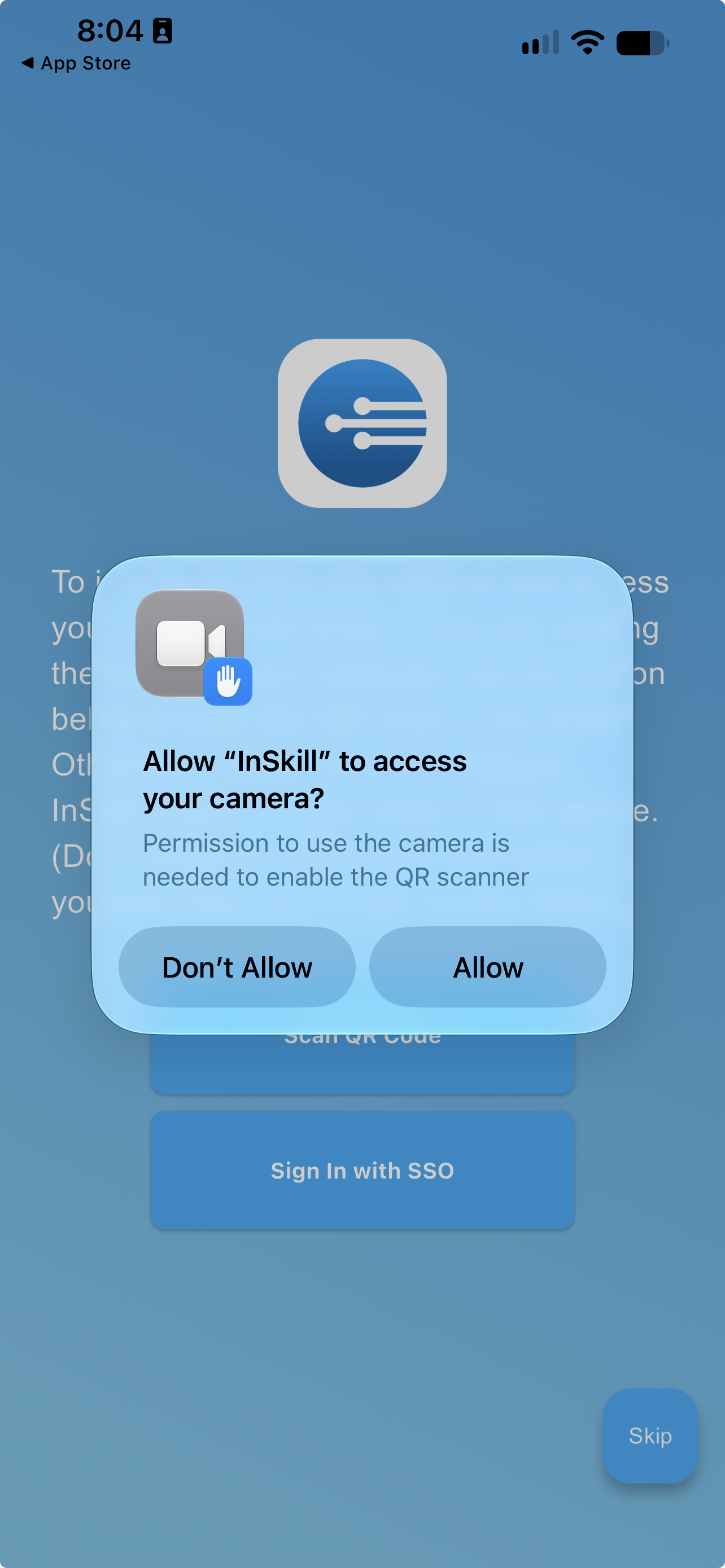
The device's camera permission prompt
-
The wizard then offers to join you to an account.
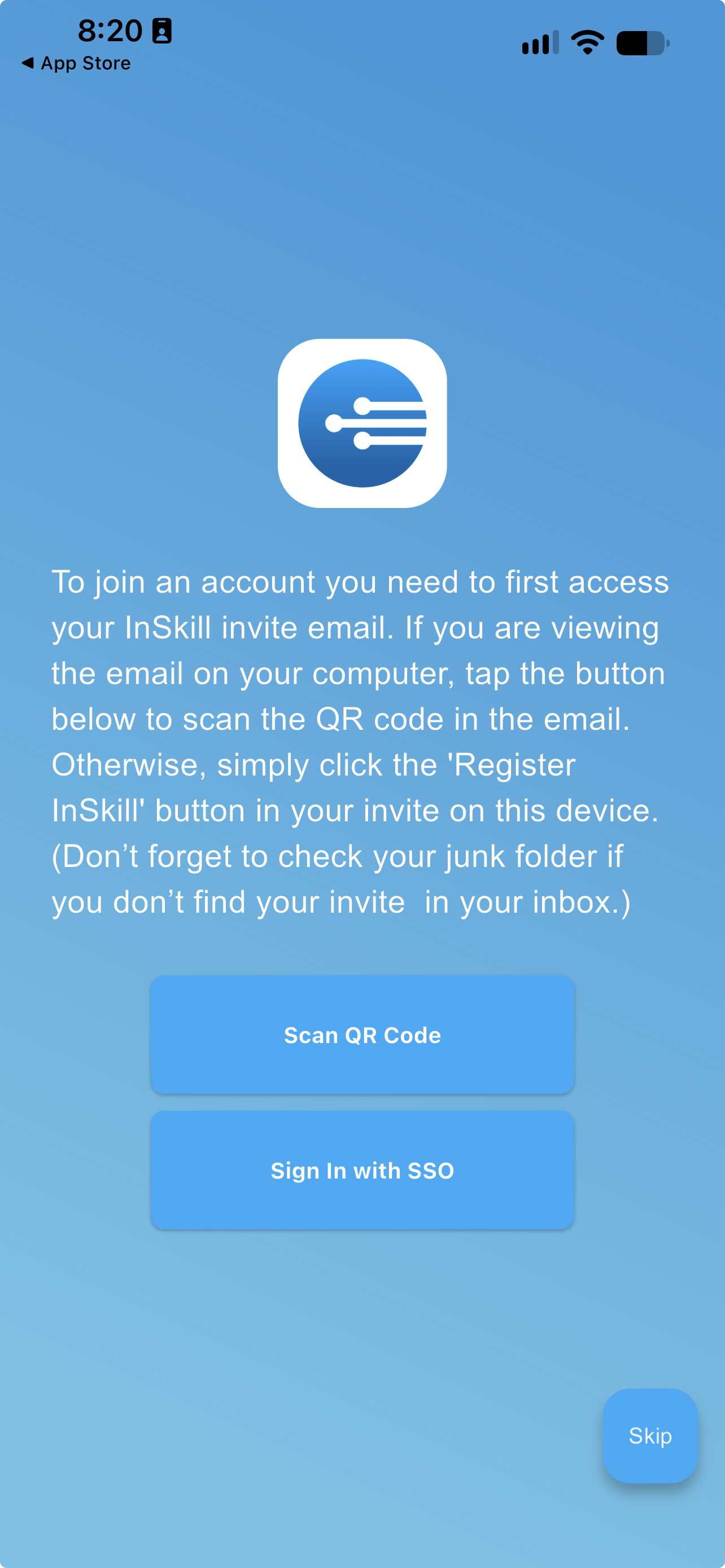
The wizard's join screen
Scanning the QR Code
This is the quickest way in, and the one to use whenever you are reading the invitation on a computer.
- Press Scan QR Code.
- Hold the phone or tablet so the code in the email fills the frame.
- The app reads the code and takes you straight to the Welcome prompt — see Accepting the Account.
Nothing is typed, and the code carries your identity, so you arrive already matched to the right account and role.
The Other Ways to Join
All of them end at the same Welcome prompt.
| Route | Use it when |
|---|---|
| Register InSkill | You are reading the invitation on the phone or tablet itself. Press the button in the email and the app opens and joins you — nothing to scan or type. |
| Sign In with SSO | Your organization uses single sign-on. |
| User code | Scanning is not practical — no camera, or the code will not scan. It is also how you join an additional account later. |
Signing in with SSO
Sign In with SSO hands off to your organization's identity provider. Sign in there and you are returned to the app.
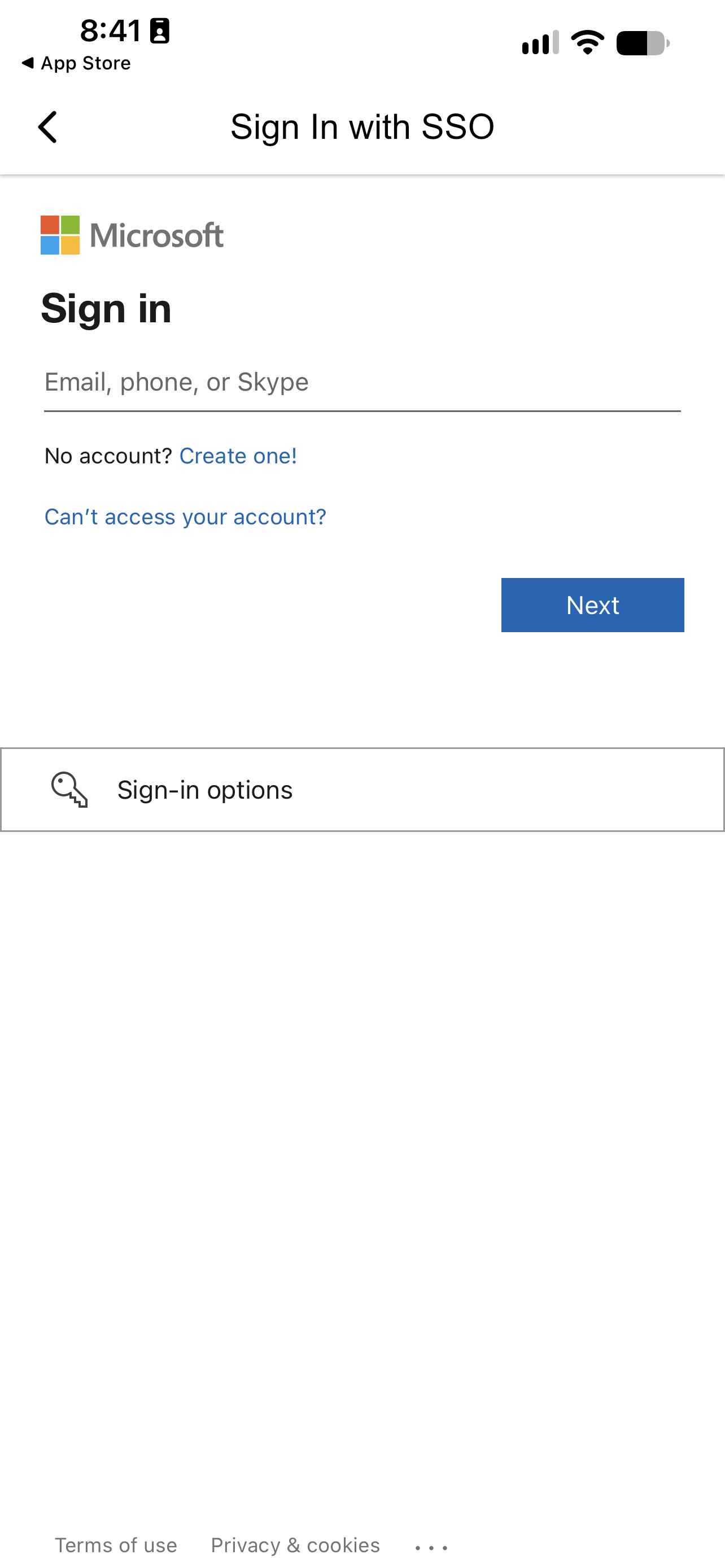
Signing in through your organization's identity provider
Entering a user code
The user code is printed at the bottom of the invitation. Copy it from the email and paste it into the field, then press the key to confirm.
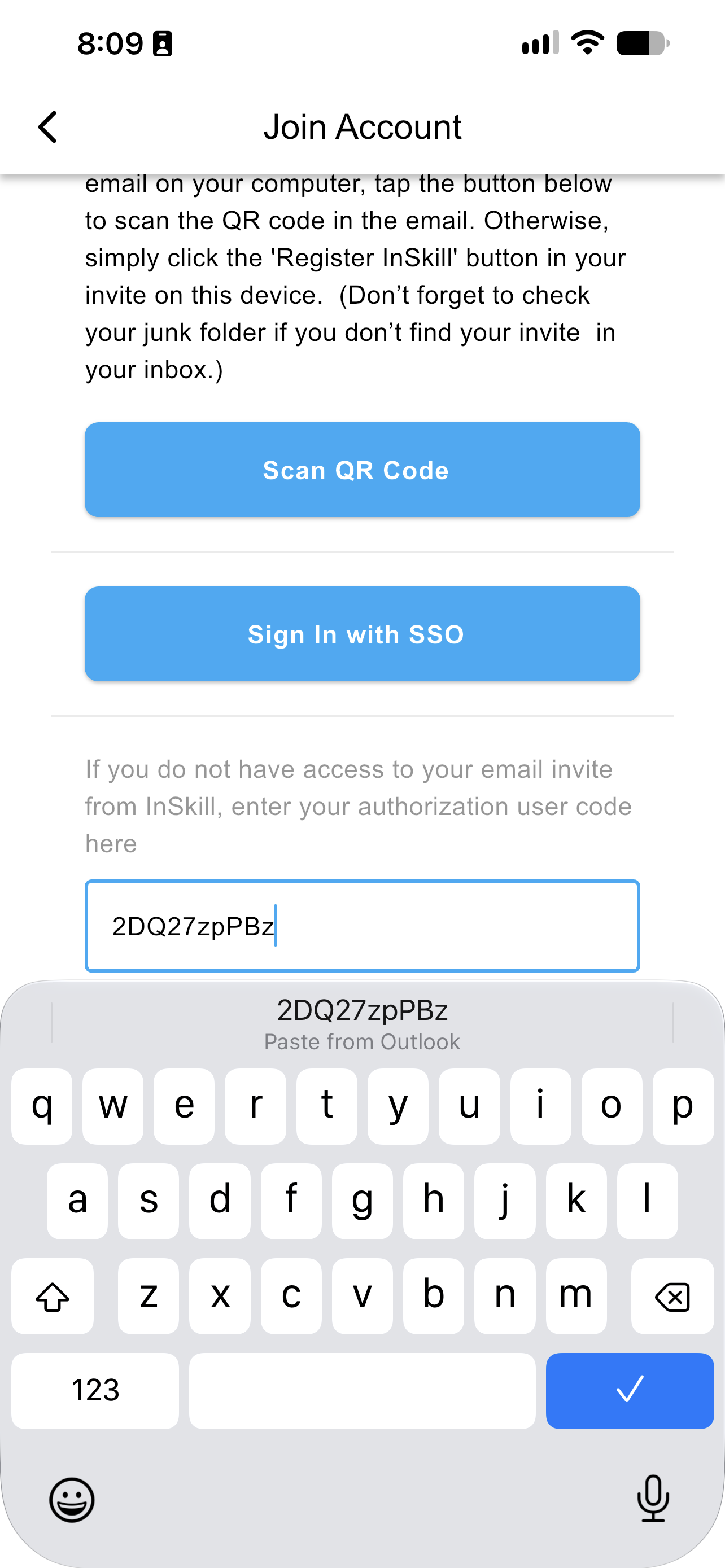
A user code pasted into the Join Account screen
Accepting the Account
-
The Welcome prompt asks you to accept joining the account. Press Accept and Continue.
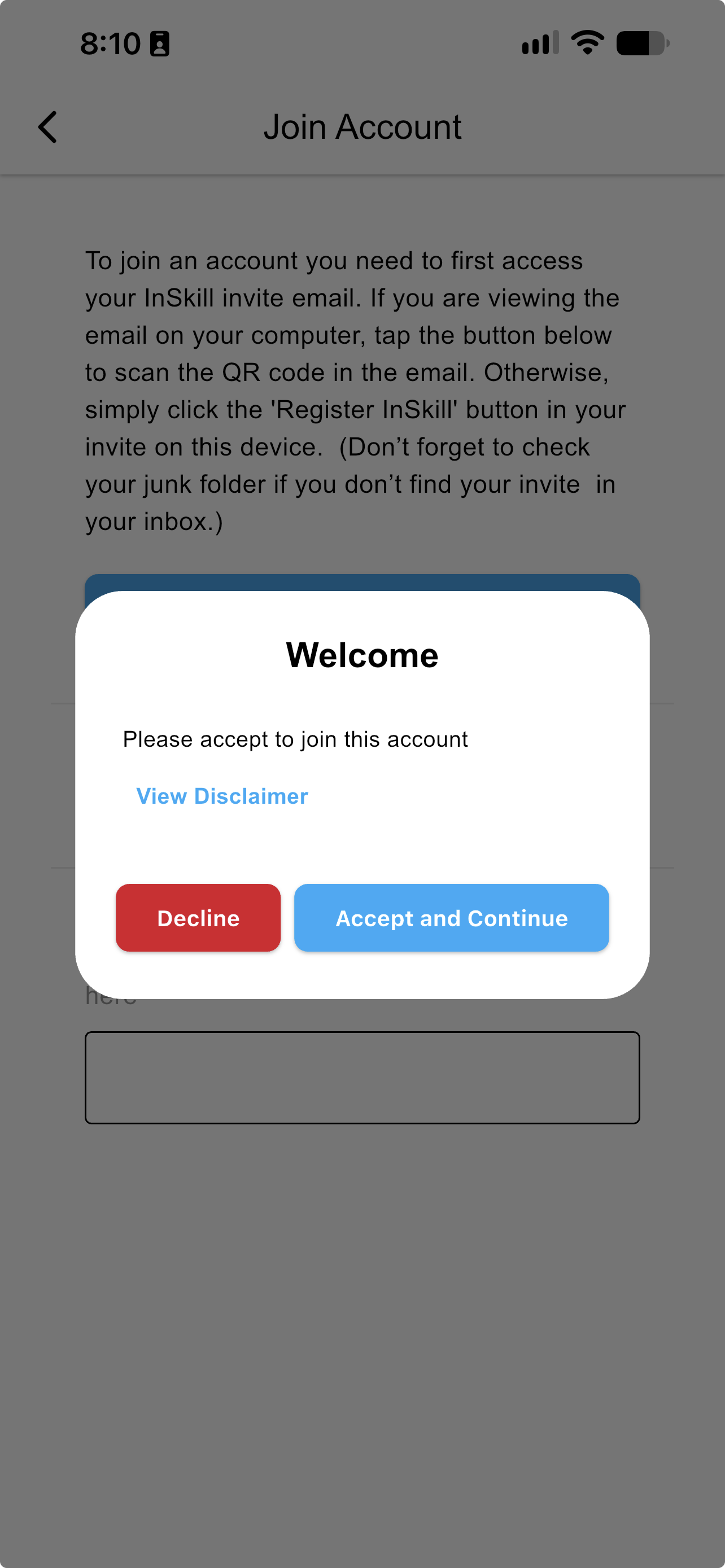
The Welcome prompt
-
To read the terms before accepting, press View Disclaimer.
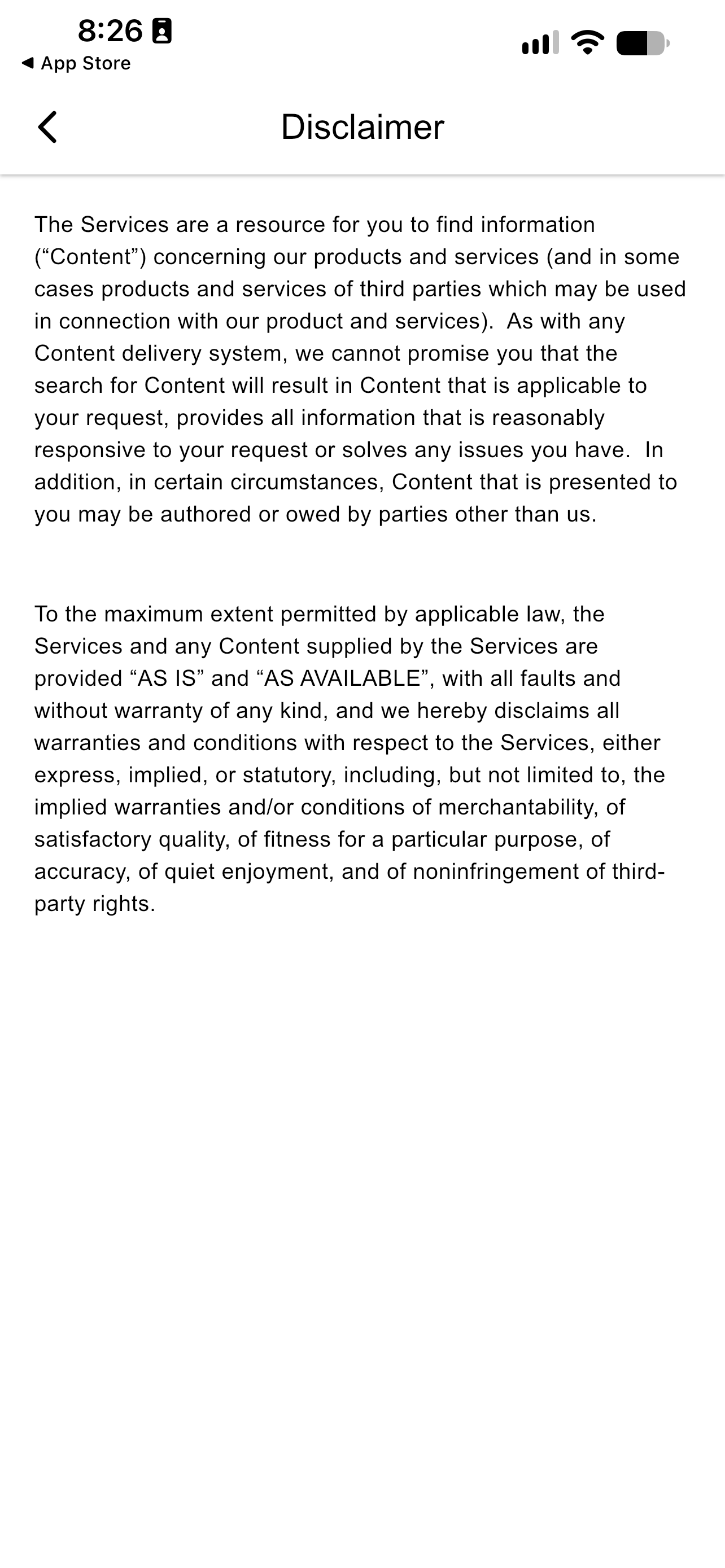
The Disclaimer screen
CautionIf you press Decline, the app is not authorized and you cannot use it.
-
A Register message confirms that you have joined, naming the account. Press Ok.
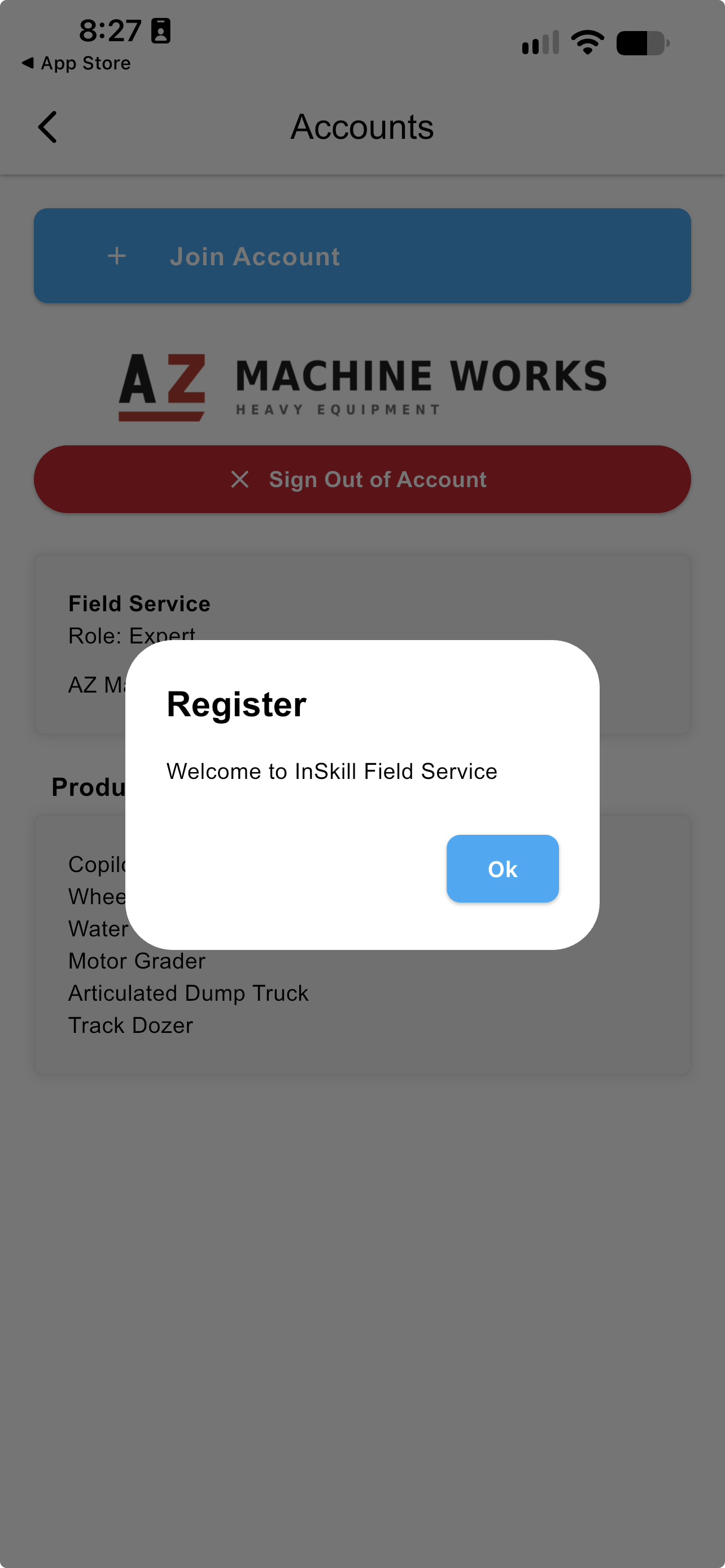
Confirmation that you have joined the account
The wizard then finishes.
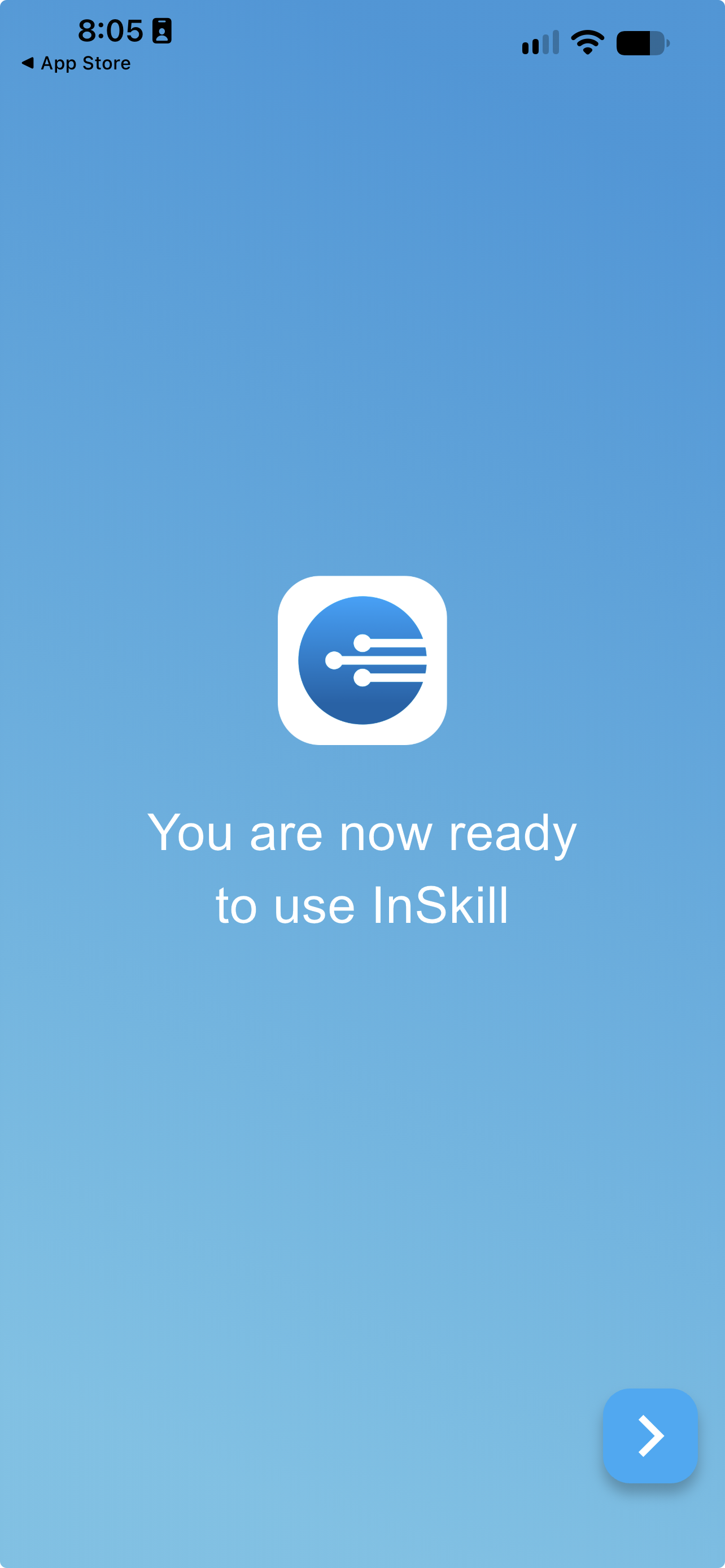
The wizard's final screen
Joining Later
Skip on the wizard's join screen postpones joining. Until you join an account, the Products page explains what is missing and offers Join Account and Sign In with SSO.
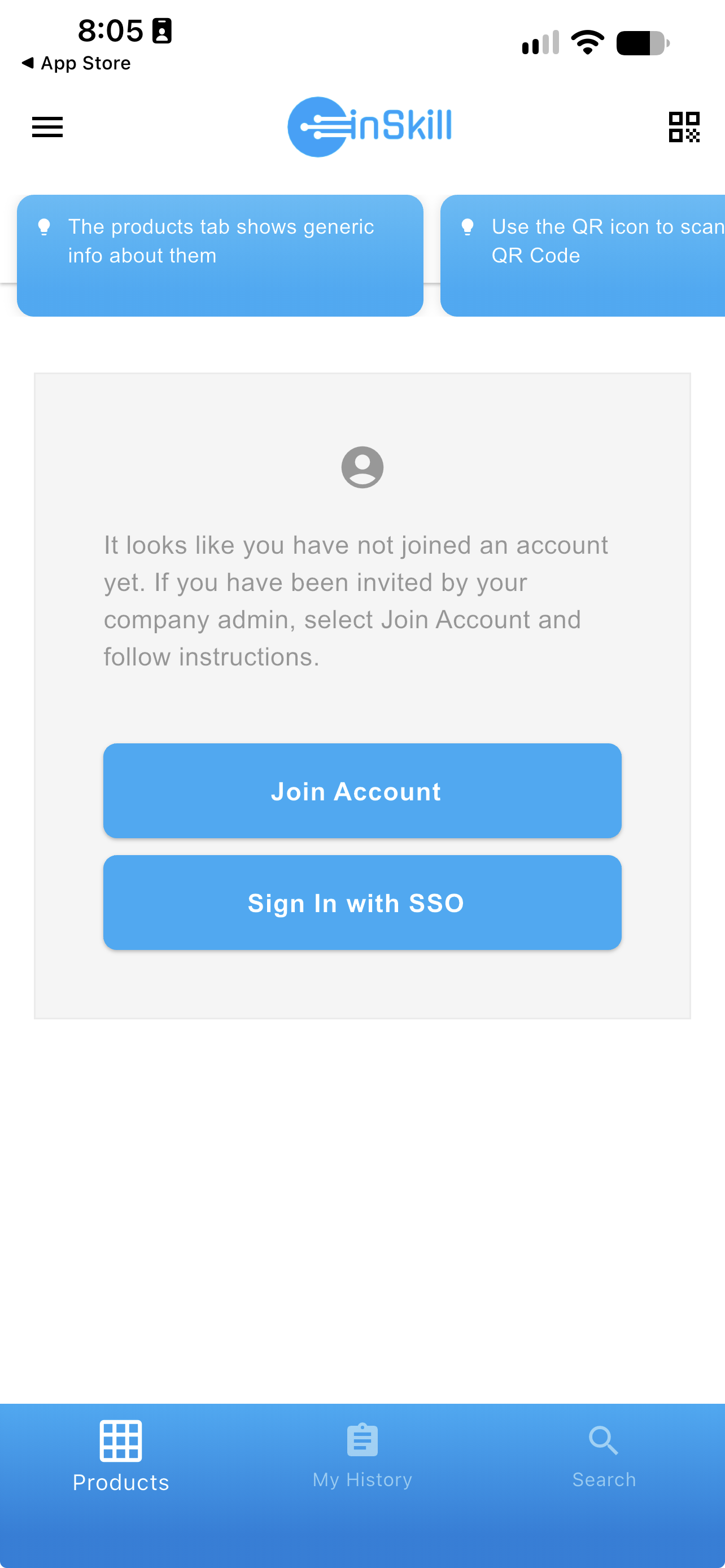
The Products page before you join an account
Join Account gives every route on one screen: scan the code, sign in with SSO, or type the user code. It is also where you join an additional account later, reached from Menu > Settings > Accounts — see Settings.
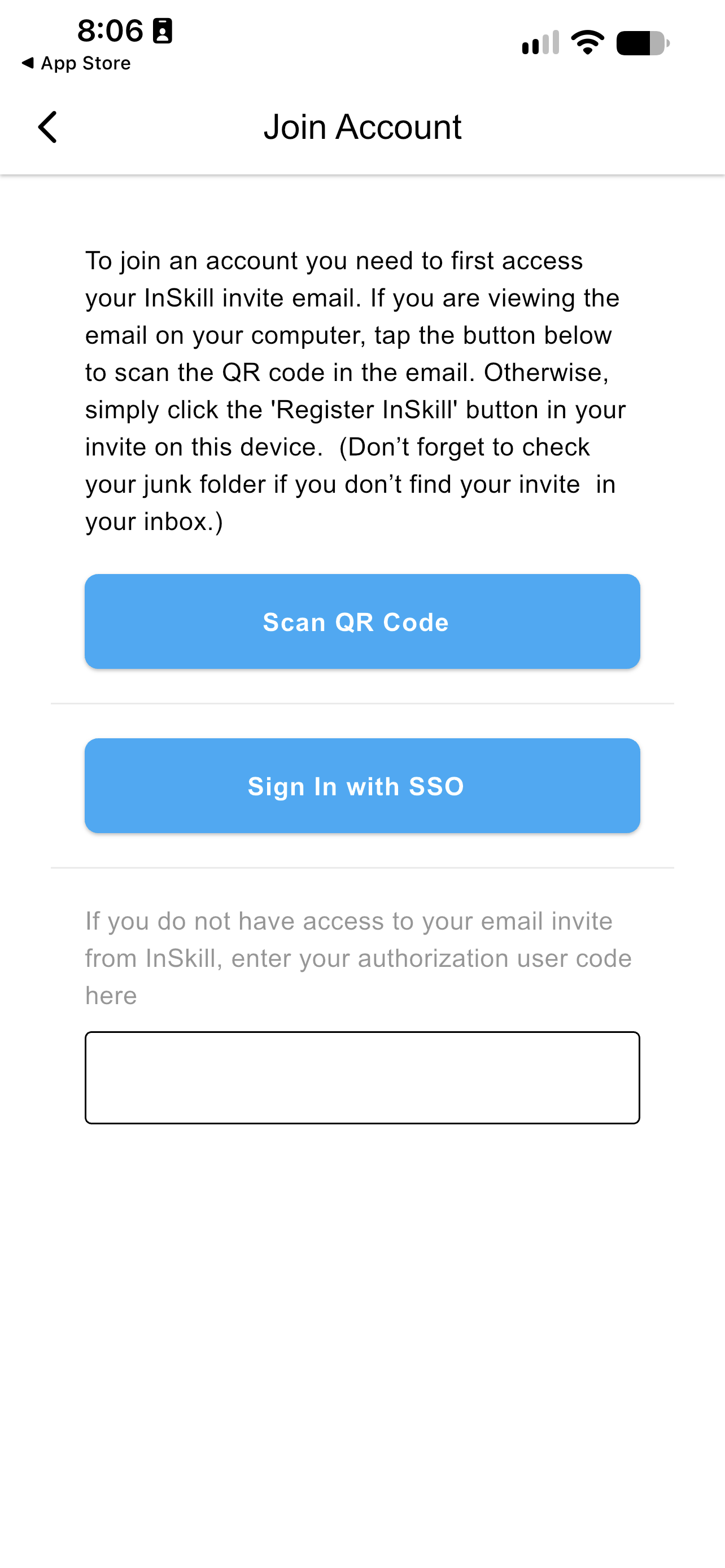
The Join Account screen
Ready to Go
The home screen lists the products available to you, with Products, My History, and Search along the bottom. The app is ready to use.
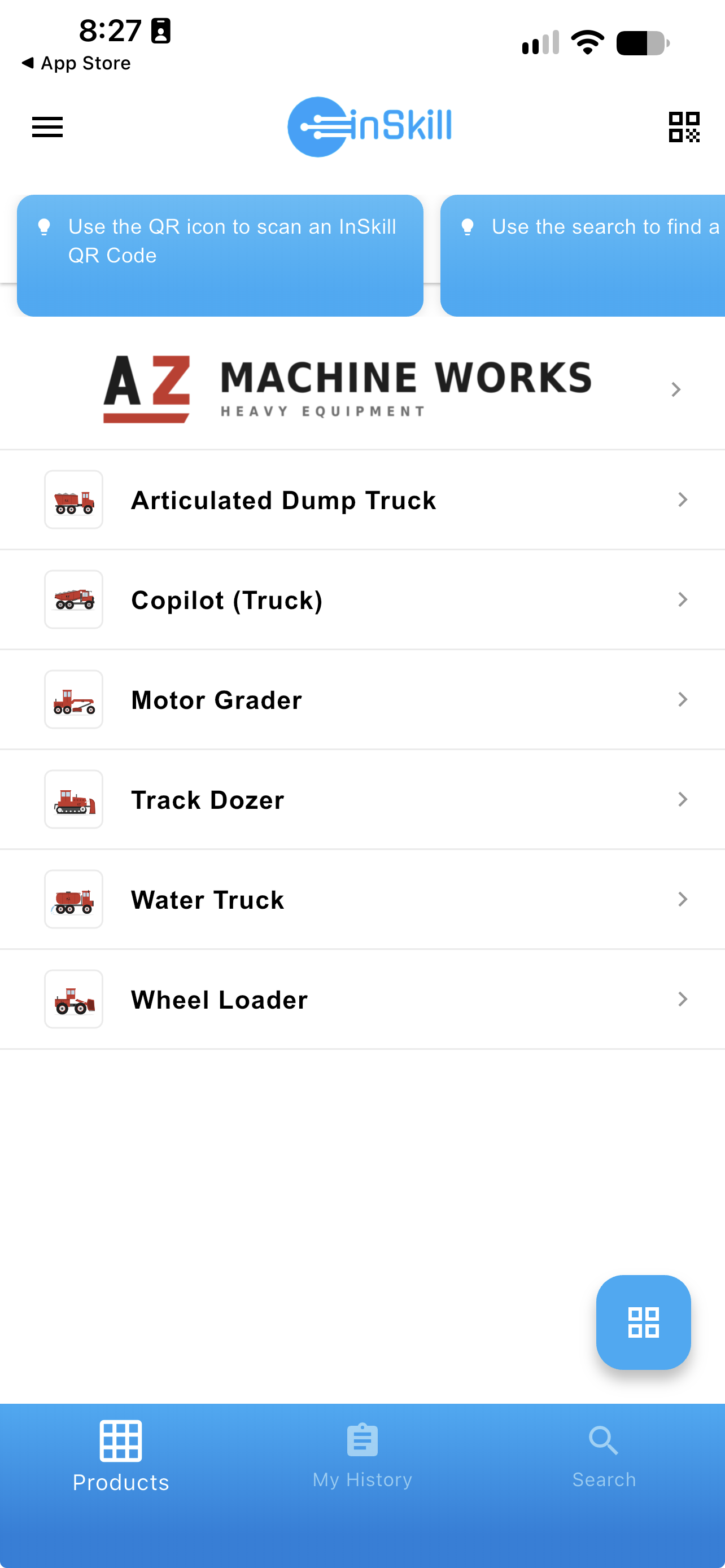
The home screen, listing your products
NoteAn Assets tab appears alongside them once you have opened an asset on this device. See Asset Page.
If you delete the InSkill app, you have to authorize again from the email invitation.
Updated about 4 hours ago