
Asset Page
An asset is one specific machine; organize assets into groups, reach the account's own documents, and review everything done on that unit.
An asset is a specific instance of a copilot — one particular machine, identified by its serial number. Its configuration determines its resource set: the documents, data, and expertise that apply to that exact unit.
The Assets page is shown once assets have been accessed on the device. On a factory or plant account, assets and their groups are listed by default; on an OEM account, which may hold a very large number of assets, reach them through the Search page or by scanning the code on the machine.
Asset Groups
Assets are shown in groups on the Assets home screen, under the account logo. Each group lists its machines by name and copilot.
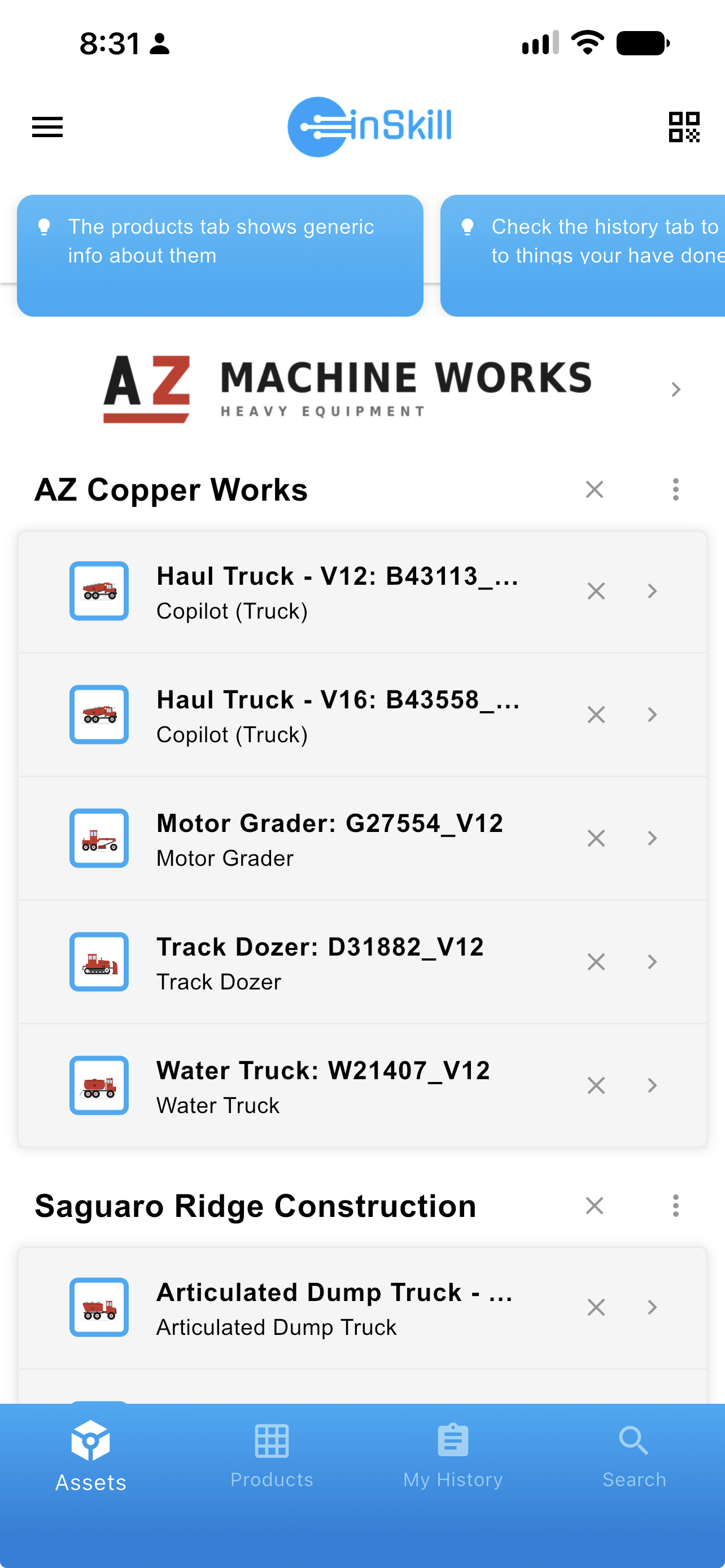
The Assets home screen, with machines listed by group
NoteOn an OEM account, the group is the customer the equipment belongs to, so the group name is that customer's name rather than a site within your own organization.
A Technician who works the same handful of machines every day does not need to scroll past every other group to reach them. The three-dot menu on a group header is how you shorten the list.
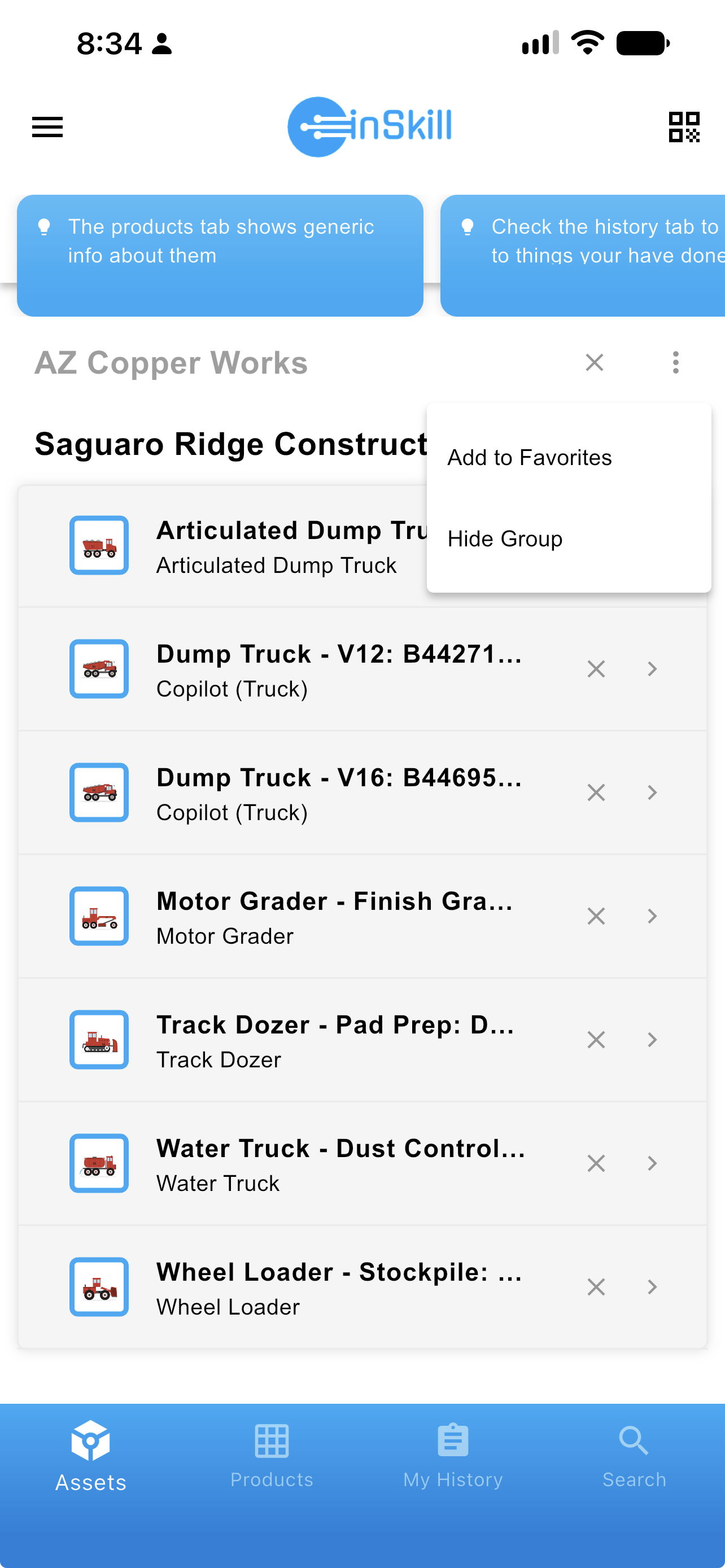
A group's menu, with Add to Favorites and Hide Group
| Choice | What it does |
|---|---|
| Add to Favorites | Moves the group to the top of the list and marks it with a star. |
| Hide Group | Collapses the group — its name greys out and its machines are no longer listed. |
| Make Group Visible | Replaces Hide Group on a hidden group, and brings it back. |
A hidden group
A hidden group is not removed, only set aside. Its header stays on the screen in grey so you can find it again and restore it from the same menu.
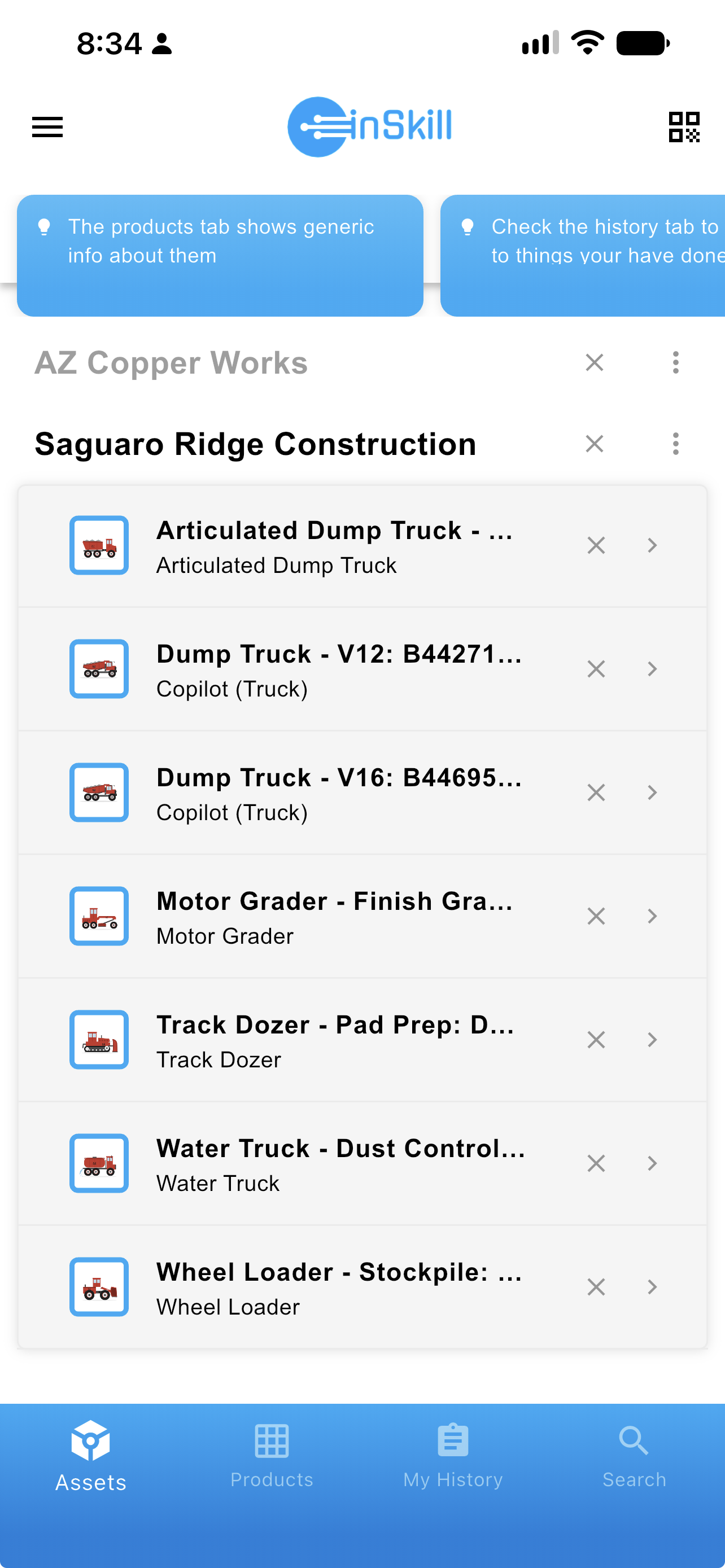
A hidden group, greyed out
A favorited group
A favorited group carries a star beside its name and sits at the top of the screen, so the machines you work on most are the first thing you see.
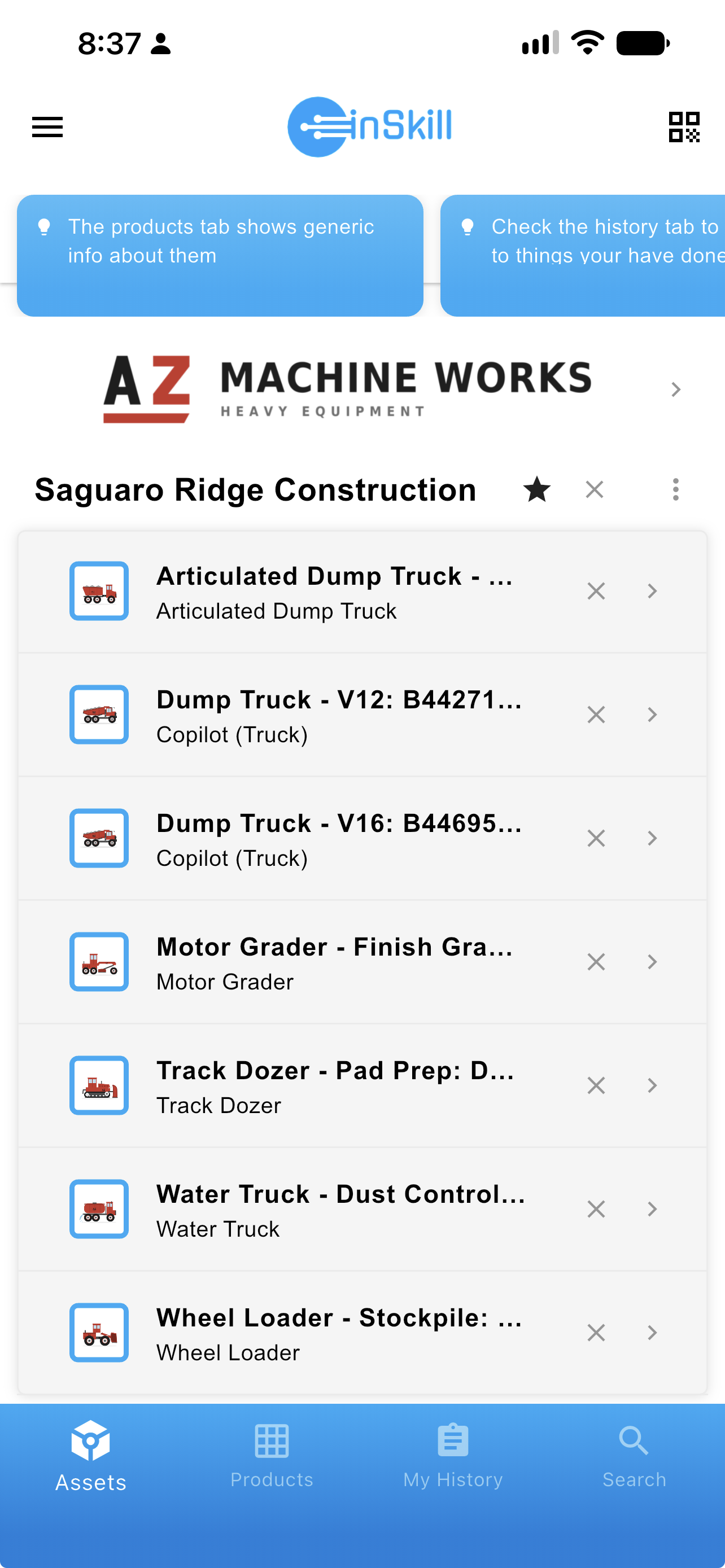
A favorited group, starred at the top
Favoriting and hiding affect this device only. They change what you see, not what anyone else sees and not what you have access to.
Account Resources
Tapping the account logo at the top of the Assets home screen opens the documents published to the account as a whole — policies, safety guidelines, handbooks, and the like. The same set is listed at the foot of the app menu; see Viewing Account Resources.
History
The History tab shows every question asked and every task run on this asset, in order, grouped by how long ago each happened. A gear marks a task run and a speech bubble marks a question. This is the asset's record, as distinct from My History, which is yours.
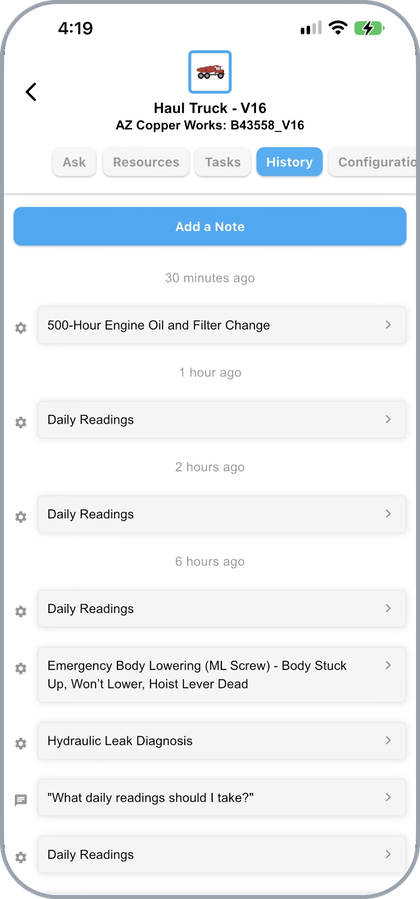
An asset's History tab
Adding a note
Click Add a Note to record something the history would not otherwise capture. Enter the note and click Done; it is saved to the asset's history. For hands-free work, you can instead say "save note" to the copilot — InSkill transcribes the note and files it in the asset's History tab.
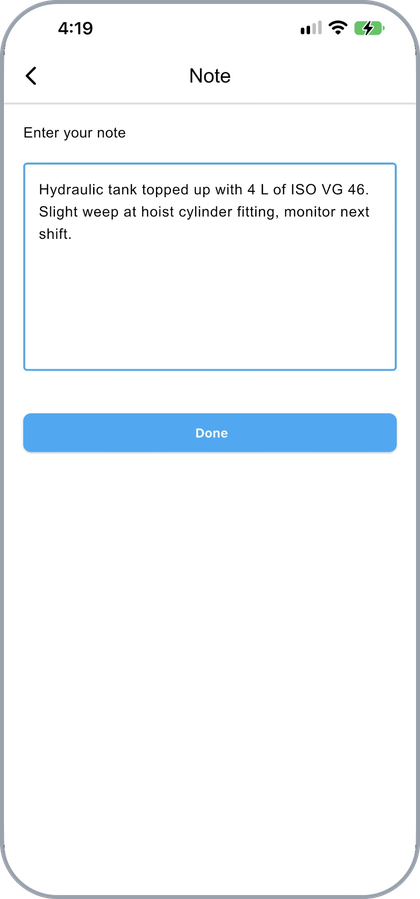
Adding a note to an asset's history
Working in the Copilot
Once an asset is open, what you do next is covered in Using a Copilot:
| Tab | Page |
|---|---|
| Ask | Asking Questions |
| Resources | Viewing Resources |
| Tasks | Running a Task |
| Configuration | Configuration |
On an asset the conversation stays on the Ask tab rather than opening a tab per question, and every answer is drawn only from the documents matching that machine's own variables.
Updated about 4 hours ago