
Search Page
Search shows what you used recently and finds copilots and assets you have access to but have not opened yet — the route to equipment on an OEM account.
The Search page — reached from Search in the bottom navigation — shows what you used recently, and searches as you type. It looks for copilots and assets that are available to you but not currently shown in your interface, so it can find equipment you have access to even when it is not on your Assets or Products pages.
On an OEM account, which may hold a very large number of assets, Search is the way assets are reached. A factory or plant account lists its assets and groups by default and rarely needs it.
Recently Used
Before you type anything, the page lists what you worked with most recently, each entry stamped with how long ago. Recently Used Copilots covers both copilots and specific machines; Recently Viewed covers the documents you opened. For a Technician returning to a job after a break, this is usually faster than searching.
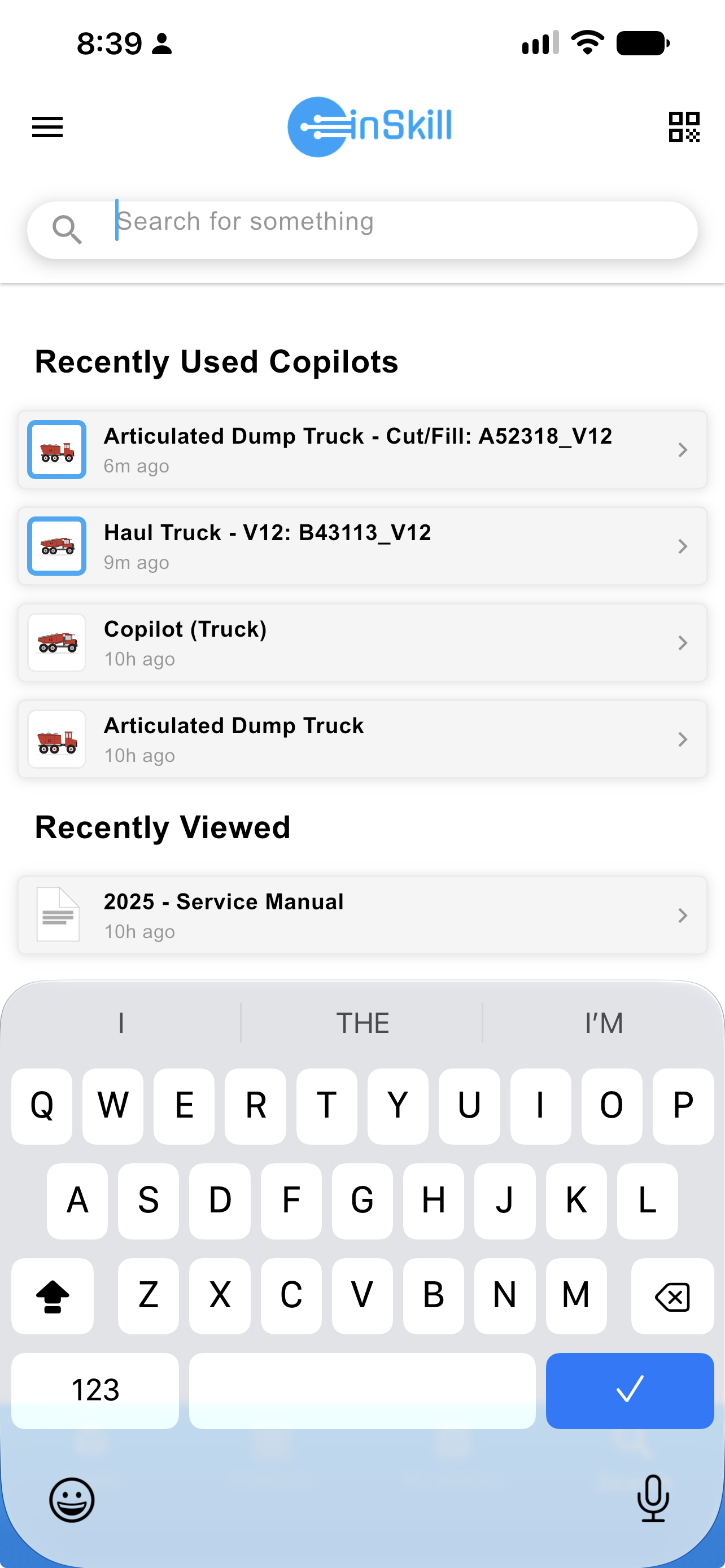
Recently used copilots and recently viewed documents
Searching
Type any part of an asset name, a copilot name, a serial number, or the customer the equipment belongs to. Results come back as you type, grouped by the account the equipment belongs to, with the number of matching assets beneath the account name.
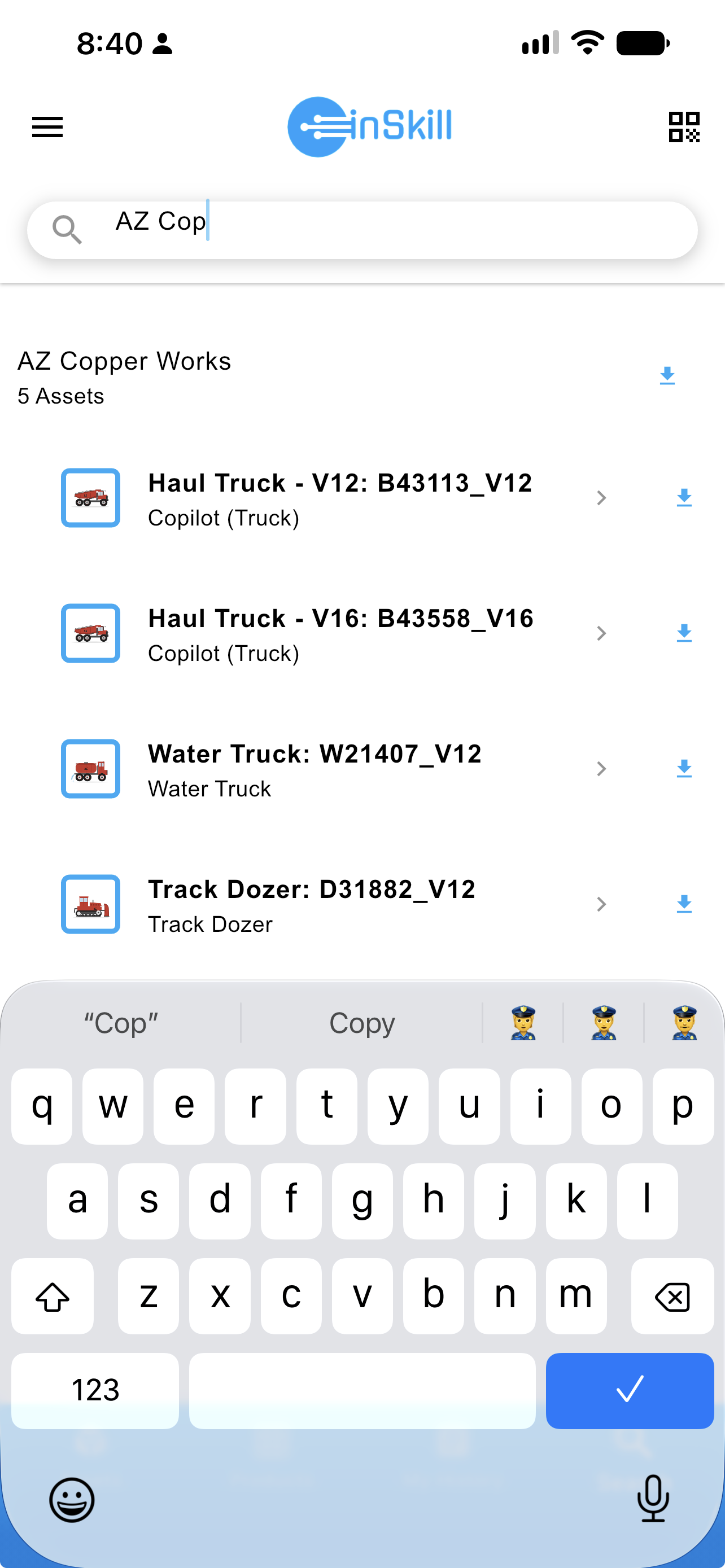
Search results grouped by account, ready to download
Getting an Asset onto the Device
Searching finds an asset. Downloading it is what puts it on the device and makes it a machine you can work on.
| Control | What it does |
|---|---|
| Arrow beside an asset | Downloads that one machine. |
| Arrow beside the account name | Downloads every matching machine in that group at once. |
| Green check | That machine, or the whole group, is already on the device. |
Once the download finishes, the control turns into a green check.
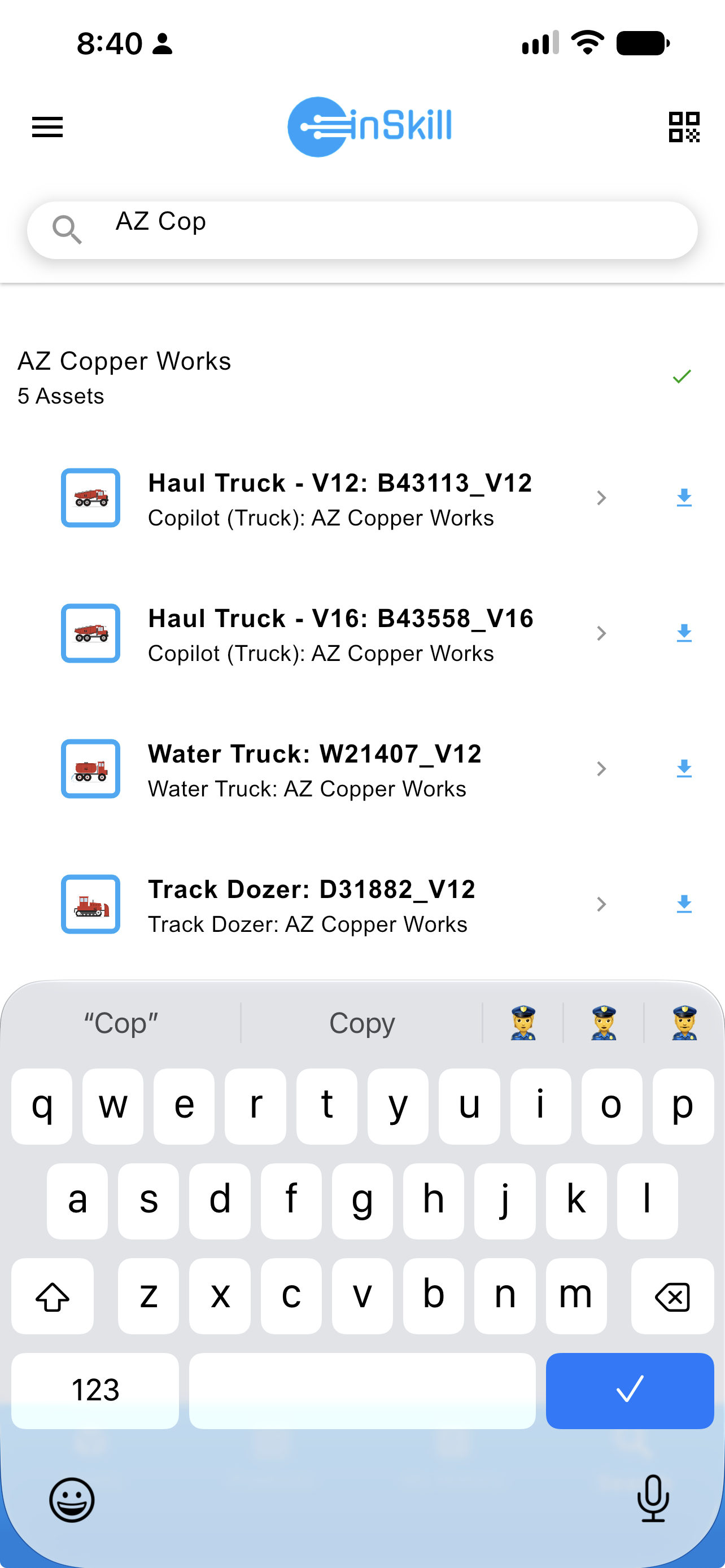
The same results after downloading
The Assets Tab Appears
Downloading the first asset adds the Assets tab to the bottom navigation — on a fresh device it is not there, because nothing has been accessed yet. The machines you downloaded are now grouped under their account on the Assets page, and you can favorite or hide that group like any other; see Asset Page.
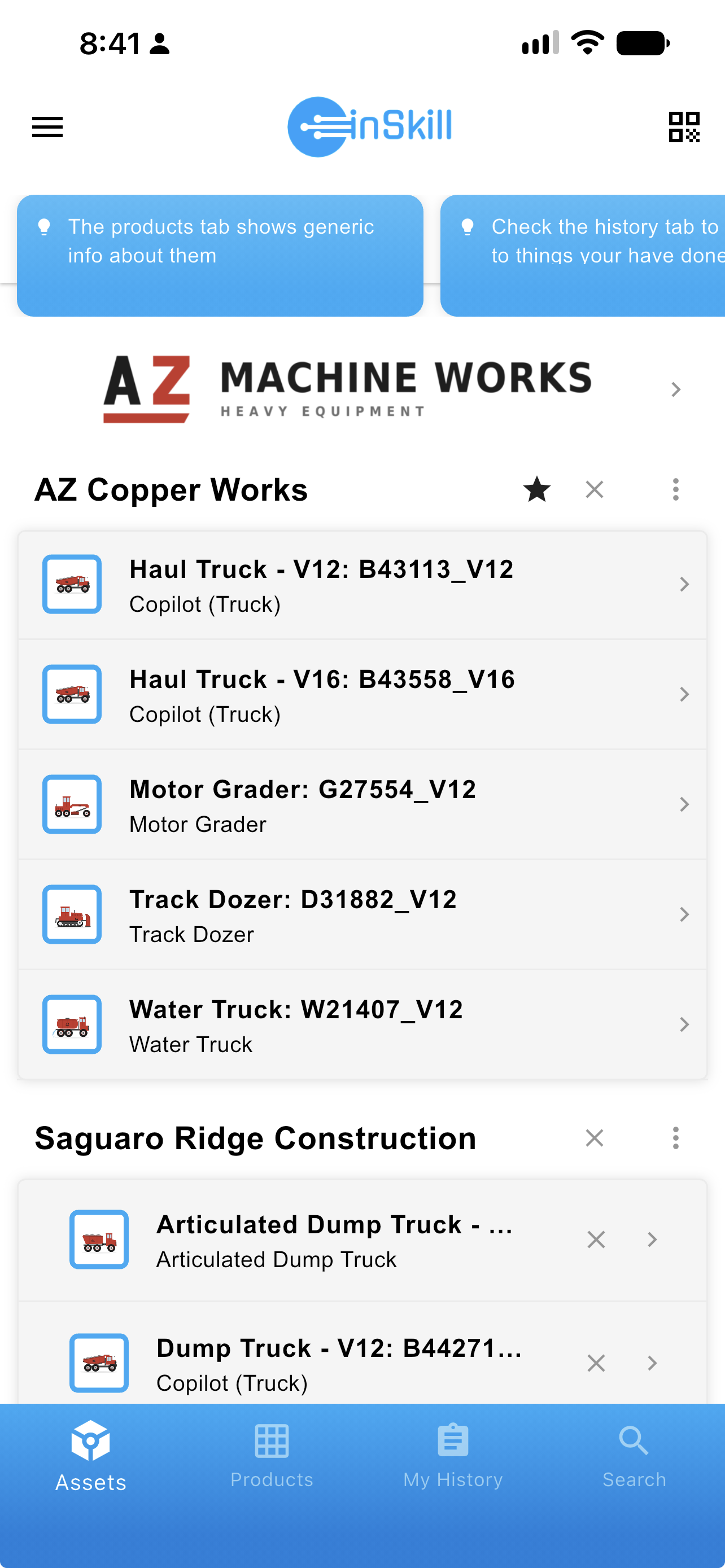
The Assets tab and the downloaded group
NoteDownloading an asset here is not the same as syncing it for offline work. This puts the machine on your Assets page; syncing copies its documents to local storage so they open without a connection. See Offline Settings.
Updated about 4 hours ago