
GPT Agents
Set up Data Query and Script agents on a copilot's GPT Agents tab: the agent list, basic information, tool configuration, data sources, parameters, and writing the script.
The GPT Agents tab of a copilot is where you create and configure the agents InSkill GPT can use to query structured data and run custom logic. For what agents are and when to use them, see About GPT Agents.
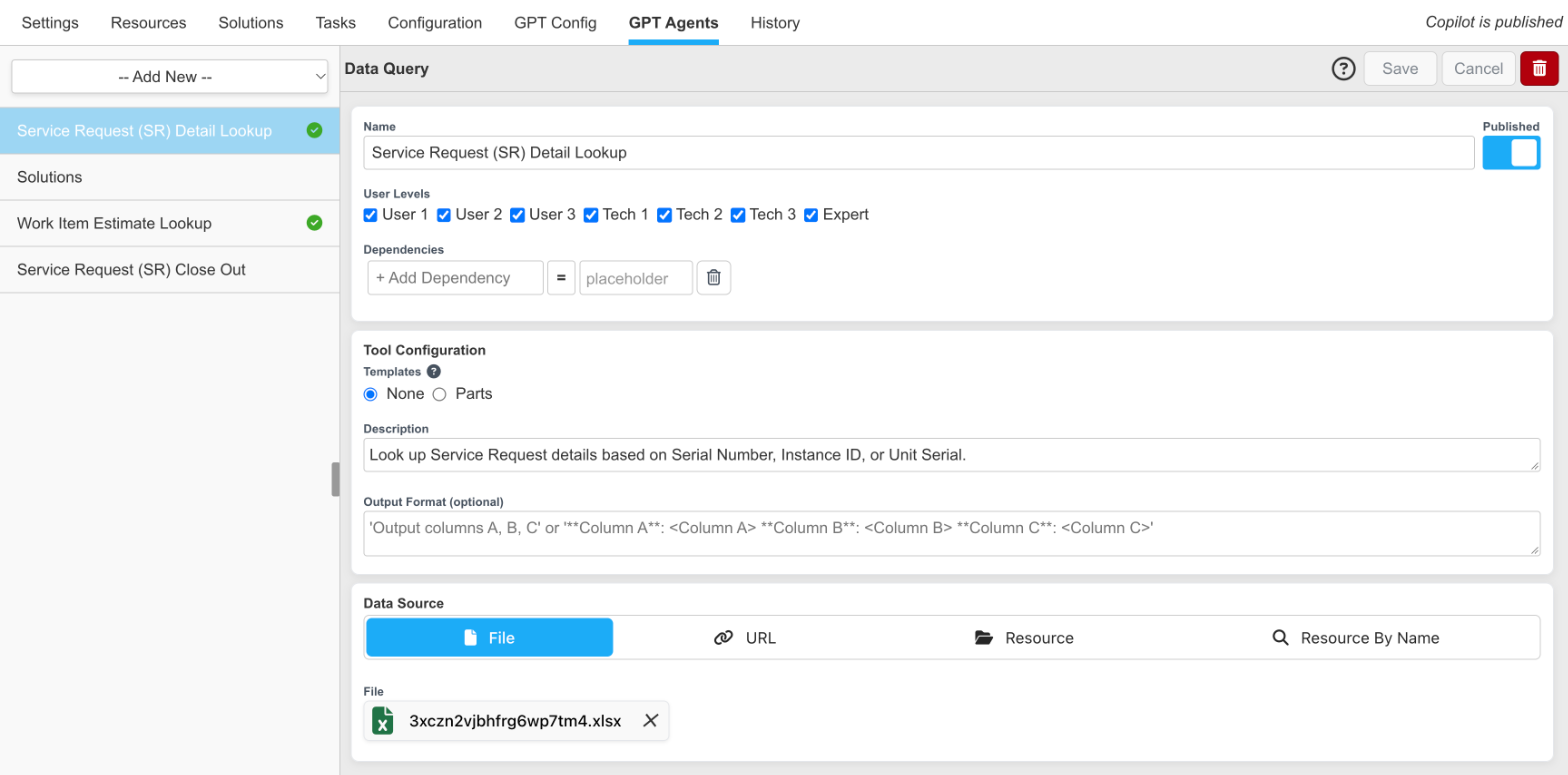
A Data Query agent on the GPT Agents tab
There are two agent types:
- Data Query: pull exact values from structured data, such as parts lists, contact directories, or torque tables in Excel, CSV, TSV, or JSON.
- Script: run JavaScript in a sandbox, for calculations, external data retrieval, or interacting with external systems.
The Agent List
The copilot's agents are listed on the left. Click an agent to open it.
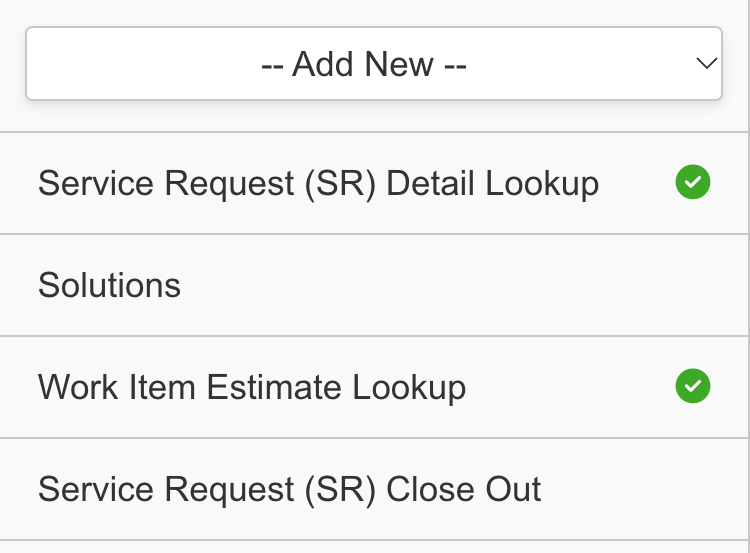
The agent list, with green checks on the agents that are ready
A green check next to an agent means it is ready to use. If the green check is not present, the agent is not ready to use yet: either it was recently added, or it has an error that is preventing activation.
Every copilot also has a built-in Solutions agent. It lets a Technician save a new solution from a GPT conversation by saying "Save solution". It has no settings.
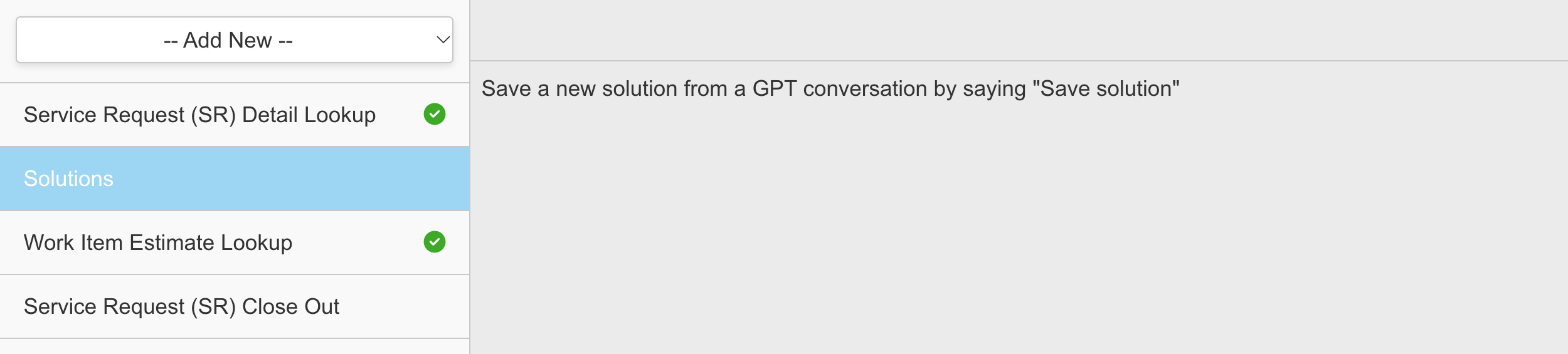
The built-in Solutions agent
Configuring an Agent
Follow these steps to configure a GPT agent:
-
Select the agent type, Data Query or Script, from the -- Add New -- drop-down.
-
Enter the basic information for the agent: its Name, whether it is Published, the User Levels that can use it, and any Dependencies.
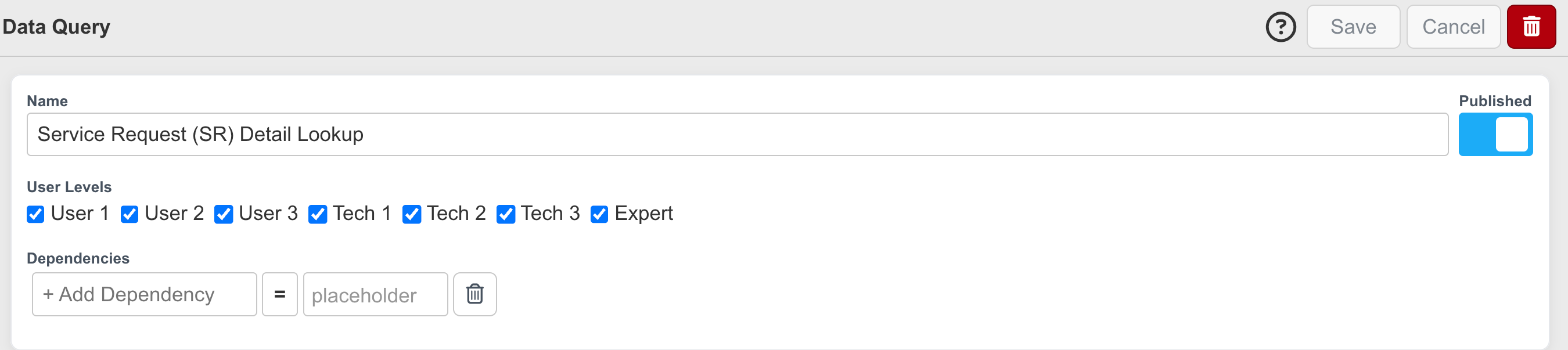
An agent's basic information
-
Complete the Tool Configuration.
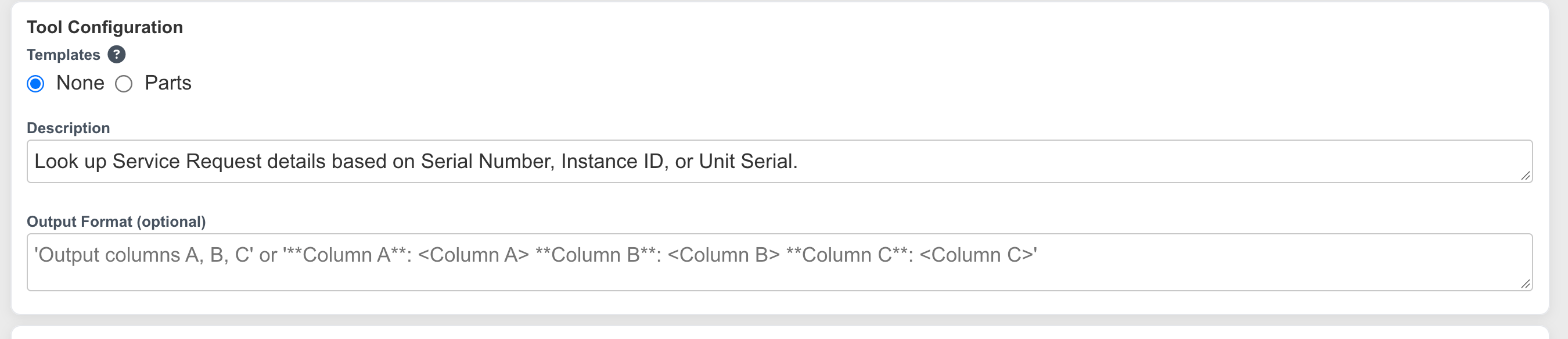
The Tool Configuration section
-
Set the Data Source for a Data Query agent, or the Parameters and script for a Script agent.
-
Click Save, or click Cancel to discard your changes. The trash icon deletes the agent.
Click the ? icon at the top right of an agent to open a help panel with the supported formats and best practices for that agent type.
Description
Describe when InSkill GPT should use the agent, or what the agent does. InSkill GPT uses this description to decide whether the agent is relevant to a request, so it should clearly explain the kinds of questions or tasks the agent handles. For example:
Use when users ask about parts or part numbers.
Templates provide pre-written descriptions for common use cases. When you select a template, the Description field is optional.
Output format
Use Output Format to give additional guidance about how results should be returned — for example, which columns to include, or how values should be presented.
Data Query Agents
Data source
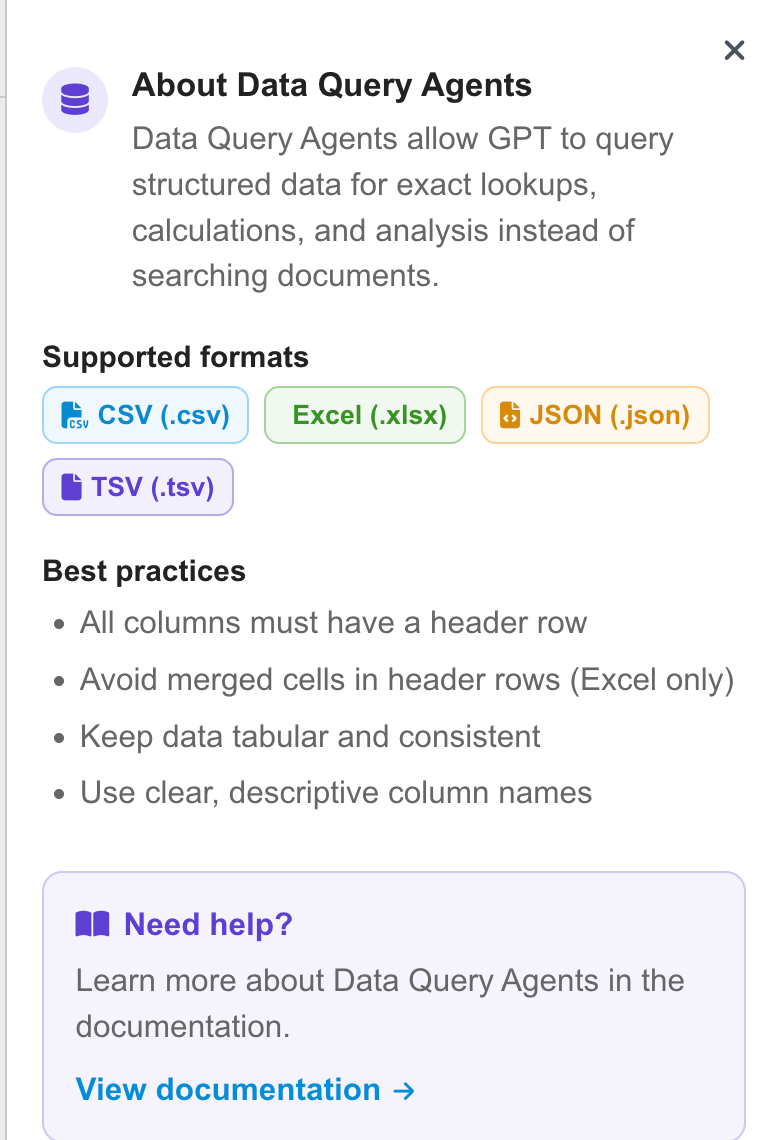
Data Query agents support structured data from Excel, CSV, TSV, and JSON. Depending on your configuration, data can come from:
| Source | Description |
|---|---|
| File | Upload a file directly to the agent. |
| URL | Provide a URL where the data can be retrieved (.csv, .tsv, .json, or .xlsx). |
| Resource | Select one resource to use as the data source. |
| Resource By Name | Specify a resource name, so the agent uses whichever resource carries that name in context. |
Referencing a resource by name makes an agent reusable across contexts such as asset resources. An agent configured to use a resource named Parts List queries whichever Parts List applies, rather than being tied to one specific resource.
TipData should have a consistent tabular structure. Every column needs a header row, Excel header rows must not contain merged cells, and column names should be clear and descriptive.

The Data Source options, with an Excel file uploaded
Data path
For nested JSON, Data Path specifies where the queryable data sits within the structure. Given this data:
{
  "a": [],
  "b": {
    "c": []
  }
}
Use a as the data path to query the records in a, or b.c to query those. Leave Data Path blank when the queryable data is at the top level.
Script Agents
Parameters
Each parameter needs a name, and optionally a description so InSkill GPT understands what value to supply. Parameters can be marked as required: if required information is missing from the conversation, InSkill GPT asks for it before executing the agent.
For example, a service-history script might define start_date and end_date, both optional. A Technician could then ask:
What maintenance has been performed in the last 30 days?

A Script agent's parameters
Writing the Script
Write the JavaScript in the Script editor below the parameters. The Documentation link above the editor opens the scripting reference.
The script reads the values InSkill GPT supplies from Inskill.GPT.args, by parameter name: a parameter named voltage is args.voltage. The script returns its result with return, and InSkill GPT uses the returned value in its response. A script that waits on anything, such as Inskill.Utils.webRequest or a promise, returns its result with session.done(result) instead.
For example, a Script agent named Current, described as "calculate current in Amps", with two required Number parameters, voltage (volts) and resistance (ohms):
var { args } = Inskill.GPT;
let current = args.voltage / args.resistance;
return `current: ${current}`;
The editor's syntax checker may mark this return as an error; hover over it to see return outside a function. The checker isn't reliable, and the script still runs.
Keys and other secrets the script uses belong in the Vault, not in the script. See also Scripts.
Updated about 4 hours ago