
Products Page
Products are types of machines, your own and those shared with you; find one in list or tile view, then personalize it to the machine in front of you with an asset or a filter.
A product represents a type of machine, where an asset represents an individual one. The Products page lists the products available to your account; select one to work with its copilot. Your recent questions and task runs appear above the list, each one showing the copilot it was run against and when.
On an OEM account the Products page is normally where you start, because assets are reached through the Search page rather than listed.
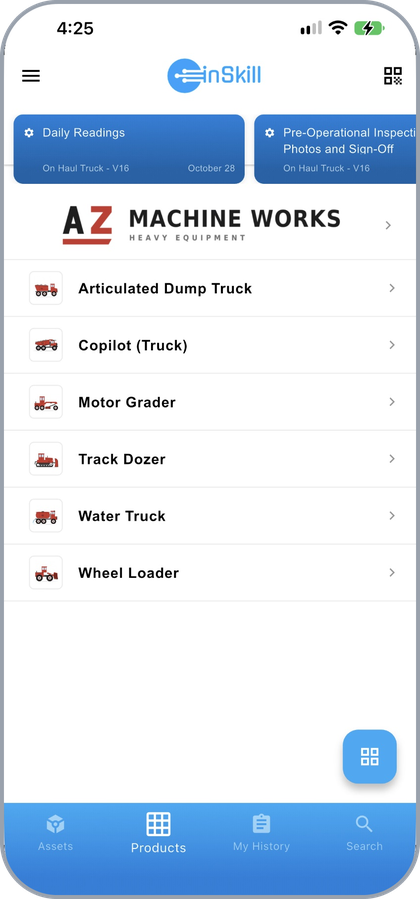
The Products page, with recent activity above the product list
Your Own and Shared Products
The list puts your own organization's products first, marked with your company's logo. Products shared with you by other organizations, such as equipment makers and machine builders, follow below them. Your administrator decides which products you can see; see Visibility by Role.
Tap a manufacturer's logo to open that manufacturer's account resources, if it has any: material that applies across several of its products, such as general safety manuals, policies, or training videos. See Viewing Account Resources.
List or Tiles
The button at the bottom right switches how the products are shown. It always displays the layout you will get next, so the list icon switches to a list and the grid icon switches to tiles.
A list fits more products on screen and is quicker to read down.
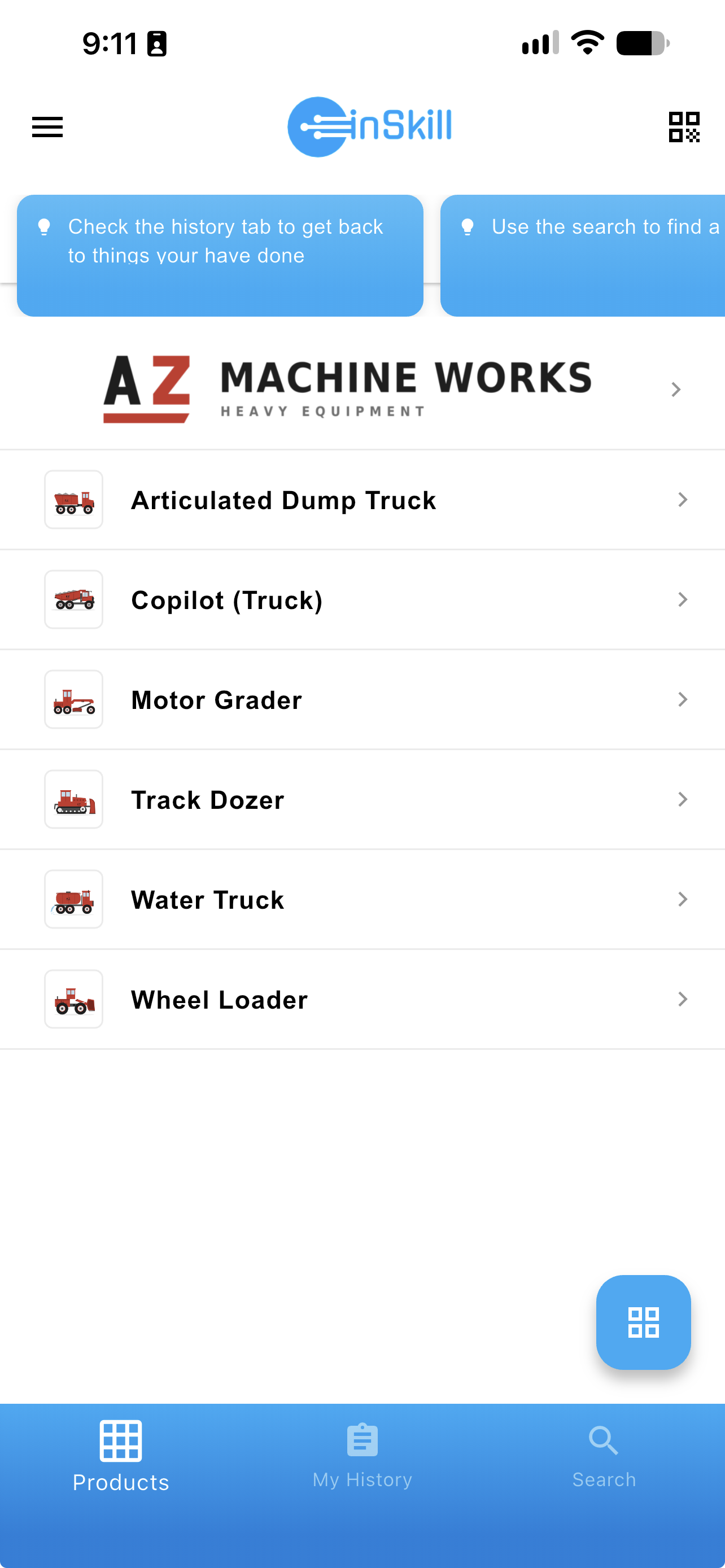
Products shown as a list
Tiles give each product a larger picture, which is easier to pick from with gloves on or at arm's length.
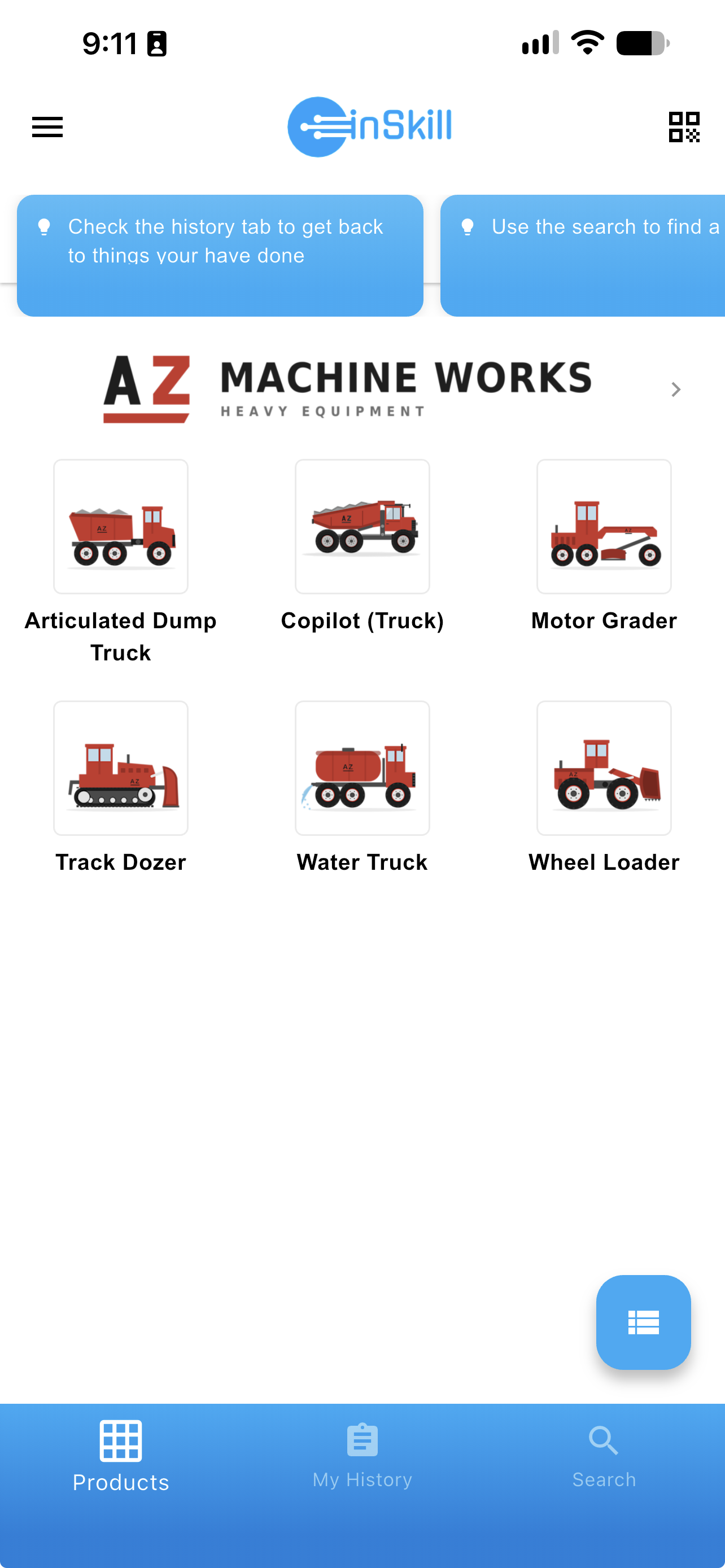
Products shown as tiles
Personalizing a Product
A product covers a whole machine line, so there are two options to personalize it to the machine in front of you. Both narrow the answers you get and the resources you see.
Selecting an asset
If assets are available for the product, the Select an asset dropdown appears on the Ask tab. Pick the asset you are working on.
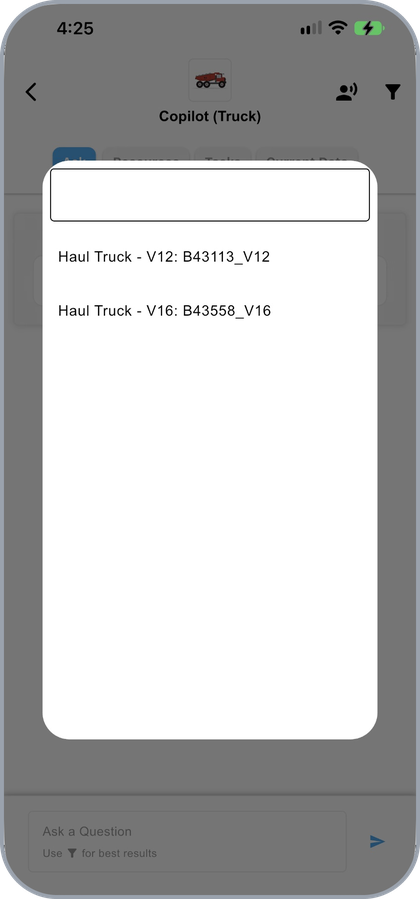
The Select an asset dropdown on a product's Ask tab
Applying a filter
Otherwise, apply a filter with the icon at the top right. Choose a Product Configuration opens with Default at the top, a field to name a configuration of your own, and the product's variables below it. Setting a variable shapes both the resource set you see and the answers you get, and the active filter is shown under the product name.
Name a configuration and save it to reuse it later. Default restores the unfiltered view.
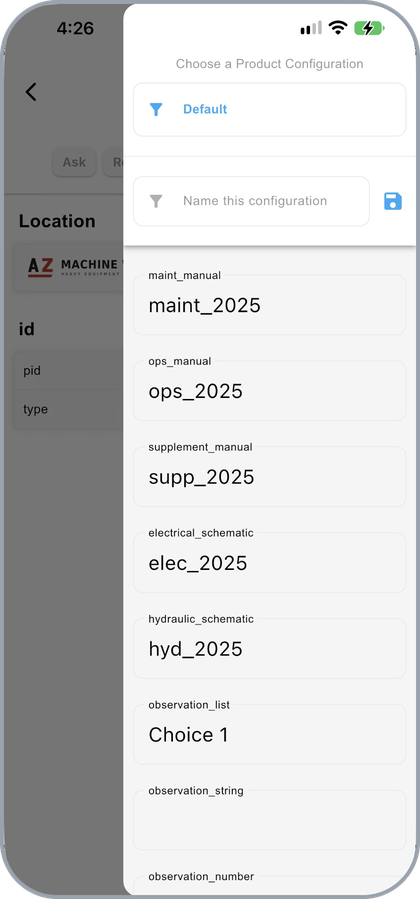
The Choose a Product Configuration panel
TipIf a document you expect is missing from Resources, the filter is the first thing to check. The banner on that tab names the active configuration, with Clear to remove it.
Working in the Copilot
Once a product is open, what you do next is covered in Using a Copilot:
| Tab | Page |
|---|---|
| Ask | Asking Questions |
| Resources | Viewing Resources |
| Tasks | Running a Task |
| Current Data | Current Data |
A product is the only place session tabs appear — each question opens its own named tab, so several stay open side by side.
Updated about 4 hours ago