
Creating a Task
Create a task with the + Add New form or Quick add, set its user levels, published and visible states, dependencies, and InSkill GPT search, or paste a task template.
A task starts as an entry in the Task List view — the Tasks tab itself. There are three ways to add one: the + Add New form, Quick add, and Paste Task.
Using the + Add New Form
Follow these steps to create a task:
-
In the Copilots portal, select your copilot and open the Tasks tab.
-
Click + Add New, or the + icon on the left edge of the Task Editor.

The Search tasks field and the + Add New button
-
Fill in the form:
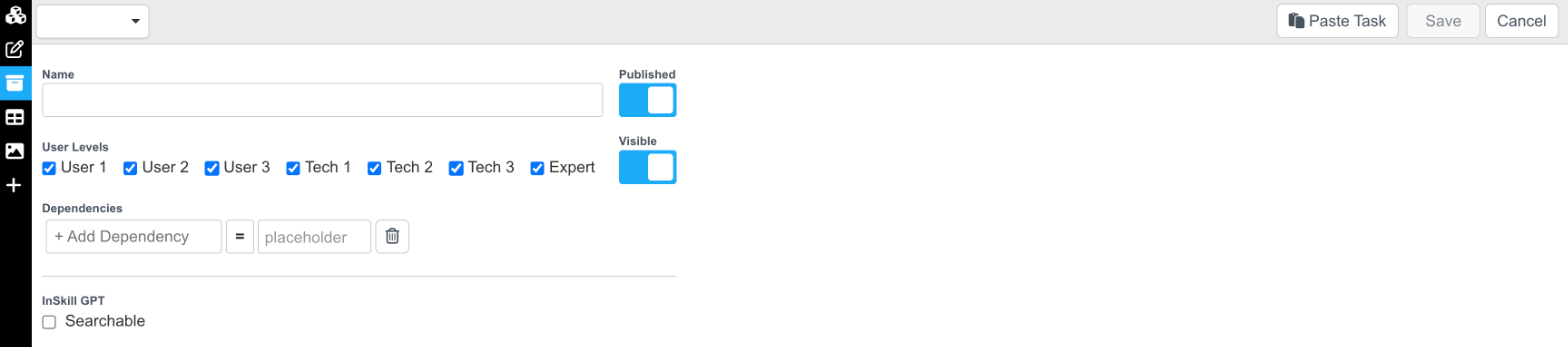
The new task form
- Name — what the task does, as Technicians will see it.
- User Levels — the user levels that can use the task. All are selected by default.
- Dependencies — optional conditions that must be met for the task to be available. See Dependencies.
- Published — on by default. Turn it off to keep the task out of Technicians' hands while you build it.
- Visible — on by default. Turn it off for a task that is only reached from another task, as a subtask.
- InSkill GPT — Searchable — off by default. Select it so InSkill GPT can find the task and offer it in answers.
-
Click Save.
-
Click the task in the list to open it in the Authoring View and add its steps.
Visibility and user levels decide who sees the task; the published state decides whether anyone does. All of these settings can be changed later in the Task Details view.
Using Quick Add
To create several tasks in a row, type a task name into Quick add at the top left of the Task List view and press Enter. Repeat for each task, then set each task's settings in the Task Details view.
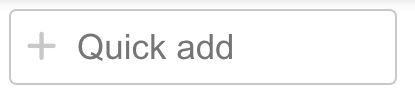
The Quick add field
NoteUnlike the + Add New form, a task created with Quick add is Published and InSkill GPT Searchable from the start. Turn Published off in the Task Details view if you don't want Technicians to see the task while you build it.
Pasting a Task Template
A task template is a task in InSkill's JSON format — what Copy Task produces, and what Claude produces when it creates a task. Follow these steps to paste one:
- Copy the task template.
- Click + Add New, then click Paste Task.
- Paste the template into the Task Template box and click Save. InSkill creates the task and all of its steps.
A pasted task is also Published and InSkill GPT Searchable by default.
Updated about 4 hours ago