
Choosing the Step Type
Pick the right step type — information, observation, solution, or subtask — and create observations that collect data.
Before writing a step's content, decide what kind of step it is — the type determines the buttons the Technician sees, how InSkill records the result, and what you author next.
| Type | Use it when | Technician sees | How to set it |
|---|---|---|---|
| Information | The step explains — context, safety, tools needed, how to do the work. | Continue | Turn on Info Only on the step's Content tab; it shows green in the tree. |
| Observation | The step asks — a reading, an error code, a selection, a photo. | The input control | Define a feedback variable on the step's Data tab. |
| Solution | The step fixes one particular root cause, in a troubleshooting branch. | Not Solved / Finished | A step that is not information and does not collect data behaves as a solution. |
| Subtask | The step runs another task — a shared sequence like escalation or restart. | The subtask's own steps | On the ... menu, select + Add New > Subtask. |
Two rules of thumb: procedures and inspections are built from information and observation steps only; and a solution step fixes exactly one thing — Finished is the signal InSkill learns from, and a step that fixes several things at once teaches it nothing.
Collecting Data with Observations
An observation is created on the step it belongs to:
-
When editing the step, select Data at the top.
-
Type a name for the variable that will hold the data — for example,
pressure— in the Feedback Variable Name field, then select Add from the list that appears.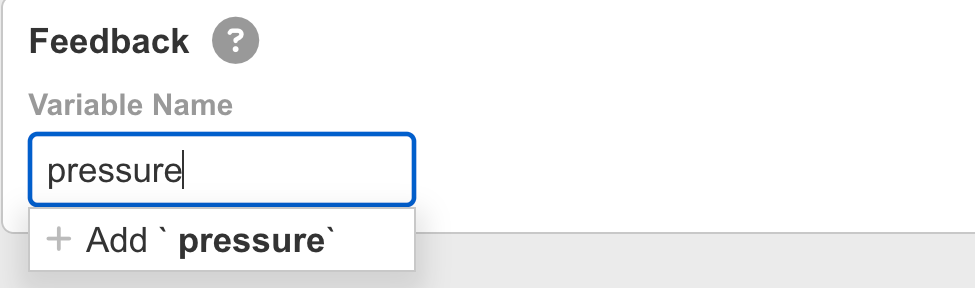
Adding a feedback variable named pressure
-
Choose a data type from the Type list: String for text like a serial number, Integer or Float for readings, Yes/No for a check, List for a fixed set of choices, or Take a Photo for a picture.

Choosing the variable's data type
-
Click Save. The step now prompts the Technician with the right input control, and the value is saved with the session.
A List can show readable labels while storing something else: the Technician chooses Plastic Stringing, while the task data records the error code mf_3216. Turn the Identifiers switch off to use the labels themselves as the stored values, converted to lowercase with spaces replaced by underscores.
Variable names are kept in the copilot's data dictionary — reusing a name fills in the matching type automatically, so the same variable is never defined two ways.
Photo Observations
For a photo observation, set the observation's type to Take a Photo on the step's Data tab — the Technician is prompted to take or upload a picture. To have InSkill read data out of that picture, select one of the copilot's photo processors from the Observation Process list and click Save; the processor runs when the picture is uploaded. Processors are built in the Observations viewer — see Observations.

A photo variable with a photo processor selected
Updated about 4 hours ago