
Offline Settings
Copy copilots, assets, and their documents to the device so a Technician can keep working where there is no coverage.
Syncing copies resources — documents, videos, tasks, and asset data — from InSkill down to the device's local storage, so a Technician can keep working in a basement, a shed, or a yard with no coverage. Work done offline is uploaded the next time the device syncs.
Asking a question uses very little bandwidth. Opening documents uses a great deal. Syncing the documents a Technician is likely to need is what makes the difference on a weak connection.
Open the sync screen from the app menu: the three bars at the top left of the home screen, then Offline Settings.
The Offline Sync Screen
The header shows when the device last synced, or that it has not synced yet. Below Start Sync are two readouts: how much storage the device has free, and how much content is already synced.
Selected Content For Sync lists what will be copied down. Each copilot shows how many of its resources are selected and how many are already on the device, so a row reading 15 of 15 Resources / 10 on device means five files are still to come. Tap the chevron on a row to see the individual resources.
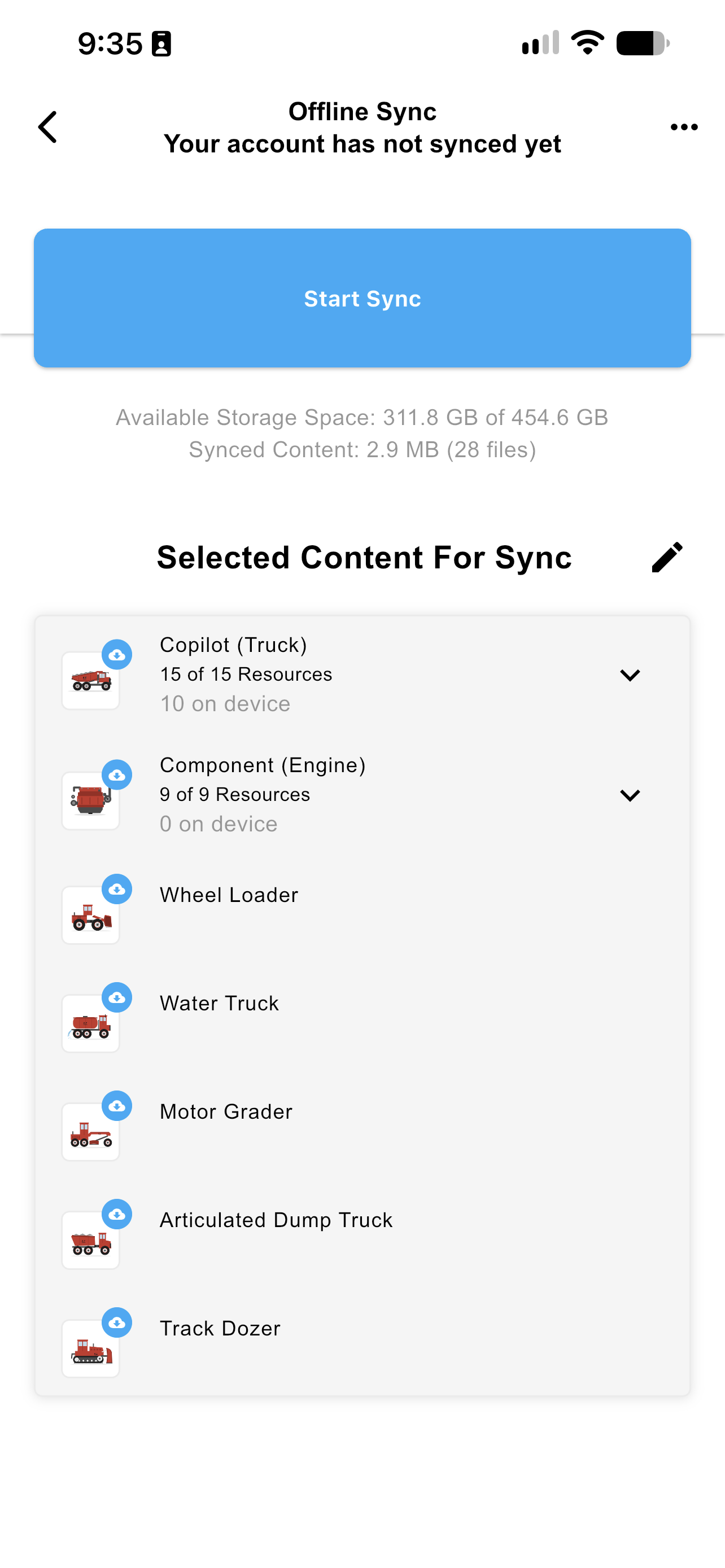
The Offline Sync screen before syncing
Choosing What Syncs
The … control at the top right opens four choices.
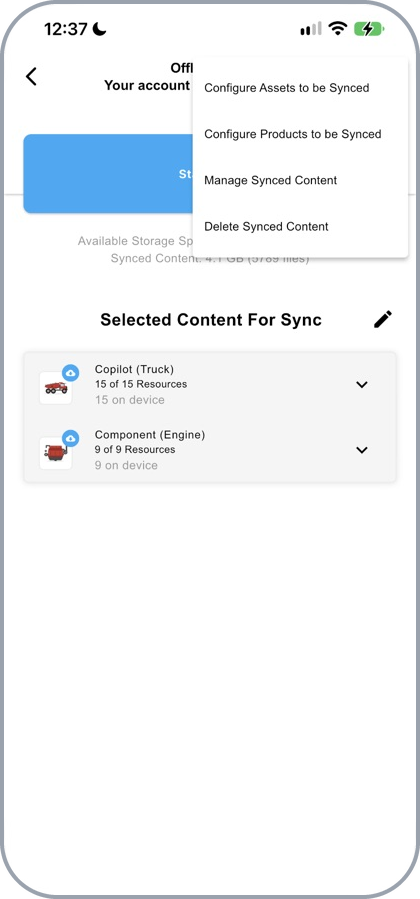
The Offline Sync menu
| Choice | What it does |
|---|---|
| Configure Products to be Synced | Pick which copilots, and which of their documents, are copied down. |
| Configure Assets to be Synced | Pick which specific machines are copied down. |
| Manage Synced Content | See what is on the device, preview it, and remove single files. |
| Delete Synced Content | Clear everything the device has synced. |
The pencil beside Selected Content For Sync is a shortcut to the same product picker.
Configure Products to be Synced
Every copilot the Technician has access to appears here with a checkbox, the number of its resources selected, and the number already on the device. select all and select none at the top right act on the whole list.
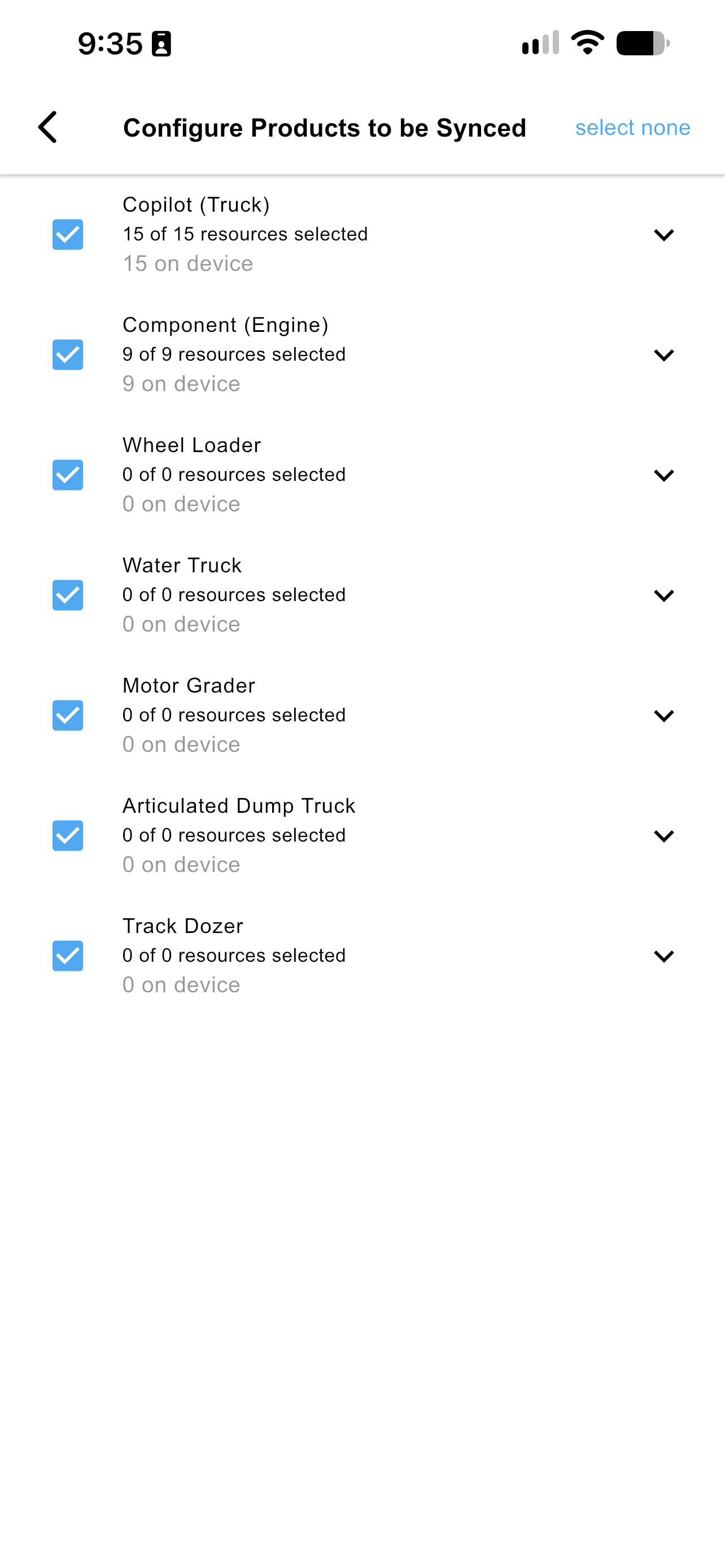
Choosing which copilots to sync
Tap the chevron on a copilot to open its individual documents and choose among them — useful when a copilot carries far more material than a Technician needs in the field. Each document shows whether it is downloaded, and the cloud icon beside it downloads that one file on its own.
Changes save as you make them; the header confirms with Your changes have been saved.
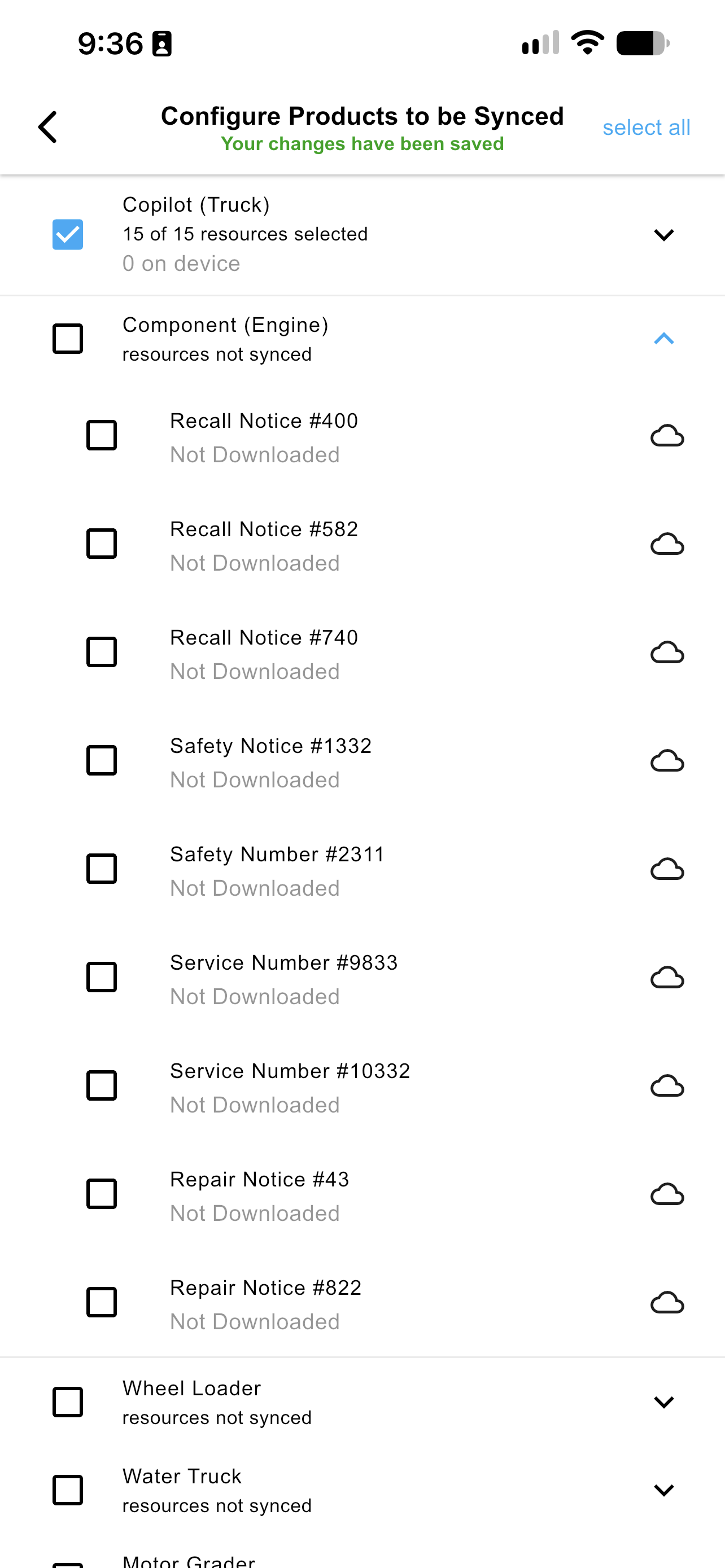
Choosing individual documents within a copilot
Configure Assets to be Synced
Assets are picked the same way. The list holds the machines the Technician has access to, each labelled with the copilot it belongs to.
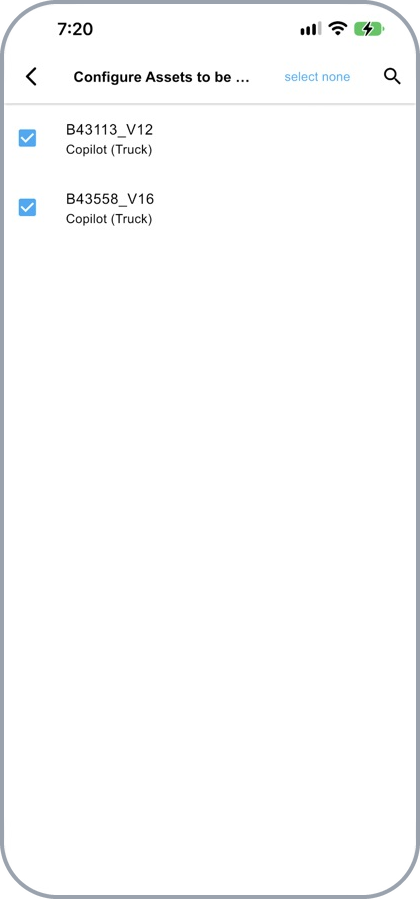
Choosing which assets to sync
On an OEM account the list can run to thousands of machines, so use the magnifying glass at the top right and search by asset name, copilot, or serial number.
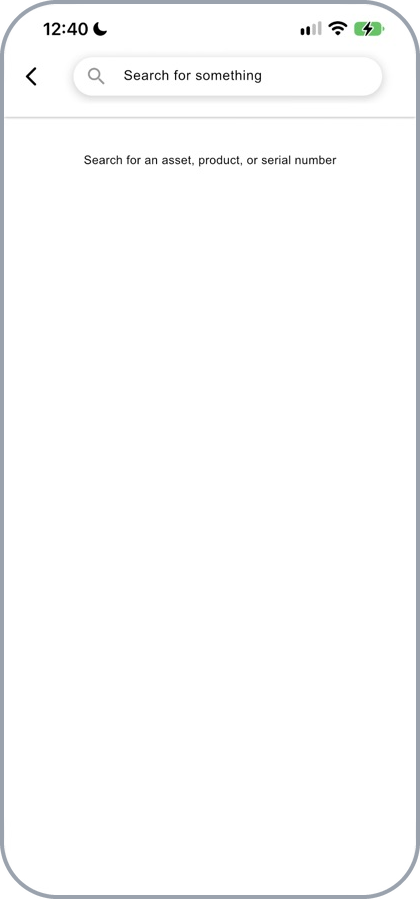
Searching for an asset to sync
Running the Sync
Press Start Sync. The sync uploads before it downloads: account credentials are verified first, then any sessions, resource usage, and notes recorded while the device was offline are sent up. Only then does the selected content come down, checked off item by item as it lands.
When it finishes the button reads Syncing Done, the header shows Last Sync: Just Now, and the synced-content readout updates — in the example below from 2.9 MB across 28 files to 3.4 MB across 35.
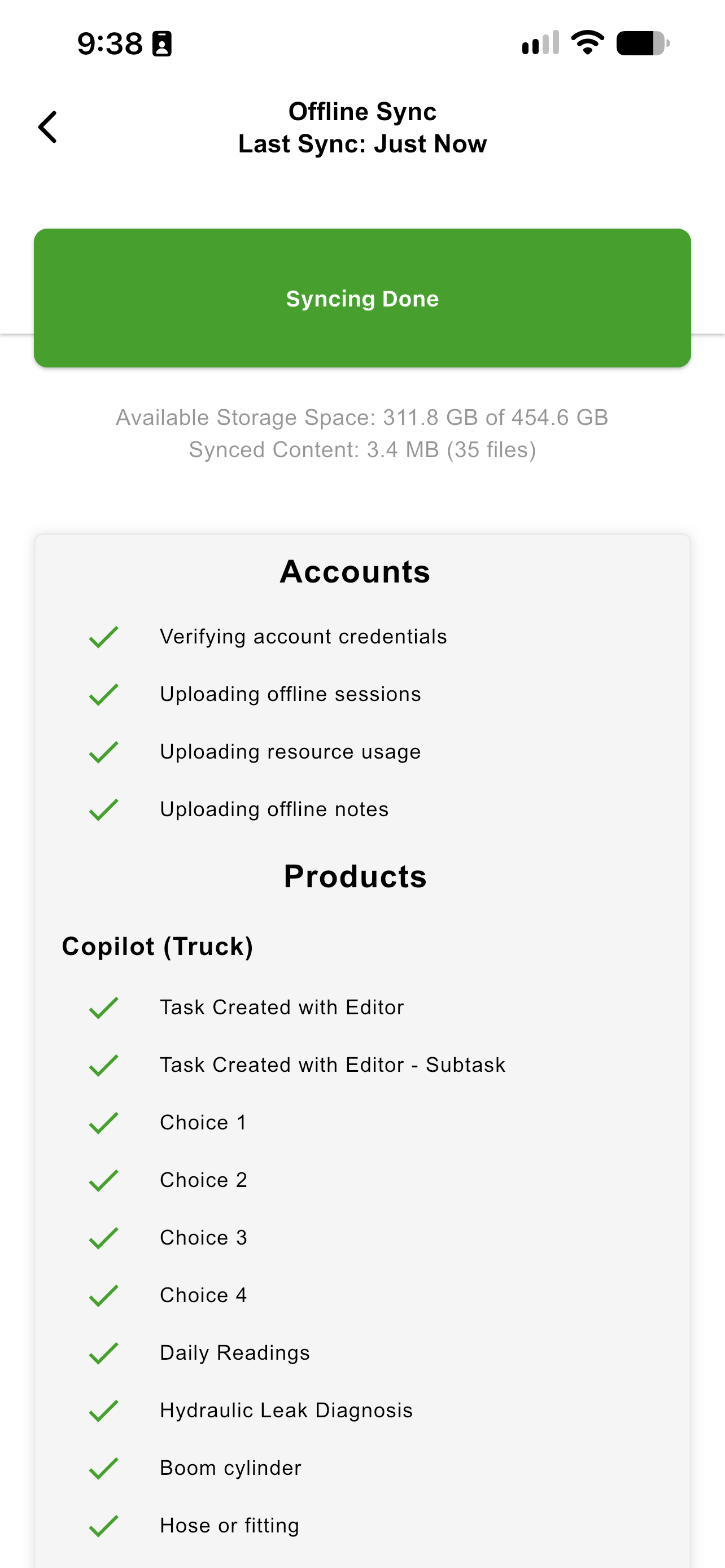
A completed sync
CautionWait until the sync reports done before leaving coverage. A partial sync leaves resources unavailable in the field.
What Is on the Device
Manage Synced Content lists every synced file, largest first, with its size. The eye opens the file; the trash removes that one file from the device without changing what is selected for sync, so the next sync brings it back.
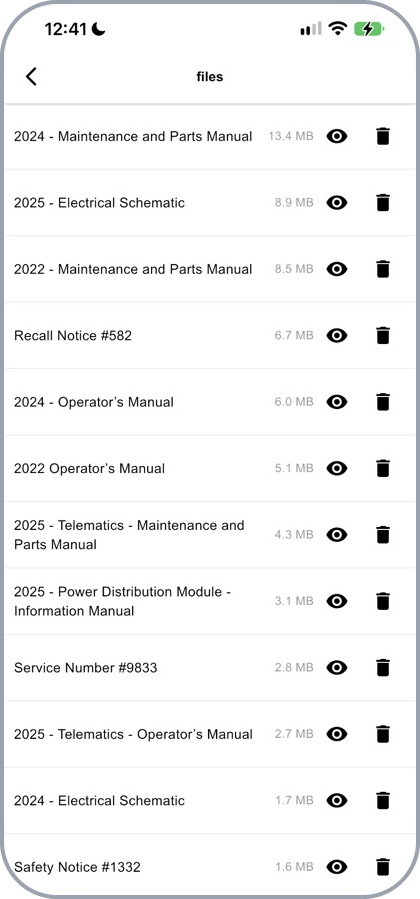
Synced files, with their sizes
Delete Synced Content clears the lot at once. Use it when the device is being handed to another Technician, or when storage is tight.
Reading Download State Elsewhere in the App
The same state shows on any copilot's or asset's Resources tab, so a Technician can check coverage before heading out without opening the sync screen at all.
| Mark | Meaning |
|---|---|
| Green check | The document is on the device and opens without a connection. |
| Blue cloud | The document has not been downloaded; opening it will fetch it. |
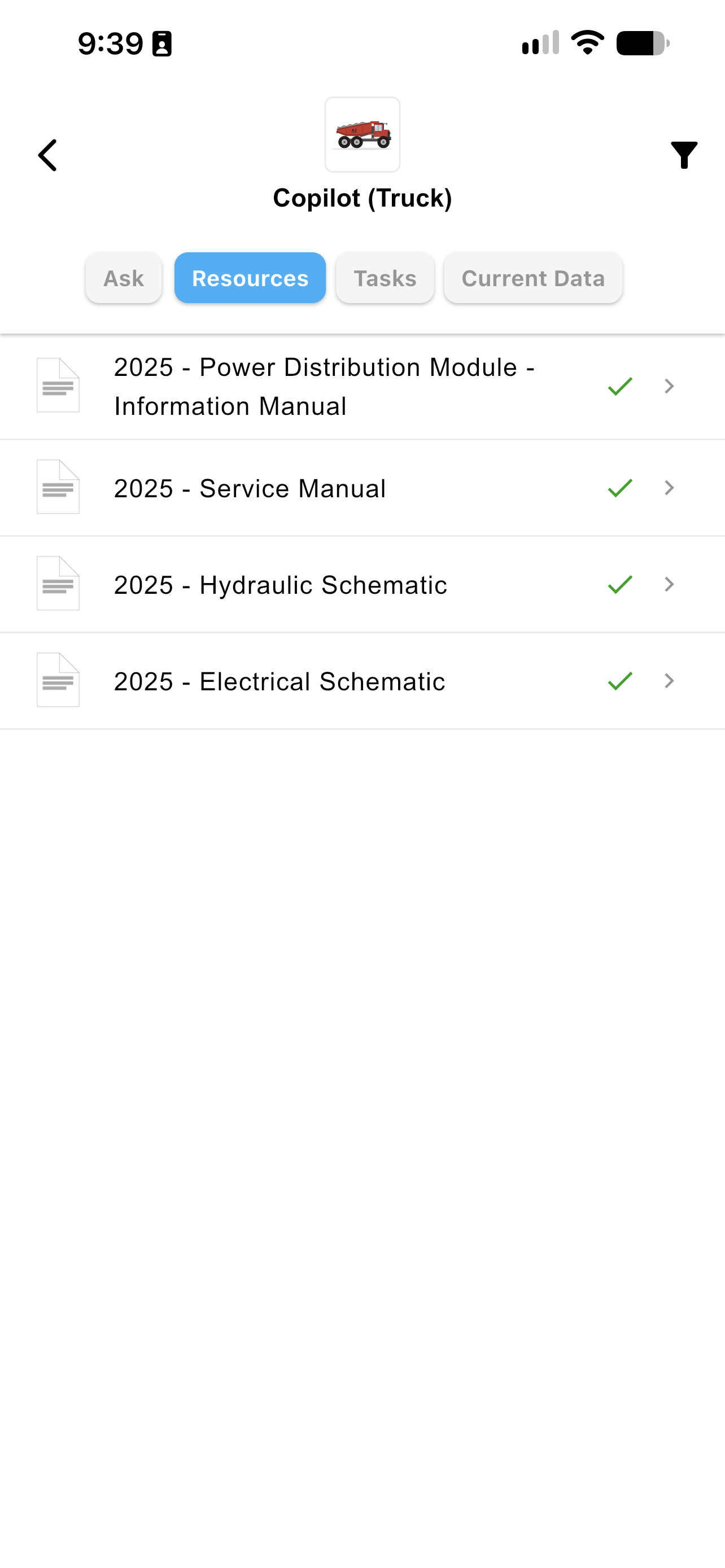
Every document on the device
A list can show both at once while a sync is partway through, or when a Technician has downloaded single files by hand.
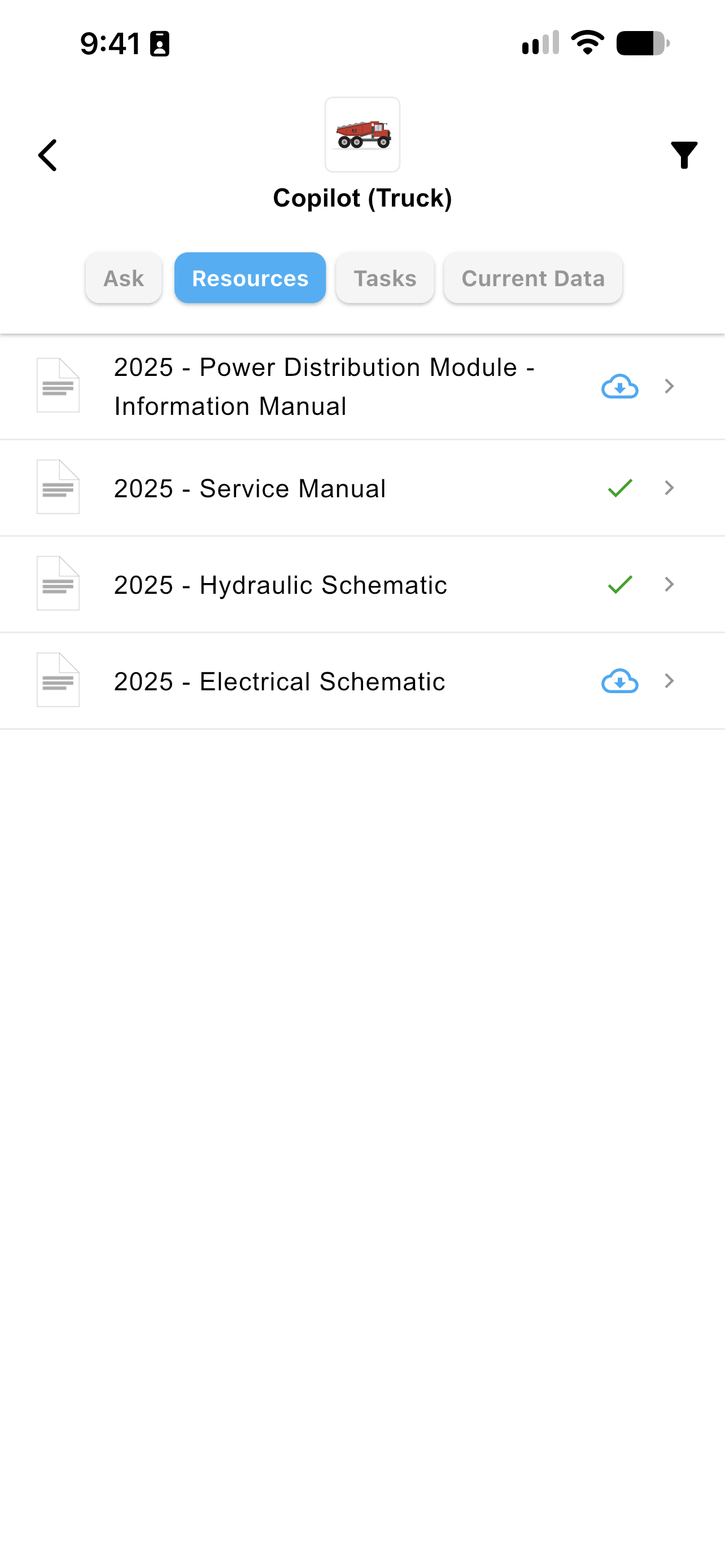
Some documents downloaded, some still in the cloud
Tapping a cloud downloads that document on its own — the quickest way to grab one manual before leaving coverage.
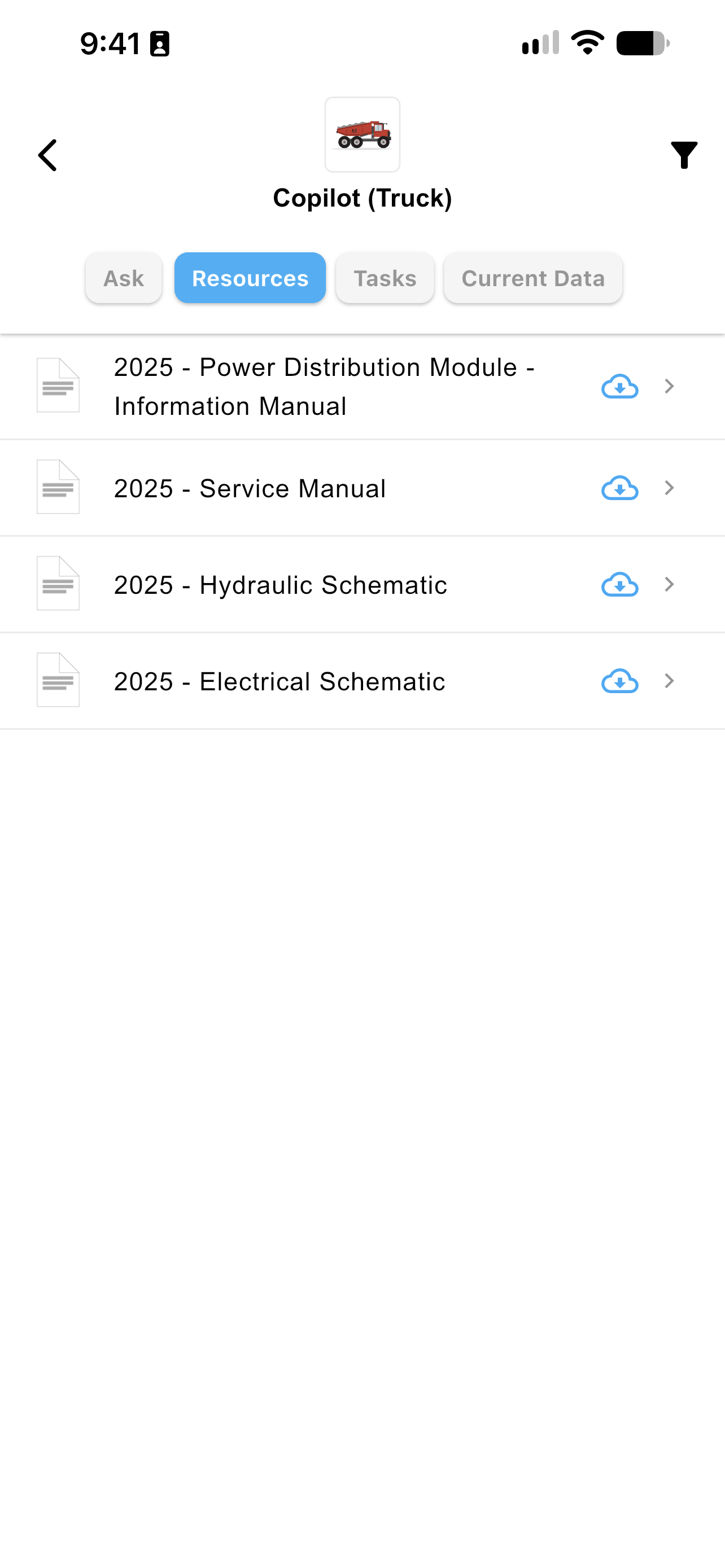
No documents downloaded yet
Updated about 4 hours ago