
Asset Configuration
An asset's Asset tab: its copilot, serial number, and name, its QR code and asset groups, and the configuration values that tailor resources, answers, and tasks to that machine.
The Asset tab is what you see when you open an asset in the Assets portal. It holds the asset's identity, its QR code, the asset groups it belongs to, and its configuration: the values of the copilot's asset variables for this one machine. The Activity and Resources tabs sit beside it. See Activity and Asset Resources.
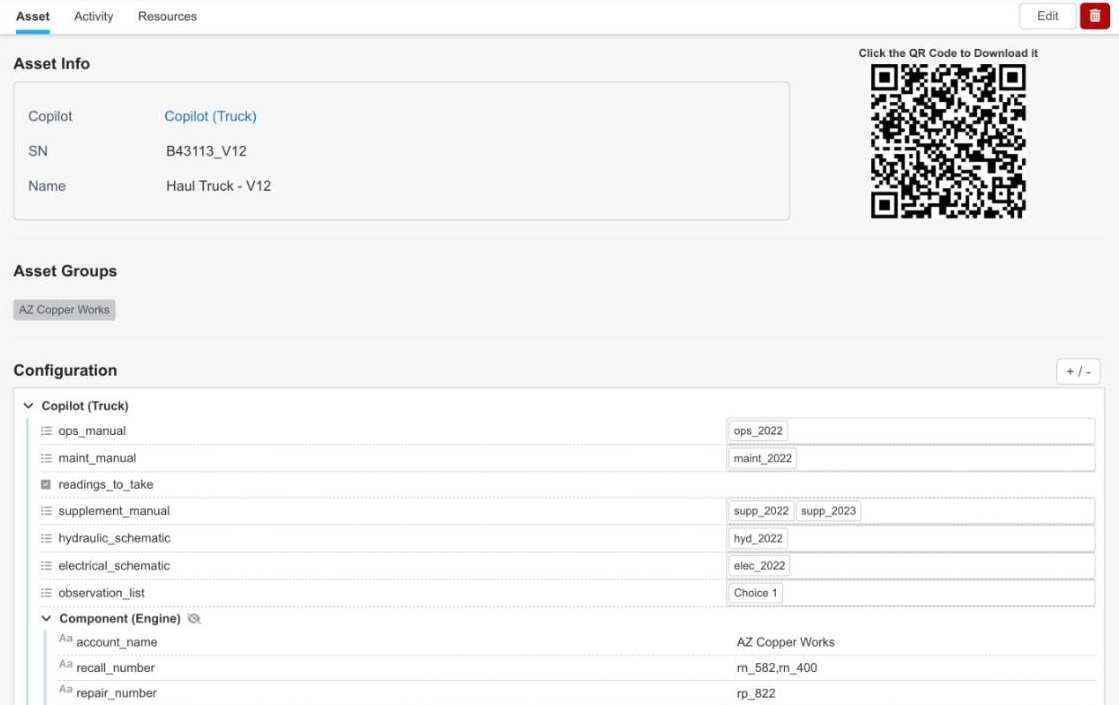
The Asset tab of an asset
Asset Info
| Field | What it holds |
|---|---|
| Copilot | The copilot the asset is built on. |
| SN | The machine's serial number. |
| Name | The name used for the asset in the asset list and in the app. |
Copilot and SN are set when the asset is created. In edit mode, only Name can be changed. See Creating an Asset.
QR Code
The QR code identifies this asset in the InSkill app. Click the code to download it, then print it and place it on the machine. See Scanning Asset QR Codes.
Asset Groups
The asset groups the asset belongs to, such as a site, a production line, or a customer. See Groups.
Configuration
Configuration holds the asset's value for each asset variable in the copilot's data dictionary. The variables are grouped by where they come from: the copilot's own variables first, then a group for each of its components, such as Component (Engine). An icon at the start of each row shows the variable's type. + / - collapses or expands all the groups.
In the example above, the truck's ops_manual is ops_2022, and its supplement_manual holds two values, supp_2022 and supp_2023.
To add a variable to the list, add it to the Asset view of the copilot's data dictionary. See Creating Variables.
How the values are used
The configuration values are what make an asset copilot specific to one machine:
- Resources: a resource with a dependency is shown only for assets whose value matches. A manual with the dependency
ops_manual = ops_2024is not shown for this truck, whoseops_manualisops_2022. See Dependencies. - Answers: InSkill GPT uses the values to give the instruction that fits this machine. See Asset-Based Copilots.
- Tasks: task steps are pre-filled with the asset's values, so the Technician confirms them rather than typing them.
Technicians see the same values on the asset's Configuration tab in the app. See Viewing Configuration.
Editing an Asset
Follow these steps to edit an asset:
-
In the Assets portal, click the asset in the list.
-
Click Edit in the top-right corner. In edit mode, Configuration lists every asset variable, including those with no value yet.
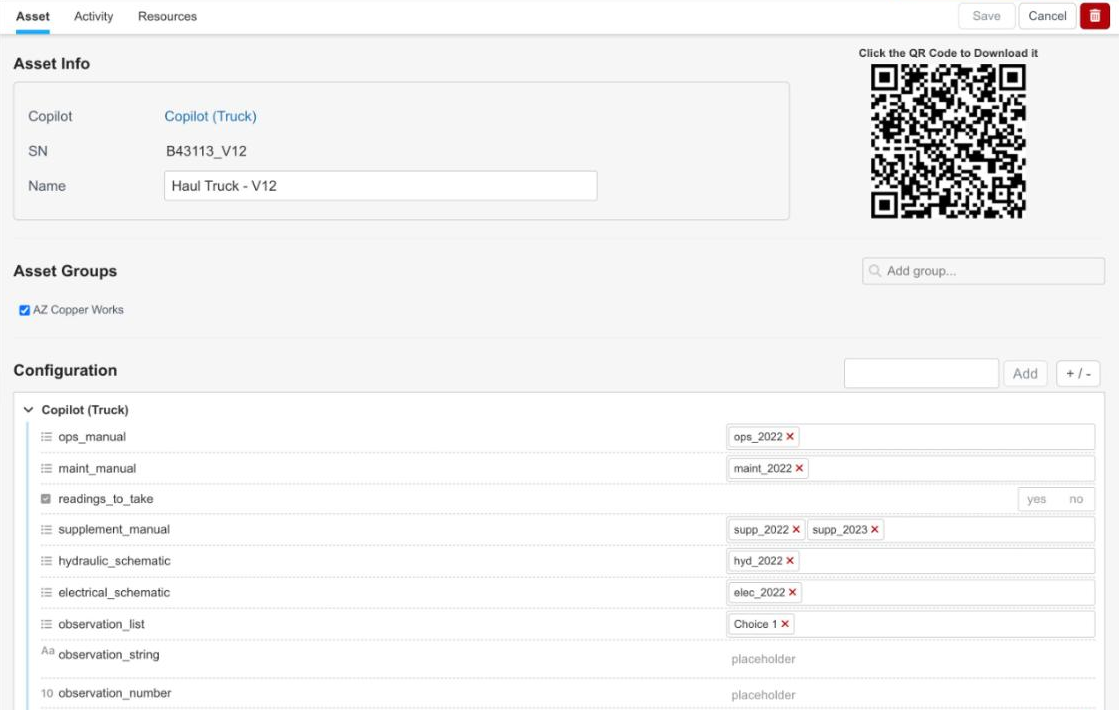
The Asset tab in edit mode
-
(Optional) Change the Name.
-
(Optional) Under Asset Groups, search in Add group... to add the asset to a group, or clear a group's checkbox to remove the asset from it.
-
Under Configuration, set the values: choose list values (click × to remove one), select yes or no, or type a number or text.
-
Click Save, or click Cancel to discard your changes.
The trash icon next to Edit deletes the asset.
Updated about 4 hours ago