
Let InSkill Configure Your Account
Upload the files your company already has, as they are, and InSkill turns them into organized copilots with Field Cards, Solutions, Tasks, and GPT agents.
Getting started with a new undertaking can be difficult. Let InSkill pave the path. Instead of building each copilot by hand, you give InSkill the files your company already keeps, as they are, and InSkill turns them into copilots ready for your Technicians: organized documents, Field Cards, Solutions, Tasks, and the GPT settings that tie them together.
Video: from raw to AI-ready in one easy step
Configuring an account takes five stages, and you do only the first two: gather your files and upload them. InSkill does the rest. It builds a copilot for each machine line, organizes each copilot's documents, and enriches the content until it is ready for both InSkill GPT and your Technicians. The sections below walk through each stage in the AZ Machine Works demo account:
- Gather Your Raw Files
- Upload Them to the Resource Uploader
- InSkill Builds Your Copilots
- Organized Resources
- InSkill Enriches Your Content
Gather Your Raw Files
Collect what your company already has, in whatever state it is in. There is no need to rename, sort, or tag anything first. The demo folder holds 36 files:
- Operator's, maintenance and parts, and service manuals for several machine lines
- Electrical and hydraulic schematics
- Spanish versions of manuals and guides, marked
(ES) - A safety recall, field service safety guidelines, and a business travel policy
- Spreadsheets: a parts list, notices by serial number, and service request history
- PDFs with machine-generated names that say nothing about their contents
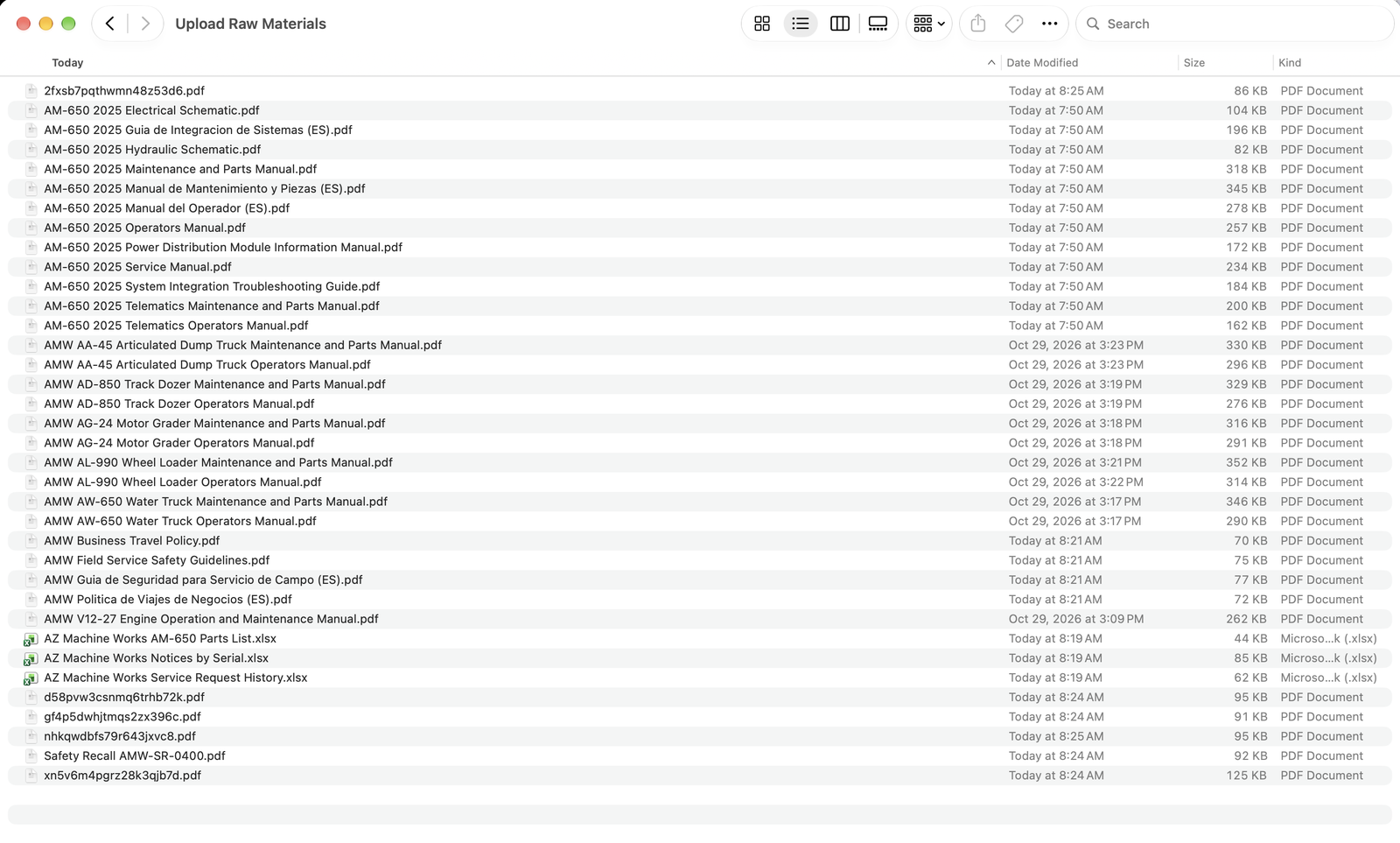
The demo folder of raw files, as they are
Language versions don't need any special handling. Upload them alongside the originals, as they are, and InSkill works out which document each one belongs to.
For the file types InSkill accepts, see Supported Resource Formats.
Upload Them to the Resource Uploader
The account starts with a single copilot, Resource Uploader. It is unpublished and not visible, so Technicians never see it. It is where the raw files go. As InSkill processes each file, it removes the file from the Resource Uploader and adds it to the published copilot it belongs to.
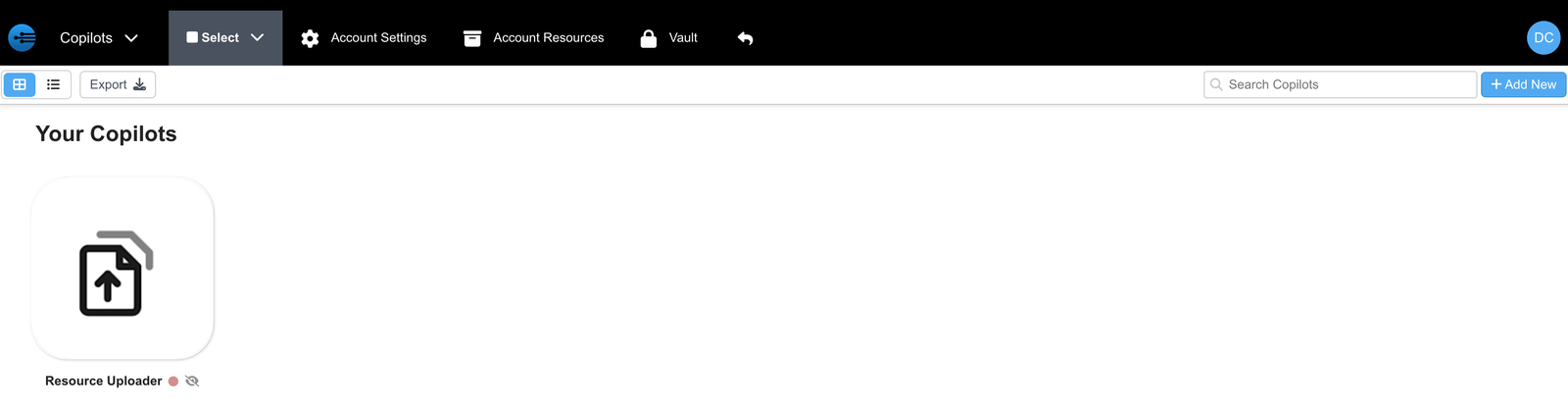
A new account, with only the Resource Uploader
Open its Resources tab and click Bulk Upload. Drop the files into the Bulk Resource Upload dialog, or click browse to pick them. Each file can be up to 700 MB.
The dialog sets defaults for every uploaded file:
| Setting | Default |
|---|---|
| Published | On |
| Roles | Every user level, User 1 through Expert |
| Visibility | App, Web, and InSkill GPT Answers |
| InSkill GPT | Searchable and Parse |
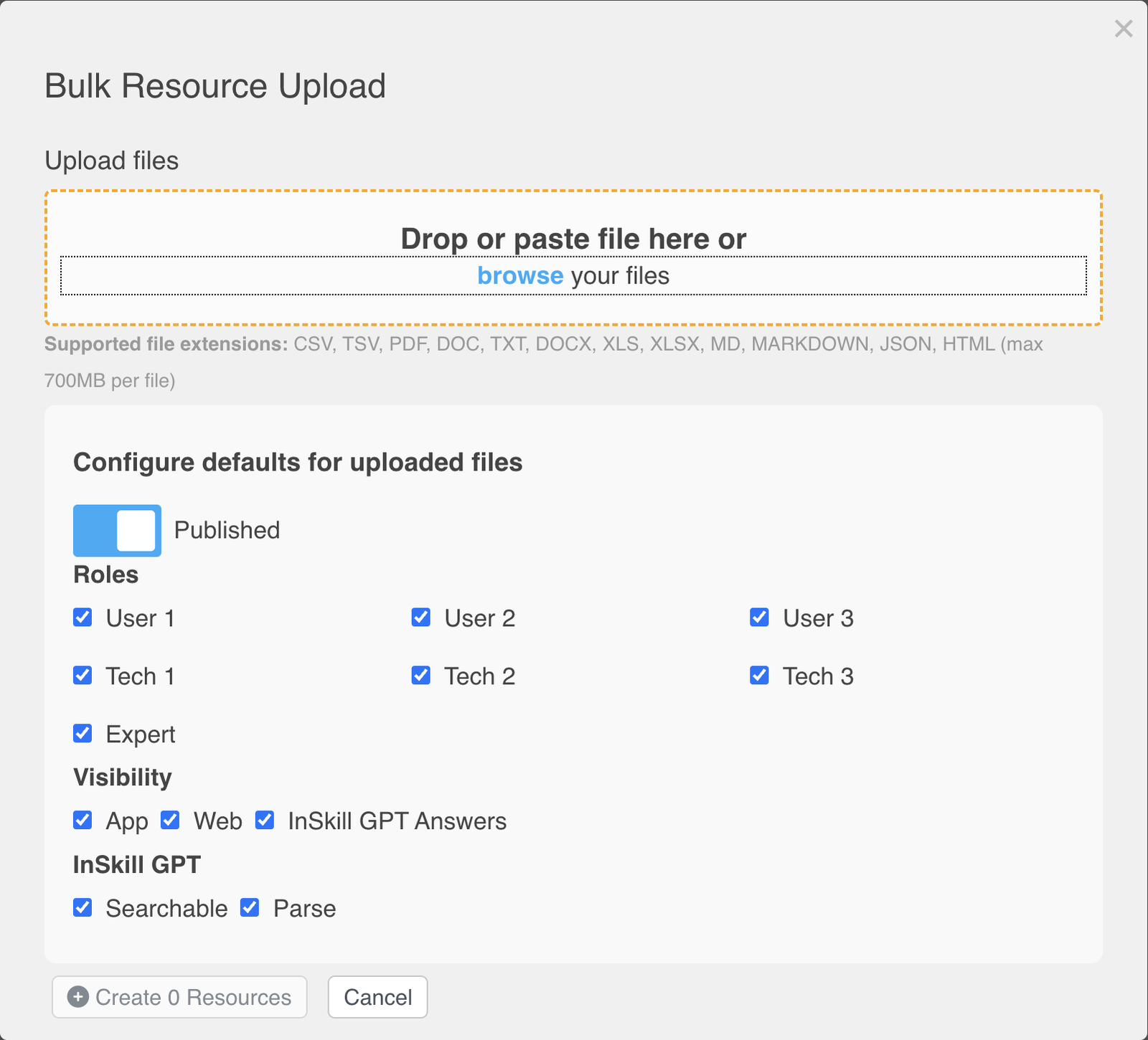
The Bulk Resource Upload dialog and its defaults
The dialog lists each file with its resource name and shows Uploaded as each one arrives. Click Create 36 Resources (the button shows the number of files). Each file becomes a resource in the Resource Uploader until InSkill processes it and moves it to its copilot.
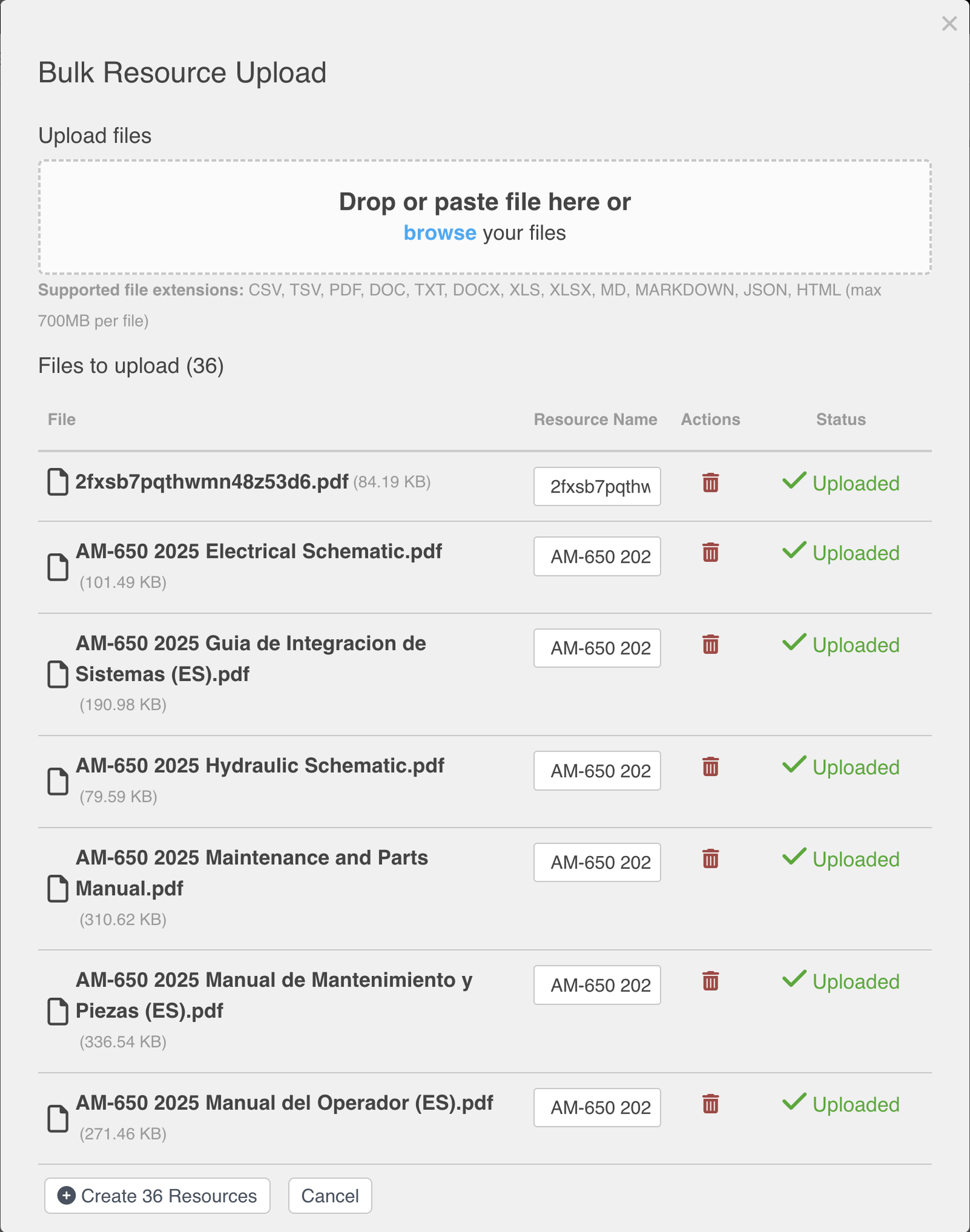
36 files uploaded and ready to create
InSkill Builds Your Copilots
InSkill reads the uploaded files and sets up the account from them. The Copilots portal now holds a copilot for each machine line: Articulated Dump Truck, Copilot (Truck), Motor Grader, Track Dozer, Water Truck, and Wheel Loader. It also holds Component (Engine), a hidden component copilot for the engine. The Resource Uploader stays hidden.
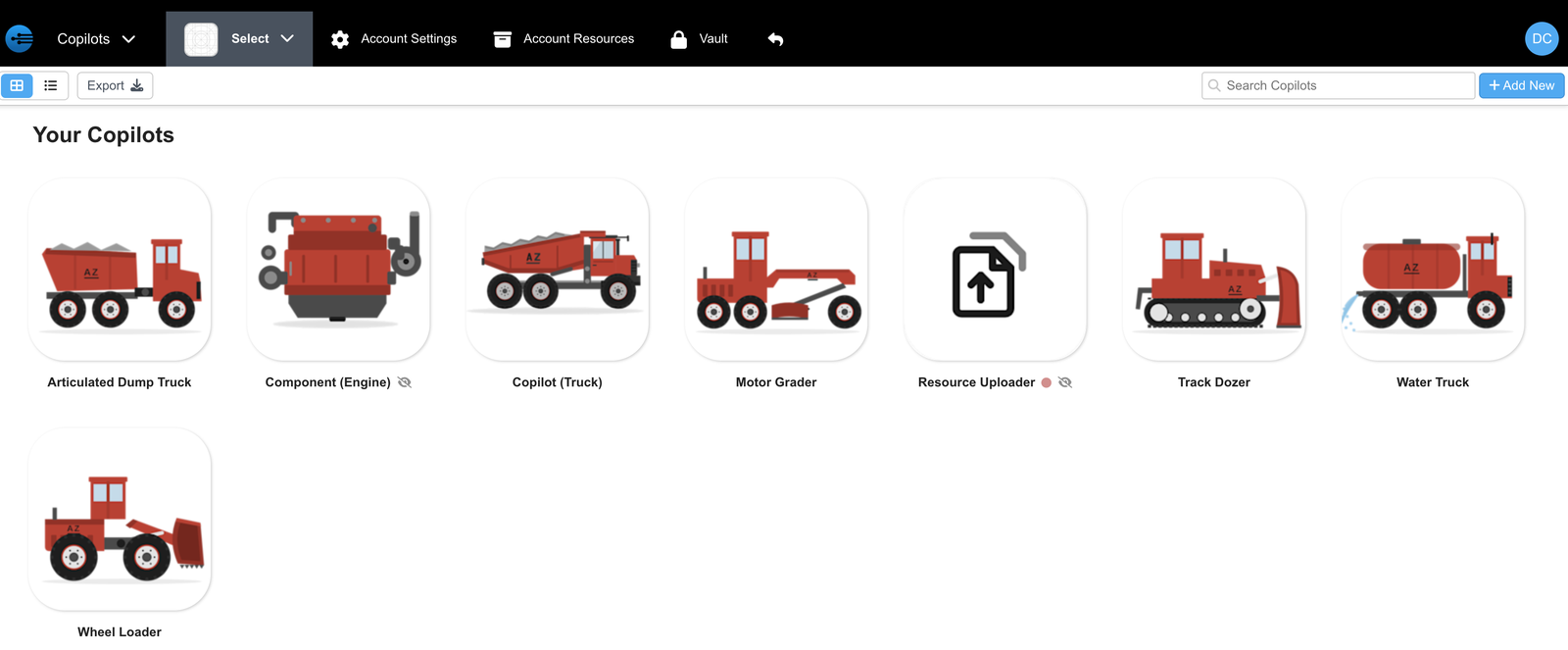
The copilots InSkill built from the upload
Each copilot is filled out across its tabs. The sections below follow Copilot (Truck), the AM-650 haul truck.
Organized Resources
On the Resources tab, the documents for the truck are organized:
- Names: each document has a consistent name that starts with its model year, such as 2025 - Hydraulic Schematic.
- Indexed: a green check in the GPT column shows each document is indexed for InSkill GPT.
- Tags: a Model Year tag marks the year each document covers.
- Dependencies: each document is tied to a configuration variable, such as
hydraulic_schematic = hyd_2025, so an asset sees only the documents that match its own configuration. See Dependencies. - Customizations: Spanish appears on documents that have a Spanish version. InSkill matched each uploaded Spanish file to its English original.
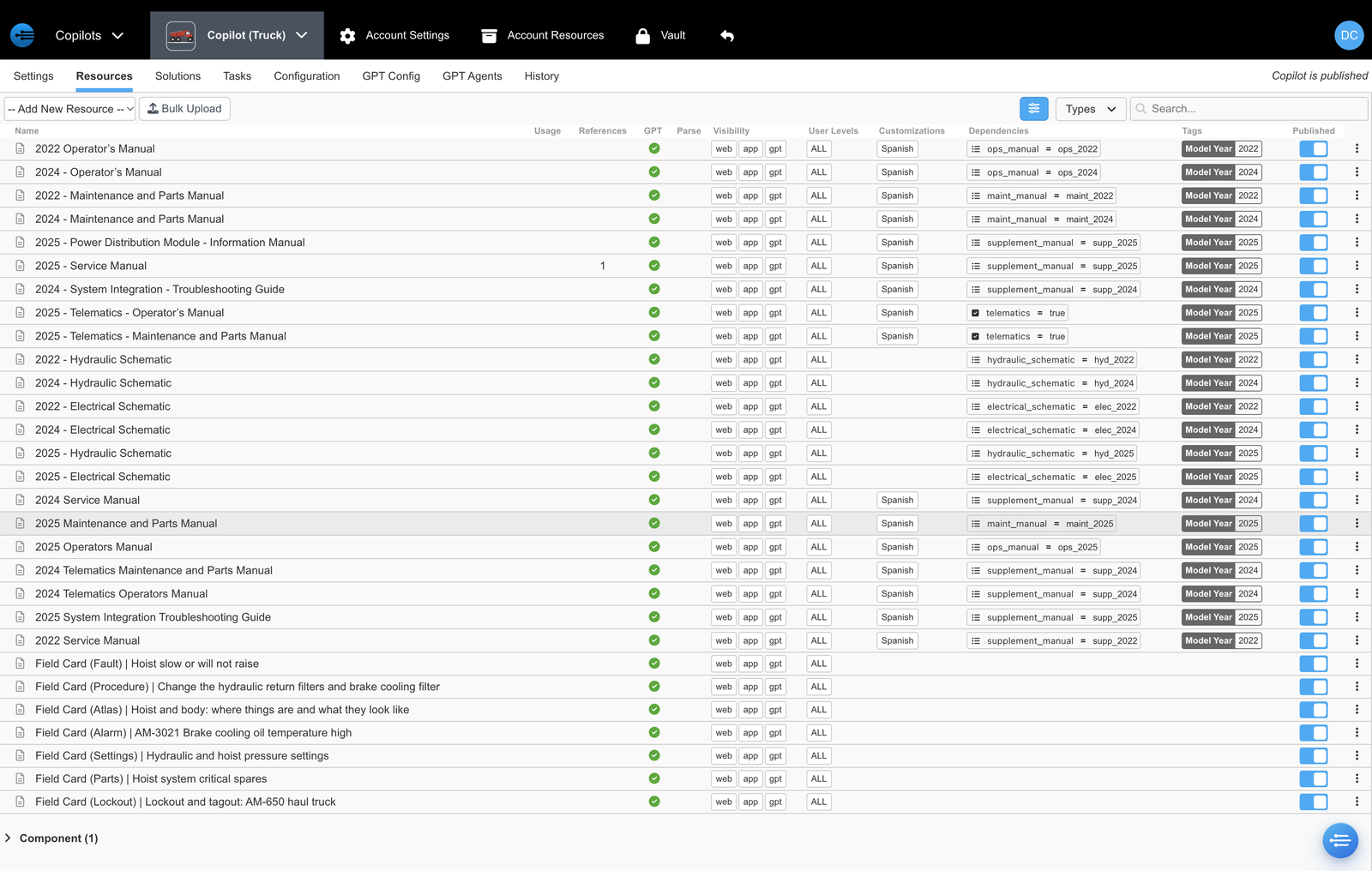
The truck's documents, organized
Open a resource to see its details. Each one has a Description that summarizes what the document contains and a Prompt that tells InSkill GPT how to use it. For example, the prompt on the 2025 hydraulic schematic says which trucks the drawing applies to and tells InSkill GPT to confirm the serial number first. See Editing Resource Attributes.
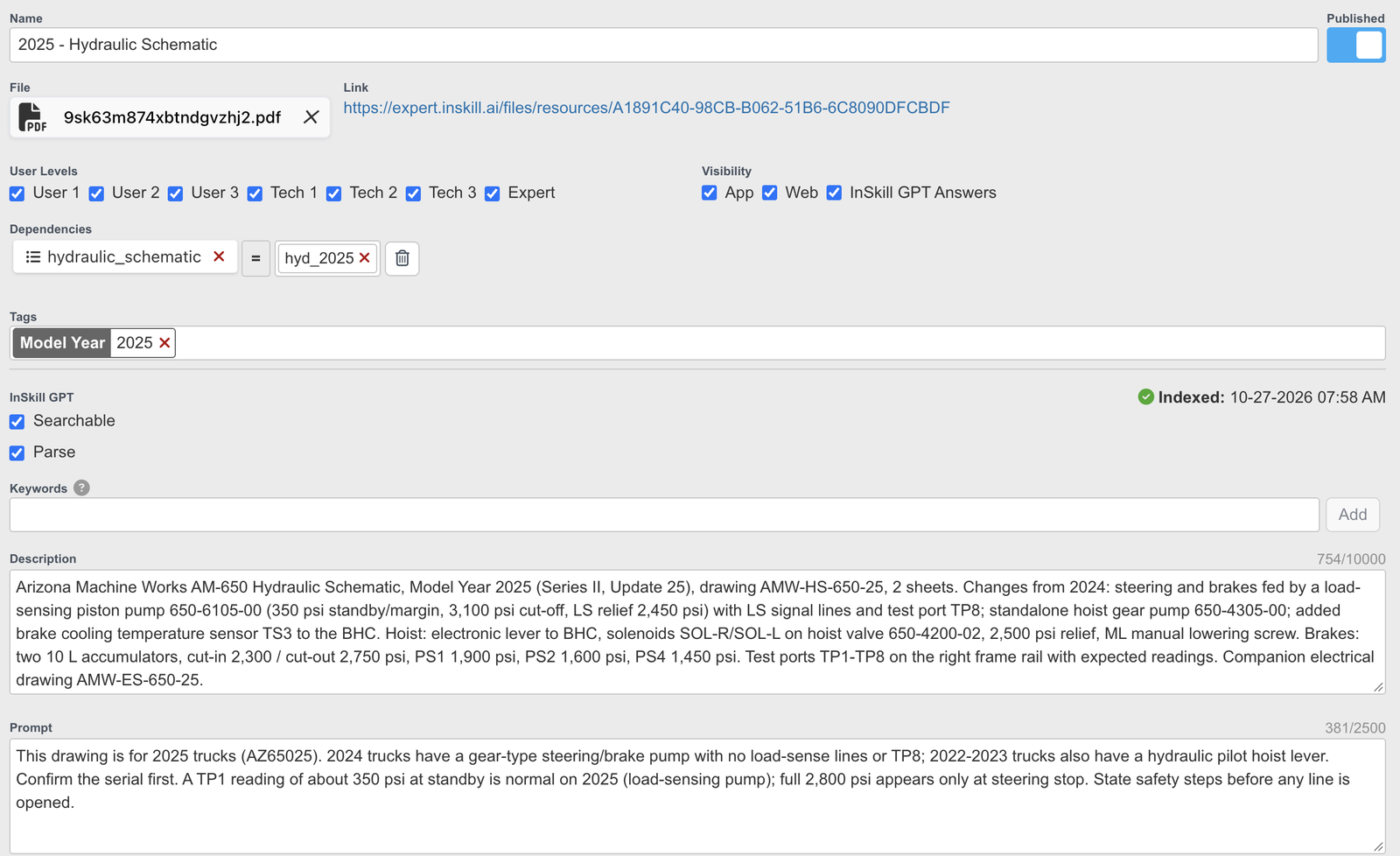
A resource's generated description and prompt
InSkill Enriches Your Content
Enrichment is the process where raw content becomes AI-ready and worker-ready. InSkill picks the right form for each kind of source: SOPs become Tasks, pictures and diagrams become Field Cards, service records become Solutions, and data spreadsheets become GPT agents. For the full list, see Common Conversions.
The results land on each copilot's tabs:
| Tab | What InSkill adds | What you do |
|---|---|---|
| Resources | Field Cards, listed below the documents | Open a card and check it |
| Solutions | Solutions, some published and some marked New | Review the new ones, then Approve and Publish them |
| Tasks | Published tasks | Run one in the app to check it |
| GPT Config | A prompt with the terms Technicians use in the field | Add any terms InSkill missed |
| GPT Agents | Lookup agents for the data spreadsheets | Ask InSkill GPT a question each agent should answer |
Field Cards
Field Cards are PDF resources on the Resources tab, named by type and topic, such as Field Card (Atlas) | Hoist and body: where things are and what they look like. Like the documents, each card is published, indexed for InSkill GPT, visible in web, app, and gpt, and open to ALL user levels.
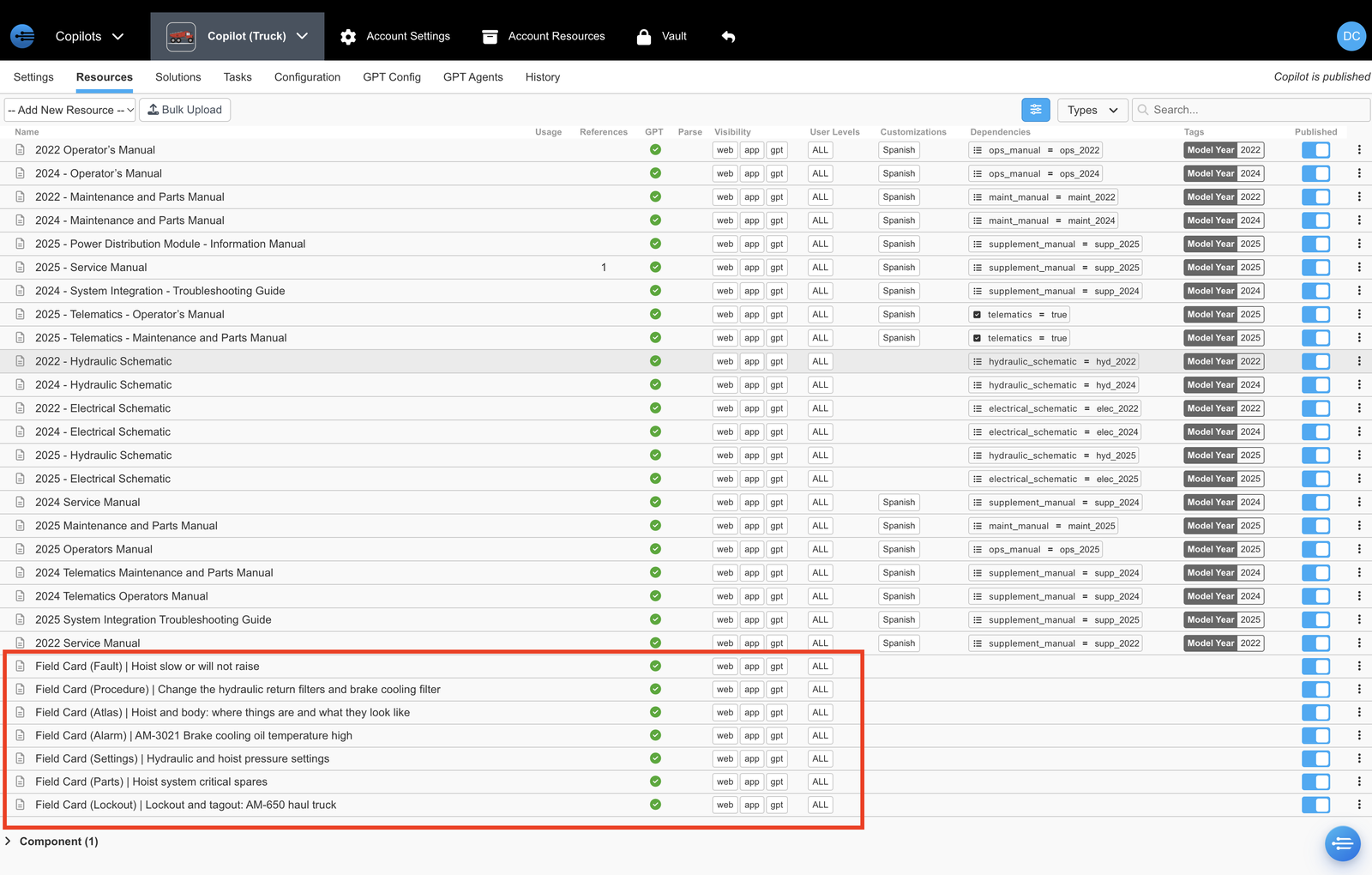
The seven Field Cards below the truck's documents
The truck has seven: Fault, Procedure, Atlas, Alarm, Settings, Parts, and Lockout. Each card states safety steps first, links to related cards, and lists in its source history the field records it was drawn from. See Field Cards and Field Card Examples.
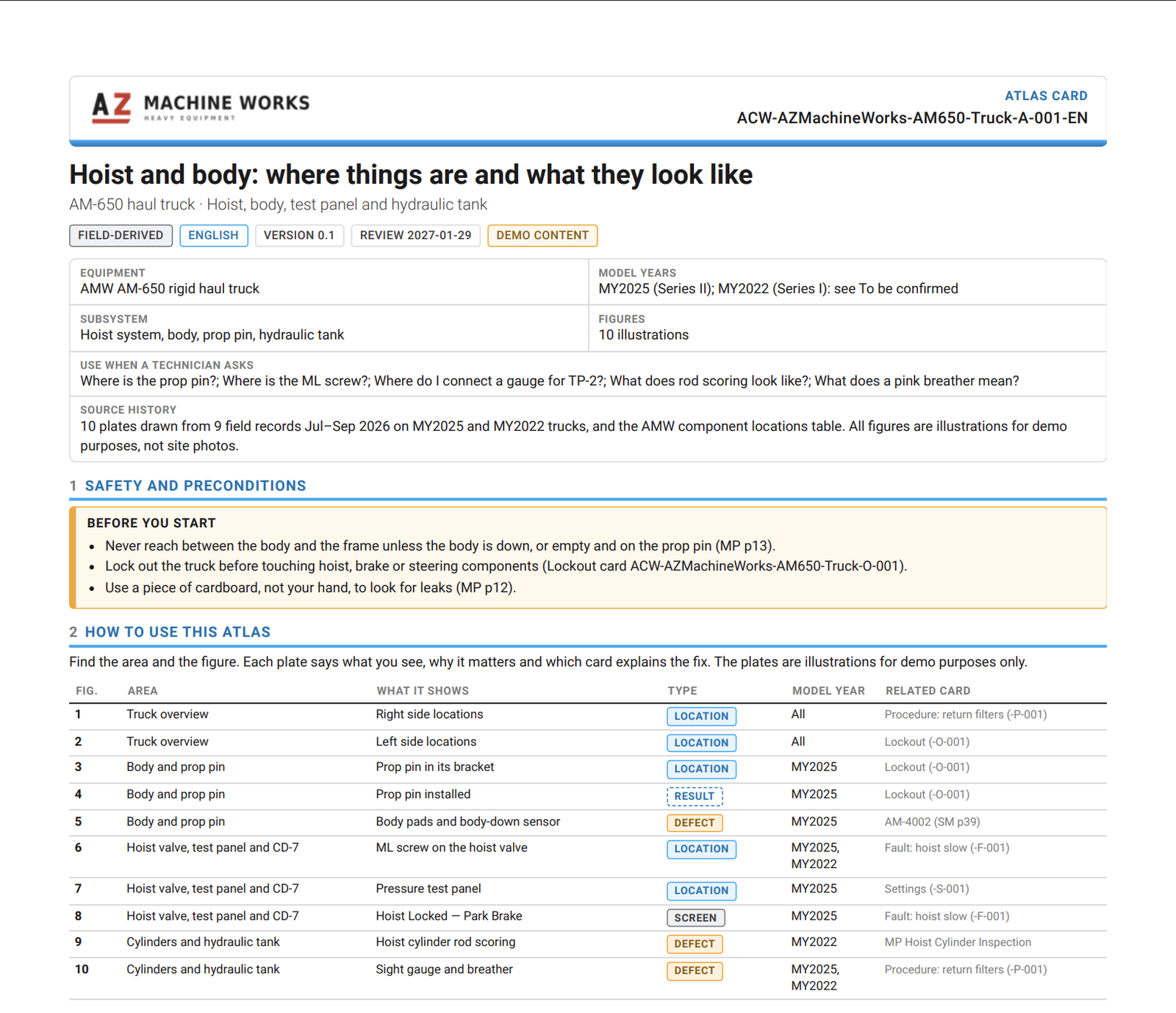
The first page of the Atlas card
Solutions
Generated solutions appear on the Solutions tab, each with a category, such as Body and Cab Components, a Score, and a Sources count. Published solutions show a green check under Indexed.
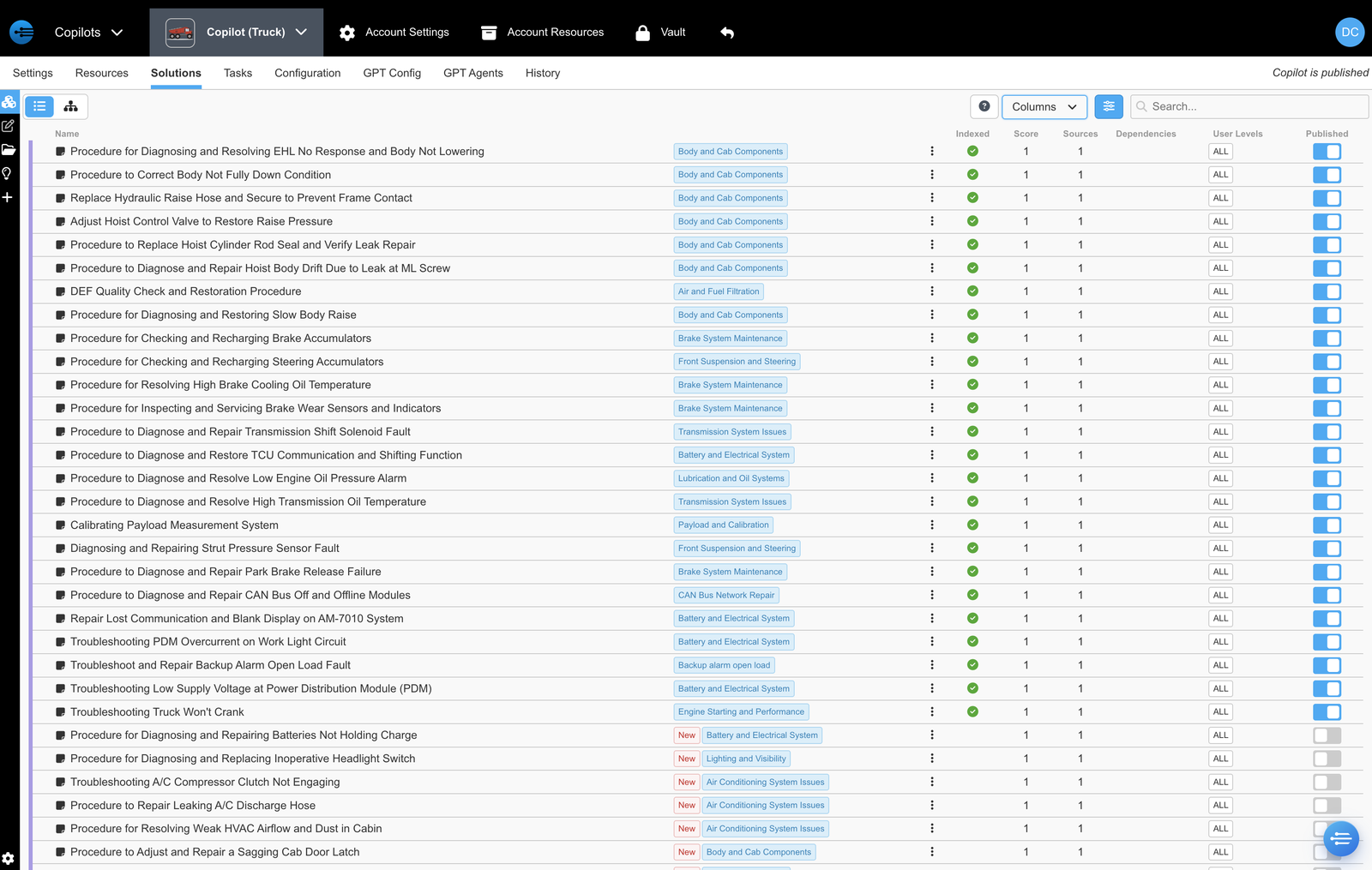
Generated solutions, published and New
Solutions marked New are waiting for review. Open one, check its safety reminders, parts, and steps, then click Approve and Publish. See The Solution Lifecycle.
Tasks
Generated tasks appear on the Tasks tab, published, visible, and in order, such as Pre-Operational Inspection with Photos and Sign-Off and 500-Hour Engine Oil and Filter Change.
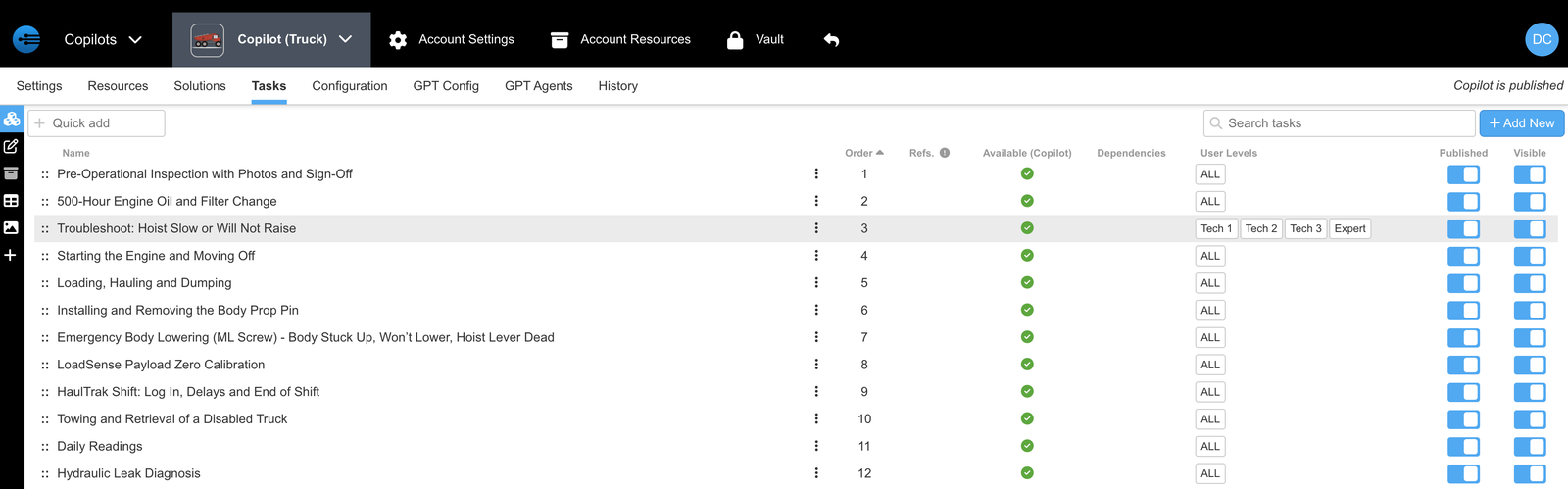
The truck's generated tasks
- Sources: each step names the manual it came from, such as AM-650 Operator's Manual · AMW-OM-650-24 Rev. B.
- Branching: a question in a step, such as "Did material stick in the body?", sends the task down a different path for each answer.
- User Levels: limit who sees a task. The troubleshooting task is set for Tech 1 through Expert.
- In the field: a task captures sign-offs, runs offline, and saves a report with the asset, which can be emailed.
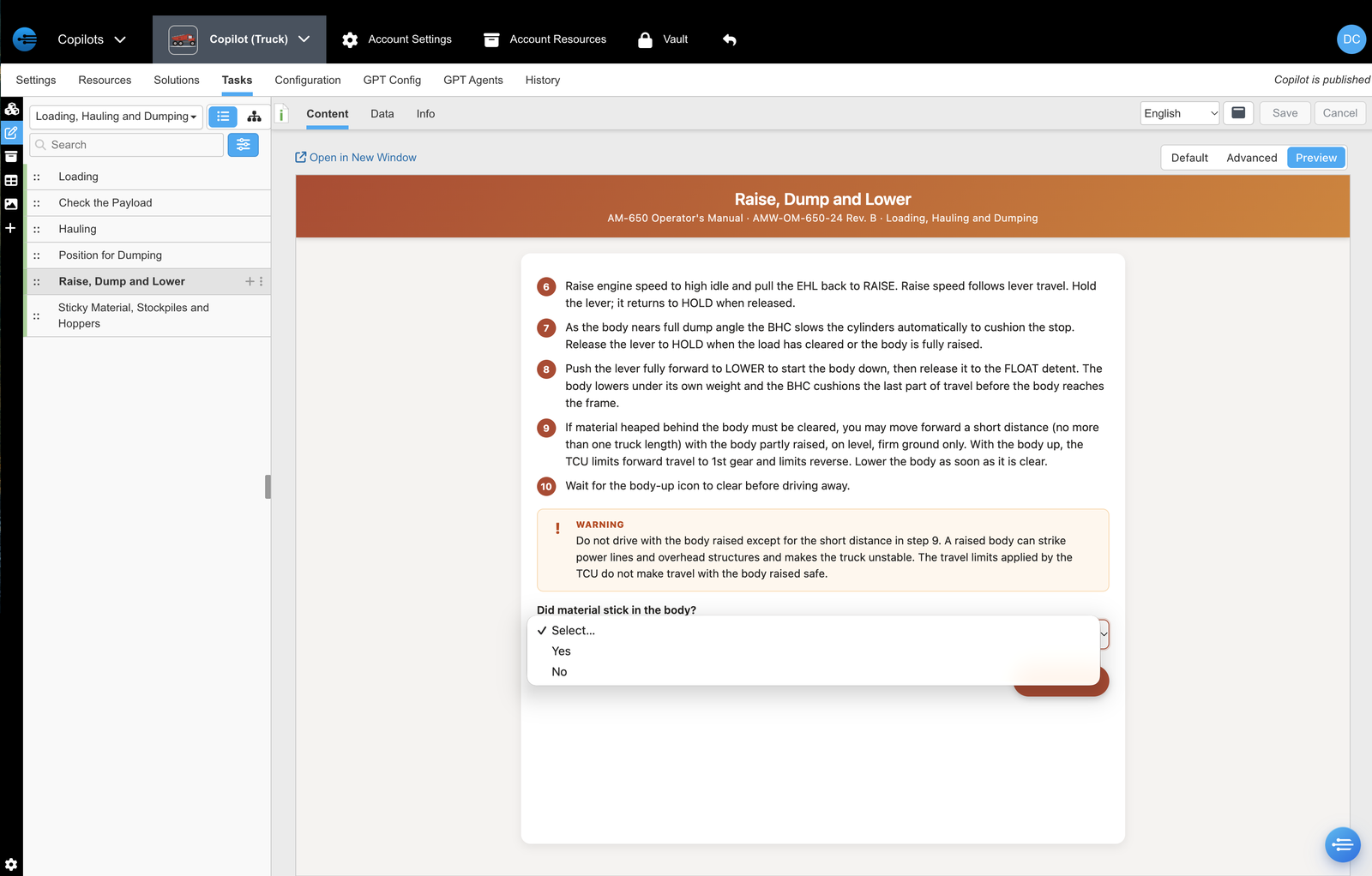
A generated task step, with its source and a branching question
See What are Tasks.
GPT Config and GPT Agents
The GPT Config prompt lists the informal names Technicians use, such as "bed", "box", and "tub" for the dump body. Edit the prompt and click Save to add more. See GPT Config.
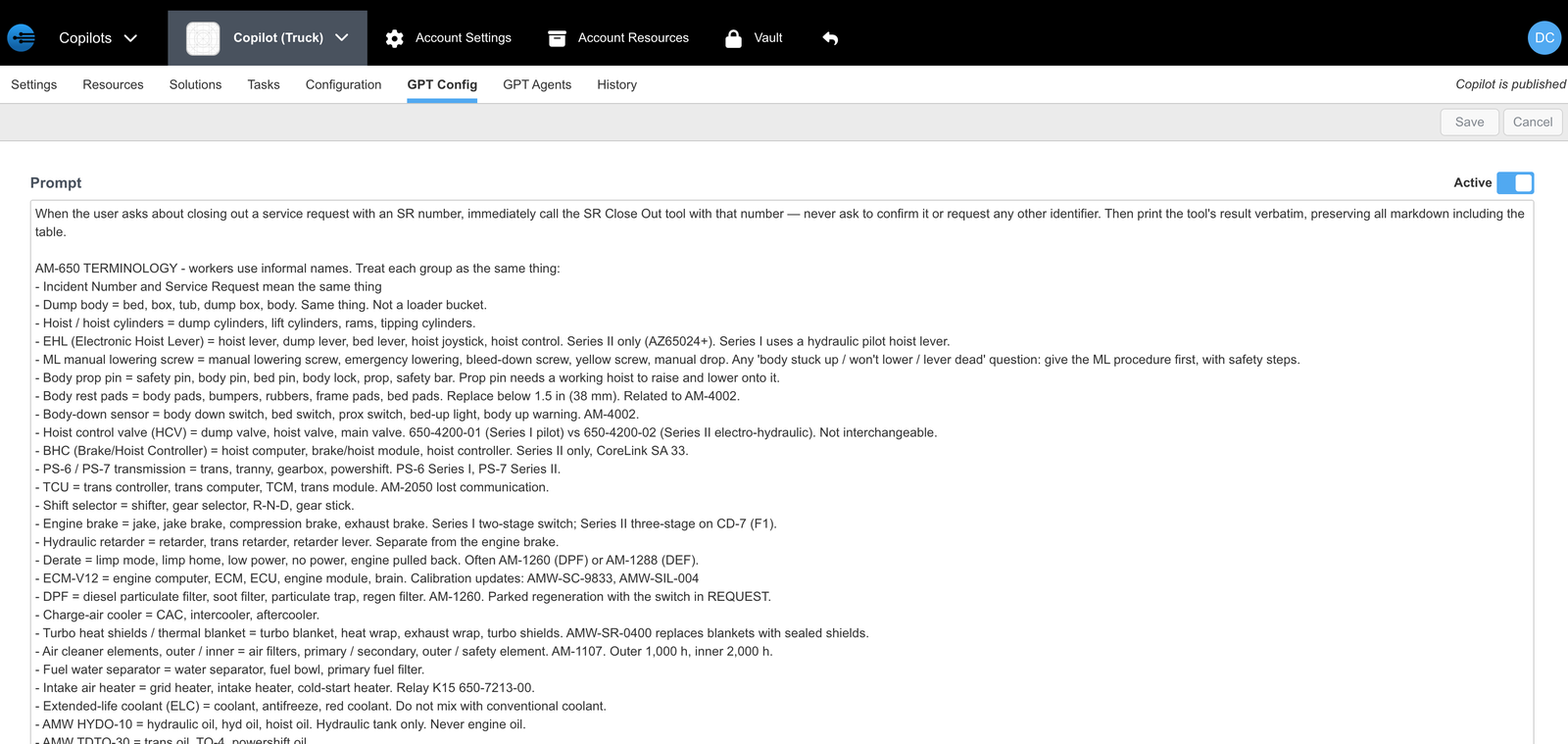
The generated GPT Config prompt
The GPT Agents tab lists the lookup agents InSkill built from the upload's spreadsheets:
| Agent | Type | Built from |
|---|---|---|
| AM-650 Parts Look up | Data Query agent, Parts template | Parts list |
| SR Details Lookup | Data Query agent | Service request history |
| Notices by Truck Serial Number | Data Query agent | Notices by serial number |
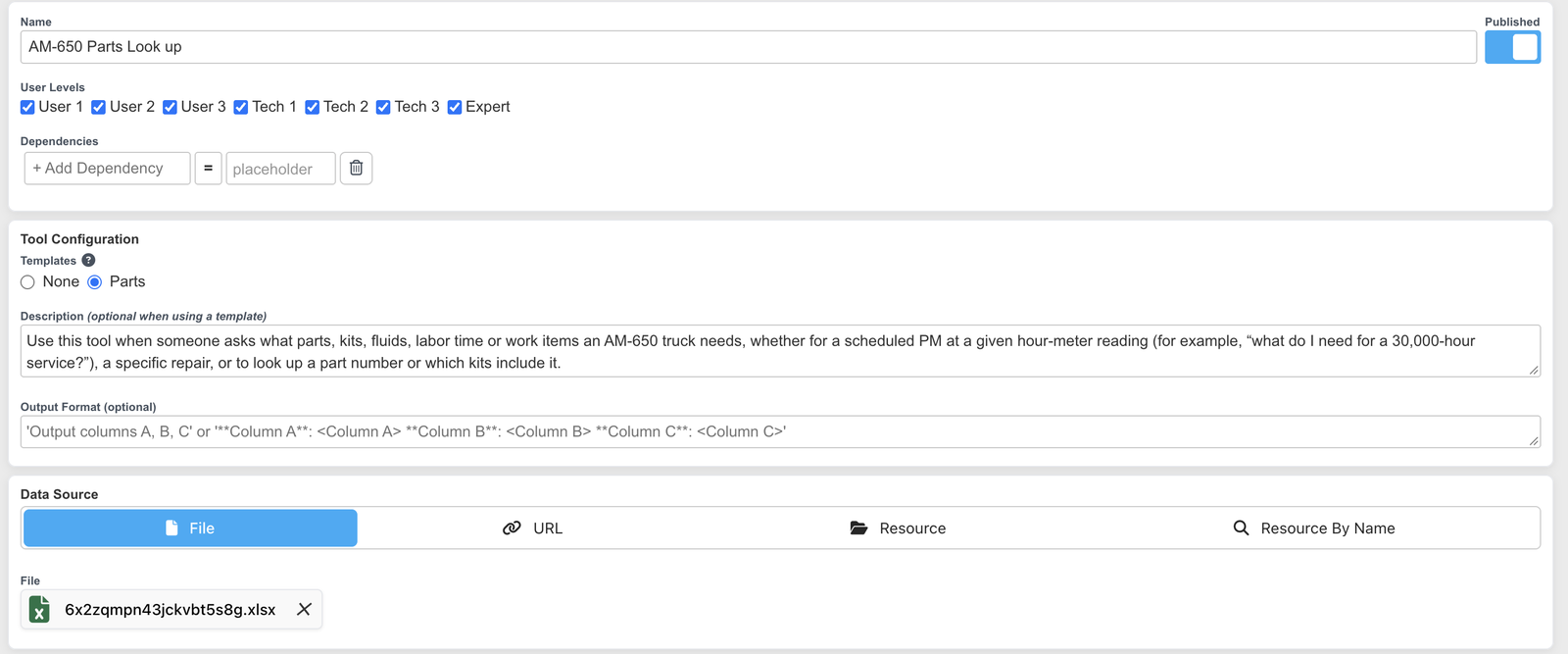
The generated parts lookup agent
See GPT Agents.
Where to Go Next
| To | See |
|---|---|
| See what each kind of source becomes | Enriching Expertise |
| Ask the new copilots questions you know the answers to | Asking a Question |
| Approve and publish the new solutions | Solutions |
| Invite your team | Adding and Modifying Users |
| Build a copilot by hand instead | Your First Copilot |
Updated 19 minutes ago