
Working Inside a Group
What group members see and create, how users are assigned to groups, and how groups filter Intelligence and the User Log.
A member of a group sees a filtered view of copilots. If they create a new copilot, it belongs to their group so that it is visible to them; an author who belongs to multiple groups can select which group the copilot goes in. A user cannot create a copilot that would be invisible to them. The same applies to creating users and customers — a group member's new records automatically belong to their group.
Assigning Groups
On the Team and Customers tabs, the + Add New form has a Group (Optional) field, which is required if the administrator is in a group. The same is true when creating copilots. Both tabs have a group selector for filtering, including a No Groups option that shows every user not in any group.
Editing a user shows the group tree in the user's Groups section, where you select the groups the user belongs to. Selected lists the groups chosen. The parent of a selected subgroup is checked too, since a member of a subgroup also belongs to its parent.
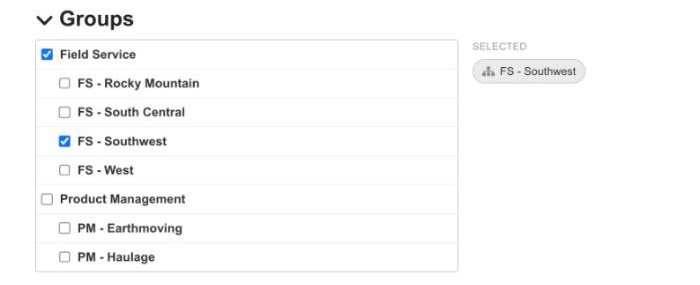
Choosing a user's groups in edit mode
Groups in Intelligence and the User Log
The Intelligence portal and the User Log both have a group selector that filters activity to the members of the selected group.
An action is related to a group based on the user's membership at the time of the action. If a user in the Support group runs a task, it appears in the user log for Support even after that user leaves the group. Conversely, adding a user to a group does not bring their previous actions with them.
The same applies to the APIs. See User Group API Keys.
NoteIf a user, customer, or copilot is deleted, its group associations are deleted too. Groups are not exchanged between the author and expert environments.
Updated about 7 hours ago