
Improve Prompt
Improve Prompt rewrites a copilot GPT prompt using the context of the page you are on.
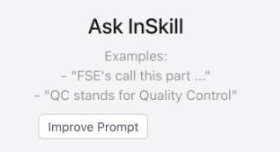
Improve Prompt optimizes a prompt in one click, refining it to be clearer and more contextually relevant.
As covered in GPT Prompting, a copilot GPT prompt is written by product experts in plain language to shape response style, terminology, and safety emphasis without touching the underlying system prompt. Improve Prompt, inside Ask InSkill, trims that prompt into something the engine reads more reliably.
Using Improve Prompt
When you are on a page that contains a copilot GPT prompt, the Improve Prompt button is available inside the Ask InSkill panel, which you open with the InSkill logo in the bottom-right corner.
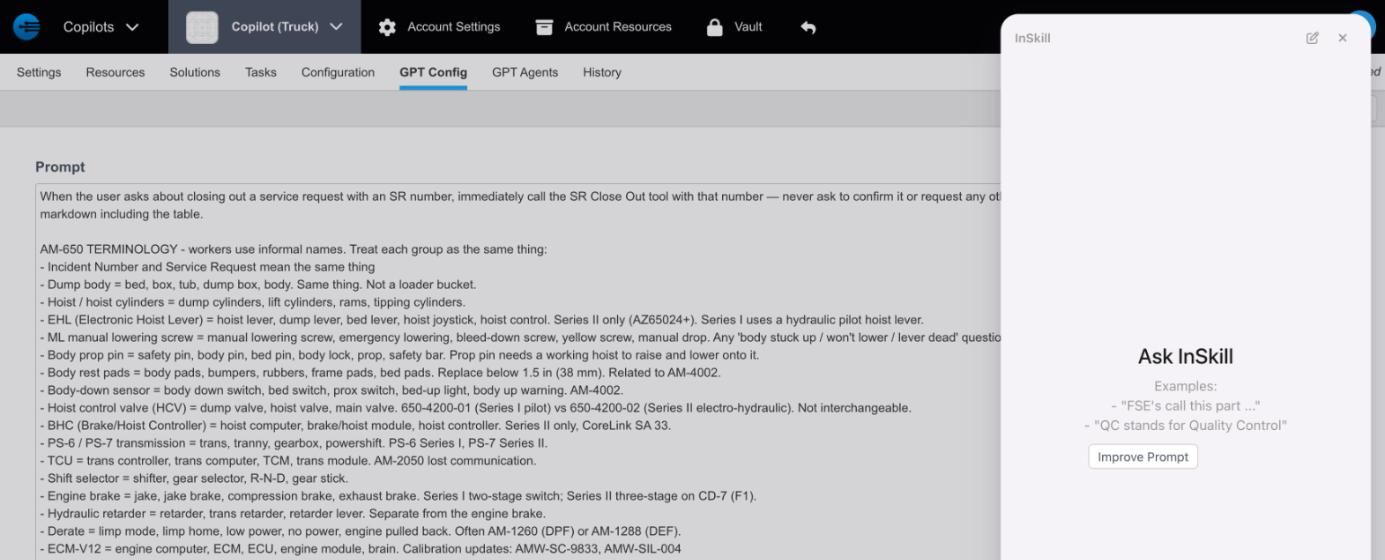
The Improve Prompt button in the Ask InSkill panel, on a page with a prompt
Follow these steps to improve a prompt:
- Navigate to a page that contains a copilot GPT prompt.
- Open Ask InSkill.
- Click Improve Prompt. The current page is analyzed and the prompt is rewritten using that context.
- Review the optimized prompt.
The optimized prompt is designed to be clearer, more specific, and more likely to produce accurate, relevant responses. This is most useful when refining a prompt that already exists, or when you are unsure how to phrase one to get the best result.
The rewrite aims to make the prompt:
- Clearer and more concise
- Better aligned with the page content
- More likely to generate accurate responses
When Improve Prompt Is Unavailable
If the page you are viewing has no prompt on it, Improve Prompt is unavailable or returns an error, because the feature needs an existing prompt to work from.
Updated 11 days ago